
Xentra app for iPhone and Android
Download the app and sign in (without Google/Apple), Face ID, push, which pages exist in the app and how you choose quick access.
Updated on November 12, 2026
Xentra is available as an app for your smartphone:
- iPhone (App Store): https://apps.apple.com/us/app/xentra/id6773092845
- Android (Google Play): https://play.google.com/store/apps/details?id=com.myxentra.app
After installation, sign in with your existing Xentra account. You do not create a new account in the app, that is only possible in the browser. Your team (cleaning, caretaker, owner) also uses the same app with their own login.
Signing in to the app
"Continue with Google" and "Continue with Apple" are only available in the browser at app.myxentra.com, not in the app. If you created your account with Google or Apple, you sign in to the app with your email address: via "Sign in with an email link" (then "Send Magic Link", you receive a sign-in link by email) or you set a password via "Forgot password?". It is best to open the link on the same device; the sign-in link opens the app directly.
Sign in with Face ID (iPhone)
From app version 1.8, you sign in to the iPhone app with Face ID or Touch ID instead of entering a password and code.
- After the first full sign-in, the app asks once "Sign in with Face ID next time?". With "Yes, turn it on", it is active.
- Turn it on and off: in the app under Settings (open Settings in the app), card "Sign in with Face ID", switch "Use Face ID". The card is only available in the app, not on the settings page in the browser. It only applies to this device.
- If Face ID is on, "Sign out" only locks the app, your login remains saved. On the sign-in screen, you then tap "Sign in with Face ID". Directly after signing out, the app does not ask by itself, only on the next start.
- If the app reports "Face ID sign-in has expired" (for example after a password change), you sign in once with your password and turn Face ID back on.
- Face ID sign-in is not available in the browser and in the Android app.
Push notifications
Push is only available via the app: sign in once and allow notifications, this applies per device. Which notifications arrive is set for your entire account under Notifications; in the app under Settings you also find the grouping of guest messages. Under Settings, Notifications, the Connected apps card shows whether your app is connected.
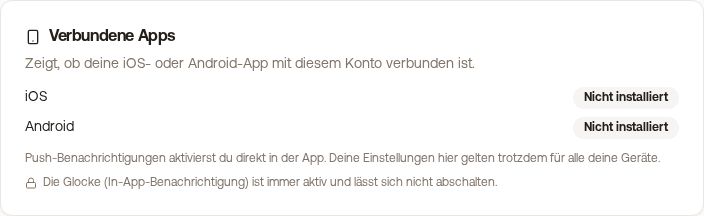 Notifications with the "Connected apps" card
Which pages exist in the app
The app intentionally shows only a portion of the pages: Dashboard, Units, Calendar, Pricing, Rental KPIs, Financial analysis, Inbox, Access control, My Invoices, Owners & Managers, Cleaning & maintenance, Contacts, Outgoing Invoices, and Settings. You see Pricing as soon as your account is connected to the Channel Manager, the KPI pages when you have activated the respective module. You can also find all three via the search at the top. In the app, "Settings" only contains what affects this device: Sign in with Face ID, push notifications, and the grouping of guest messages.
Everything else has no menu item in the app, including Integrations (PMS, iCal, Channel Manager, locks), the remaining Settings of your account, Templates and automations, Incoming invoices, the guest guides, owner accounting, your subscription, and the AI assistant. The pages are not switched off: You reach them in the mobile browser under app.myxentra.com, for example app.myxentra.com/integrations/ical or app.myxentra.com/messaging/templates. The fastest way is with a bookmark.
Quick access and rating
- Choose quick access: In the app menu, you specify which page appears as the fourth button in the bottom bar. The same works with a long press on this button.
- Rate Xentra: In the iPhone app menu, you go directly to the rating in the App Store.
- Referral program: In the app menu, you open the referral program and forward your link directly via "Share link".
The app usually updates automatically. You install new app versions from the store as usual.