
Status and outage notices: when a portal is not delivering right now
What the outage notice above the app means, what the status page shows and what you can do while a portal is not delivering.
Updated on November 6, 2026
Sometimes an outage is not on your side and not at Xentra, but at a portal or provider, for example “Booking.com is not delivering any new bookings right now”. If Booking.com is down, new and changed bookings do not arrive at any provider, Xentra included; your account is not the cause in that case. So you do not have to guess, Xentra shows such outages in three places.
The notice above the app
For a major outage a window opens above the app; on the phone it slides in from below. It names the outage, since when it has been running (or from when to when it ran), what it means for you and which areas are affected, with a bar for the last 30 days per area. The window cannot be clicked away: tick “I have read the notice.” and click “Confirm”. Only then does it close; you can always find the current status later under Status.
The notice reaches you, your team admin and team members who may see bookings, each once. Cleaning and caretaker only get it for outages that affect them too. The notice comes while the outage is running. For some outages, for example if bookings or messages may have failed to arrive in the meantime, you also get it at your next login after the end, marked with “Resolved”.
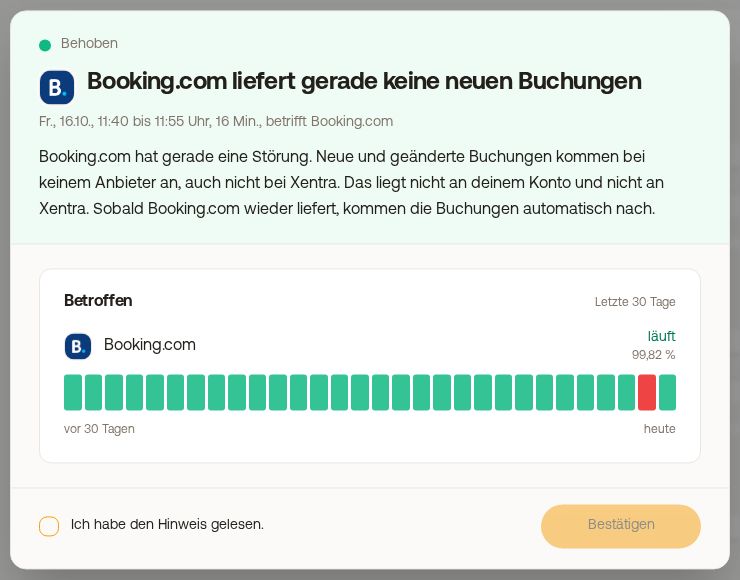 The outage notice above the app with “I have read the notice.” and “Confirm”
The Status page
In the sidebar, under Changelog, is the item “Status” (Open Status), with a green dot as long as everything runs. Every login can see the page, including your team. It shows:
- at the top whether everything runs (“Everything is running.”) or which outage is current, with interim updates; a running outage always shows here, with a red or yellow bar for today. If “More details” appears below it, the link leads to the provider's page, for example its own status page (opens in a new tab),
- for each area a bar for the last 30 days with the availability in percent: green means running, yellow restricted, red outage; when you hover over or tap a bar you see what happened that day,
- four groups: Xentra (app, server and database), Booking portals (for example Booking.com and Airbnb), PMS and channel manager and Infrastructure (services for payments, messages and door codes); less important providers you expand via “show more”,
- the list “Outages in the last 30 days”.
When an outage is running, the menu item moves right to the top, is called “Outage” and is red (failure) or yellow (restriction). A number on it shows new interim updates since your last visit. On the phone, the menu button gets a dot.
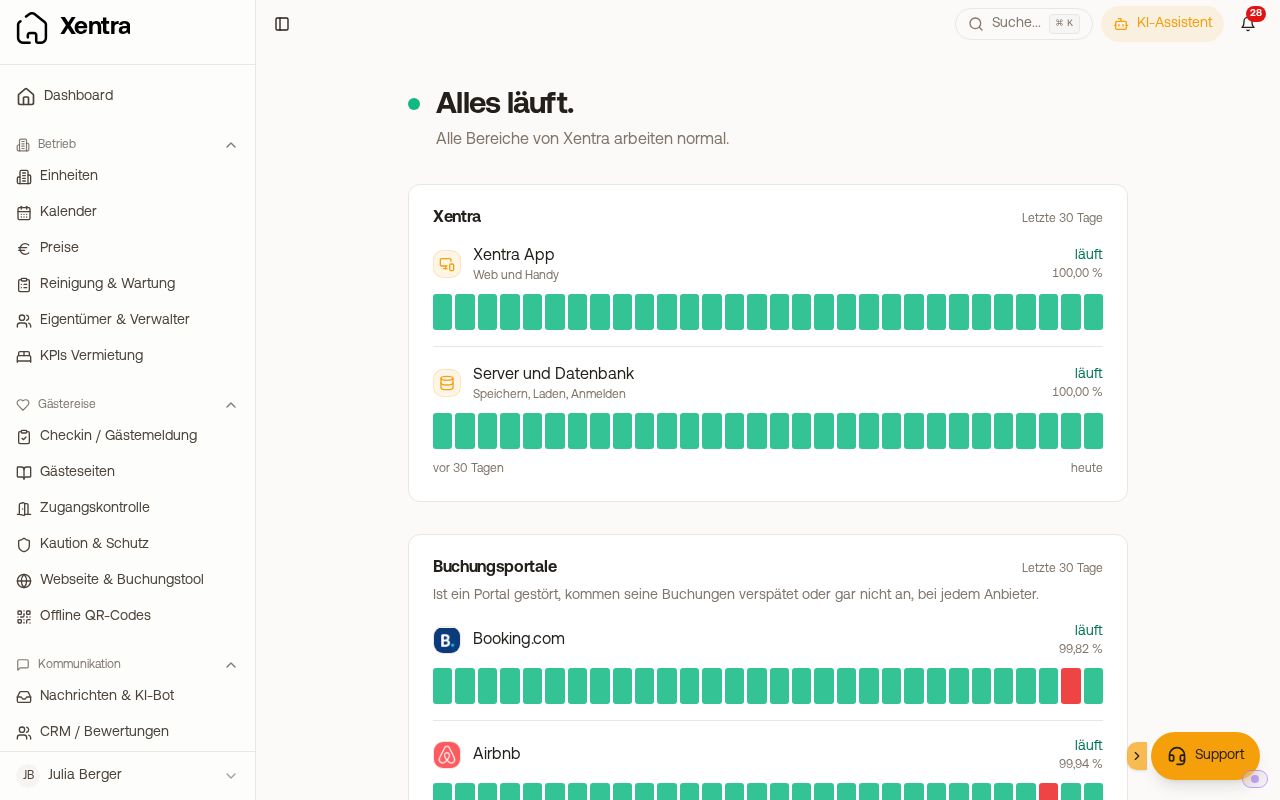 The status page with the areas and the bars for the last 30 days
In the support chat
If you open the support chat during an outage, a note with “To status” appears on the start page. So you can see whether it is already known before you write.
What you can do during an outage
- Do not create anything twice. If a portal is not delivering bookings, they come in once it delivers again. Do not enter them by hand, otherwise they will later show up twice in the calendar.
- Check in the extranet if you need a particular booking right away, for example for an arrival today.
- Follow the status on the Status page; interim updates appear there without reloading.
The bars show the outages we have recorded there. An outage that only affects your own account (for example a disconnected connection) does not appear here, but in the tab Action needed. If the status page shows everything in order and it still does not work, write to us in the support chat.