
Settings: what is where
Overview of all settings sections (Account, Operations, Connections), what team members see there, and what you find elsewhere.
Updated on November 12, 2026
All settings of your account are on one page: click your name at the bottom left, Profile & Settings, or directly Go to settings. On the left, the sections are listed in three groups. You save changes using the bar that appears at the bottom as soon as you change something.
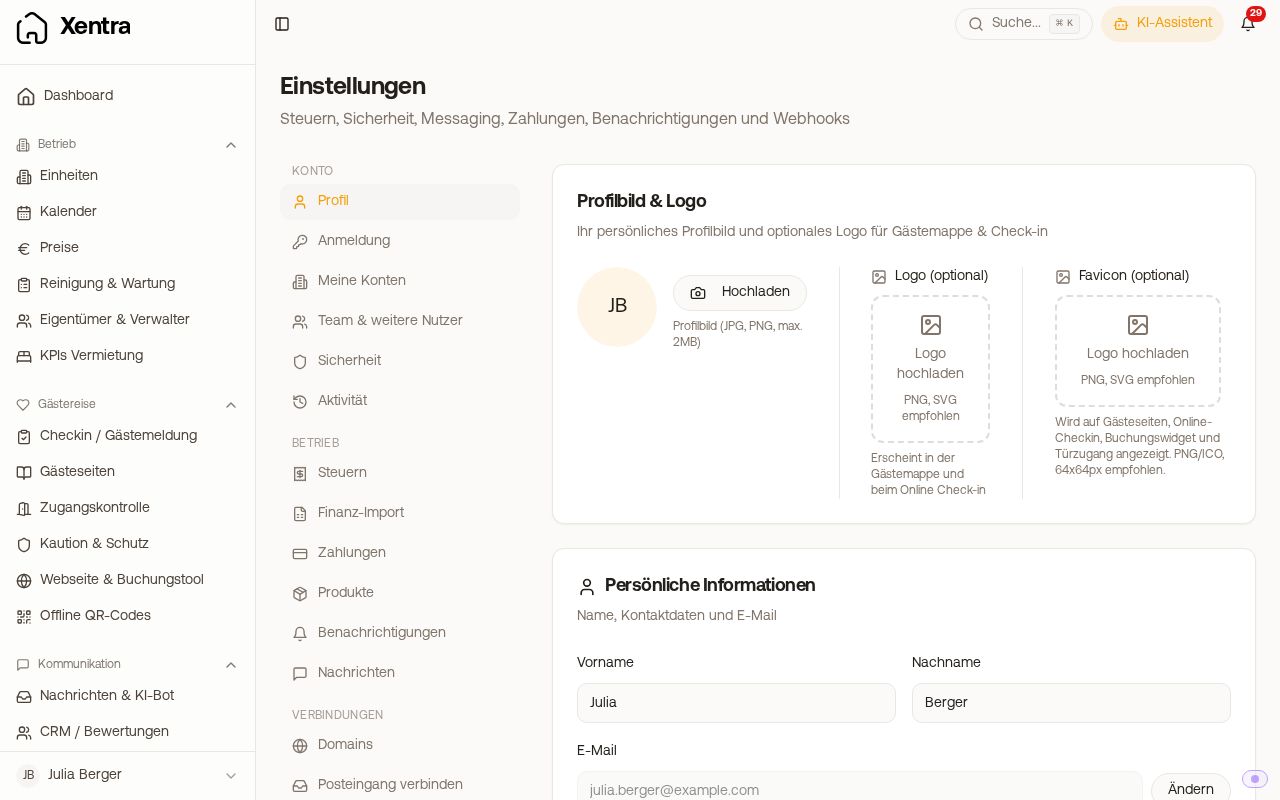 Settings with the sections Account, Operations, and Connections
Account
- Profile: Profile picture, logo and favicon, personal data, business data (VAT ID, tax number), address, contact details for guests, and your start page. Details: article "Profile: your data, logo, and guest contact details".
- Login: Change password, two factor authentication, and automatic logout.
- My accounts: the accounts in which your login works and invitations from other hosts.
- Team & further users: Logins for cleaning, caretakers, owners, booking managers, and admins.
- Security: Password protection for access links, invoices, guest pages, and guest registration forms as well as AI & privacy.
- Activity: the log of who changed what in your account.
Operations
- Taxes: Rental type and tax rates for evaluation, Currency, and depreciation (AfA).
- Financial import: how booking revenue, cleaning, and tourist tax are imported into finances.
- Payments: the Stripe accounts card for guest payments, the name on the guest bank statement, and Cancellation & refund (what is automatically refunded upon cancellation). You can see your AI usage under Billing.
- Products: Additional services and upselling.
- Notifications: which alerts arrive via push, email, and bell, and to which addresses.
- Messages: Guest salutation (informal or formal), email alias for guests, default language for guests without a known language, and message sync with your PMS.
Connections
- Domains: custom domain for booking page, check-in, guest guide, and website (add-on module).
- Connect inbox: connect your existing mailbox so guest replies land in the Xentra inbox.
- API / MCP: API keys, webhooks, and connections to AI assistants like Claude or ChatGPT.
- Reviews: automatic reviews and replies.
Team members only see their own sections here (Profile, Login, My accounts, Activity) and, for individual and customized team members, additionally the sections you give them access to in the rights matrix. An admin sees everything except payments.
Settings on mobile
In the browser on your phone, settings start with a list of all sections, grouped by Account, Operations, and Connections. Tap a section to open it, and tap "Back" at the top left to return to the list. In the Xentra app, "Settings" only contains device-related settings (Face ID, push, summarizing guest messages); everything else opens in your browser at app.myxentra.com.
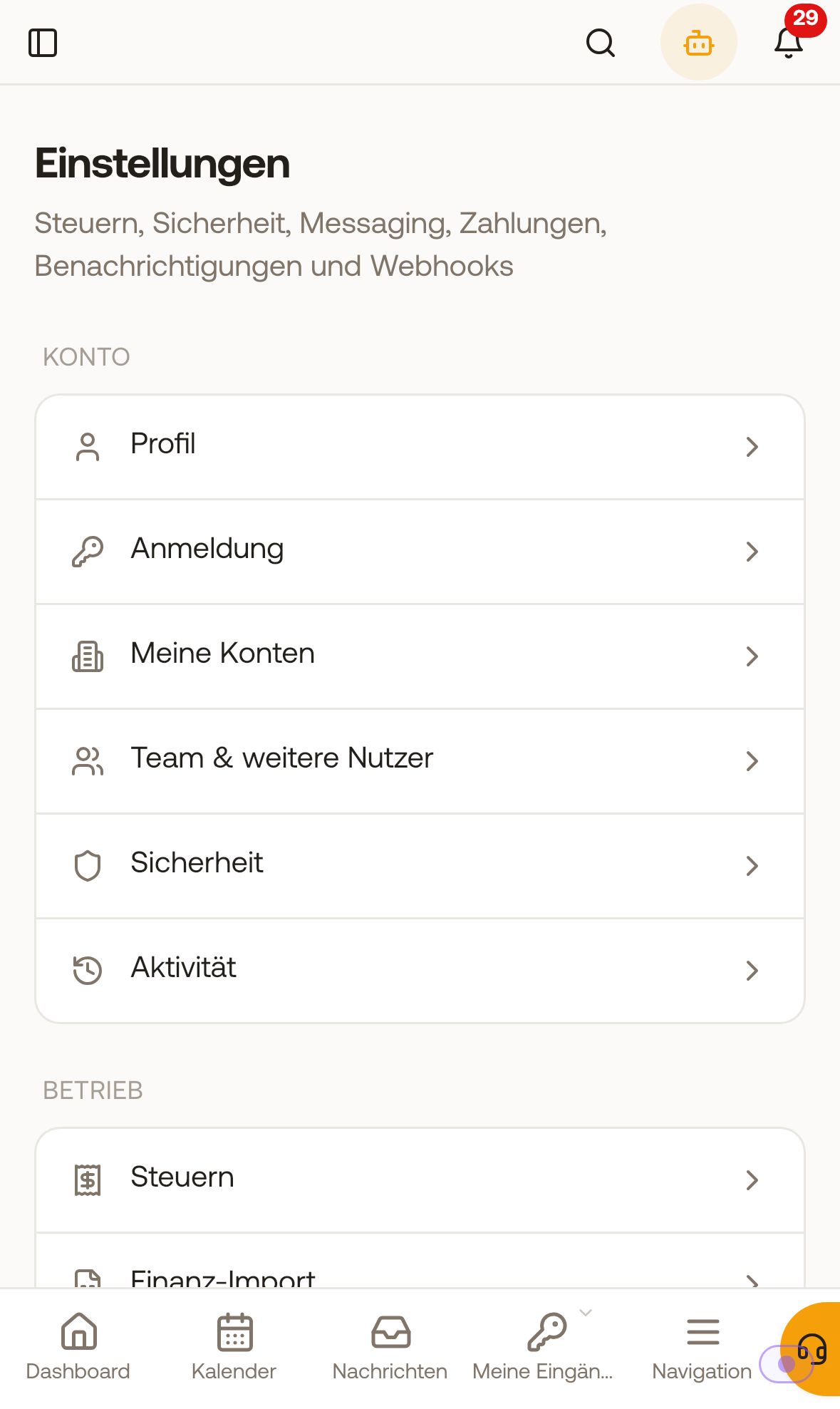 Settings in the mobile browser as a list of sections
What you will not find here
- PMS Field Rules are located under Integrations: PMS Field Rules.
- Portals (Airbnb, Booking.com): connection and room mapping under Integrations, Channel Manager: portals via "Add Channel", mapping per unit via "Room and rate mapping". Prices per portal under Pricing, tab "Portal Surcharges" (only with Channel Manager), see "Portal Surcharges: adjust prices per portal". The Financial import here in settings only reflects what a portal deducts from you, and does not change any prices in the portal.
- Invoice language, invoice layout, and bank details for guest invoices are set under Outgoing invoices, Settings.
- Your Xentra subscription and your invoices from Xentra: click your name at the bottom left, Billing.
- Sender addresses for guest emails (for example for the Booking.com allowlist): see "Send guest emails from your own address".