
Products & Upselling
Create products, offer them in the online check-in and on the guest page, gear settings, products per unit, and when a product appears on the invoice.
Updated on November 12, 2026
With products, you sell add-ons to your guests: breakfast, parking space, early check-in, late check-out, pet, welcome champagne. Guests book them in the online check-in, on their guest page, or in the booking tool.
Create products
You create all products in one place: Settings → Products → New product. In the check-in and in the guest guide, you just select them.
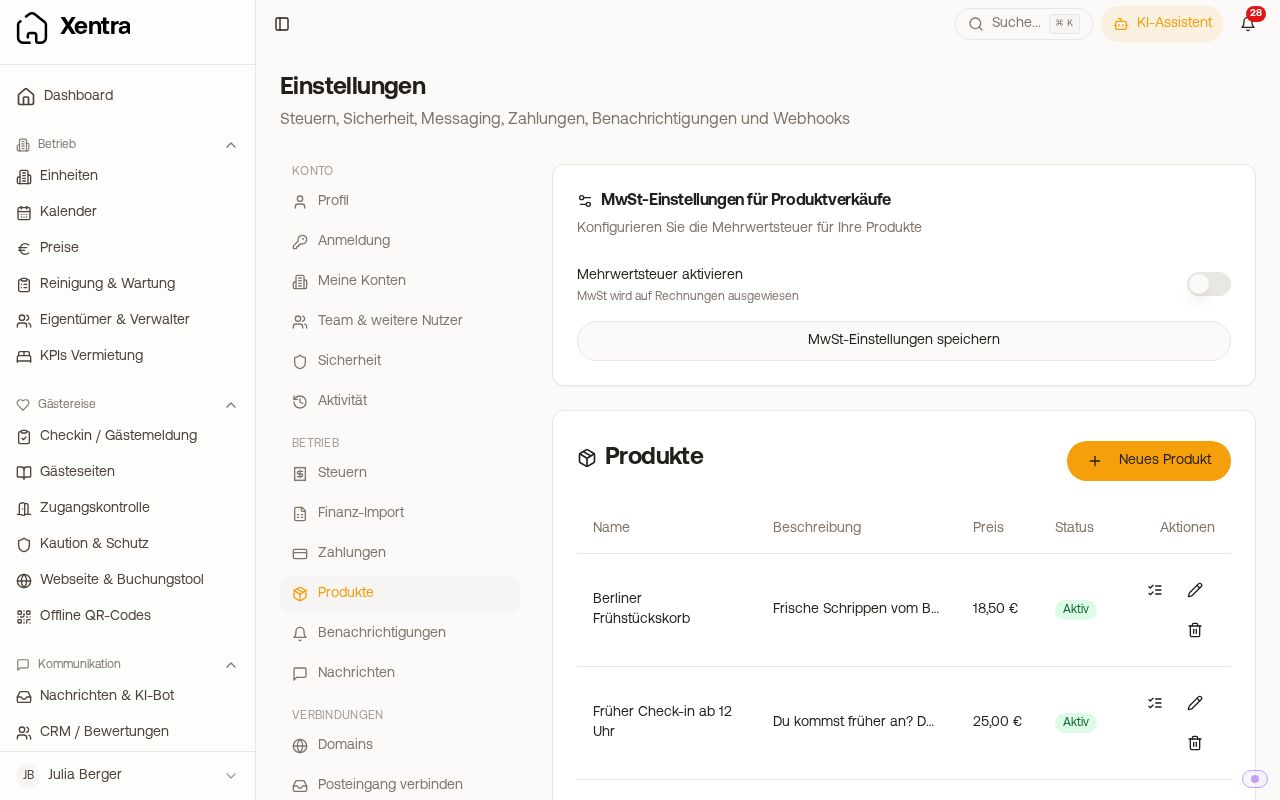 Settings, Products tab: List of products with price and status
Fields in the product:
- Last name, Description, Product Image, and Price
- Individual VAT rate (%): leave empty for the global rate
- AI Translation: translates name and description into all guest languages
- Max. per booking: how often a booking can get the product in total, across guest guide, online check-in, and booking tool combined. Empty means unlimited.
- Shift door access (optional): If the guest books the product, their door code opens earlier or later, for example from 12:00 PM for early check-in. Details: Access period of a booking and visibility of the access link.
- Product active
Above the list are the VAT settings for product sales: VAT on or off, global rate, and whether your prices are gross (the guest pays the entered price) or net (VAT is added).
If you accidentally close the New product window, your entries are saved: The next time you click New product, it says "Restored your unsaved draft.", with Discard you start empty. The draft only applies to this browser tab.
The list icon next to a product (See bookings with this add-on) opens the Add-ons tab in the calendar, already filtered by this product (see Add-ons at a glance).
Offer products
A product only appears to the guest once you offer it in one place:
- Online check-in: Guest journey → Checkin / Guest Registration → open template → Payment & extras tab → Products & Upselling card → check the product.
- Guest page: Guest journey → Gästeseiten → Guest guide → Products & Upselling → check the product.
- Booking tool: Booking tool → Settings → Add-ons → turn on "Offer add-on services at booking" and check the product under "Offered extras". Applies to all your booking tools.
After checking the box, a gear icon appears on the right of the row. Behind it, you configure settings for this exact place:
- Name in check-in (different display name)
- Pricing type and Override price
- Booking deadline: up to how many days before arrival the product is offered in the online check-in and in the guest guide
- Applies to guest types
- VAT rate for this place
- Recommended (pre-selected): only in the online check-in, the product is already in the shopping cart and the guest must actively deselect it
- Approval required: the guest only requests, you approve. This toggle does not exist in the New product window, it is only located here.
- Offered in units: in online check-in from two assigned units; in guest guide always, locked if only one unit
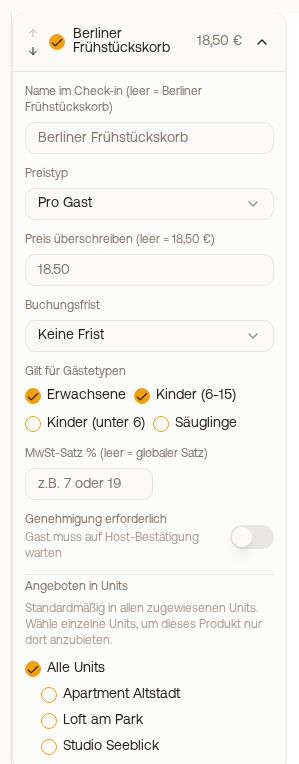 Expanded gear icon of a product with pricing type, booking deadline, and approval required
Whatever you change behind the gear icon, you apply in the online check-in and in the guest guide with Save in the bottom bar, in the booking tool it saves immediately. These settings only apply to that single template or guest guide: If you offer a product in check-in and on the guest page, you configure it in both places. How each pricing type calculates: see Pricing type of a product: per night, per guest, per pet.
Different per unit
- Offer in individual units only: check the units behind the gear icon under Offered in units. Without selection, the product applies to all units of the template. One template is enough, you do not need one per apartment.
- Different prices per unit: The price applies per template. Either create two products (for example "Dog 25" and "Dog 30"), each restricted to its units, or a second check-in template for these units with its own price behind the gear icon. A unit is always attached to only one check-in template; remove it from the old template before assigning it to the new one.
Inquiries without sale
If you only want to ask for something in the check-in (bed setup, baby cot, intermediate cleaning without extra charge):
- As a product with price €0.00: The selection ends up as a booked add-on on the booking and on the cleaning task, your team sees it directly.
- As a custom field in the check-in template: for pure information that should not appear anywhere as a service.
When a product appears on the guest invoice
A product only gets on the invoice once it has been booked for the booking: The guest selected and paid for it in the online check-in or on the guest page or selected "on account", or you approved a request. Entering a dog on the booking only or having an active product "Dog" is not enough. You can see whether something is booked in the booking under the Online Check-in tab under Booked services. In addition, under Guest Invoices → Settings, Line items section, the Add-ons item must be turned on in the portal tab (default: on). If nothing was booked, you add the fee yourself when creating the invoice: open booking, E-Invoice, Add item.
Read more
- Approve or reject add-ons on request: Add-on on request: approve, reject, payment link
- Payment, commission, and Stripe: Collect additional sales: commission, payment on account, and Stripe
- Send a message when a guest books something: Automations: Add-on service booked and fixed recipients