
Extra service on request: approve, decline, payment link
Services that require approval: set them up, approve or decline a request, automatic payment link and Open again.
Updated on October 19, 2026
Some services you only want to confirm once you have checked that they fit, typically an early check-in or a late check-out. For this there is the option Approval required.
Setting up
- Create the product under Settings → Products.
- In the check-in template (section Payment & upselling) or in the guest guide (block Products & Upselling), tick the product, open the gear icon and switch on Approval required.
The option belongs to the place where you offer the product, not to the product itself. So you set it separately in check-in and on the guest page.
What the guest experiences
The guest selects the service like any other, but does not pay for it yet. They see that their request is waiting for your confirmation.
Approve or decline
For a new request you receive the notification New service request (bell and email). The button in it opens the booking directly on the right tab.
Manually: open the booking → tab Online check-in (not “Details”, where the booking opens by default) → section Booked services. The open request is highlighted in yellow, next to it are Approve and Decline. Requests from the guest page end up in the same place.
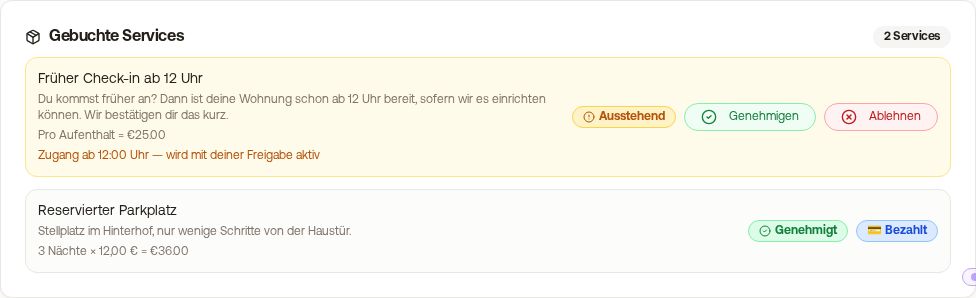 Booking, Online check-in tab: requested service with the buttons Approve and Decline
After approval: the payment link
If you approve a paid service, two things happen automatically:
- Xentra creates a Stripe payment link for exactly this amount.
- Xentra sends the link to the guest by email.
You do not need to create an invoice. The guest only pays for the extra service, separately from everything else. This is also the right way if, as a co-host, you bill the extra services separately from the owner’s invoice.
You can find the link at any time at the service under Copy payment link. For guests from Booking.com, the email address is anonymised and the automatic email does not always arrive; then copy the link and send it yourself.
Take only one of the two routes. If you also create an invoice for the same amount, the guest can pay twice.
A free service (price 0) is done once you approve it.
Declined, but still possible?
A declined request is reset to pending with Open again, and you can then still approve it. The guest can also request a declined service again.
Automatic message
An automation with the trigger Extra service booked goes out for services that require approval directly after your approval, i.e. before the guest has paid. So do not write in that message that the money has already arrived. More on this: Automations: Extra service booked and fixed recipients.