
Owner settlement: Commission and settlement settings
Set up commission model, portal commission, cleaning fee, add-ons, and expenses for your owner settlement.
Updated on November 12, 2026
The settings apply per owner: Owners & Managers, Statements tab, in the owner's row click the settings icon (Settlement settings). They are split into five sections that you expand individually: Commission, Revenue and pass-through items, Add-ons, Document and tax, and Sending and scope.
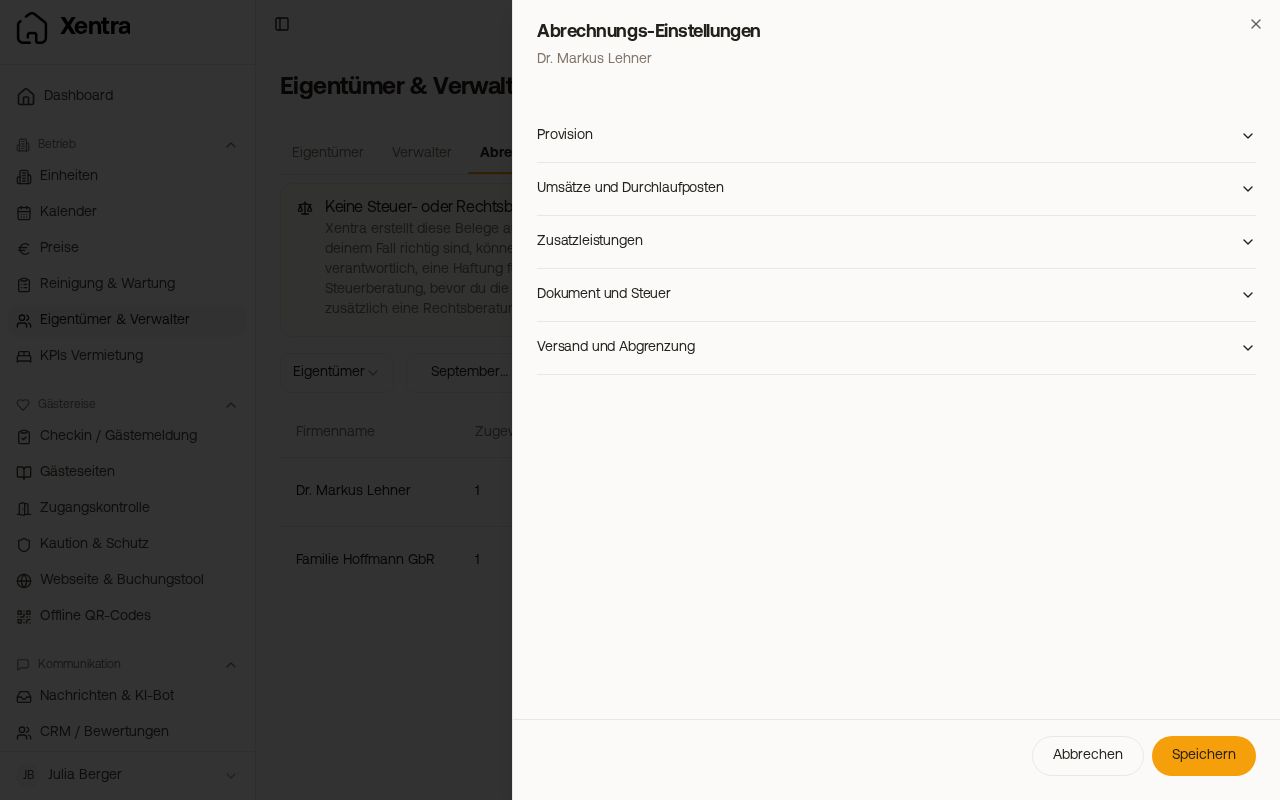 Settlement settings of an owner with the five sections
Commission
Under Commission basis, you choose what your rate refers to: gross or net accommodation price, total gross incl. cleaning, portal payout, fixed amount per night, or per stay. In addition, you can optionally set a tier and a monthly minimum amount. The label and note of the percentage field adjust to the basis, for example “Commission (% of total revenue)”; for a fixed amount, there is no percentage field. “Your commission per portal (%)” is your own rate per channel, not what the portal retains. Leaving it blank means your standard rate applies.
Commission on the payout without cleaning or bed linen: If the commission basis is set to Portal payout, “Take out of the payout” appears underneath with the checkboxes Cleaning and Bed linen. Whatever you check is deducted from the payout before the commission, in the exact amount the guest paid. Example: €470 payout, €60 cleaning, and 20% commission result in €82 instead of €94. The bed linen is only deducted if it is included in the payout, i.e., contained in the price. “Already received” on the settlement remains the same; only the commission changes. For all other bases, these checkboxes do not exist.
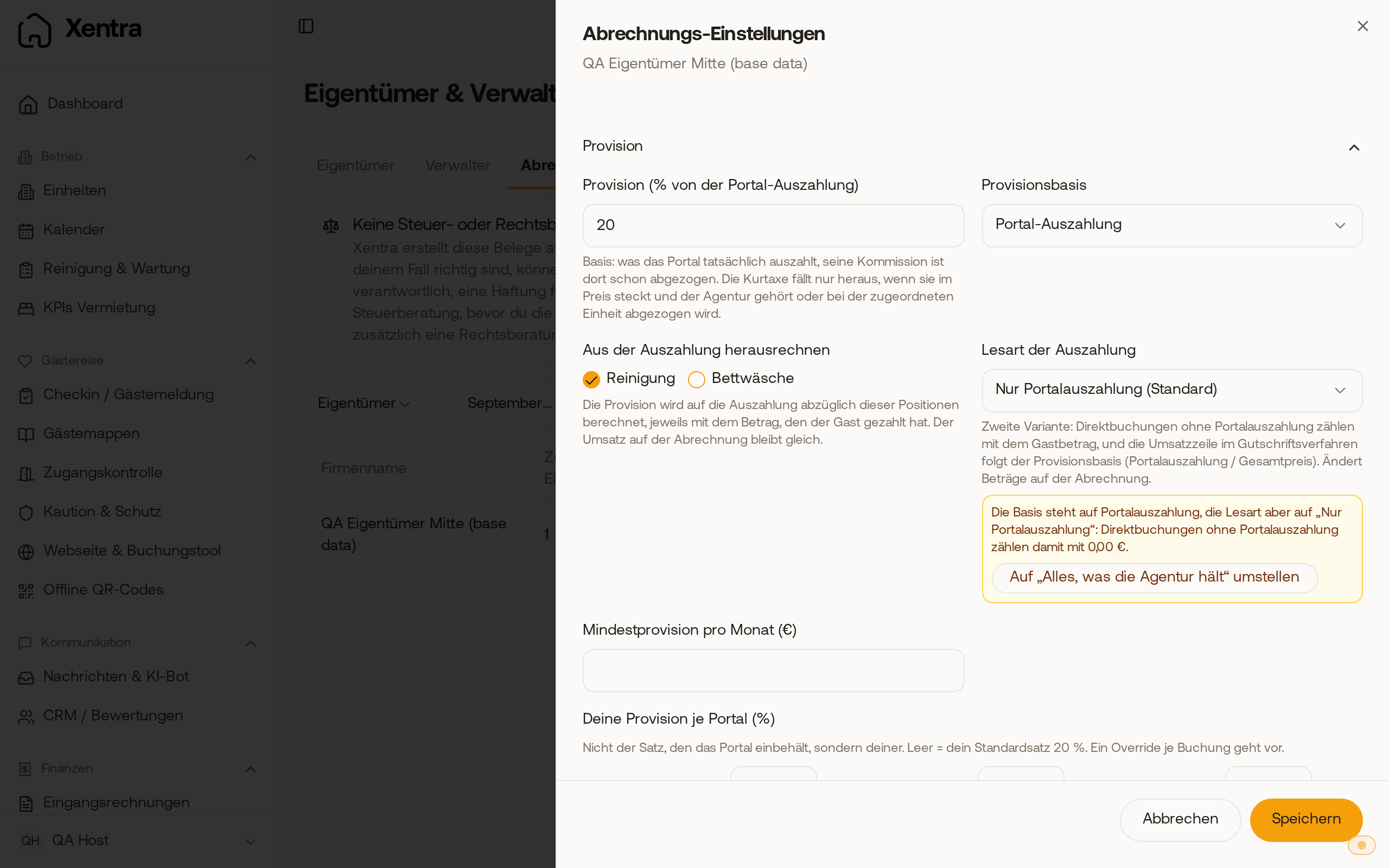 Settlement settings with the base Portal payout: under “Take out of the payout”, Cleaning is checked.
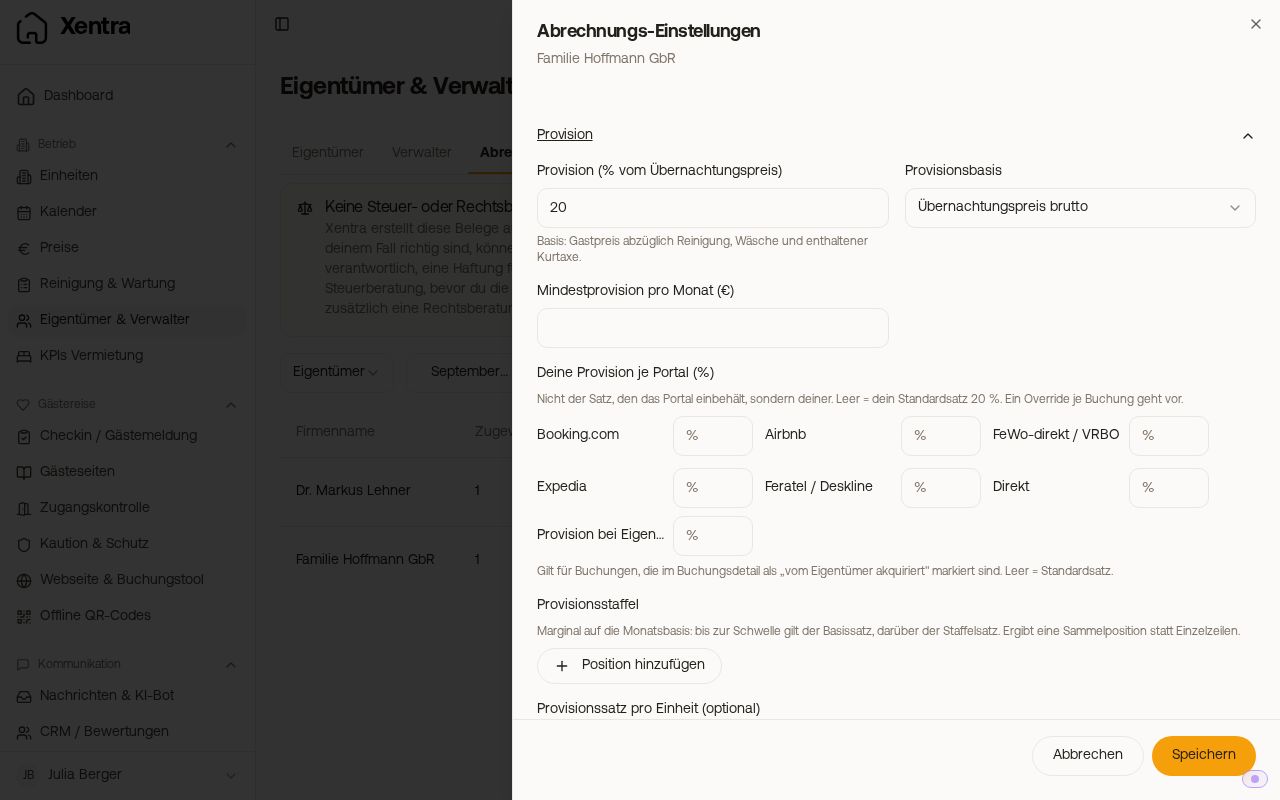 Commission section with commission basis and commission per portal
Accommodation tax included in the price: If you chose credit note procedure as Settlement model in the Document and tax section, the field “Accommodation tax in the price (%)” appears for each unit in the Commission section. It is intended for a tax included in the guest price that your PMS does not deliver, for example 5% accommodation tax. Per stay, this share is deducted from the accommodation revenue as a separate line at 0% and does not count towards the commission basis. Example: €200 revenue, 5% tax, and 20% commission result in a line “Accommodation tax 5% of €200.00” for -€10.00 and 20% commission on €190. Guests are not charged anything extra. For this unit, the field replaces the switch “Deduct tourist tax from the basis”. Leaving it blank means no such line.
Commission for an individual booking: In the booking, there is the card “Owner settlement: commission for this booking”.
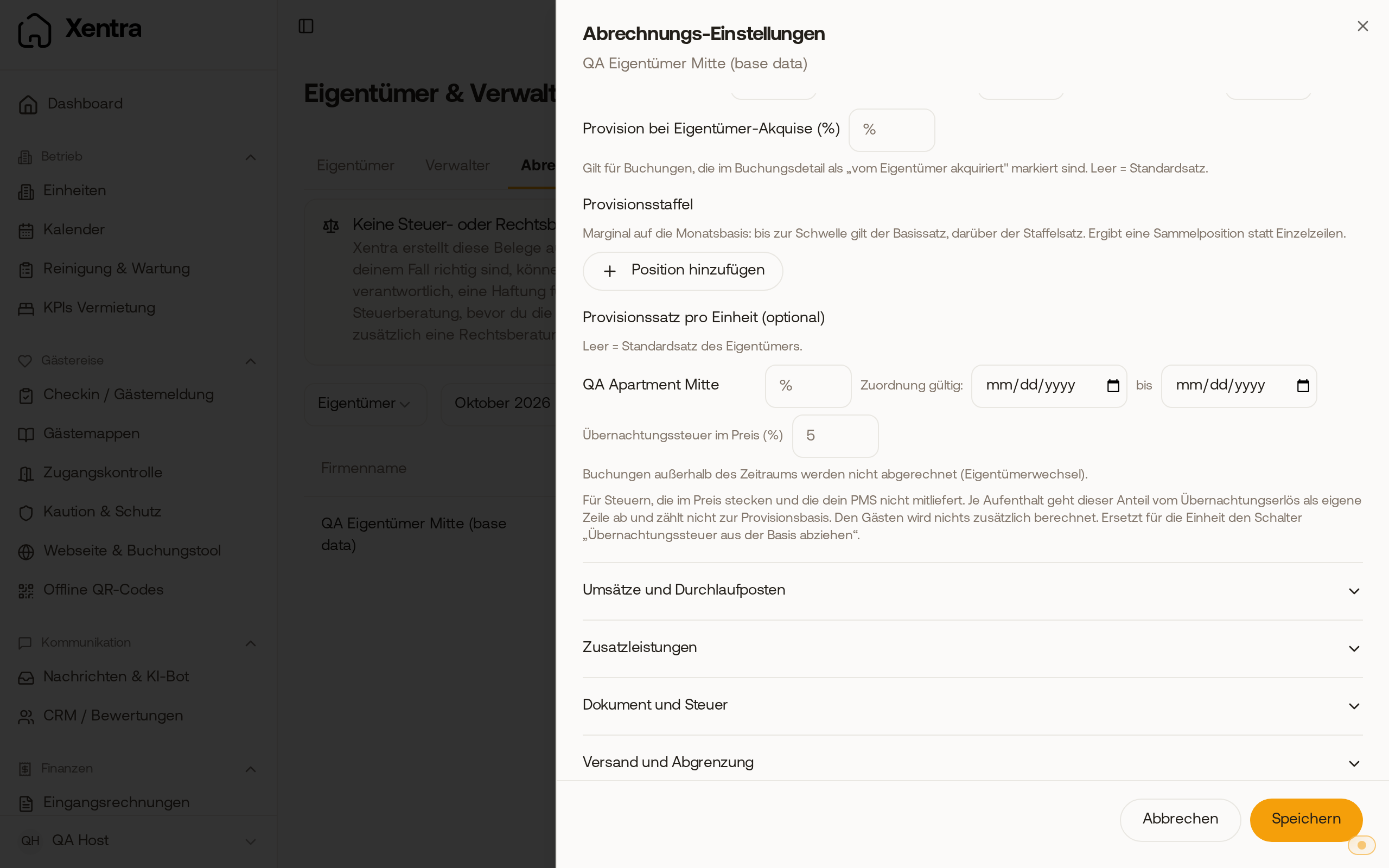 In the credit note procedure, the field “Accommodation tax in the price (%)” appears under the unit, here with 5%.
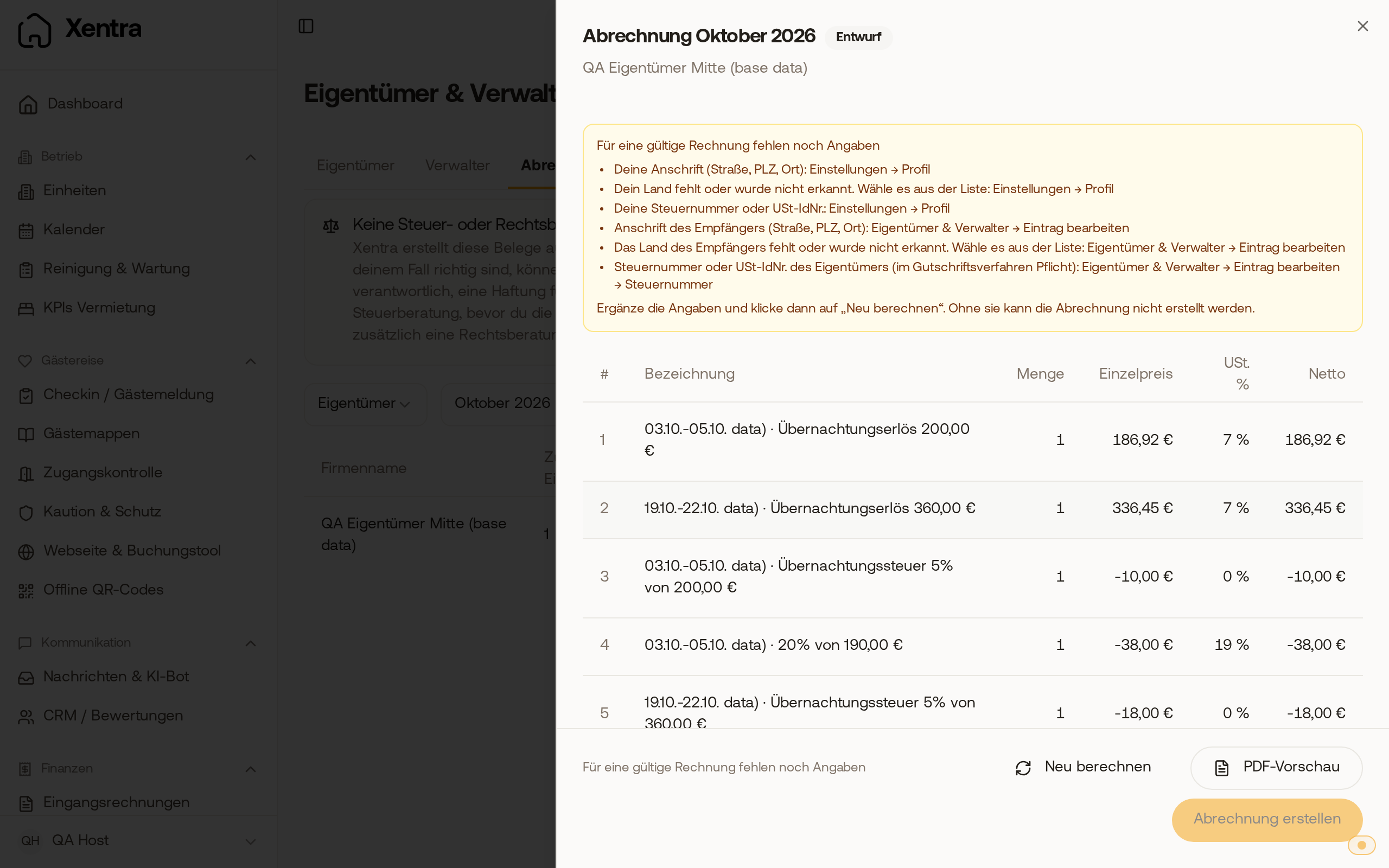 The draft deducts 5% per stay as a separate line at 0% and calculates the commission from the rest. There, instead of “By the rules (portal / unit / standard)”, you can select “Acquired by the owner”, “Custom rate”, or “Do not settle”. The booking overrides any rule for portal, unit, or owner.
Revenue and pass-through items
- “Pass on portal commission” adds the commission retained by the portal as a separate line item on the statement, using the name of the channel (for example Airbnb or Booking.com).
- “The portal's own commission, per channel”: Leaving it blank applies the amount delivered by the channel with the booking. If you enter a rate, the statement calculates with it, using its own Base (“Total gross incl. cleaning” or “Nights only, without cleaning”) and optionally a Payment charge. This helps with channels that do not deliver a commission amount.
- If the Basis for “Already received” is set to the portal payout and passing on is enabled, the commission would be deducted twice. Xentra then warns you and offers “Switch to guest price gross”.
- “Pass on the cleaning fee” (off by default): The cleaning fee is included in the guest price and would otherwise be paid out to the owner. With this toggle, it appears as a separate line item per booking on the document, in the amount the guest paid. Under “VAT on the cleaning fee”, you select Gross, VAT included, Net + VAT on top, or 1:1 without VAT. If a cleaning item already exists under “Fees per stay”, Xentra warns of duplicate calculation.
- Import portal settlement: At the top of the tab, upload Booking.com payout documents or an Airbnb CSV. Commission, payment fee, and net amount are applied per booking and replace the values from the PMS in the settlement. The booking itself remains unchanged.
Fees per stay: per guest, per night, and for owner use
In the Add-ons section, under “Fees per stay”, click “Add item” to create services that you charge to the owner, such as laundry or a flat cleaning fee. Under “Calculation”, choose per stay, per night, per guest, or per guest per night. For guest fees, under “Counts as a guest”, you specify whether adults, children, and babies count; a stay without a recorded guest count counts as one guest. Under “Only from guest no.”, you specify from which guest onward the fee applies: with 3, the first two guests are free, for example for an extra bed. The statement will then read “per guest, from the 3rd guest”.
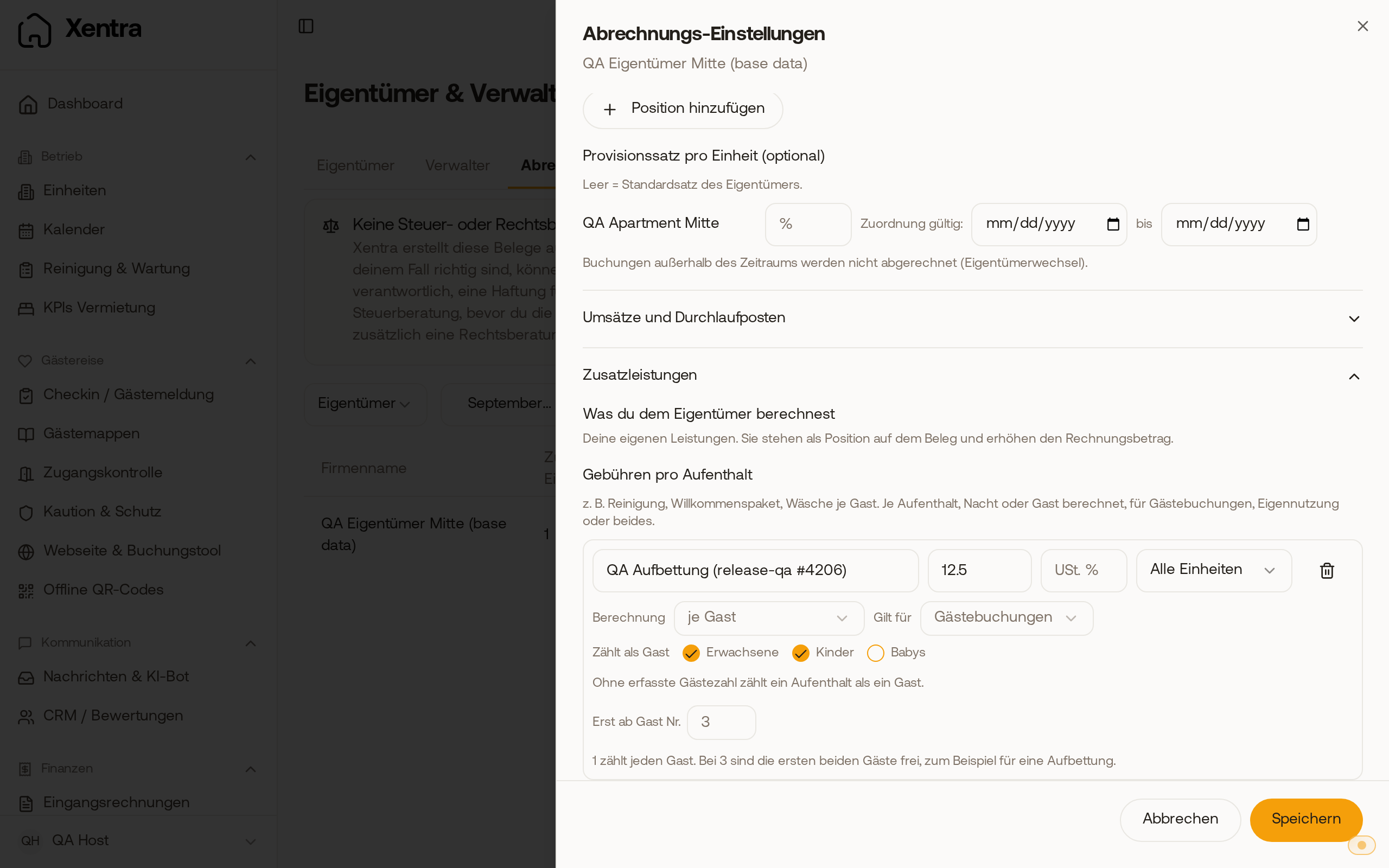 A fee per guest that is only calculated from the 3rd guest onward. Under “Applies to”, choose guest bookings, Owner use, or Both. This allows you, for example, to charge a flat cleaning fee every time the owner used their unit themselves. With “Both”, owner use appears as a separate line with the addition “(Owner use)” on the statement.
Blocks with the reason “Owner use” and periods entered by the owner using their own login count as owner use. For how to enter owner use: see Blocked time periods: add, remove, and why they reappear.
Add-ons from guest invoices
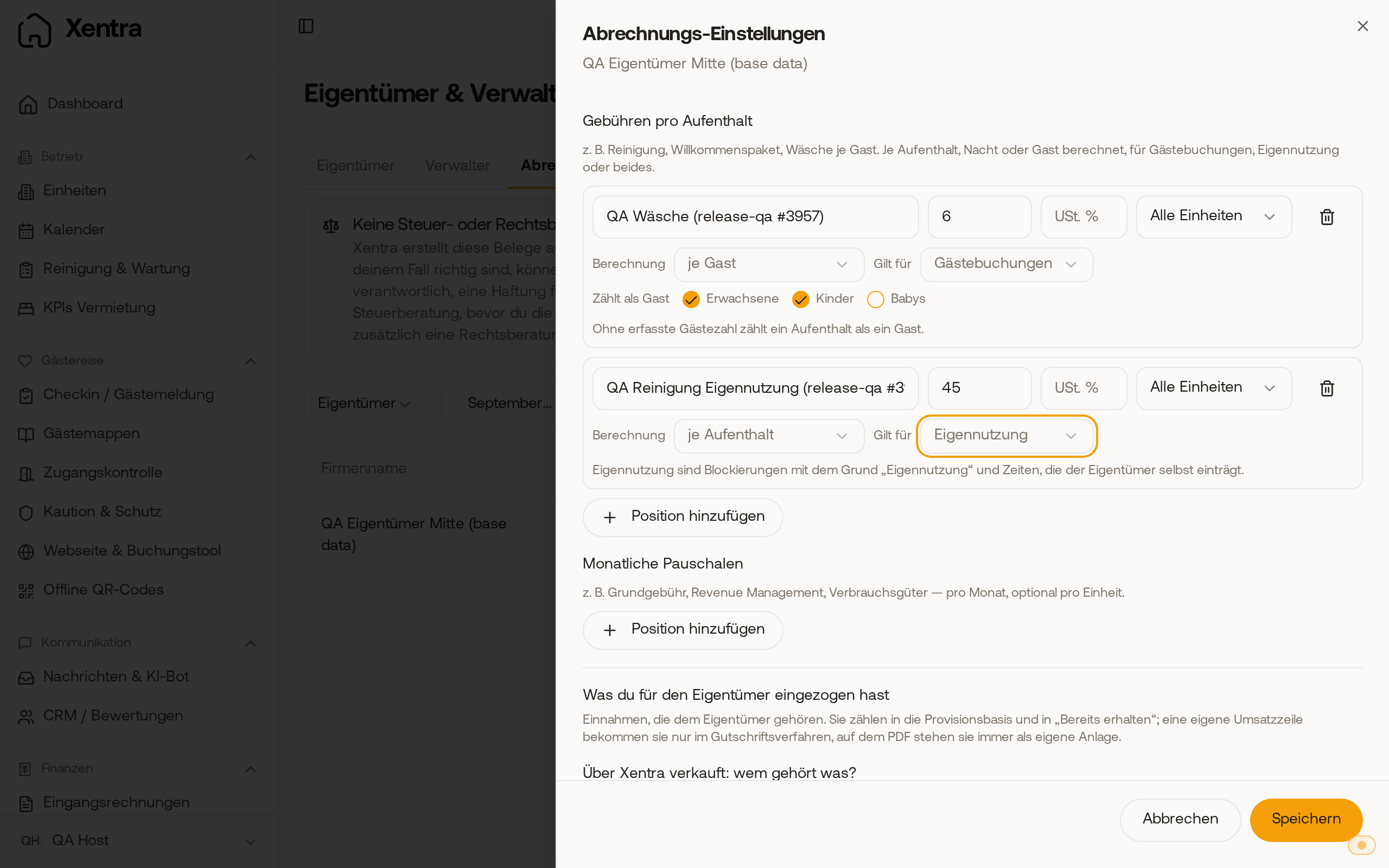 Fees per stay: laundry per guest for guest bookings and a flat cleaning fee that only applies to owner use.
If you settle add-ons (such as a pet fee or extra cleaning) via guest invoices in the owner's invoicing group, in the Add-ons section under “Import from guest invoices", set the source to “Guest invoices of the owner invoicing group". Xentra then imports line items from final guest invoices whose description contains one of your keywords (for example “Pet fee, pet"). The accommodation itself is never imported, and nothing is imported without a keyword. If you leave “VAT on add-ons" blank, the rate of the respective guest invoice applies.
What guests buy via Xentra (tourist tax, products, extras from offers) and who bears the transaction fee is configured in the same section: see Owner settlement: Sales via Xentra, offers, and transaction fee.
Document and sending
- Logo: The statement displays your logo if “Show logo on invoice” is enabled in the invoice settings. The booking attachment also shows the channel and nights for each booking.
- Footer text on the document (Document and tax section): Custom text that appears on every statement for this owner below the legal notes, for example “The owner's revenues are stated without VAT pursuant to Section 19 UStG” for small business owners. Line breaks are preserved. The text does not change any tax: if the owner is a small business, set the VAT on their revenues to 0% in the same section as well. The text applies starting with the next preview; already created statements remain unchanged.
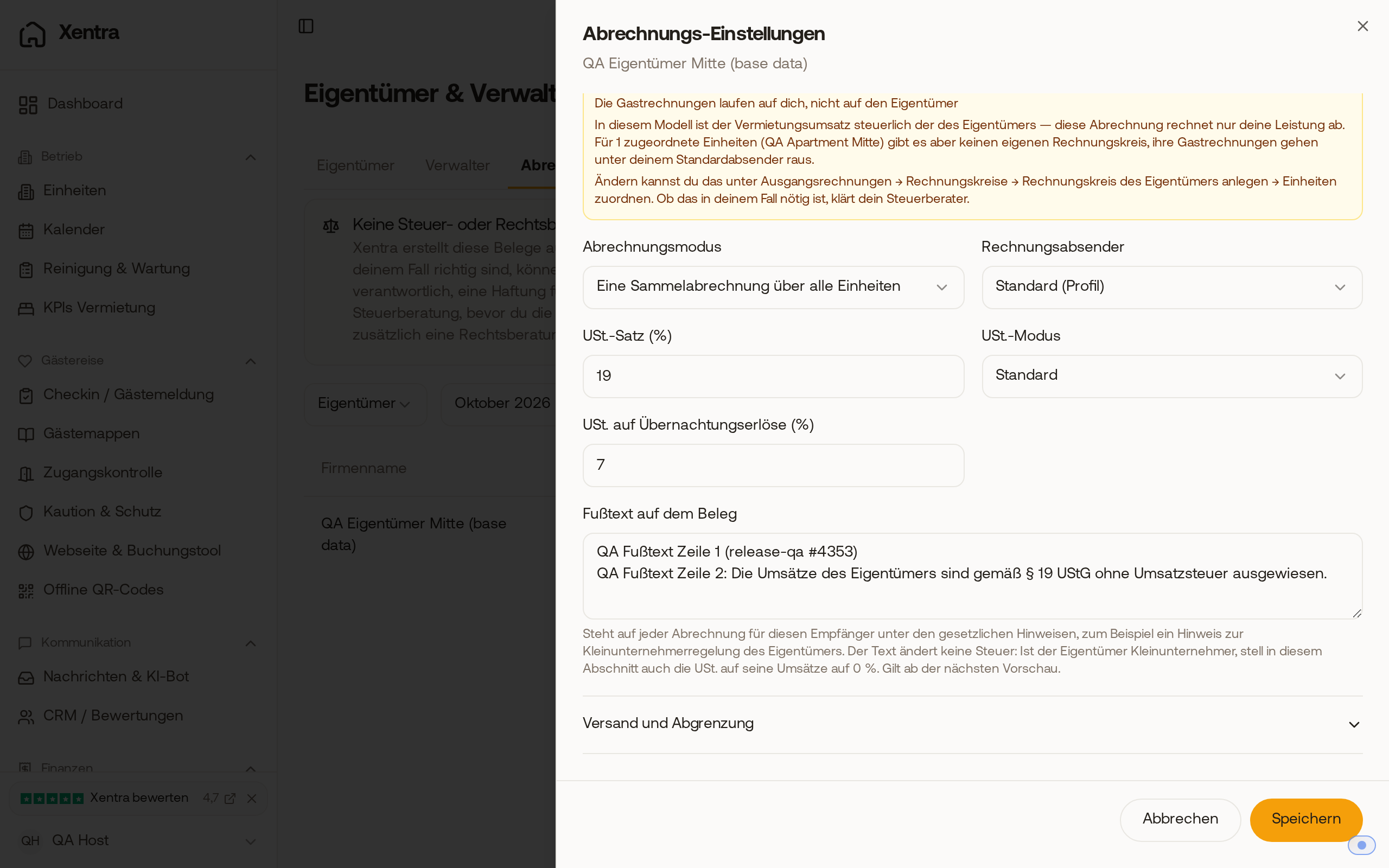 In the “Document and tax” section, enter the text for this owner under “Footer text on the document”.
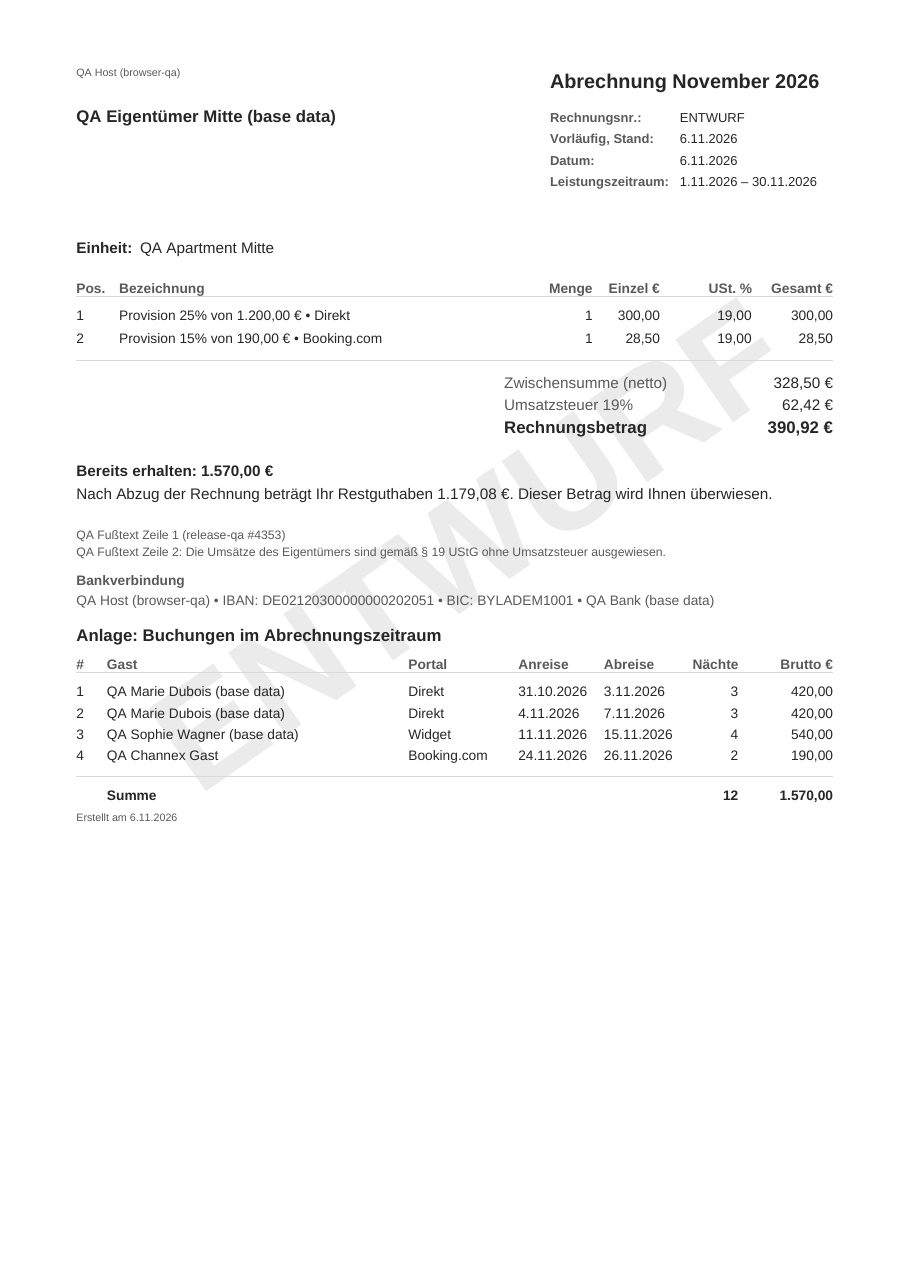 The PDF preview shows the footer text below the notes, above the bank details.
- “Attach the guest invoices” (Sending and scope section, off by default): When sending via email, Xentra attaches the final guest invoices for the settled bookings as a combined PDF, including during bulk sending in the monthly close. Drafts and credit notes are not included. If the package exceeds the email size limit, the statement is sent without attachments and Xentra informs you.
- Multiple recipients and custom email template: In the sending dialog, separate multiple recipients with a comma, for example for the tax advisor. Save the subject and text using “Save as template”.
- Attachments: Attach portal statements or other receipts to the statement, up to 20 MB per file and 25 MB per email.
- “Treat as direct bookings” (Sending and scope section): Bookings via your Xentra booking tool (channel “Widget”) automatically count as direct bookings; you do not need to select them here. If your PMS delivers direct bookings without a portal name, for example as OTHER or EMAIL, select these channels here.
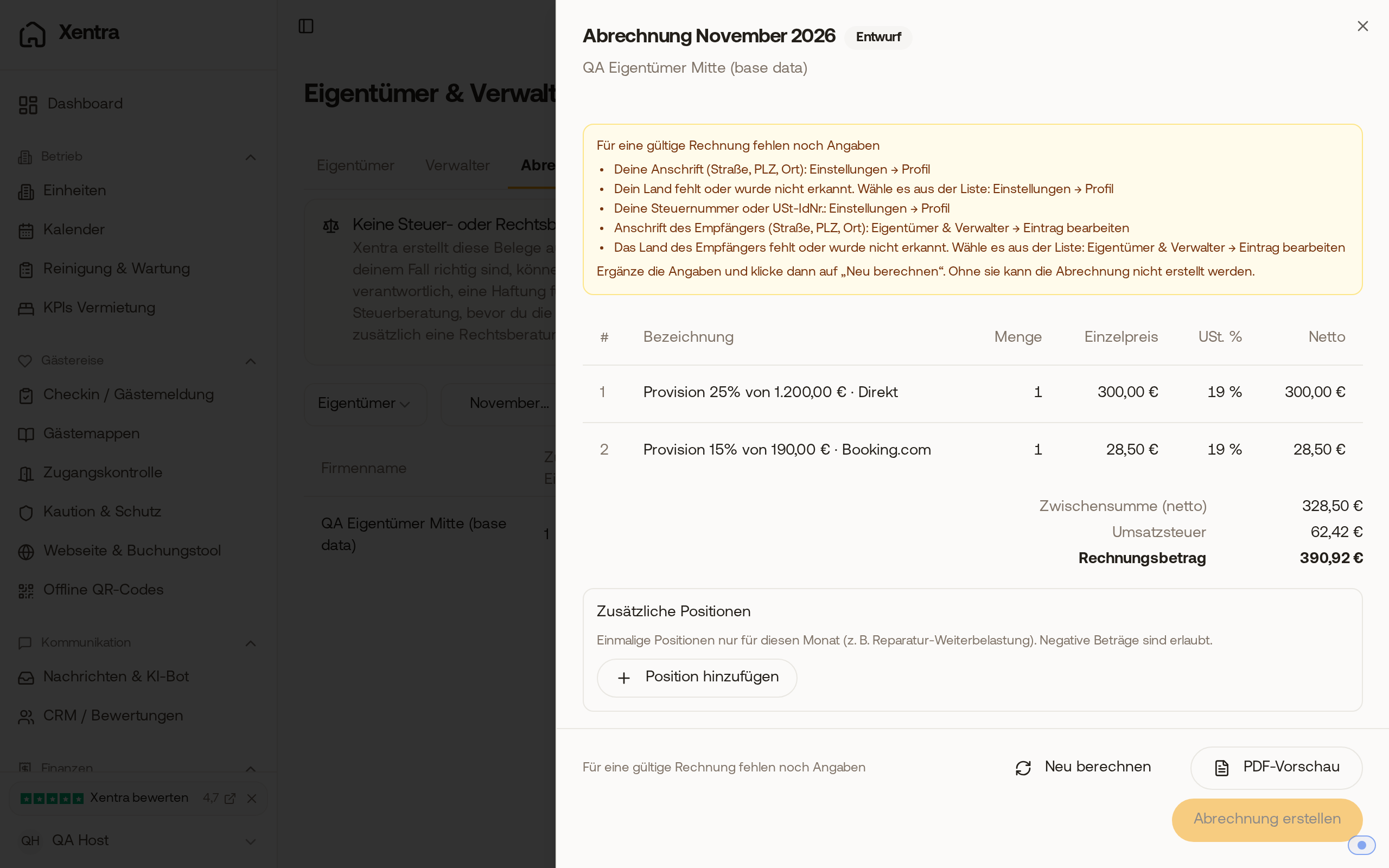 A booking from the booking tool appears in the draft on line “Direct” with your commission for direct bookings. The settlement then calculates them like direct bookings: using the tax rate and your commission for direct, and without portal commission. If you configured a payment charge for direct, it also applies to these bookings. The booking attachment continues to show the original channel.
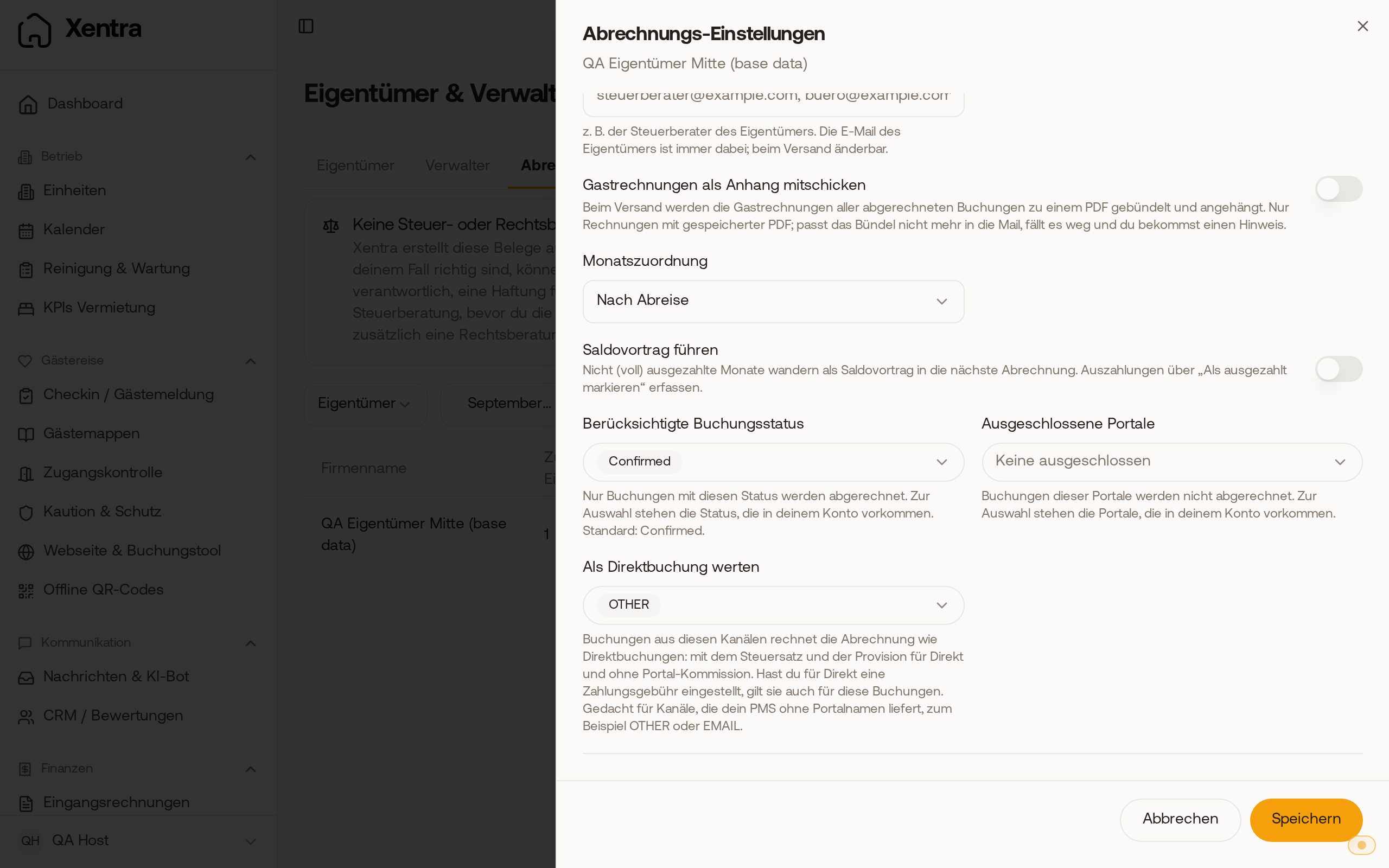 Under “Treat as direct bookings”, the channel OTHER is selected.
Expenses
In the owner's row, click the receipt icon “Expenses” to collect purchases during the current month (net, VAT, optional markup %, receipt). Open expenses automatically appear in the next draft. With a markup, it is best not to forward the receipt (“Forward receipt to owner” disabled), otherwise the owner will see your purchase price. For how to enter an approval limit for expenses: see Owner settlement: Monthly close, SEPA file, and expenses.