
Invoice senders, invoice series, and invoice numbers
Number format and prefixes, what can be changed on the default sender, and additional invoice series for multiple companies or VAT IDs.
Updated on November 13, 2026
Invoice numbers
Invoices get numbers of the form RE-2026-0001, credit notes GS-2026-0001. The counter runs per year and per prefix, without gaps. Drafts (DRAFT-…) do not consume a number.
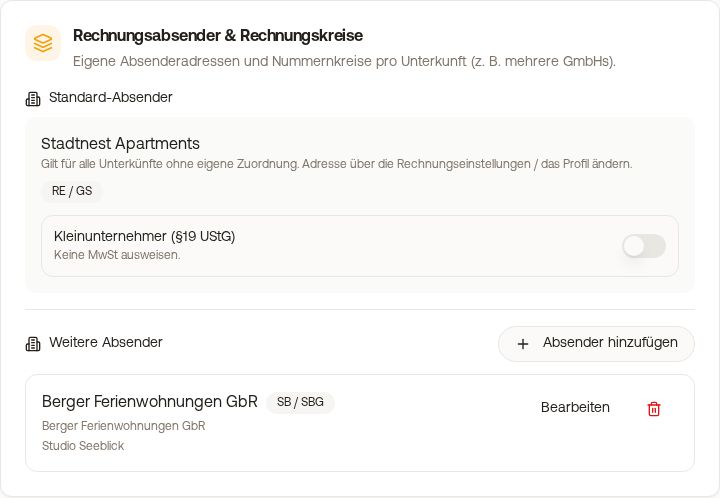 The "Invoice senders & numbering circles" section with default sender and additional sender
Prefix of the default sender
You can see your Default sender under Outgoing invoice settings, section "Invoice senders & numbering circles" (in the "Invoice series" bar). The box shows its prefixes, for example "RE / GS". There you can change "Small business (no VAT)" with its "Note on the invoice" and the "Next number" (see below). Name, address, and tax data come from your profile and from the "Sender information" section.
We can set up a different prefix for the default sender for you. To do this, write to hello@support.myxentra.com with the desired prefix. Existing invoices remain unchanged. Continuing a foreign number format 1:1 is not possible, but starting a new, gapless numbering circle when switching systems is allowed.
Continuing invoice numbers (starting number)
If you switch from another system to Xentra, you can continue your invoice numbers where you left off. Under Outgoing invoice settings, section "Invoice senders & numbering circles", the default sender and every additional sender show "Next number · Invoices" and "Next number · Credit notes and cancellations". Enter the number you want to continue with (for example 137 if your last invoice was 136), and click "Apply". For a new sender, this is possible as soon as you have saved it.
This is only possible as long as there is no invoice in this series yet. After that, the number is fixed and "Fixed: this series already has invoices." appears. The number applies to the current year; in the new year, every series starts at 0001 again.
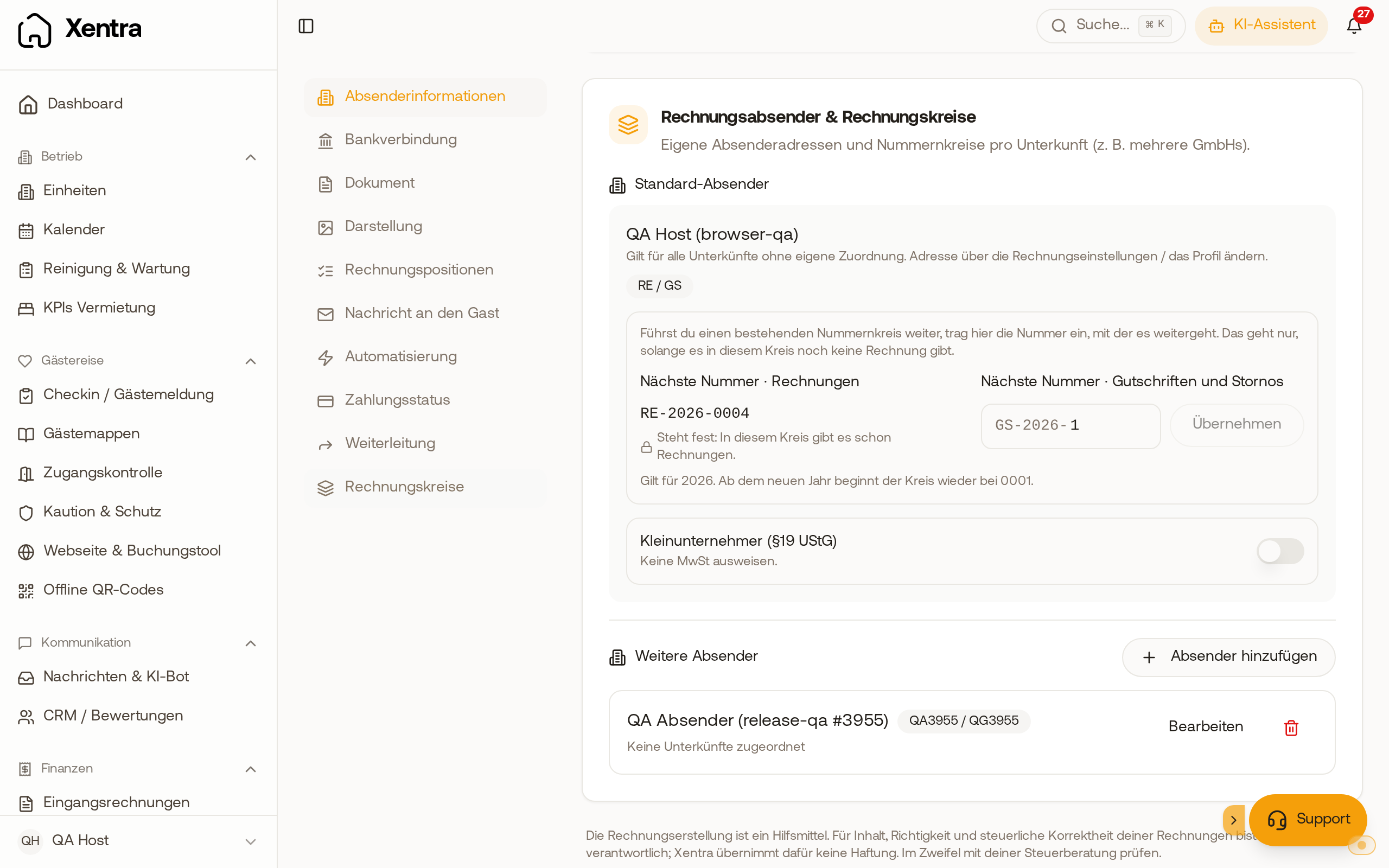 Invoice series: The invoice number is fixed, the number for credit notes can still be set.
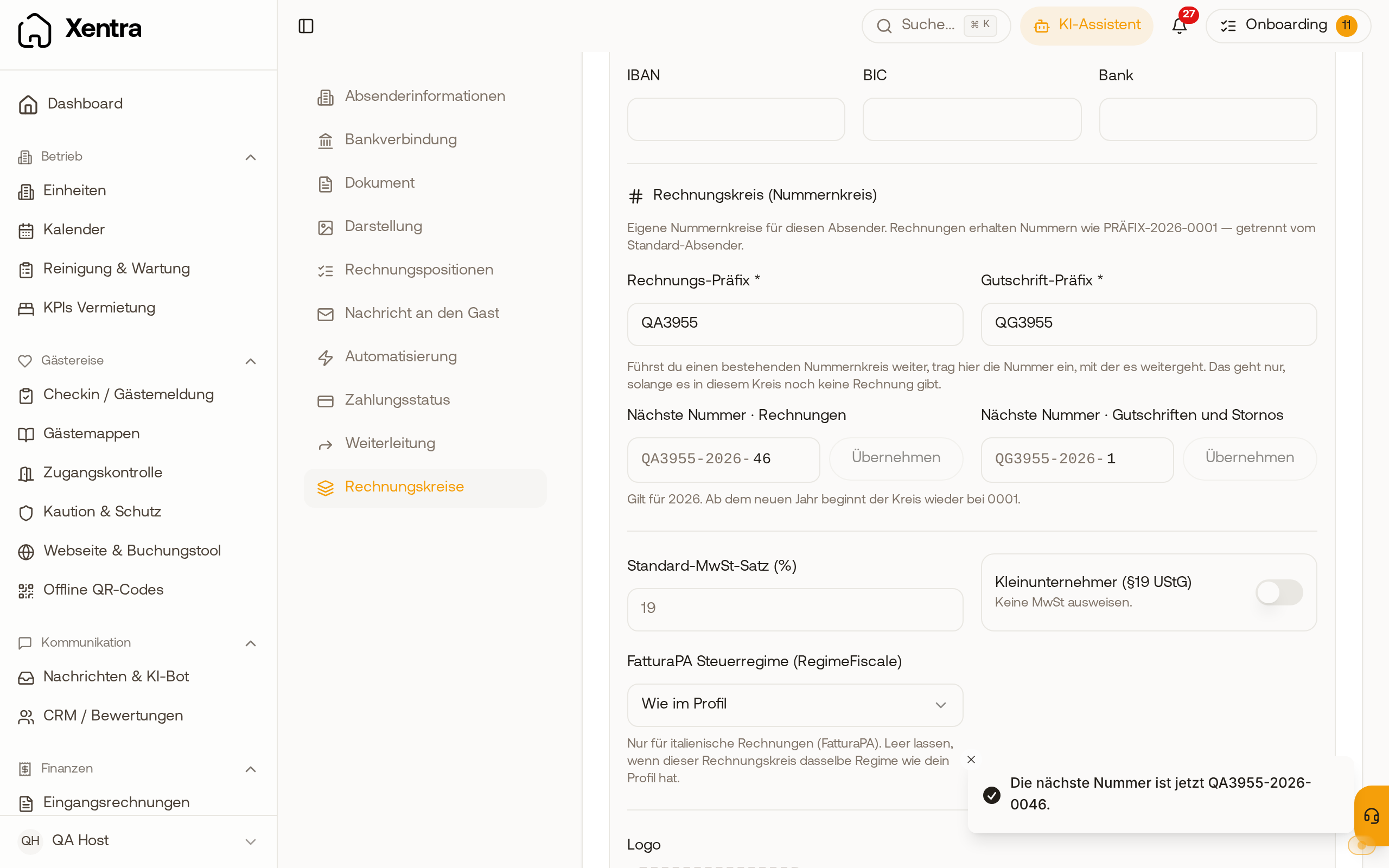 After "Apply", Xentra shows the next number of the invoice series.
Multiple companies or VAT IDs: Invoice series
Your profile contains exactly one VAT ID and one tax number, and they apply to all properties. If you have multiple companies or tax numbers, you do not need a second account, but additional Invoice series.
Under Exceptions, click "Add exception" and select "Another company" (if only the bank account should be different, select "Only the bank account", see Invoices: different bank account for specific properties):
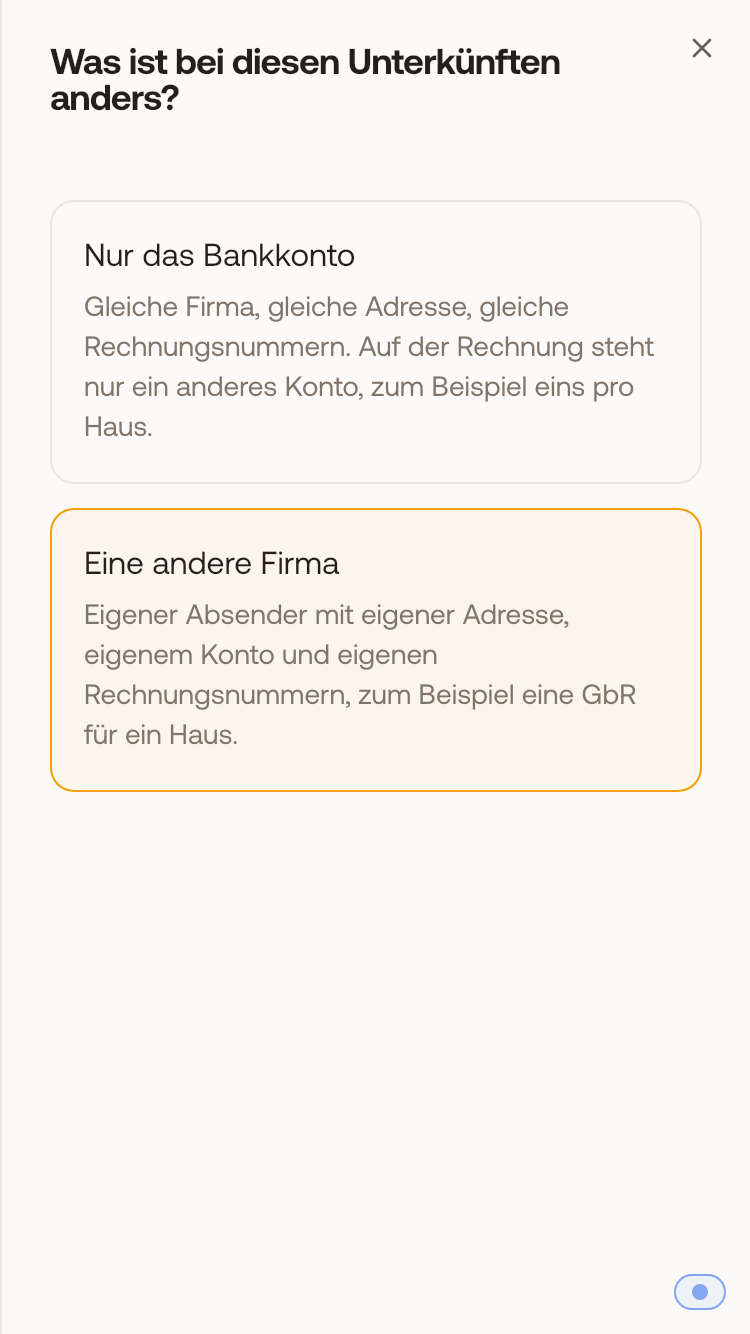 Under Exceptions, Xentra first asks whether only the bank account or another company applies.
- Sender address: Label, company, address, VAT ID, tax number, contact, logo, header and footer text.
- Bank details of this sender.
- Numbering circle: separate "Invoice prefix" and "Credit note prefix", for example
SVandSVG. The two must be different and must not occur with any other sender. Invoices then get numbers likeSV-2026-0001, separate from the default sender. - Optionally, a Default VAT rate (%) and "Small business (no VAT)".
- Assigned properties: the properties whose invoices run via this sender. Each property belongs to at most one additional sender; all others use the default sender.
Good to know:
- Already issued invoices do not change. The sender data is written to the invoice when it is created.
- If you delete a sender, its properties will use the default sender again.
- A booking with multiple rooms can only be billed together if all rooms belong to the same sender.
- In the list of outgoing invoices, a column and a filter "Invoice series" appear as soon as you have an additional sender.
- The tax number is on the invoice and in the e-invoice.
- A booking is always billed via exactly one sender: the one of its property. Individual line items, for example extra services, cannot be billed via a different invoice series, not even with automated invoice creation.
- If "Small business (no VAT)" is active for a sender, its invoices automatically show the statutory notice for the sender's country: in Germany "In accordance with § 19 UStG (German small business regulation), no VAT is charged.", in Austria "Umsatzsteuerfrei gemäß § 6 Abs. 1 Z 27 UStG 1994 (Kleinunternehmerregelung).". In the "Note on the invoice" field below, you can enter your own text instead and translate it into other languages with "Translate with AI"; you can correct each language in its tab. The invoice shows the text in its invoice language. If left empty, the statutory text applies again. A changed note applies starting from the next invoice.
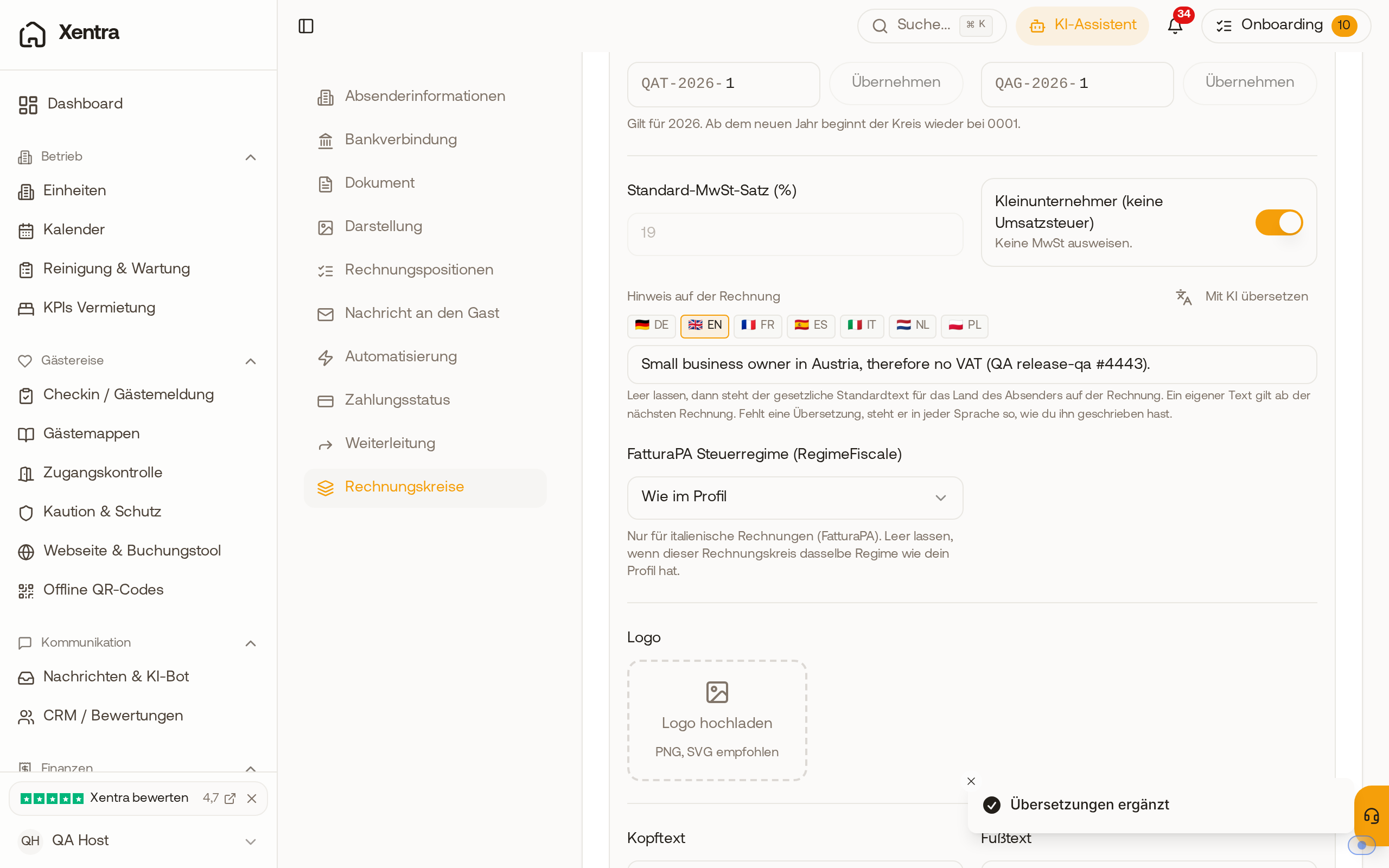 Under "Note on the invoice" is your own text, here in the EN tab with the AI translation.
- Team members see the invoice series, but can only change them with edit permission for outgoing invoices.
Billing as an agent on behalf of the owner. If you rent out apartments for owners and the guest invoice should run in the name and on account of the owner, you create a separate sender for each owner (their company, address, tax number, and bank details, separate invoice series) and assign their apartments to them under Assigned properties. You write the agency notice, for example "in the name and on account of ...", in the header or footer text of this sender. You settle your own commission with the owner via owner accounting (see Owners & managers: master data and accounting overview).