
Lexware Office: Transfer invoices as documents
Guest invoices as documents to Lexware Office: API key, categories, start date, due date, and posting with one click.
Updated on November 11, 2026
Lexware Office (Beta)
Xentra transfers your guest invoices as documents to Lexware Office, complete with contact and attached PDF. The feature is available to all hosts as a beta.
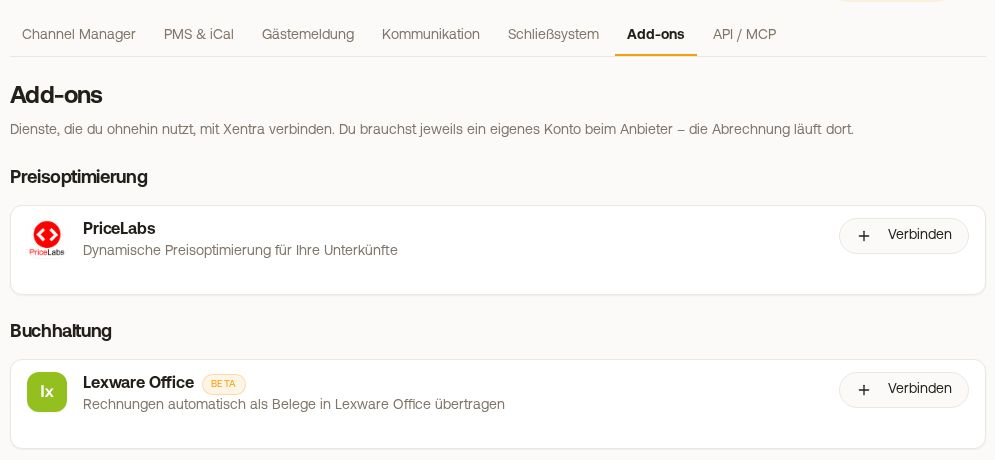 The Lexware Office card in the marketplace under Integrations
The direction: only from Xentra to Lexware
Guest invoices exclusively flow from Xentra to Lexware Office. An invoice you write directly in Lexware does not come back to Xentra. For Direct bookings, this means: Create the invoice in Xentra on the booking and then push to Lexware.
Xentra does not fetch supplier invoices from Lexware either. You upload your incoming invoices yourself under Incoming Invoices.
Sending and reminders stay in Xentra
To Lexware, the invoice goes as a Document for accounting. You cannot send it to the guest from there, nor generate a payment reminder from it. Sending stays in Xentra, as often as you like: Guest Invoices, three dots, group “To the guest”, “Send (Auto)”. This also works when the invoice is already in Lexware, and is the way to send a payment reminder.
Setup
- In Lexware Office under app.lexware.de/addons/public-api, generate a Public API key. It needs access to Contacts (read and create), Invoices (read and save), Files (upload document images), and booking categories (read). Xentra first creates a contact for each invoice and then posts it as a document, not as a Lexware invoice; rights for invoices alone are therefore not enough. If any of these are missing, every transfer fails with a permission error (403). Then you generate a new key with these rights in Lexware and reconnect, see “Change API key”.
- Enter the key under Integrations, Marketplace: tap the Lexware Office card, then click “Connect”.
- Map tax categories: each Xentra tax category receives a Lexware revenue category. Xentra preselects matching ones, check them with your tax advisor if in doubt. If Lexware shows no revenue categories, create one there first. Xentra cannot use expense categories for invoices.
- Select the Chart of accounts (SKR03 or SKR04) and set “Book invoices from”: only invoices with an invoice date from this day onward are transferred. Below that, you see how many invoices from this date onward have not been booked yet.
- Optionally “Calculate due date from”: invoice date or arrival date, plus or minus days (for example
-7= one week before arrival).
Change API key
There is no field to replace the key in the connected view. If you generated a new Public API key in Lexware, open the Lexware Office card under Integrations, Marketplace, click “Disconnect”, and then reconnect with the new key. In doing so, you map the tax categories again, and “Book invoices from” resets to today's date: Set it back to your previous start date. Invoices that have already been transferred will not be booked twice.
Multiple invoice series
If you have multiple invoice series, you specify for each one in the Lexware Office card under Integrations, Marketplace in the section “Invoice series” where its invoices are posted: to the “Default account”, to an “Own Lexware account”, or “Do not book in Lexware”. The section appears as soon as Lexware is connected. You connect an own account using the API key of the other Lexware account, and it has its own start date; your default invoice series always posts to the default account. Invoices without an invoice series have their own line “Invoices without an invoice series”. If you set an invoice series back to the default account, Xentra tells you beforehand how many invoices the next click on “Push to Lexware” will post there. Invoices that are already in Lexware stay where they are. If you only have one invoice series, nothing changes.
Transferring: manually on purpose
Invoices do not go out automatically, and there is no daily or weekly run. You book them using the “Push to Lexware” button in the list of Guest Invoices. Xentra creates a contact for each invoice, creates the document, and attaches the PDF.
- Only finalized invoices are transferred, each exactly once, no matter how often you click.
- If any are still open, the message tells you how many. Then simply click again.
- Invoices before your start date will not be posted or reported. Change “Book invoices from” if you want them after all.
- There is no status field per invoice. How many are still missing is shown on the Lexware card and in the message after each click.
What ends up in the document
The document carries the invoice number and invoice date of the Xentra invoice, with the PDF attached to it. In Lexware, you will therefore find it in the document area as a posted document with the document type “Revenue”, not under Outbound Documents: there, Lexware only shows invoices created directly in Lexware. An invoice template from Lexware is not used. Each line is transferred as its own item with its tax rate, so cleaning remains a separate item. Posting is done to the category for its rate: reduced (up to 7%), standard rate, or 0% like the tourist tax as a transitory item. As a small business owner, all lines go to the tax-exempt category.
Lexware only receives what exists in Xentra as a finalized invoice. For a channel booking without a Xentra invoice, there is nothing to transfer. If you want the channel's booking number to appear on the document, insert {{booking_number}} (and if needed {{portal}}) into your Invoice Note under Guest Invoices → Settings, section “Line items”.
Why documents are listed as “open” in Lexware, due dates, credit notes, and cancellations: see Lexware Office: open, due date, credit notes, and deleted documents.