
Analytics & Finance: KPIs, financial analysis and financing
What the rental KPIs, financial analysis and financing show, how you filter, costs and operating result, owned/rented/managed, tourist tax and exports.
Updated on November 1, 2026
Analytics & Finance
Three pages show you how your rental is doing:
| Page | What you see there | Where in the sidebar |
|---|---|---|
| Rental KPIs | Occupancy, ADR, RevPAR, net per night, cancellations, guests, revenue per guest, utilization per unit | Operations |
| Financial analysis | Income and expenses, EÜR, tax & depreciation, portfolio | Finance |
| Financing | your bank loans with interest, repayment and outstanding balance | Finance |
Revenue per guest: On Rental KPIs, the tile "Revenue / Guest" sits under "Guest Statistics". It divides your income without tourist tax (according to the selected calculation mode) by all guests, adults and children, of the bookings that arrive in the selected period. A value per guest and night does not exist as a separate tile.
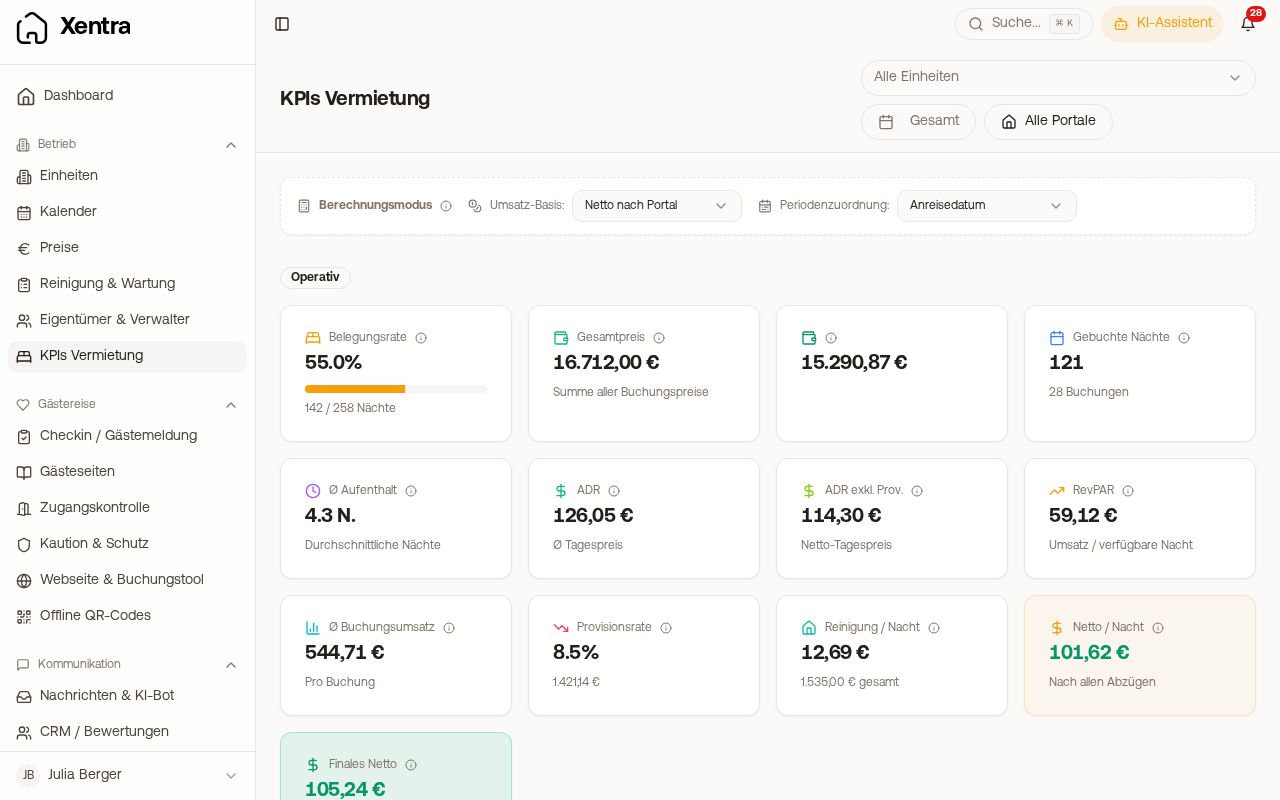 Rental KPIs with calculation mode and the KPI tiles
Filtering
- Units: at the top, open "All units" and select individual units. If you have created location groups, you can select a whole group there too.
- Period on Rental KPIs: a single selection field with "Quick select", "Years", "Quarters" and a free calendar range. "Total" shows everything.
- Period in the financial analysis: "From" and "To", plus year and quarter.
- Portals: on Rental KPIs you narrow down to individual channels with "All portals".
How the figures are calculated (revenue basis, period assignment, cancellations): see "KPIs and EÜR: how the figures are calculated".
The financial analysis
The Financial analysis has four tabs:
- Overview: financial overview, key figures and quarterly performance. Under "All Years" (how the page opens), the period runs from the first to the last booking. The cards Interest, Redemption and Rent are therefore only labelled "(Year)" for a single year, otherwise "(Period)", with the dates below.
- EÜR: income surplus statement with "EÜR as PDF", "DATEV EÜR" and "Asset Register". For the DATEV export you need the adviser and client number in the DATEV settings; if they are missing, the export tells you. Under the period it says which period assignment is used.
- Tax & Depreciation: depreciation, deductible costs, loan interest, rent paid. The subline of "Tax Deductibility" names the period and your marginal tax rate; the amounts add up to "Total Deductible".
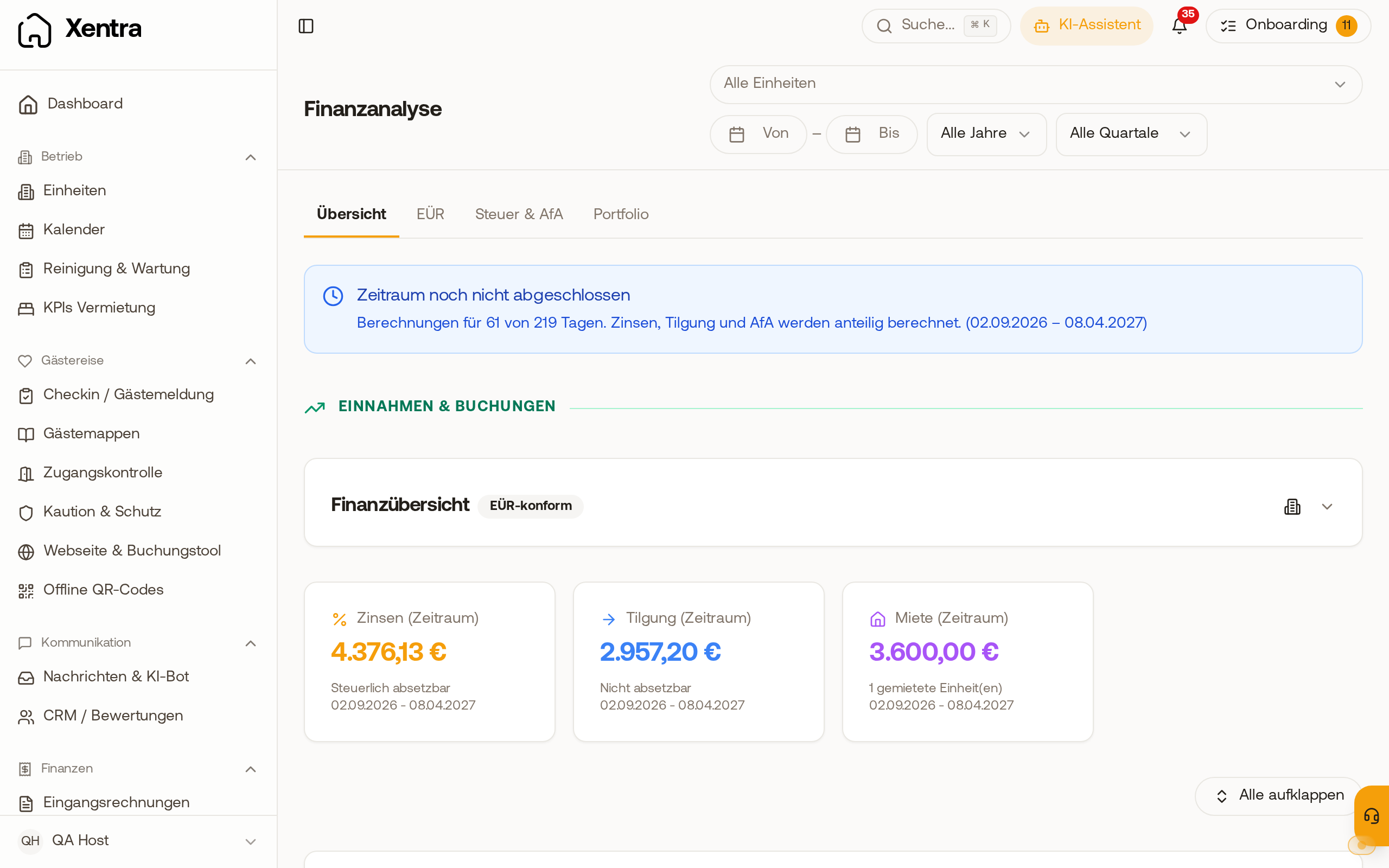 Financial analysis under "All Years": the cards Interest, Redemption and Rent are labelled "(Period)" and show below them the dates the amount applies to.
- Portfolio: your units by Owned, Rented and Managed.
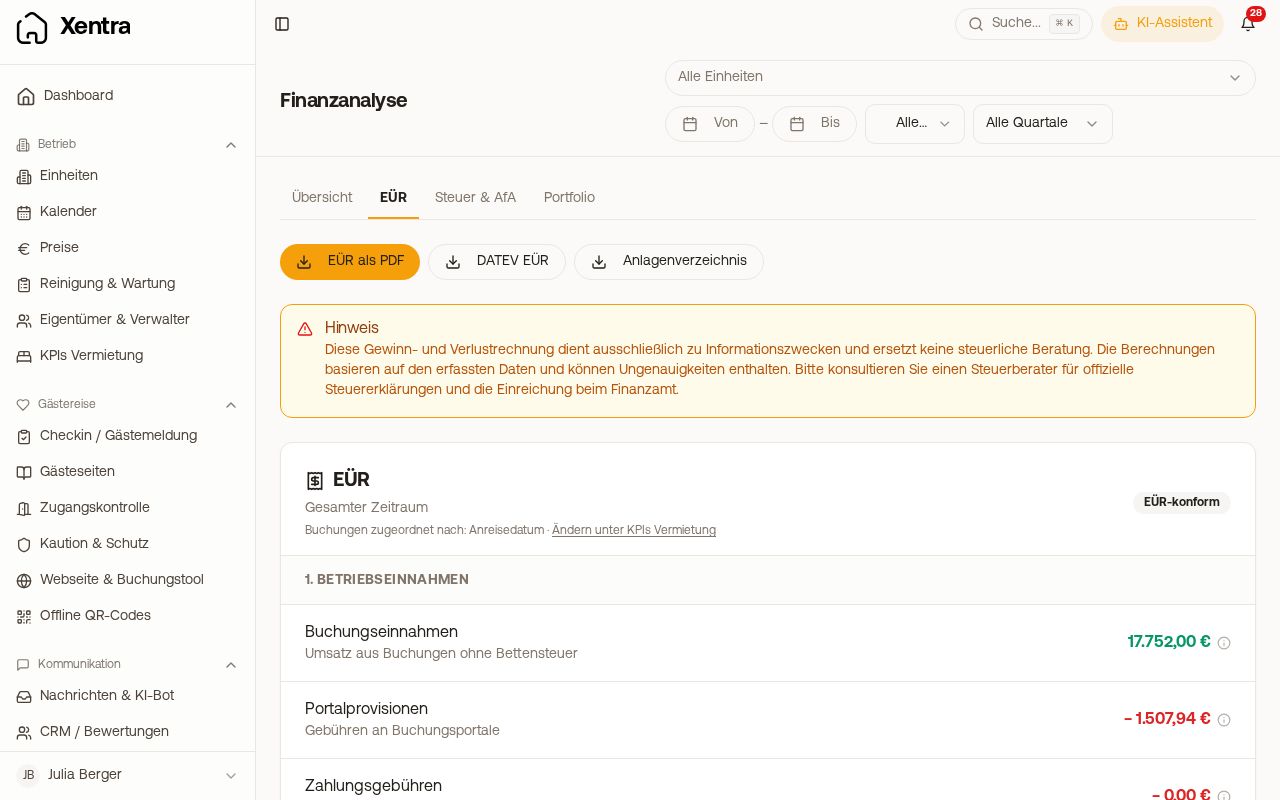 Financial analysis, EÜR tab with the export buttons and the period assignment
Costs and operating result
Alongside the revenues, Xentra calculates with your costs and shows the operating result per unit and period.
- Costs backed by receipts come from the incoming invoices.
- Recurring costs without a receipt you enter per unit: Open Units, edit the unit, "Details", "Running Costs": amount, cost type, frequency (monthly, quarterly, yearly, one-off) and whether they are deductible. Useful for the cleaner you pay in cash.
- Both flow in the same way into operating costs, operating result and the deductible totals.
Owned, rented, managed
In the unit, under "Type", you set how you operate it. This determines what is deducted:
- Owned: depreciation (AfA) and loan interest. You enter loans in the unit under "Bank Loans" with "Add Loan"; they then appear on the Financing page.
- Rented: enter the "Monthly Rent" under "Details". It is deducted from profit proportionally: in the EÜR as "Rent Paid" (also in the PDF), in the Overview tab and under Tax & Depreciation, and on Rental KPIs as "Rent paid" in the operating result. Do not enter the rent additionally as running costs, otherwise it counts twice.
- Managed: the unit belongs to an owner for whom you rent it out. Neither depreciation nor rent applies. You maintain owners and commission under Owners & Managers.
Tourist tax in the financial analysis
There is no separate setting; Xentra takes the tourist tax from your tourist tax configuration. The tourist tax is a pass-through item and is not part of your operating income. If it is included in the portal's price, Xentra calculates it out; if you collect it separately at check-in, it was never part of the price. You see the total as a separate item for checking; it does not change your result. For a report to the municipality, use the reports under Open tourist tax.
Where the numbers come from
From three sources: the bookings (revenue, portal commission, tourist tax), the guest invoices you write in Xentra, and the incoming invoices you upload. There is no bank connection: Xentra does not import bank transactions, not even via Lexware Office. You upload supplier invoices yourself under Incoming Invoices.
Exports
You export the booking list under Open calendar in the tab Bookings, via the download icon at the top right above the table (CSV, Excel or DATEV). For a regular sync with another system, the REST API is better; you create the key yourself under Open settings, section "API / MCP", see "Data API & Webhooks".