
KPIs and Income Statement: how the numbers are calculated
Calculation mode on Rental KPIs: revenue base, period allocation, what does not count, retained cancellation amounts, sorting, and currency.
Updated on November 11, 2026
On Rental KPIs, above the tiles, you will find the "Calculation mode" bar. What you select there applies to your account, stays saved, and also applies to the financial analysis and the Income Statement.
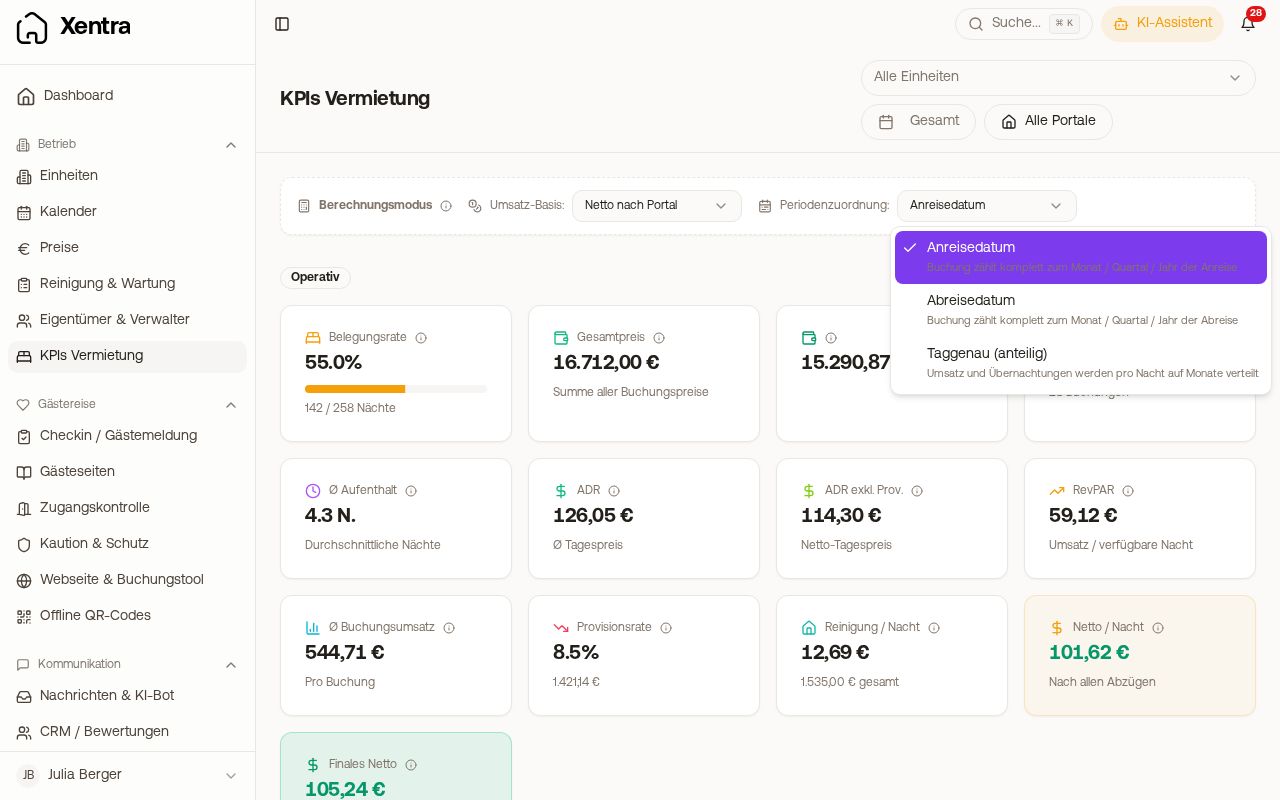 Calculation mode on Rental KPIs with open period allocation
Revenue base: which number counts as revenue
- Gross price: everything the guest pays.
- Net after portal: Gross price minus portal commission and payment fees.
- After all costs: Gross price minus all cost types that you check off under "Adjust cost types" (portal commissions, payment fees, cleaning, Bed Tax, operating costs, incoming invoices, interest, depreciation).
Period allocation: which month a booking belongs to
- Arrival date (default): the booking counts completely towards the month, quarter, or year of arrival. A booking from June 29 to July 3 is therefore fully in June.
- Check-out date: the same based on the month of departure.
- Day-accurate (prorated): revenue and nights are distributed per night across the months.
If bookings cross a month end, the bar points this out to you. If you compare annual figures with a PMS like Smoobu (which calculates prorated day-by-day), set the same allocation, otherwise the totals will differ by the bookings across the new year.
In the Income Statement, below the date range, it shows which allocation is used, for example "Bookings allocated by: Check-out date". The link "Change under Rental KPIs" leads directly to the setting.
What is not counted
Requests do not count towards revenue or occupancy, nor do Blocks. Cancellations only count with the amount you retained despite the cancellation.
Extras from booking tool and offers
Extras that guests add in the booking tool and extras from an accepted offer count towards revenue, for example in Total price, Net after portal, and Avg. Booking Revenue. The Xentra commission on card-paid extras counts towards commissions, and in the "Revenue Waterfall: Gross → Net", the VAT on extras appears as a separate step "VAT extras". Per-night values like ADR, ADR excl. Comm., RevPAR, and Net / Night only calculate with the stay: a booked breakfast therefore does not raise your daily rate. For a cancelled booking, only extras that are already paid count.
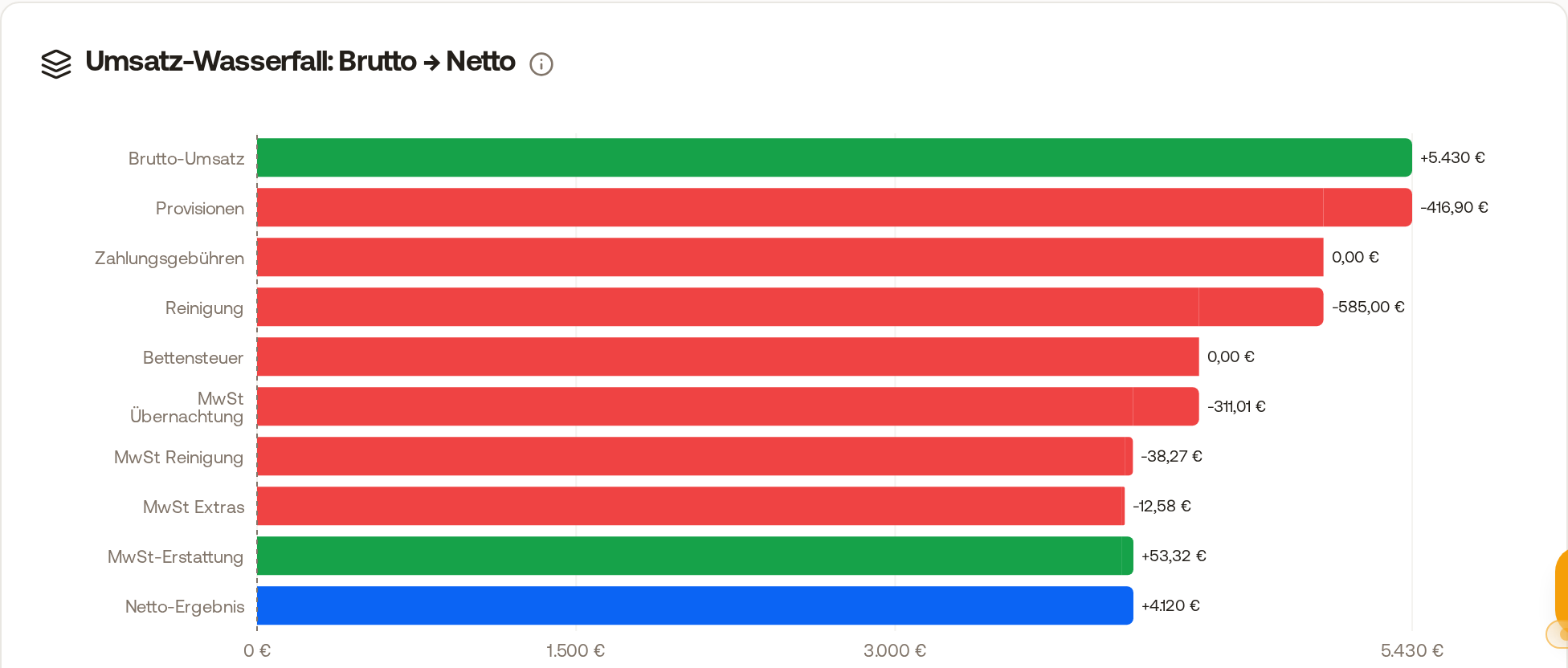 The Revenue Waterfall on Rental KPIs with the VAT extras step between VAT cleaning and VAT refund.
Cancellations where you retained money
With a non-refundable rate, a cancellation fee, or a no-show, money stays with you. This Amount retained counts towards revenue, the Income Statement, and the DATEV export, but not towards nights, occupancy, ADR, or RevPAR. It always counts on the day it was cancelled, regardless of which calculation mode (arrival, check-out, or prorated daily) you chose; the mode only applies to stays that actually take place. If the cancellation date is missing from an older booking, the arrival date counts. On Rental KPIs, it appears in the cancellation section as "Captured", separate from the revenue you actually lost. No tourist tax is deducted from retained cancellation amounts.
- Airbnb via channel manager: Xentra transfers the amount automatically from the cancellation.
- All other channels (Booking.com, Expedia, Vrbo, direct bookings, PMS): enter it yourself: open booking → "Edit" → "Finance" tab → "Amount retained" (gross) → save. The field only exists for cancelled bookings. Empty means "unknown", 0 means "nothing retained". Your entry will not be overwritten during the next synchronization.
Tourist tax in the price or on top
Whether the tourist tax is included in the price of a booking or added on top is decided by Xentra per booking just like on the guest invoice: according to what the portal reports, and according to "Included in portal gross" per portal under Settings → Financial Imports. If the guest paid it via Xentra, it is always added on top. If it is included in the price, KPIs, financial analysis, Income Statement, and DATEV export deduct it from the revenue, in the "Revenue Waterfall: Gross → Net" in the step "Bed Tax". If it comes on top, nothing is deducted: revenue, ADR, and Avg. Booking Revenue remain full, and the "Bed Tax" step does not count it (with only such bookings, it shows €0.00 there).
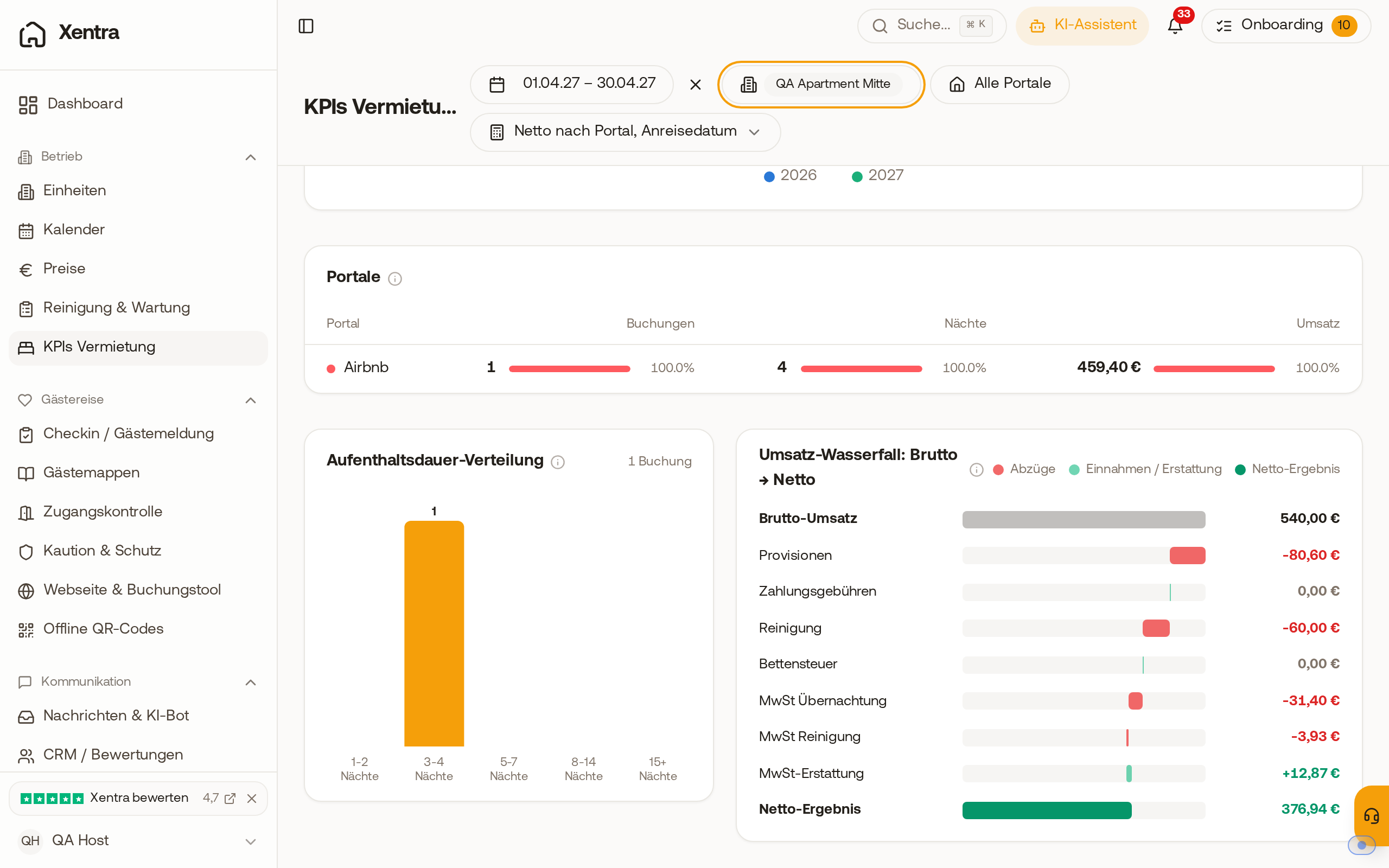 Revenue Waterfall on Rental KPIs for an Airbnb booking whose tourist tax is added on top: the Bed Tax step shows €0.00.
Bed Tax with VAT
Whether VAT applies to the Bed Tax is set per portal under Guest Invoices → Settings: "Line items" section, "Tourist tax" item, "Bed-tax VAT treatment". If "Apply VAT to tourist tax" is turned on in your tourist tax configuration, its rate applies. This single rate applies to invoices, the booking finances, KPIs, and the DATEV export:
- In the booking, under "Finance", there is the line "VAT 7% Bed Tax", and "Net before costs" decreases by this amount.
- In the "Revenue Waterfall: Gross → Net" on Rental KPIs, the step "VAT tourist tax" appears.
- In the DATEV export, the Bed Tax is booked as revenue with this rate.
With "Pass-through (0 %)", none of these lines exist. The rules under Settings → Financial Imports no longer have their own VAT rate. Whether the Bed Tax is subject to VAT for you should be clarified with your tax advisor.
Occupancy per Unit
In the "Occupancy per Unit" tile, the unit with the highest occupancy is at the top; if occupancy is equal, the name decides. "Not assigned" (bookings without a recognizable unit) is always at the end. A different sorting cannot be set.
Bookings of deleted units
If you delete a unit, its bookings are preserved. Under "All units", they continue to count towards revenue, nights, and bookings, and appear in "Occupancy per Unit" as "Not assigned". If you only want to see your current units, select them individually at the top via "All units".
Currency
The amounts appear in the currency from your settings, for example in francs (CHF). Team members see the same currency as the main account. If an incorrect currency symbol appears, check the currency under Settings → Taxes.