
Change, cancel or credit an issued invoice
What can still be changed on a final invoice, how the payment link reaches the guest, and how to cancel or create a partial credit note.
Updated on November 2, 2026
Once an invoice is final, line items and billing address are fixed. This is intentional: an issued invoice must stay audit-proof, otherwise the invoice number no longer matches what the guest received.
What still works
Guest Invoices, on the invoice the three dots, "Edit". On the right, "Edit Invoice" opens:
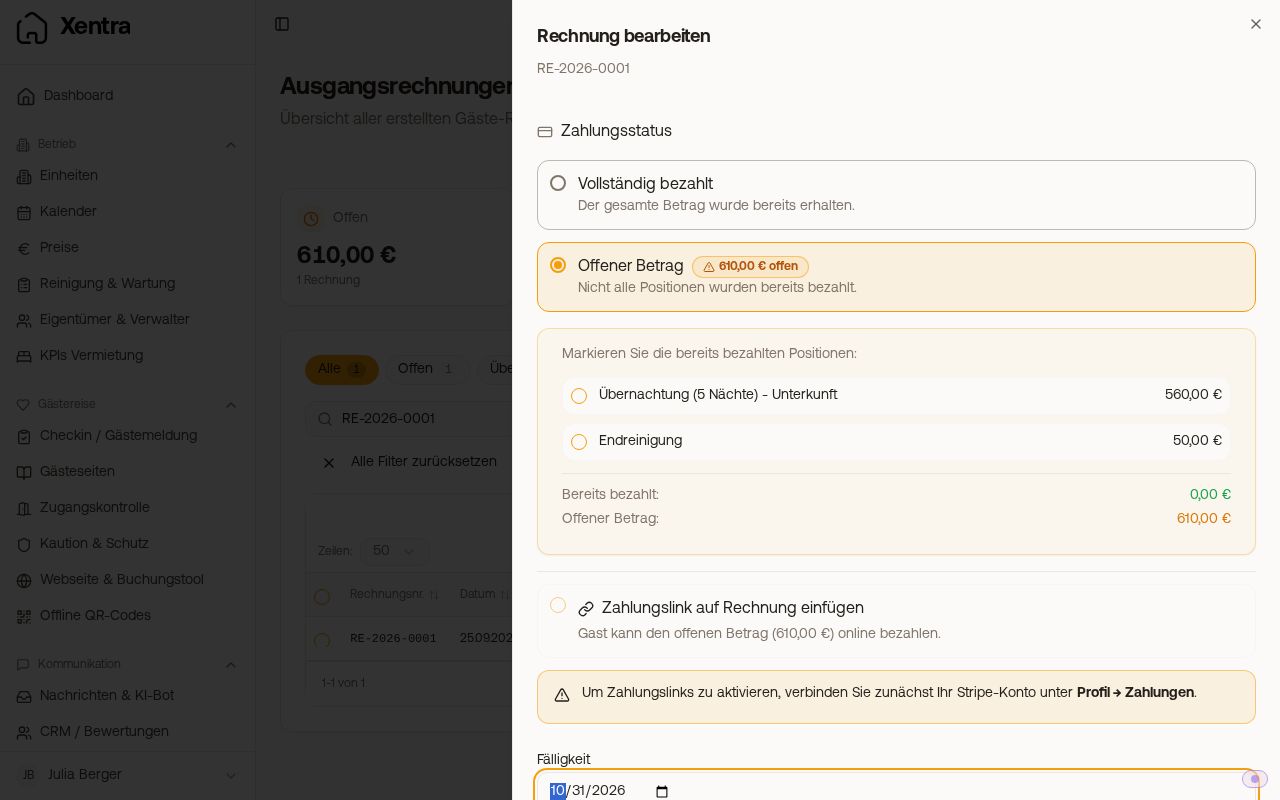 The "Edit Invoice" window with payment status and due date
- Payment status per line item (paid or open). Clicking "Outstanding amount" alone is not enough: Xentra calculates the status from the checkmarks of the individual line items. Remove the checkmark from every line item that is still open. Otherwise the invoice is saved as paid again when you save.
- Add the payment link afterwards ("Insert payment link on invoice"). The PDF is regenerated in the process. The option only exists as long as an open amount is on the invoice, and only with a connected Stripe account.
- Due date can be added or changed. It controls the overdue marker in the list and what is handed over to Lexware. The due date that was written onto the invoice when it was created (PDF, guest invoice page, e-invoice) stays unchanged. If you need a different date there, cancel and issue a new invoice.
Why the bank details disappeared from the PDF: as long as an invoice is fully paid, Xentra hides the bank details and the payment QR code. If the status is set back to open, they appear again the next time the PDF is generated.
How does the payment link reach the guest?
The payment link is in the invoice itself: on the invoice page the guest opens, and in the PDF. You have three ways:
- Copy the payment link directly: three dots, group "Share", "Copy payment link". The guest pays online through it directly and needs no password. This entry only exists for a final invoice with an open amount and an inserted payment link.
- Send the invoice: three dots, group "To the guest", "Send (Auto)". The guest gets the invoice and the payment link in one.
- Share the invoice link: three dots, group "Share", "Copy link". If password protection is on, also send "Copy password". The guest opens the invoice and clicks "Pay Now".
Once the guest pays through the link, the invoice shows as "Paid" afterwards, and you get the notice "Invoice paid". To collect an amount without an invoice, use a payment link on the booking, see Payment link with a free amount from the booking.
What no longer works
- Adding, removing or changing a line item.
- Changing the billing address, VAT ID or recipient name.
If any of this is wrong, cancel the invoice and issue a new, correct one.
Cancel, credit note and partial credit note
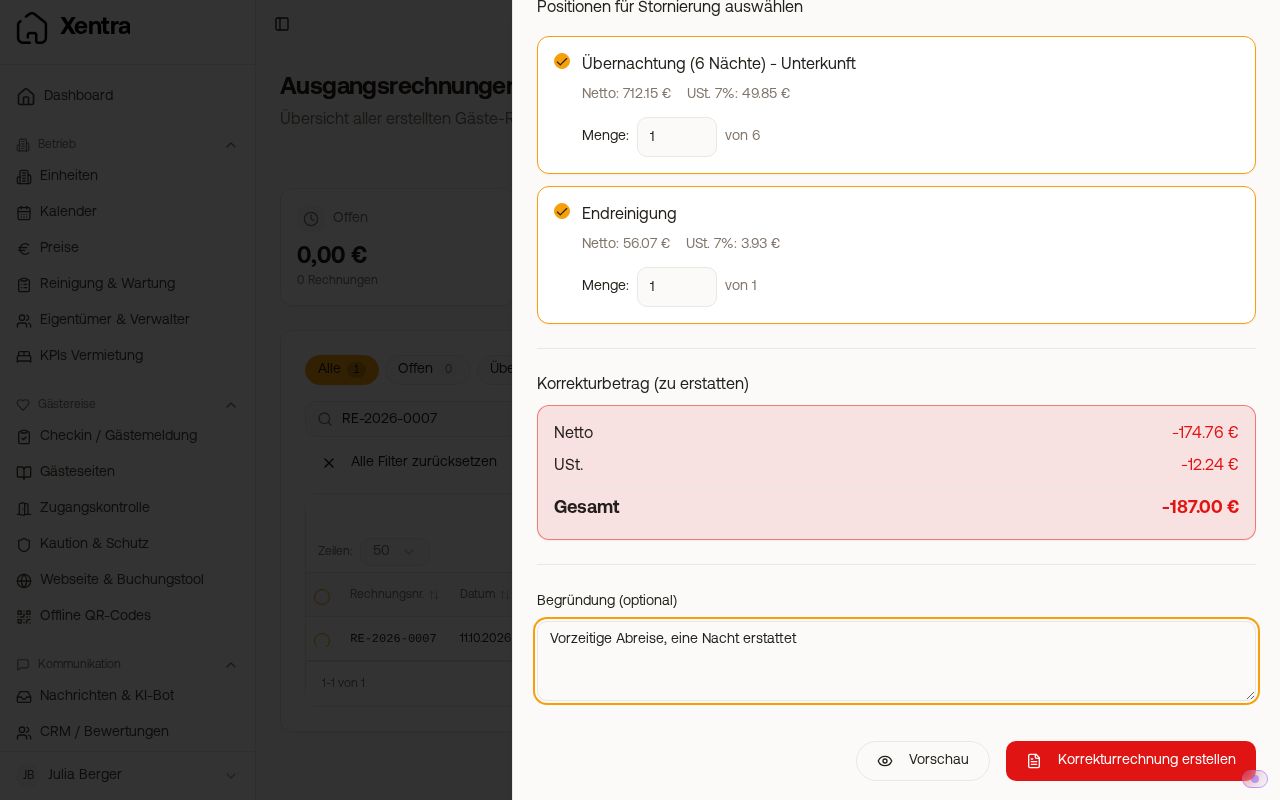 The window for cancellation and credit note with the selection of line items
Guest Invoices, on the invoice the three dots, "Cancel / credit note". The window "Create corrective invoice (credit note)" opens, with all line items selected. With "Preview" you check the result. With "Create corrective invoice" you create it.
The guest does not get the corrective invoice automatically. Xentra only creates it. If you want to send it to them, open the three dots on the new credit note in the Guest Invoices and choose "Send (Auto)" or "Send to a different address" in the group "To the guest".
- Cancel completely: leave everything selected and create it. A cancellation (credit note) with its own number is created, and the two documents cancel each other out. Afterwards you can issue a new invoice on the booking via "E-Invoice". Xentra does not issue an automatically created invoice again by itself if you cancel it from the day before departure onwards: you issue the new invoice yourself.
- Partial credit note, for example after a partial refund: remove the ticks from everything that is not refunded, and set the quantity on the refunded line item (for example the number of nights). The original invoice remains valid.
- A freely chosen amount does not exist. The credit note always calculates quantity times unit price of the line item.
- Under "Reason (optional)" you can write a reason on the credit note.
If a booking is cancelled for which an invoice has already been issued, Xentra does not cancel the invoice automatically. You get the notice "Invoice for a cancelled booking" and decide here whether a cancellation fee stays or everything is credited.
Every credit note goes on to bookkeeping like an invoice if you have switched on the invoice copy.