
Automatically create and send invoices to the guest
The two switches for creation and sending, delivery channel, sending manually, delivery status, and who is listed on the invoice.
Updated on November 6, 2026
Automatically create and send invoices: two switches
Under Guest Invoices, button "Settings", section "Automation", there are two switches, and they do different things:
- "Auto-create invoice on departure" creates the invoice. Under "Send timing", you choose: on departure day or 1 to 3 days after departure.
- "Send invoice automatically" appears as soon as the first switch is turned on, and sends the finished invoice to the guest. Under "Delivery channel", you choose "PMS, then email", "Email only", or "PMS only".
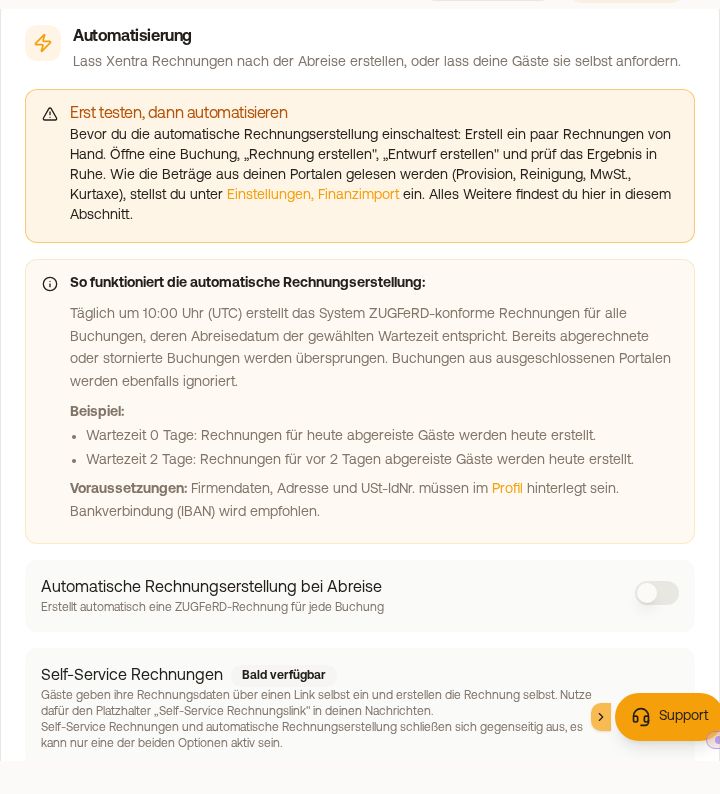 The "Automation" section in the invoice settings
If the first switch is on and the second is off, invoices accumulate without any of them reaching the guest.
When the run starts
Once daily at 10:00 AM UTC (12:00 PM German Summer Time, 11:00 AM Winter Time). It takes the departures matching your send timing, and for safety also those from the day before. Canceled bookings, inquiries, and channels you checked under "Exclude channels from invoice generation" are skipped.
The automatic dispatch sends only invoices that this run created itself. If a booking already has an invoice because you issued it using "Generate live invoice", the run skips it. If you turn on dispatch later, older invoices will not be sent retroactively.
If you cancel an automatically created invoice via credit note from the day before departure, the run will no longer automatically create a new invoice for this booking. You then issue the corrected invoice yourself: on the booking via "E-Invoice". If you canceled an earlier invoice (for example an advance invoice) beforehand, the invoice arrives automatically after departure as usual. If your guest requests the invoice themselves via the self-service link, they still receive it.
For automatic creation, company details, address, and VAT ID must be in the profile. The automatic creation builds ZUGFeRD or Factur-X invoices. If your default format is set to XRechnung, FatturaPA, or FacturaE, it pauses, and you issue the invoices manually.
Send an invoice manually
- Individually: Guest Invoices, three dots next to the invoice, group "To the guest", "Send (Auto)". The guest receives the invoice via the set delivery channel.
- To a different address: there "Send to a different address", for example if the guest made a typo. The invoice itself remains unchanged.
- Multiple at once: check the invoices and click "Send". Only issued invoices that have never been sent are included, at most 100 at a time. With "Stop", you cancel an ongoing dispatch.
- If an invoice has already been sent, Xentra asks before sending a second time ("Send the invoice again?"). Drafts and canceled invoices are never sent to the guest.
How to see if an invoice has been sent
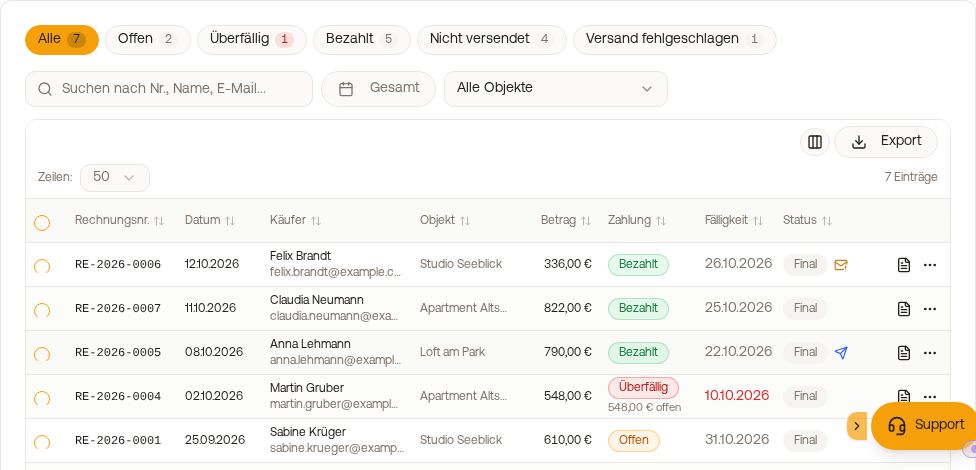 The "Status" column with delivery icons and the quick filter "Not sent"
In the "Status" column, the delivery appears as a small icon:
- Blue send icon: the invoice is with the guest. Hover over it with your mouse to see the date and channel.
- Amber icon: an automatic delivery failed.
- Icon "Created by the guest": the guest picked up the invoice themselves, nothing had to be sent.
- No icon: not sent yet.
Safer is the tile or quick filter "Not sent": all issued invoices that have not reached the guest yet, including failed ones. "Delivery failed" shows only the failed ones. A click on a row opens the invoice, under "Delivery to the guest" you find the exact text that reached the guest.
Do not confuse: "Forward a copy automatically" sends the invoice to your accounting. This says nothing about whether the guest received it.
Who is on the invoice and where it goes
- The invoice address from the check-in is only used if the guest selected "different billing address" there. Otherwise, the booker is on the invoice, not the person who filled out the check-in. The invoice recipient is the contracting party, for a company booking with company name and VAT ID.
- If a company specified an "E-mail for invoices" when accepting an offer (usually their accounting), every invoice for this booking goes to this address, even if a different company email is entered in the online check-in. Whoever accepted the offer receives a copy (CC). In the "E-Invoice" window, the address is preselected, underneath it says "Invoice email from the offer"; via the selection you can choose a different one. With "Send to a different address", no copy is sent out. Invoices already issued keep their address.
- If the guest selects "Company" for the invoice address during check-in, they can specify "Email for the invoice (optional)", for example the address of their accounting. The invoice then goes there. You can see it in the booking under the Check-in tab on the Invoice address card as "Invoice email".
- If you want a different recipient, overwrite name, company, address, and email when creating in the "E-Invoice" window. After issuing, the recipient can no longer be changed, then only canceling and reissuing helps.
The text of the invoice email is an individual template per language: Guest Invoices → "Settings" → section "Invoice message to the guest". It applies to PMS message and email. If you leave the template blank, Xentra sends the default text.
Payment reminder and dunning
There is no dedicated dunning function with dunning levels or dunning fees. For a payment reminder, simply send the invoice to the guest again: Guest Invoices, three dots next to the invoice, group "To the guest", "Send (Auto)". You can do this as often as you like for any issued invoice, even if it is already in Lexware Office.
Would the guest prefer to get the invoice themselves? See Self-service invoices: the guest creates their invoice themselves.