
Invoice copy to your bookkeeping
Send every guest invoice to your accountant as a PDF automatically, also to several addresses, and spot when a copy did not arrive.
Updated on November 6, 2026
Every finished guest invoice and every credit note also goes out as a PDF to an address of your choice, for example your tax advisor or the document inbox of DATEV Unternehmen online, Tabula, sevDesk or Lexware Office. This only concerns your outgoing invoices to guests, not the incoming invoices you collect in Xentra.
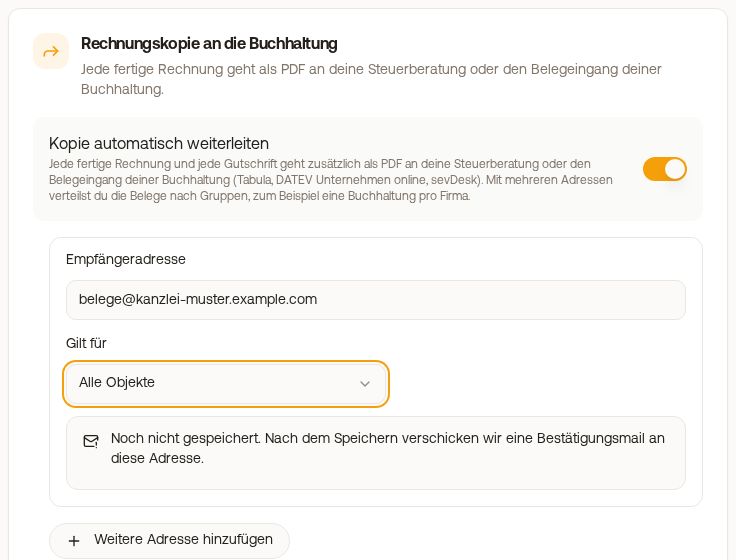 The section “Invoice copy to your bookkeeping” in the invoice settings
To set it up: Guest Invoices → button “Settings” → in the bar “Forwarding”, section “Invoice copy to your bookkeeping” → switch “Forward a copy automatically” on → enter the recipient address → save.
Two things matter here:
- The address must be confirmed once. Until then, nothing is sent. If you change it later, a new confirmation is needed. For a document inbox such as DATEV Unternehmen online, Tabula, FinHelper, sevDesk or Lexware Office, the confirmation is skipped.
- When you switch it on, a cut-off date is set. Invoices created before that are not sent retroactively. You can adjust the cut-off date in the same section.
Several companies in one account: several addresses
You can enter several recipient addresses, for example one per company or bookkeeping:
- One address on its own receives all invoices by default (“Applies to” is set to “All units”). There you can also restrict it to “Only certain groups”.
- From two addresses on, for each address you choose the unit groups whose invoices go there. Every invoice goes to exactly one address. An invoice whose unit is in none of the selected groups is not forwarded, because there is no catch-all recipient.
- Each address is confirmed individually.
- You create the groups under Properties, Settings, Location groups.
- A property may only be in the groups of a single address. If the groups of two addresses overlap, the section shows the affected properties and you adjust the groups.
- The section lists properties that are in none of the selected groups directly. Their invoices get the mark “Not sent to bookkeeping” in the list of guest invoices, so no invoice goes missing unnoticed. The most common reason is a new unit that is not yet in any group.
Unlock the sender
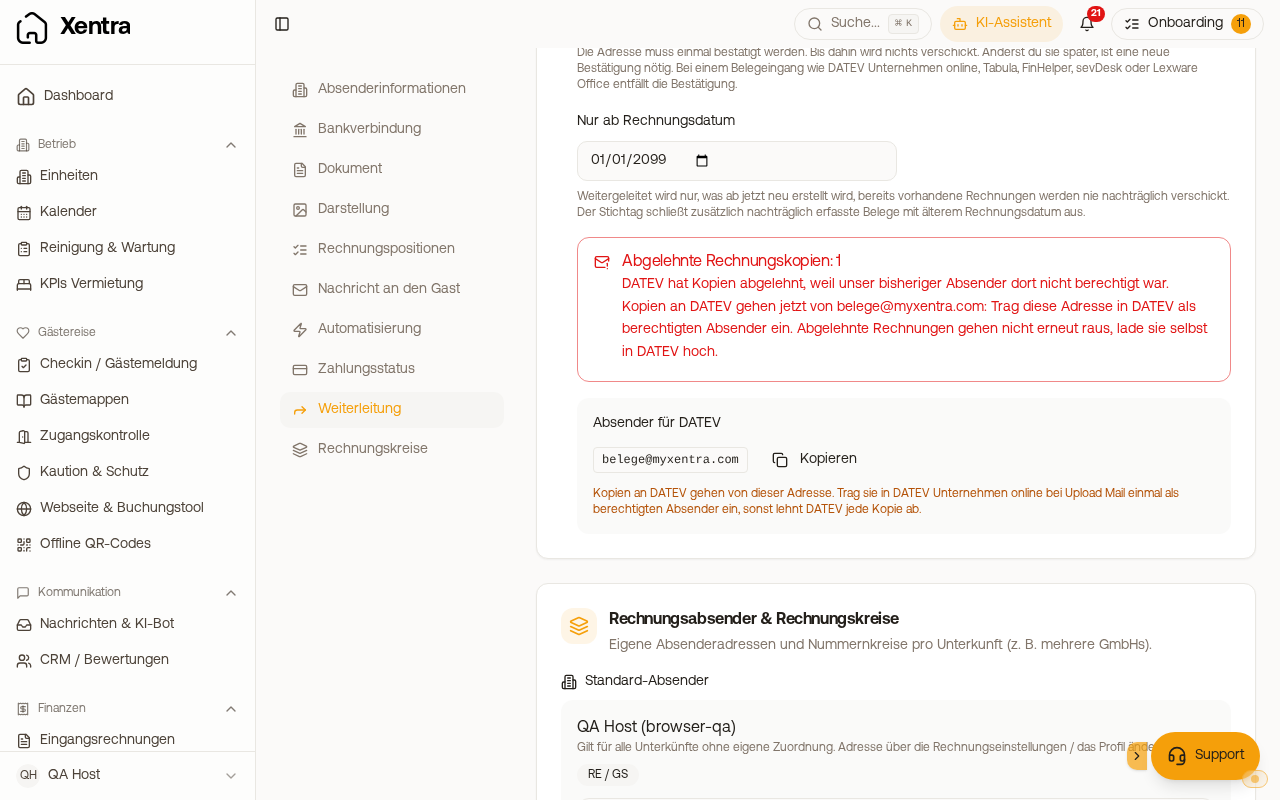
In the section “Invoice copy to your bookkeeping”, under “Sender of these emails”, you see the address the copies come from. Many document inboxes only accept emails from unlocked senders. Copy the address with “Copy” and enter it as an allowed sender in your document inbox, otherwise the documents will not arrive there.
DATEV: copies to DATEV come from belege@myxentra.com. Enter this address once as an authorized sender under Upload Mail in DATEV Unternehmen online. You do not need to search for a confirmation email.
 Invoice copy to your bookkeeping
How you see that a copy did not arrive
Only the error case is shown: in the invoice list as a warning icon next to the invoice, and in the opened invoice as a note. Hover over it and you see what to do.
- “Bookkeeping not reached”: Xentra tries again over the next nights. If the note says that it will no longer be retried, download the invoice and upload it to your bookkeeping by hand.
- “Bookkeeping: delivery unclear”: the copy may already have arrived, which is why Xentra does not retry automatically. Check your document inbox first before you submit it again, otherwise you have the document twice.
- “Bookkeeping: rejected” (red icon): the document inbox rejected the copy, most often because it does not know the sender yet (see “Unlock the sender”). A rejected copy is not sent again: download the invoice and upload it by hand. You can also see rejected copies under Calendar, tab “Action needed”, as “Invoice copies rejected”, and as the note “Rejected invoice copies” in the section “Invoice copy to your bookkeeping”.
- “Not sent to bookkeeping”: the property of the invoice is in none of the groups of your addresses. Assign it to an address in the section “Invoice copy to your bookkeeping”. The affected invoice is not sent afterwards, you upload it by hand.
Where the booking came from, in the copy
The text of each copy contains a line “Source:” with the booking channel, for example Booking.com, Airbnb or direct booking, as long as the channel is known. The subject stays unchanged, so the automatic matching in your document inbox still works. An automatic document inbox such as DATEV Unternehmen online or sevDesk usually does not read the email text. If the source should arrive there, switch it on for the invoice itself as well: see Invoices, section “Show where the booking came from on the invoice”.