
Guest invoices: Appearance, bank details, password protection, and export
Logo, header and footer, payment status per channel, bank details with QR code, password protection for the invoice link, and export as PDF, ZIP, or Excel.
Updated on November 12, 2026
How the guest invoice looks
How invoices are created and sent is explained in the articles Create a guest invoice and Create and send invoices to the guest automatically. This article covers appearance, bank details, password protection, and export.
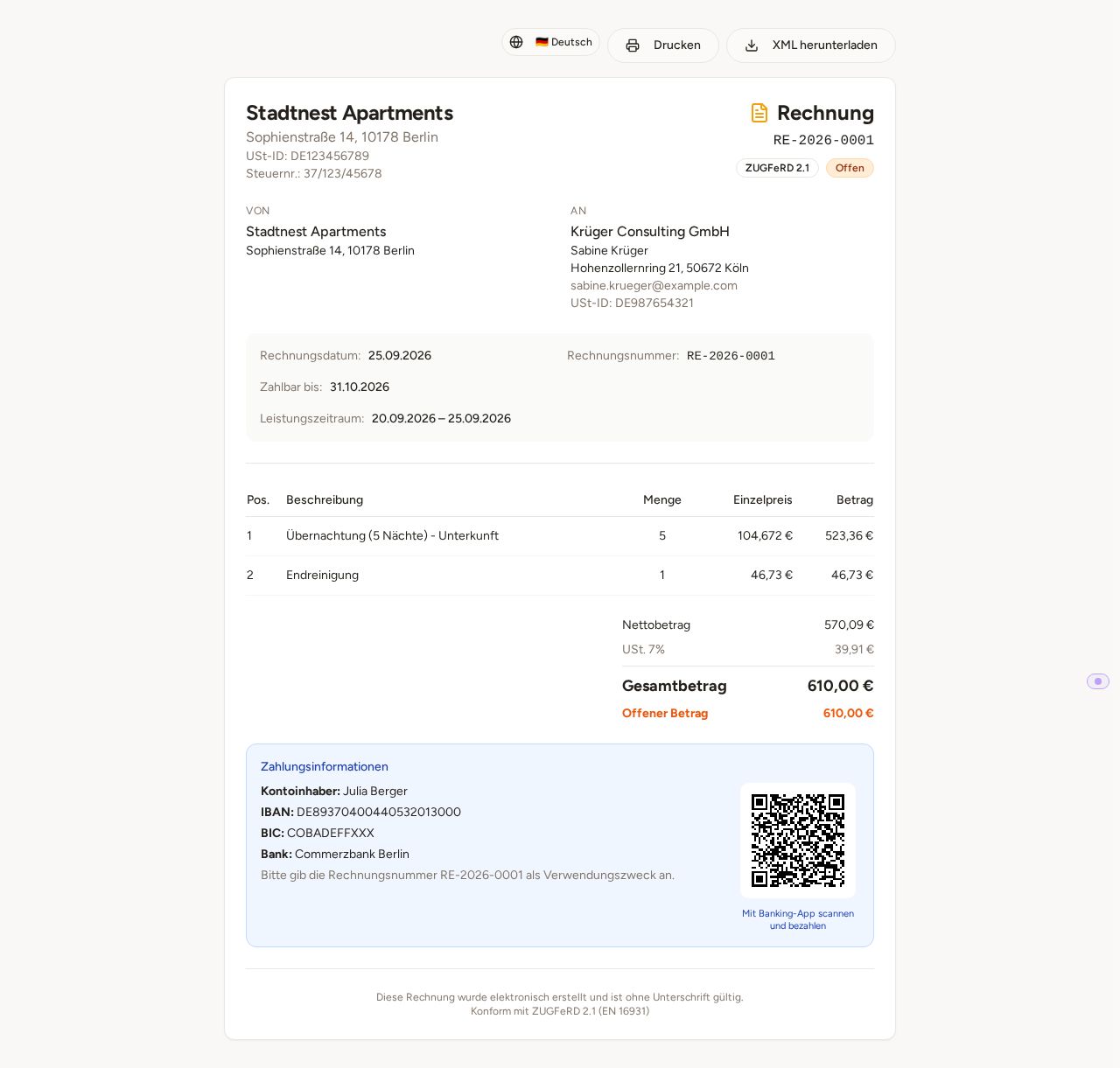 A guest invoice as the guest opens it via their link
The settings for this: Guest Invoices, button "Settings".
"Display" section
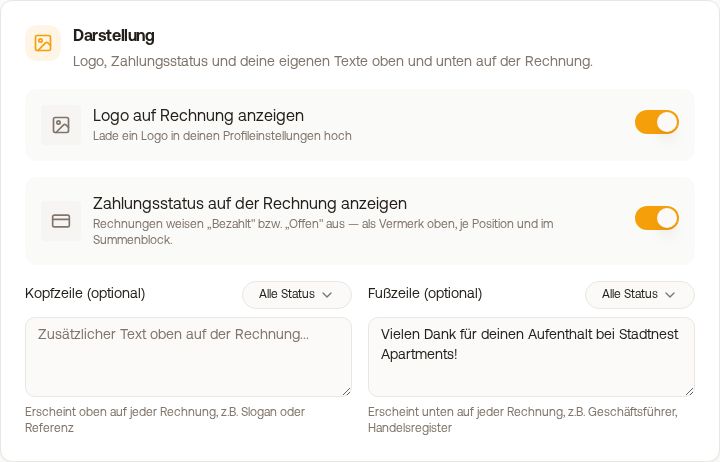 The "Display" section with logo, payment status, header and footer
- "Show logo on invoice": your logo from your profile at the top of the invoice.
- Header and Footer, each with a selection for which payment status the text appears (Unpaid, Partially paid, Paid). This allows you to use different texts for open and paid invoices.
- "Show payment status on the invoice": when switched off, no "Paid" or "Open" appears on the invoice, for hosts who handle payment outside of Xentra.
- "Property address in the line description" (off by default): appends the address of the unit to the overnight line of new invoices, for example "Overnight stay (3 nights) - Apartment Seeblick, Seestraße 5, 6020 Innsbruck". The address comes from the address field of the unit. If the toggle is on, it shows you the line using an example and how many units do not have an address yet; for them, only the name is shown. Invoices already issued do not change.
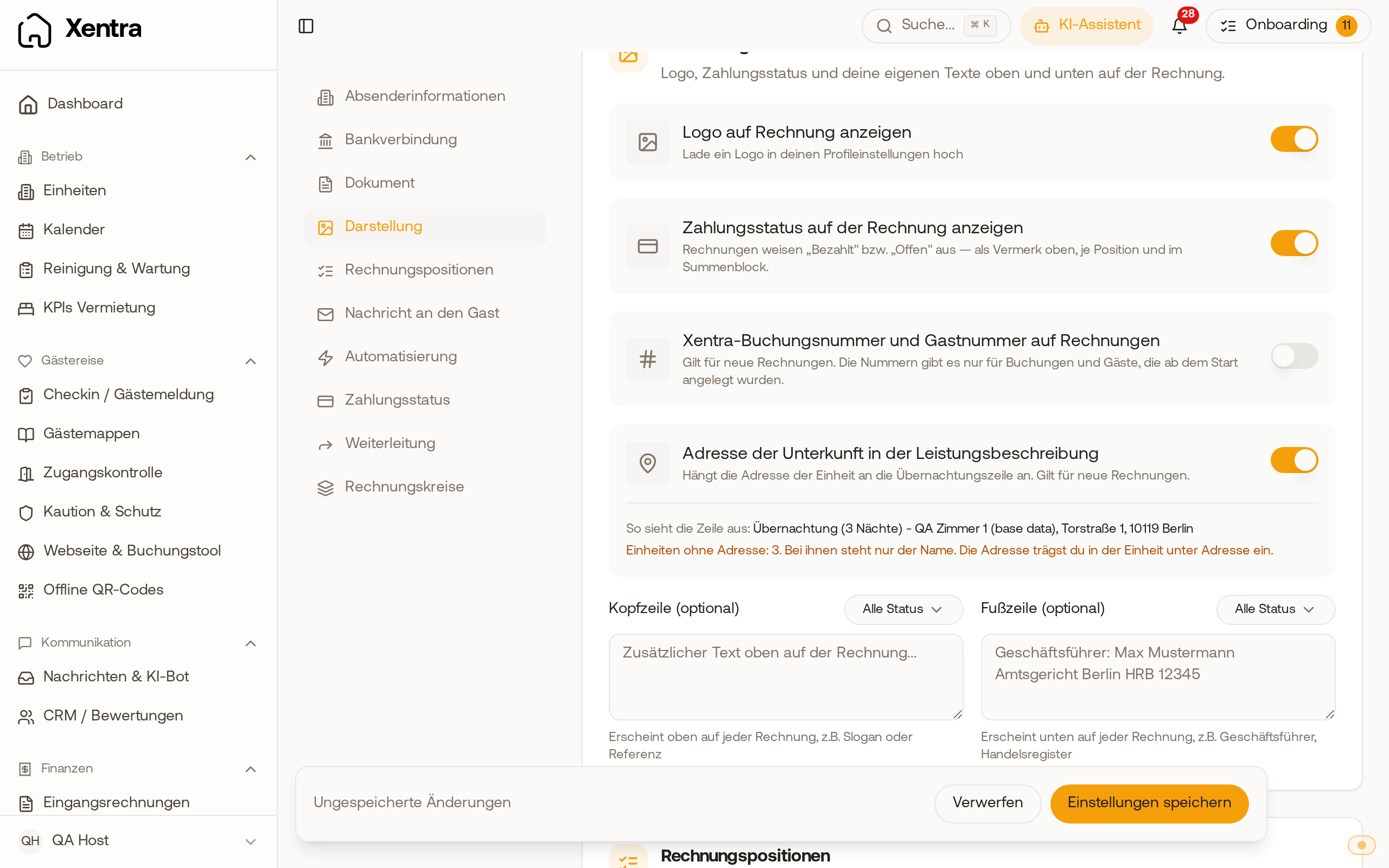 The toggle "Property address in the line description" shows the overnight line using an example and how many units have no address.
"Payment status per booking channel" section
Here you specify per portal who collects the money from the guest: "Portal collects" or "I collect myself". With "Portal collects", overnight stay, cleaning, and tourist tax appear on the invoice as "Paid". With "I collect myself", they remain "Open" until you record a payment or mark the booking as paid. Preselected is what is customary for the portal: Airbnb and Booking.com, for example, are set to "Portal collects", Feratel to "I collect myself". You can switch any portal in both directions.
If a booking itself reports that the guest pays you, it remains "Open", even if you selected "Portal collects". Direct bookings are always "Open" until a payment is received. Additional services paid during check-in always remain "Paid". The choice applies to automatic and manually created invoices; when creating manually, you can still change the payment status of each line item. Invoices already created do not change.
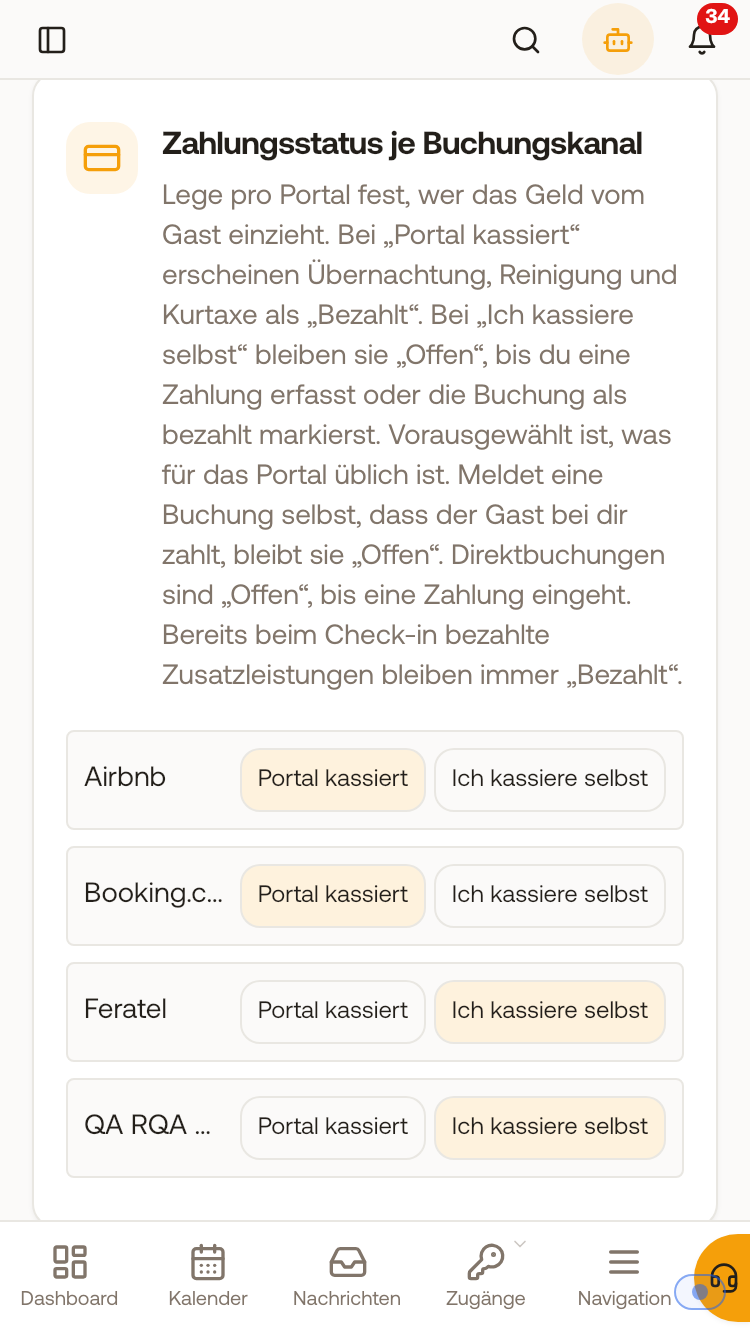 The section "Payment status per booking channel" with "Portal collects" and "I collect myself" for each portal
"Bank details" section and payment QR code
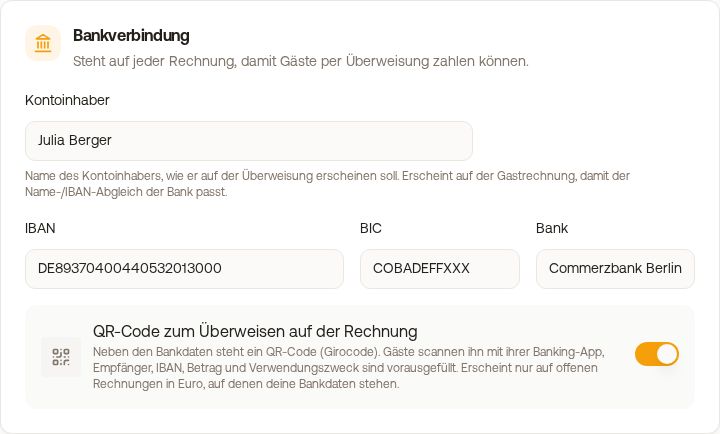 The "Bank details" section with the toggle for the QR code
- Account holder, IBAN, BIC, and Bank appear on every invoice so guests can transfer money. For another billing circle, enter the bank details for the respective sender (see Invoice senders, billing circles, and invoice numbers).
- Xentra checks the IBAN before saving. If it is invalid, for example due to a typo in the digits, the field shows "This IBAN is not valid. Please check it again." and nothing is saved.
- "Payment QR code on the invoice" places a Girocode (EPC-QR) next to the bank details. The guest scans it with their banking app: recipient, IBAN, amount, and invoice number are pre-filled. The toggle applies to all billing circles. The code only appears on open invoices in euros with an IBAN, never on credit notes.
- If an invoice is fully paid, Xentra hides the bank details and transfer block, on the PDF as well as in the email.
What else appears on the invoice
- Service period, freely editable during creation, plus Number of guests and nights. For an invoice covering multiple apartments of a reservation, the number of guests counts all apartments together.
- Unit prices are displayed with a maximum of two decimal places. If an item does not divide evenly to the cent, it is displayed as 1 x total amount, with the quantity in parentheses after the description, for example "Parking (3 x)". For overnight stays, the number of nights is already in the description.
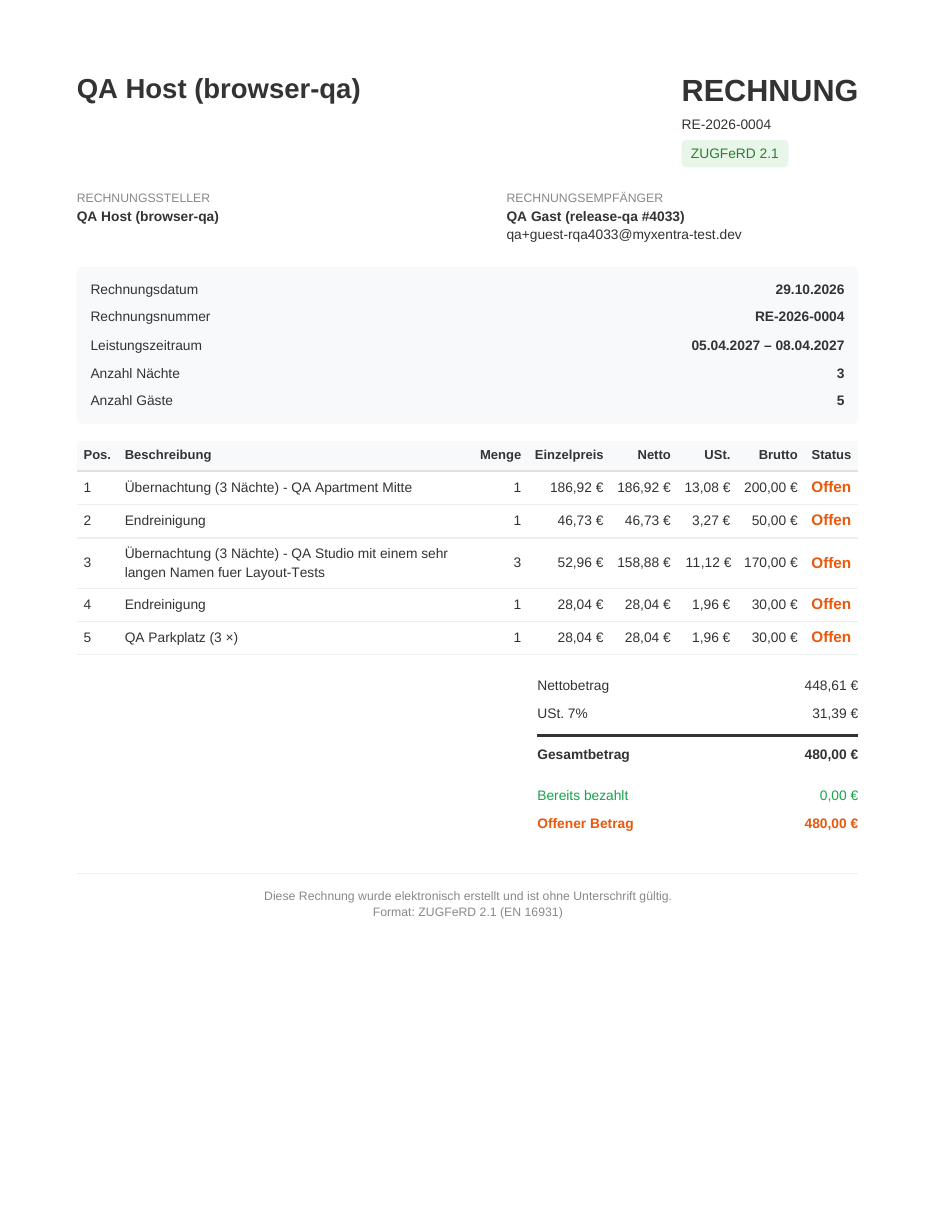 An invoice for two apartments: number of guests counts both together, each unit price has at most two decimal places.
- The sender's Tax number and VAT ID.
- The Recipient address is a single field. If you separate street, postal code, and city with commas ("Musterstraße 1, 12345 Berlin"), each part appears on its own line on the invoice. Without commas, the address stays on one line.
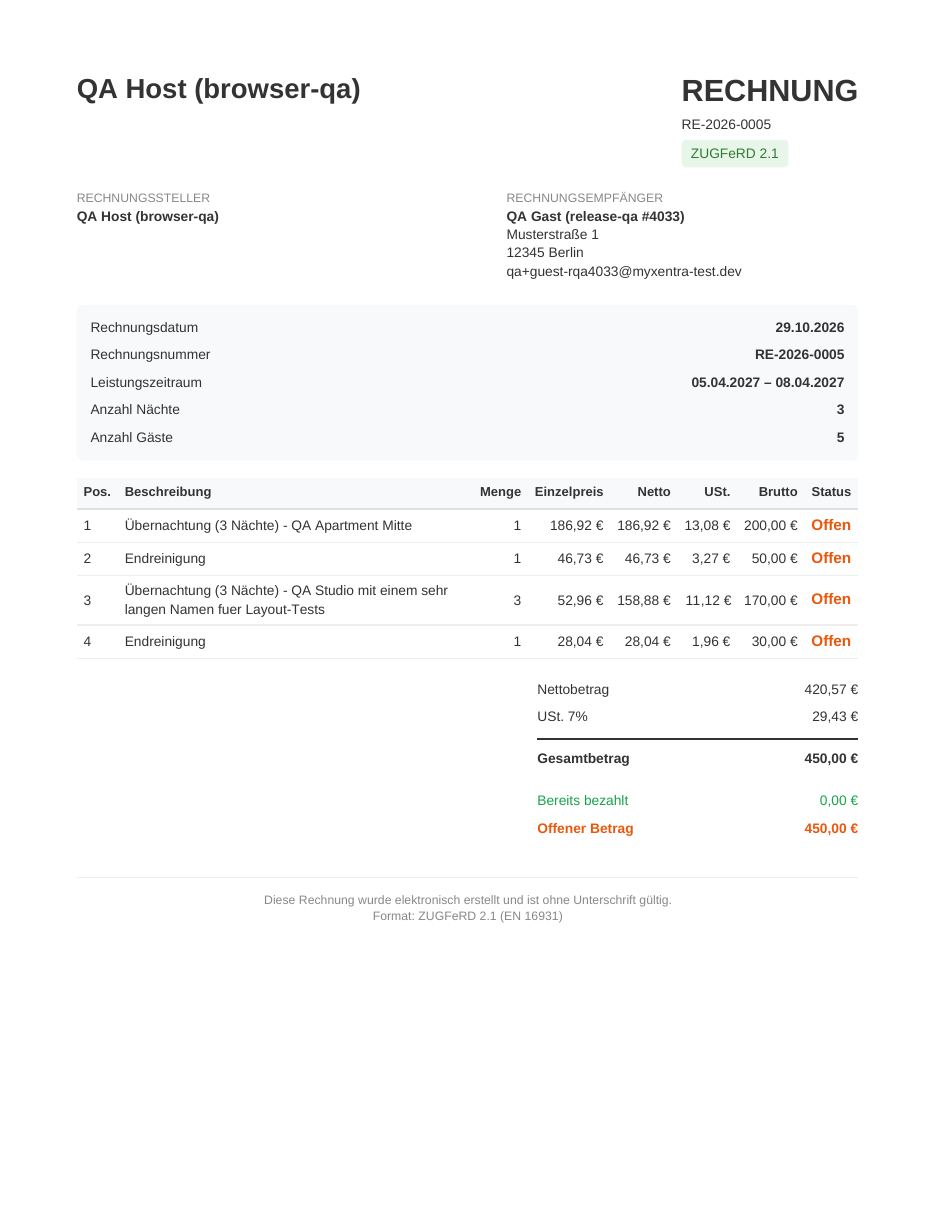 On the invoice, the recipient's street as well as postal code and city appear on separate lines.
- Origin of the booking: in the same settings, section "Line items", tab of the channel, toggle "Show where the booking came from". Then the notes say "Booked via Booking.com." or "Direct booking.", also in the e-invoice. Alternatively, write
{{portal}}and{{booking_number}}into the Invoice Note of the same section. If a value is missing, the entire sentence is omitted. Both apply to invoices you create afterwards. - The accompanying message for the invoice is a separate template per language, section "Message to the guest".
You cannot customize colors, the layout of sender and recipient (there is no address field for window envelopes according to DIN 5008), or custom letterhead. You can design the logo, header, and footer.
Password protection for invoice links
You can see whether it is on under Settings, "Security" tab, "Password protection for invoices" toggle. Accounts created since September 30, 2026 start without password protection; for older accounts, it is on as long as you do not turn it off.
- You do not set a password yourself. Xentra generates one per invoice. You can find it under Guest Invoices, three dots, "Share" group, "Copy password".
- For the guest to receive it, the placeholder
{{invoice_password}}must be in the invoice message ("Message to the guest" section). It is already included in the standard template. If it is missing from your custom template, the section warns you with "The guest cannot open the invoice". - Switching off only applies to newly generated links. Invoices already sent retain their password.
Downloading and exporting
- Individual invoice: Guest Invoices, three dots, "Document" group, "Download PDF". The file is named after the invoice number, for example RE-2026-0006.pdf. "View / print PDF" opens the PDF in the browser. In the booking, the Details tab on the "Invoices" card lists all invoices for this booking.
- Multiple: Export above the list, "Download PDFs (ZIP)" or "List as Excel", for the checked invoices or without selection for the filtered list (period, property, quick filter). The ZIP download is only available in the browser, not in the app.
- In the booking list, a separate column shows whether an invoice already exists for a booking.
- Lexware Office: see separate article.