
Owner settlement: month-end close, SEPA file and expenses
Send all owner statements of a month at once, download them as a ZIP, pay out by SEPA batch transfer and approve expenses.
Updated on November 6, 2026
Owner settlement: month-end close
Once you have checked and finalized the settlements of a month, you do the rest in one place: Owners & Managers, tab Statements, choose the month and the type of recipient, then Month-end close. Everything in the window acts on the documents that are currently shown. A settlement is released as soon as you have finalized it.
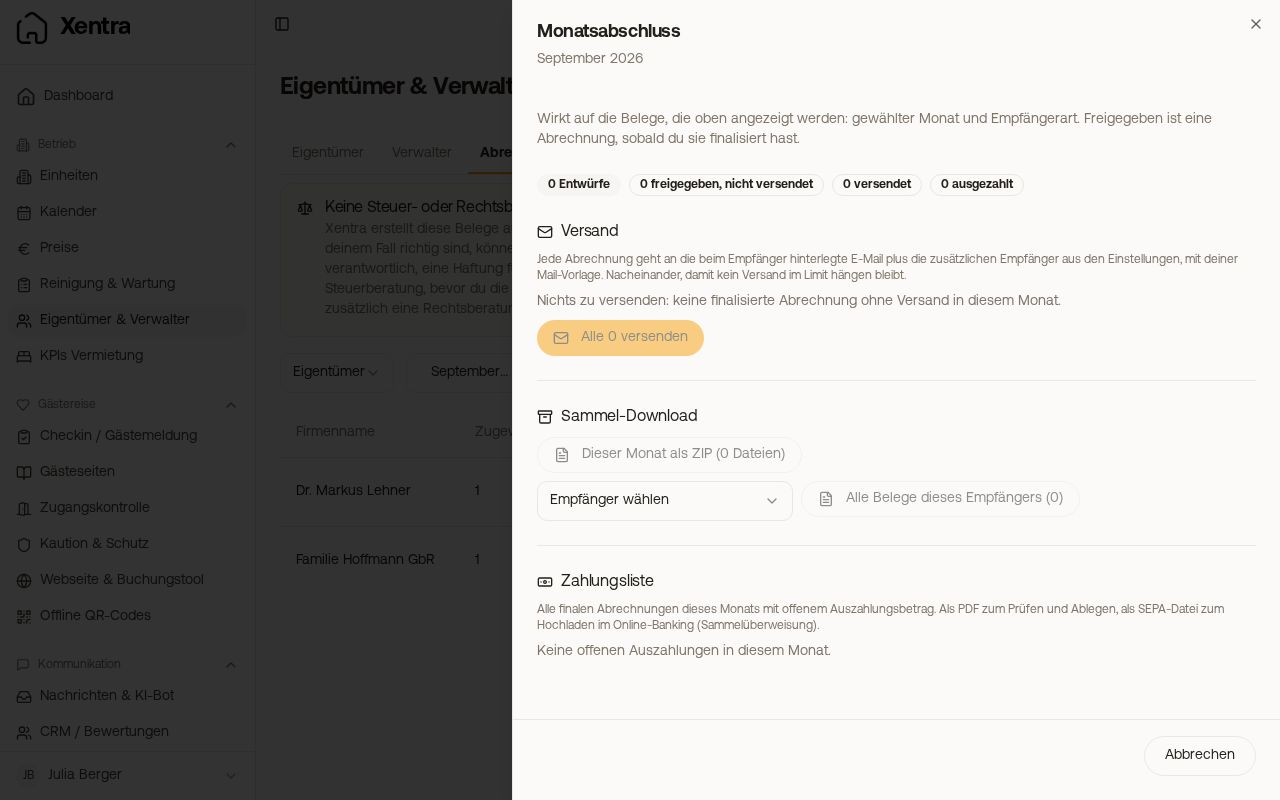 Month-end close with status, bulk dispatch, ZIP and SEPA file
Status
At the top you see how many settlements are still drafts, how many are released but not sent, how many have been sent and how many have been paid out.
Send all at once
“Send all …” sends every finalized settlement that has not yet been sent to the email address of the recipient, plus the additional recipients from their settlement settings, with your mail template. Afterwards each document shows whether it was sent, whether an email address is missing, or whether it failed. Cancellation documents never go out automatically.
Bulk download
- This month as ZIP: all final PDFs and e-invoices of the month.
- All documents of this recipient: choose the recipient, and you get their documents from all months.
Payment list and SEPA file
- Payment list as PDF: recipient, IBAN, document and amount of all final settlements of the month with an open payout amount, for checking and filing.
- SEPA file: one bulk transfer in the pain.001 format. You import it in your online banking under “Upload file” or “Import bulk transfer”, check it and release it. Only the IBAN is needed, no BIC.
- Recipients without a valid IBAN appear on the PDF list, but not in the file. You add the IBAN under Owners & Managers at the recipient.
- If a recipient owes you money (negative balance), they only appear on the list and are never transferred to.
- Only amounts in EUR go into the SEPA file.
- Your own IBAN as the payer comes from the numbering circle or from the bank details in the settings of your guest invoices, and it is written onto the document when you finalize. If it is missing, you only get the PDF list.
Afterwards: mark as paid out
Once you have uploaded the file at the bank and released it, click “Mark all … as paid out”. Only this marking records that the month has been paid. Without it, the next SEPA file contains the same transfers again. The dialog shows the number and total, and also older open settlements of the same recipients, which are closed at the same time. The amount is carried into the balance brought forward for the next month. This cannot be undone, so only confirm once the money has really gone out. A download alone marks nothing.
Expense approval limit
You record purchases for an owner in the tab “Statements” via the document icon in their row (Expenses). How this works with markup and receipts is described in the article Owner settlement: commission and settlement settings.
If you have agreed up to which amount you may buy without asking, enter it for the recipient: Owners & Managers, edit the owner or manager, field “Expense approval limit (€ gross per expense)”. When you record an expense, Xentra then shows the approval limit and warns you if a single expense is above it gross, that is, including markup and VAT. Nothing is blocked, the warning is a note to talk to the owner before buying. If the value is 0, Xentra warns for every expense.
Requirements are the same as for the owner settlement itself: on desktop, as the main account, admin or team member with the right “Owner settlement: edit”. Commission model, settlement settings and recording expenses: see Owner settlement: commission and settlement settings.