
Create new booking: Price suggestion, occupied warning, and dates
The fields in the New booking window, what is included in the suggested price, the warning when a unit is occupied, and how you choose Arrival and Departure.
Updated on November 10, 2026
You enter a booking in the Calendar or under Bookings via New booking (on mobile via the +). In the calendar, it is even faster: Click on an available day (one night) or drag the mouse on your computer from the arrival date to the departure date, then Unit, Arrival, and Departure are already filled in. Dragging from 31.10. to 01.11. is therefore one night. As long as you hold down the mouse, a small badge shows the nights and dates, for example "1 night · 31.10. → 01.11.".
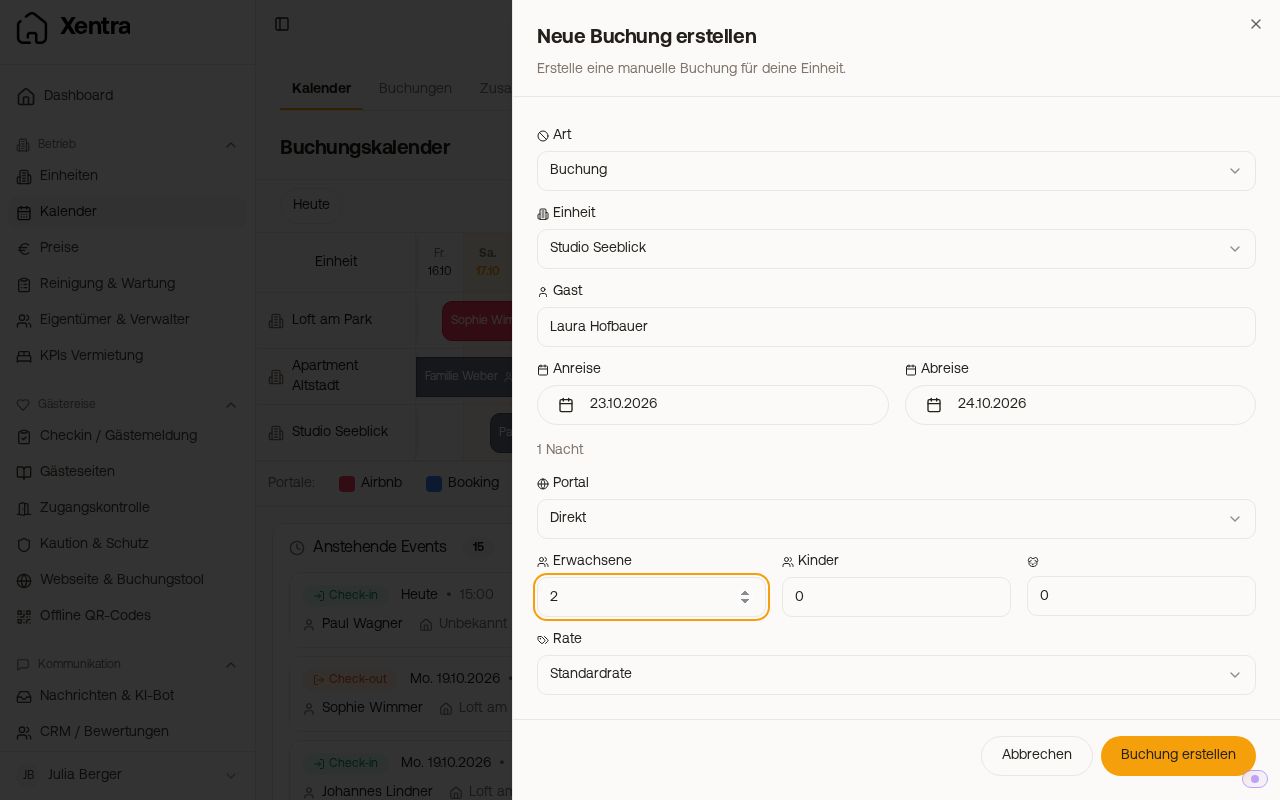 The "Create new booking" window with guest, unit, dates, and the suggested price
The fields
- Type: "Booking" or "Blocked" (for blocks without a guest, see Blocked time periods).
- Guest: While typing, Xentra suggests guests who have stayed with you before, including the number of bookings and last stay. If you select one, Xentra adopts email, phone, and company.
- Company and Tax / VAT ID for company bookings (optional).
- Street and House Number, Postal code, City, and Country (optional, for the invoice): Xentra saves the address to the booking and enters it for the guest in the CRM where there is no address yet. For a company booking, it is the billing address of the company; it stays on the booking and does not become the guest's residential address.
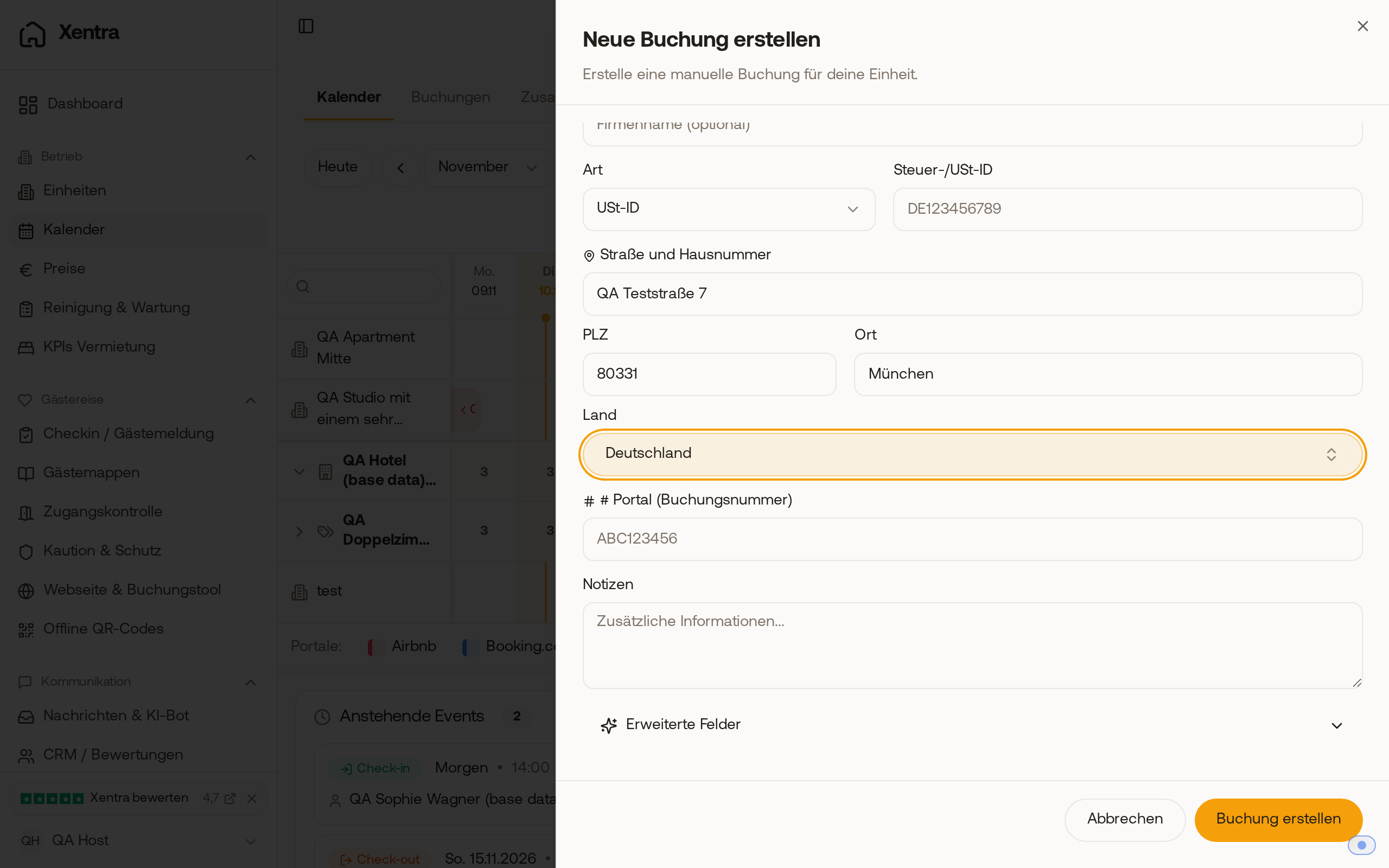 In the "Create new booking" window, below Company and Tax ID, are the fields Street and House Number, Postal code, City, and Country.
- Unit, Arrival, Departure, Adults, Children, Dogs.
- Rate: only visible if you have created additional rates for direct bookings. Without selection, the "Standard rate" applies.
- Price, Channel (Direct, Airbnb, Booking.com, VRBO, or Others), # Channel (Booking number) and Status ("Confirmed" or "Pending").
- Guest language (next to the channel): Xentra suggests it from the area code of the phone number, otherwise from the ending of the email address, for example French for +33 or Italian for an address ending in .it. Without such information, your app language appears there; Xentra does not save this as the guest language. If you choose a language yourself, it remains, even if you change the number or address afterwards. Messages, guest guide, and online check-in use this language, as does the check-in, provided the language is active in your check-in template.
- "Automatically create cleaning task": Turn it off if this booking should not trigger a cleaning, for example for an extension.
- Notes and under "Advanced fields": Cleaning, commission, channel payout, city tax, and price details.
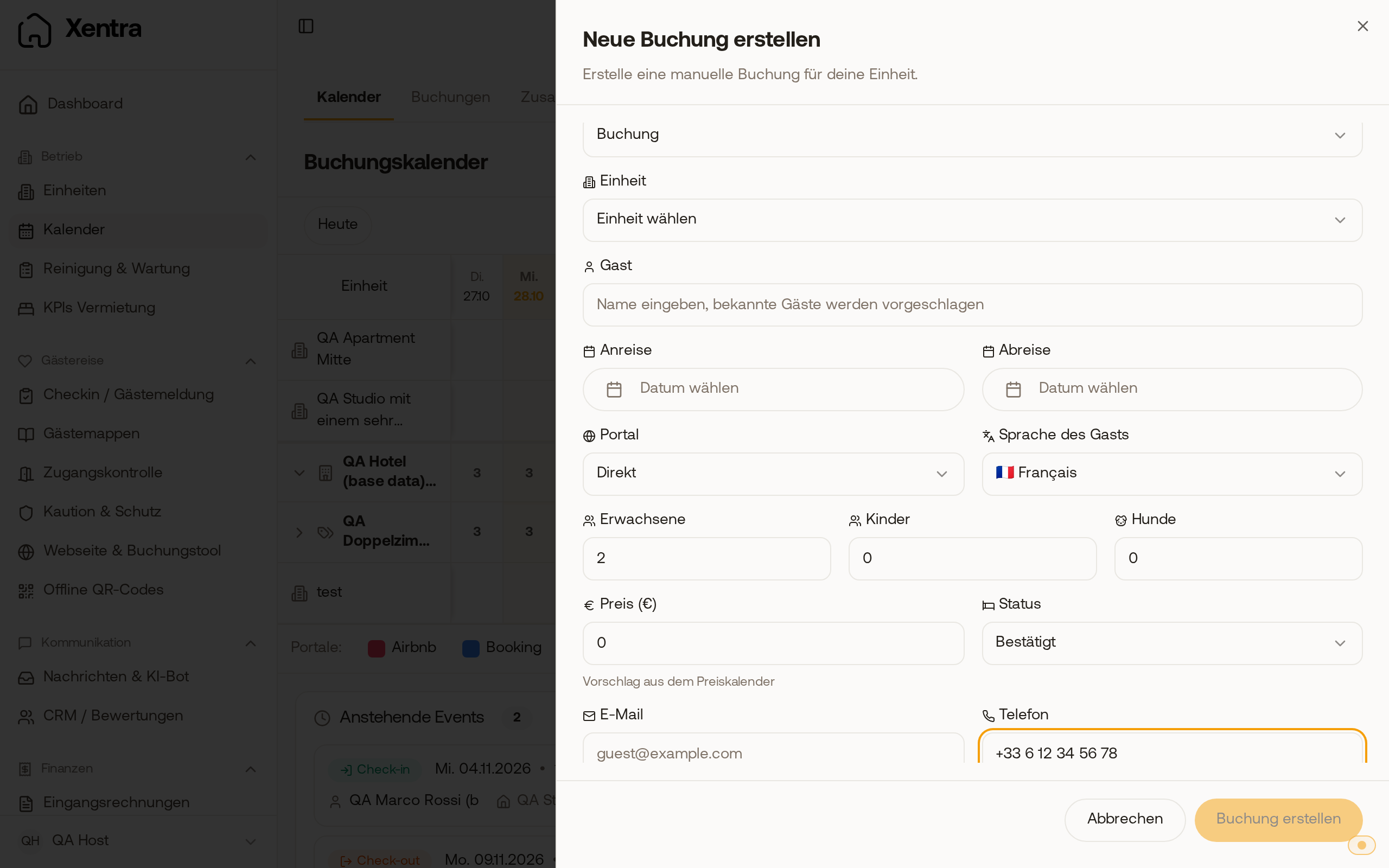 In the "Create new booking" window, Xentra suggests French as the guest language for a phone number with +33.
With "Create booking" you create it. Afterwards, your automations for the trigger "New booking" start, just like with a booking via your booking tool.
What the suggested price consists of
As soon as Unit, Arrival, and Departure are selected, Xentra suggests a price from your price calendar. This is the total price including cleaning fee, just as a booking via your booking tool is saved. The cleaning is part of this amount, not an extra surcharge on top.
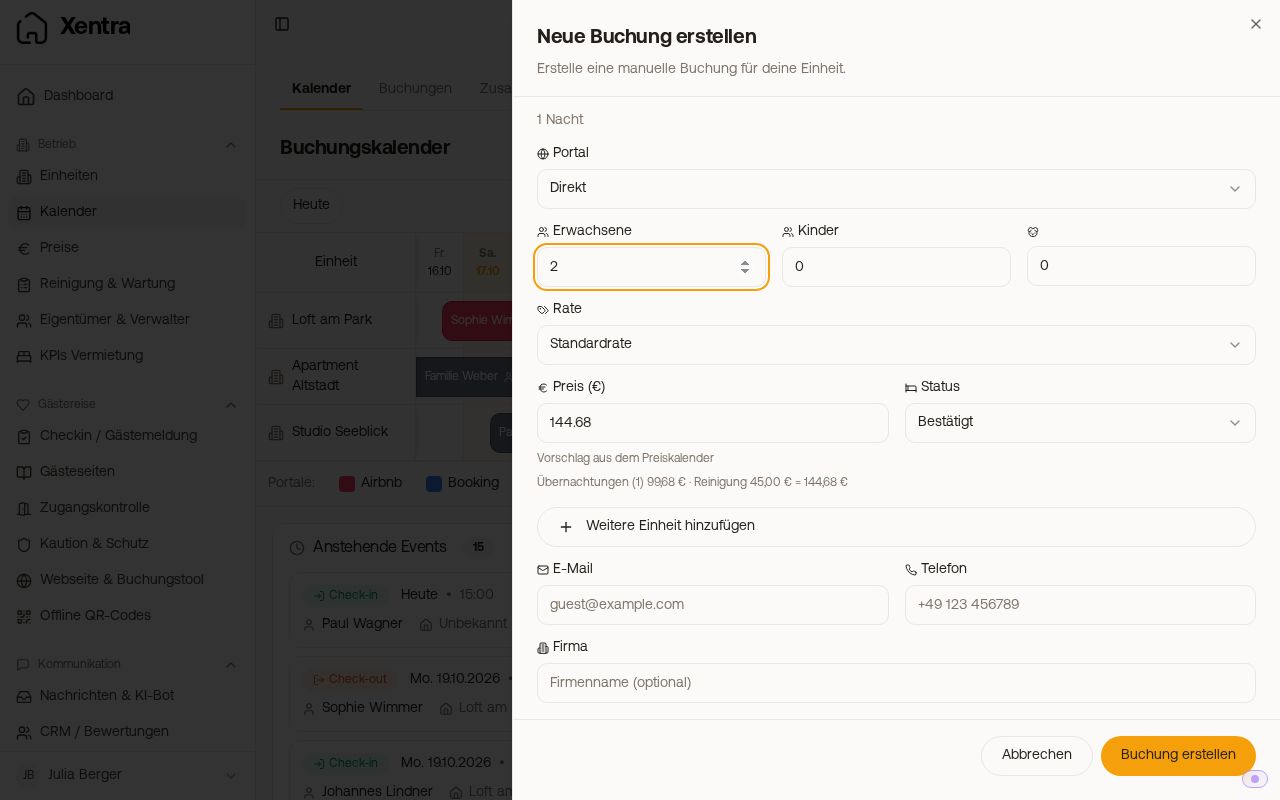 Suggested price with the line "Nights … · Cleaning … ="
Below the price, a gray line shows what it consists of, for example "Nights (3) €300.00 · Extra guests €90.00 · Cleaning €50.00 = €440.00". Extra guests only appear if more guests arrive than are included in the base price of the unit. If you change the number of guests or the rate, Xentra recalculates. If you enter a different price yourself, the line disappears because the amount is then no longer calculated.
Older manually entered bookings where the cleaning was still missing from the price are not corrected retroactively.
Warning if the unit is already occupied
As soon as Unit, Arrival, and Departure are selected, Xentra checks the period. If the unit is already occupied, a yellow note appears directly below the dates with the booking that is in the way, for example "This unit is already occupied in the selected period: Max Muster (12.10.2026 - 15.10.2026)". So you notice it before you have filled out everything. This applies in the calendar as well as in the booking list.
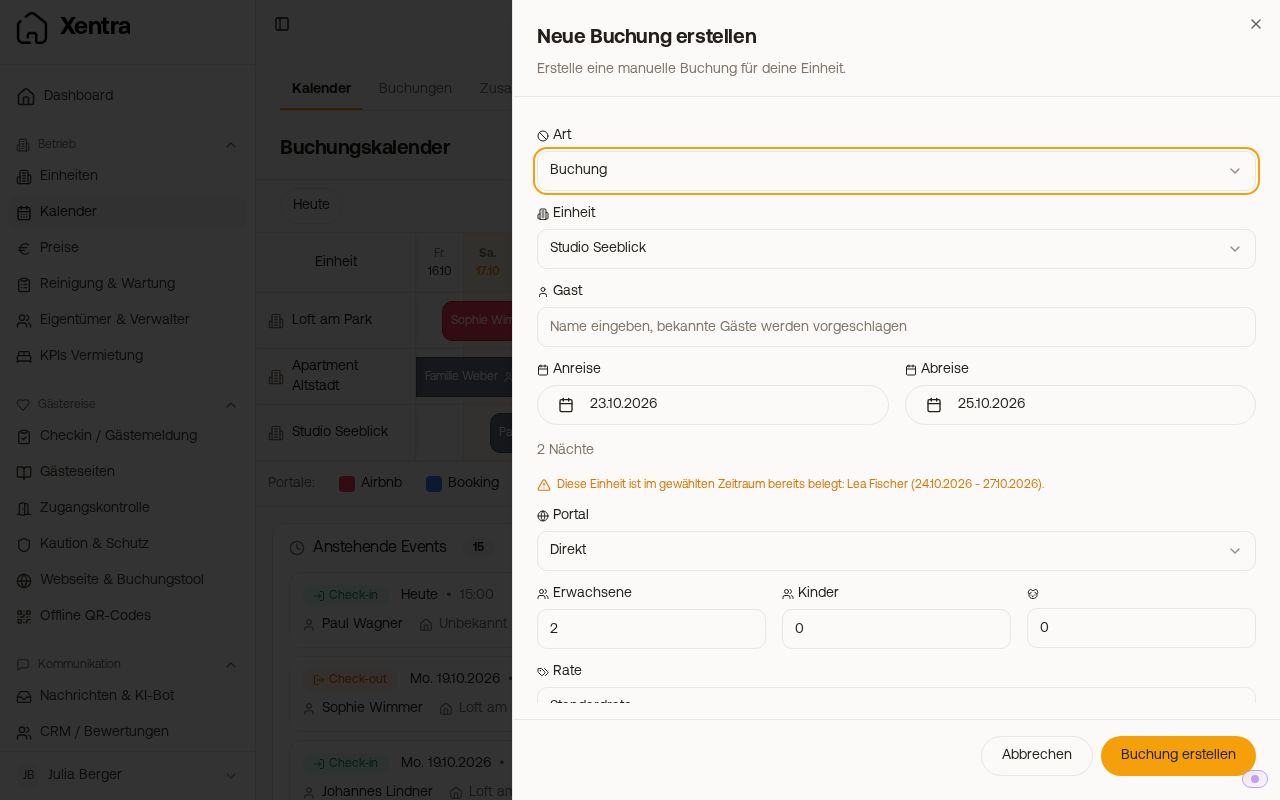 Yellow note in the window: the unit is already occupied in the selected period
Select Arrival and Departure
After selecting Arrival, the calendar jumps directly to Departure. There, one night later is already preselected; so for one night, a single click is enough. All days on or before the arrival are blocked for departure, even for a block: A booking or block always includes at least one night.
Good to know
- Multiple units for the same guest: see Create a booking across multiple units.
- A non-binding offer that should not block the calendar: see Create your own inquiry without blocking the calendar.
- Xentra does not assign its own booking number: see Booking number for direct bookings and manually entered bookings.