
Calendar: What bars, colors, and symbols mean
What colors, arrows, dashed gaps, the small clock, and the green check mark on the booking bars in the calendar mean.
Updated on November 12, 2026
- Color = Origin. The legend under the calendar only shows the colors that currently appear, for example Airbnb, Booking, Direct, VRBO, Manual, Block, Owner use, and Other. You turn on channel logos in the bars and stronger colors for red-green color blindness in your profile: see Calendar: Channel logos and colors for red-green color blindness.
- Manual (turquoise) are bookings that you entered yourself. Bookings via your booking tool or website are Direct (green). If you enter an Airbnb or Booking.com booking by hand, it keeps the color of the portal.
- Feratel (light blue) are bookings via Feratel or Deskline. In the booking list, the Feratel logo or "Feratel" is displayed.
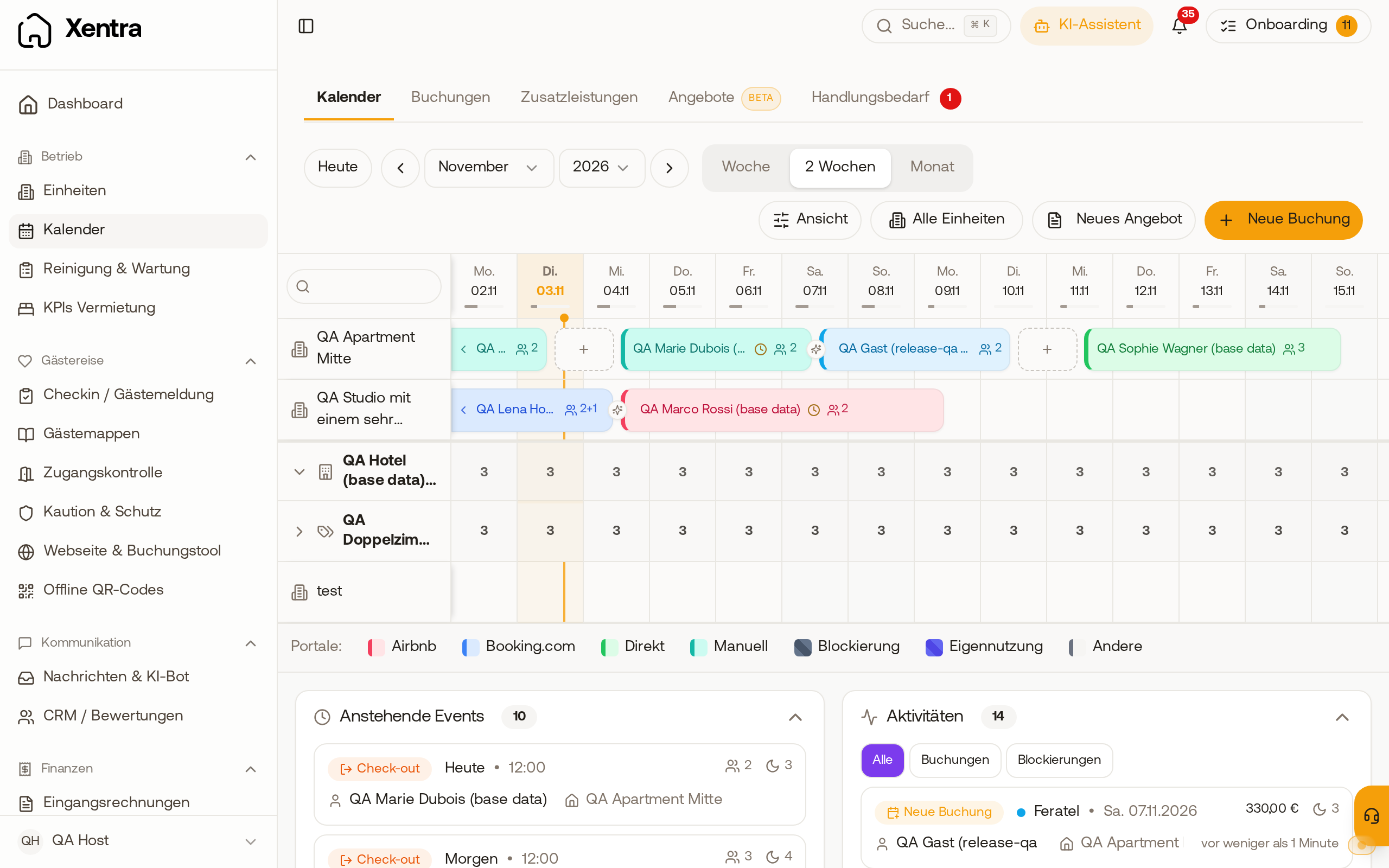 A Feratel booking appears in the calendar as a light blue bar.
- Agoda (dark purple) has its own color, Expedia is yellow. Vrbo (purple) also includes FeWo-direkt. Other portals with "Fewo" in their name, such as Fewo-manager, are not Vrbo: They appear gray like Other, entered by hand turquoise like Manual.
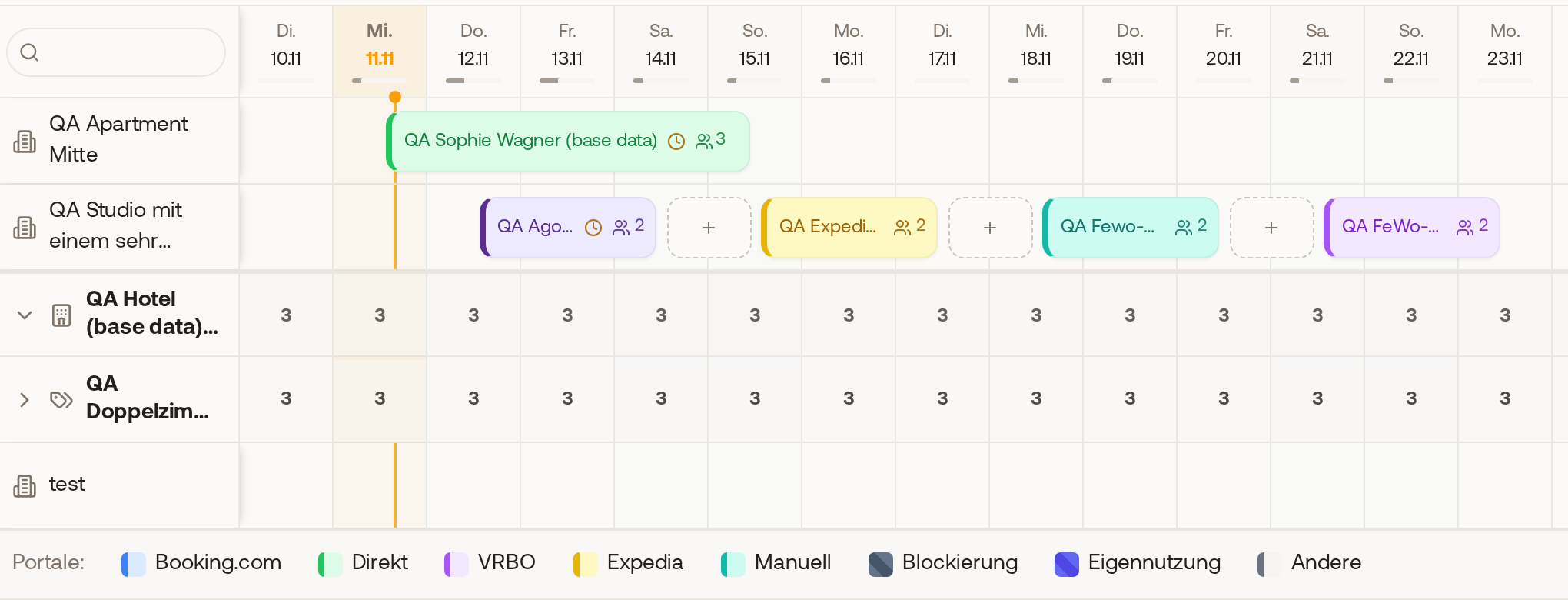 An Agoda booking in dark purple, Expedia in yellow, a manually entered Fewo-manager booking in turquoise, and a FeWo-direkt booking in Vrbo purple.
- Blocks are gray hatched, your owner's own use has its own color.
- Company bookings show the company before the guest name ("Company · Guest"). Team members only see the company if they are allowed to see guest name and company.
- From about four nights, the bar is wide enough for number of guests and dog. For shorter stays, only the name is shown there.
- Cancelled Bookings do not appear in the calendar, you can find them in the booking list.
- A small arrow at the end of the bar means: The stay extends beyond the visible period. ‹ at the left end: It already started before the first visible day. › at the right end: It continues after the last visible day. Use the arrows next to the month selection to navigate there.
- Dashed frame with "+", for example "+ 2 nights free": Between two bookings or blocks, there are only one or two free nights that are still bookable. A click on it opens New booking with exactly these nights. Past nights do not count, from three free nights the marking does not appear. If prices are displayed, only the dashed frame remains without text.
- Small clock on the bar: The online check-in is still open. It appears when the guest arrives in the next 3 days and has not checked in yet, or if they checked in but something is still missing, for example tourist tax, guest registration, or deposit. If you hover over it with the mouse on a computer, it shows what is missing. Once everything is done, it turns into a green check mark.
The calendar itself explains all symbols: at the top under View, What do the symbols mean?.
If you hover over a bar with the mouse on a computer, a preview opens with guest, time period, nights, total price, booking number, status, guests, dog, and country of origin, plus the status of the online check-in and, depending on the booking, payment status, door code, and access link. A click opens the booking. On mobile phones there is no preview, there you tap the booking directly.
In the quick view of a booking, the pencil button opens the booking directly in edit mode.
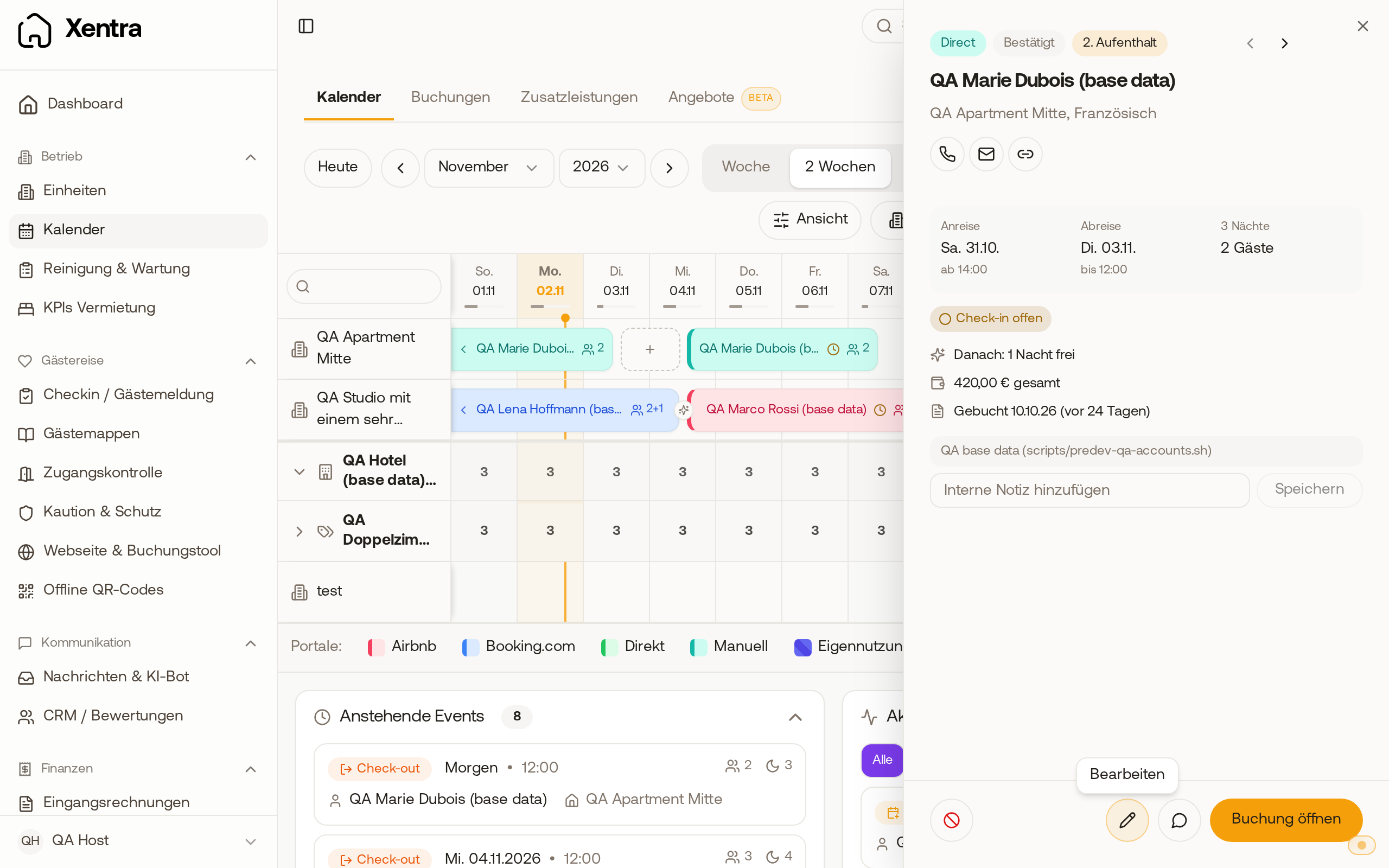 The quick view of a booking with the pencil button at the bottom next to "Open booking".
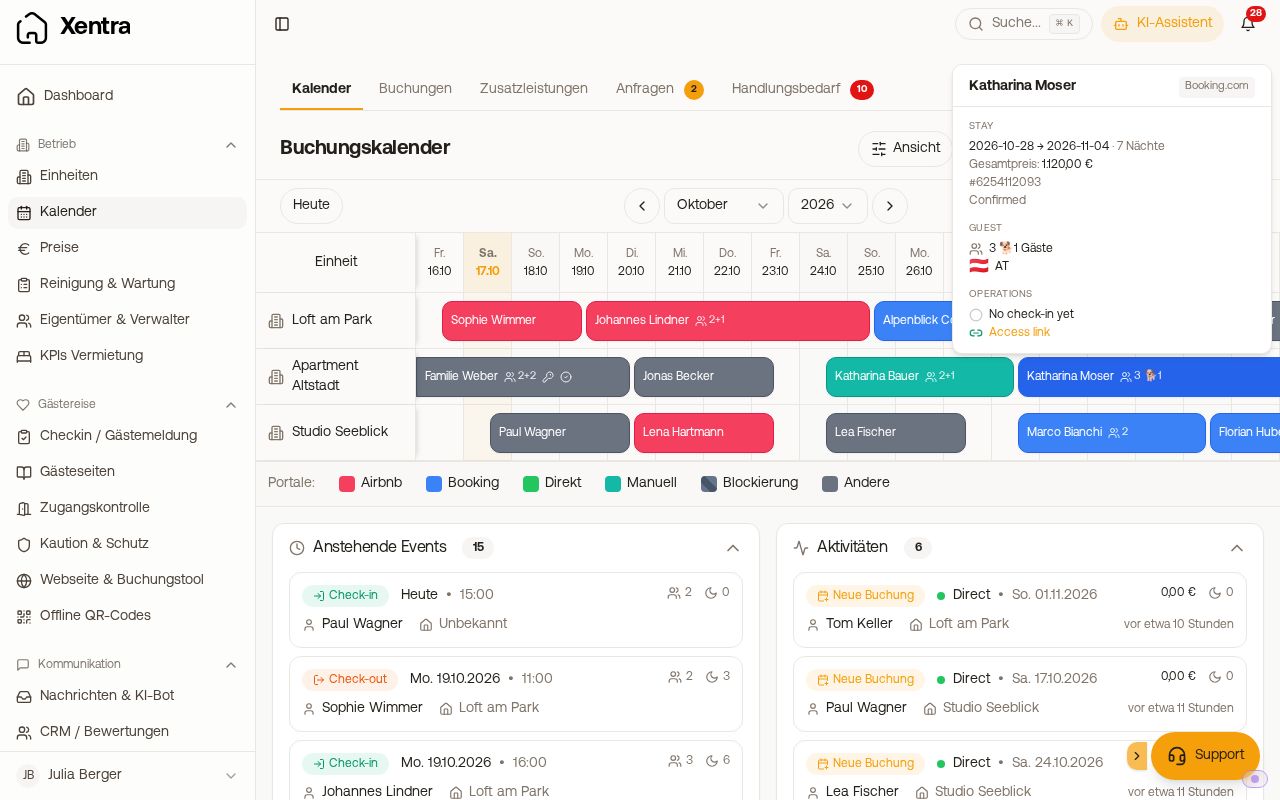 Preview on hover: time period, total price, booking number, guests, and check-in status