
Create guest invoice: Draft, live invoice, and payment status
Create an invoice on the booking: Buyer details, line items, payment status, draft, live invoice, follow-up invoice, and payment term.
Updated on November 13, 2026
Create guest invoice
You create an invoice on the booking: open bookings, open the booking, and click "E-Invoice" at the top. On the right, "Create guest invoice" opens.
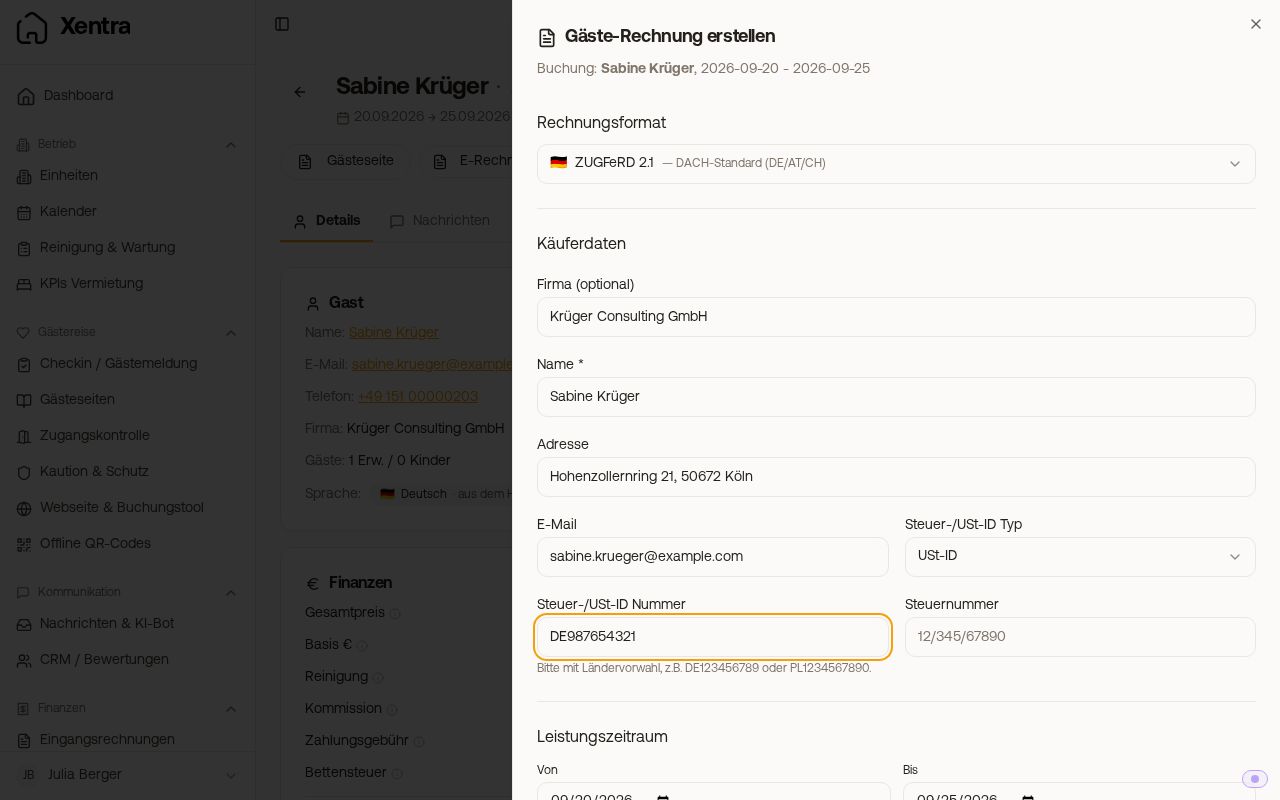 The "Create guest invoice" window with format and buyer details
What you enter in the window
- Invoice format: your default format from the invoice settings (section "Document") is preselected. More on this in the article E-Invoice: ZUGFeRD, XRechnung, FatturaPA, and FacturaE.
- Buyer details: company, name, address, email, Tax / VAT ID type with number and tax number. Name and company come from the booking, for a company booking from the check-in. Xentra takes the address from the last invoice of this booking, from the check-in, or from the guest's contact. If there is no address in the contact yet, Xentra saves the address of your first issued invoice there (drafts do not count), so it is already filled in for the next invoice. If Xentra knows multiple email addresses for the guest, you choose where the invoice goes (for example "From the booking" or "From the check-in").
- Service period: prefilled with arrival and departure, can be changed if needed.
- Line items: overnight stay, cleaning, tourist tax, and paid extra services come from the booking. With "Add item" you add your own lines. You can type in the net price or the gross amount, the other value is calculated.
- Due date: prefilled with your payment term (see below), changeable for this single invoice, or empty.
- Notes (optional): a free text, line breaks are preserved on the invoice.
If you change "VAT (%)" for an item, the gross amount remains the same, and net and tax are reallocated. If you typed in "Quantity" or "Price (net)" for the item itself, your net amount stays and the tax is added on top. More about the rates in the article Change VAT rates.
Payment status of line items
Which line items are considered paid, deposit, and payment link: see Guest invoice: Payment status, deposit, and payment link.
First draft, then live invoice
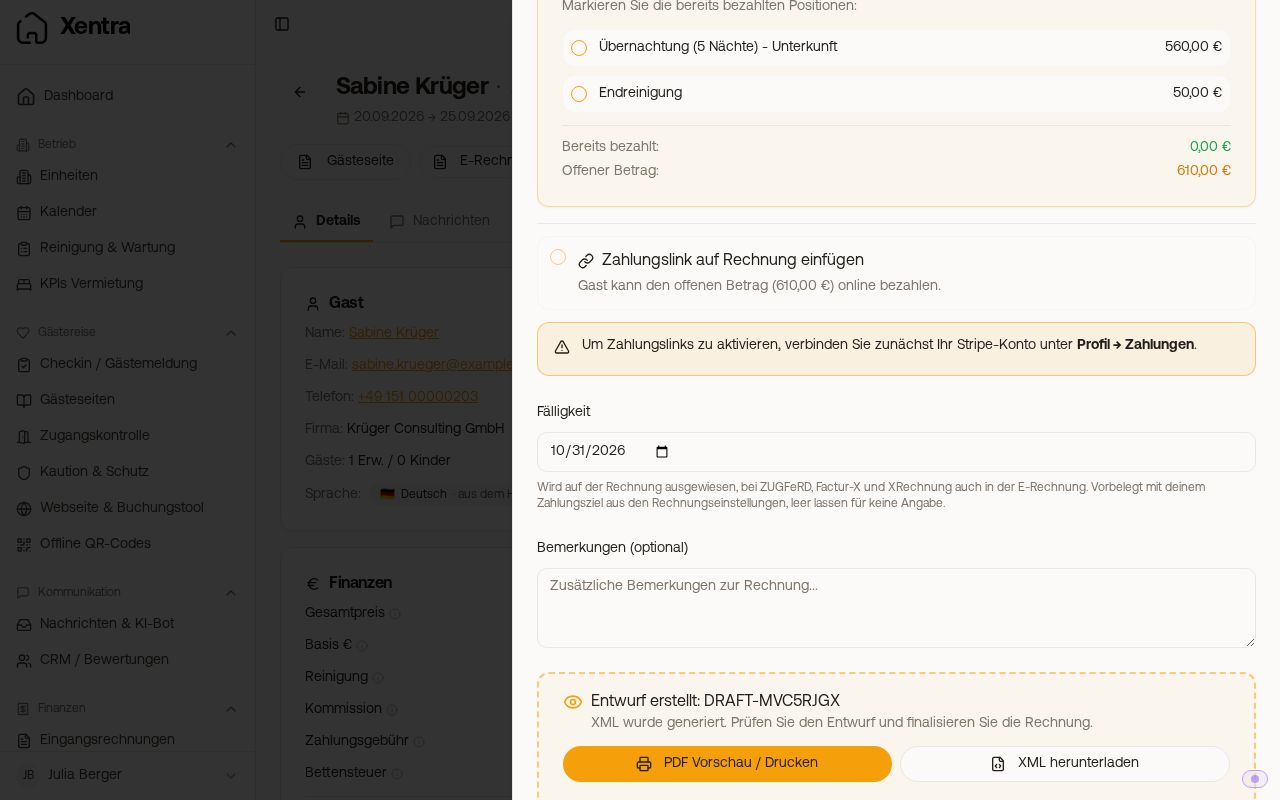 A created draft with the buttons "PDF preview / Print" and "Download XML"
- "Create draft" creates a preview with an ID in the form
DRAFT-…. It does not consume an invoice number and is not saved. - "PDF preview / Print" shows you the document, "Download XML" the e-invoice file.
- "Generate live invoice" creates the final invoice with a sequential number.
Good to know:
- The draft is a snapshot. If you change something afterwards, click "Create draft" again, otherwise the preview shows the old status.
- Items you added yourself are gone as soon as you close the window without a live invoice.
- In the draft, a payment link is only a placeholder. Xentra creates the real link only with the live invoice. You copy it directly from the message afterwards.
- "Generate live invoice" sends nothing. You handle the sending yourself, see Create invoices automatically and send them to the guest.
Follow-up invoice and multiple rooms
- If the booking already has an invoice, a follow-up invoice opens. It contains only line items that have not yet been billed, for example extras paid later in the check-in or on the guest portal. It does not include the overnight stay and cleaning from the booking, nor the new nights after an extension.
- Stay extended, invoice already issued: Enter the additional nights yourself in the follow-up invoice using "Add item". Or you cancel the old invoice under Guest Invoices via "Cancel / credit note" and then issue a new one for the entire stay. You adjust the booking price in the booking itself beforehand: when changing the dates, Xentra does not recalculate it.
- If a booking includes multiple rooms, all rooms are on one invoice, each with its own line items.
Payment term for all new invoices
Guest Invoices, "Settings" button, "Document" section, "Payment term (days)" field, save. 0 to 365 days are allowed, 0 means due immediately. Every new invoice, manual or automatic, then gets "Payable by" with invoice date plus payment term, on the PDF, on the guest's invoice page, and in the e-invoice (for FatturaPA and FacturaE only on PDF and invoice page). If the invoice is already paid, no due date appears on it. If you leave the field blank, no due date appears on PDF and invoice page; the e-invoice specifies 14 days after the invoice date. Existing invoices do not change.
Test first, then automate. Create a few invoices manually and check them before turning on automatic creation. You are responsible yourself for the content and tax accuracy of your invoices.