
Guest guide: the "Your arrival" block
What guests complete before arrival, confirming mobile number and email, and how you set up the card at the top of the guest guide.
Updated on November 12, 2026
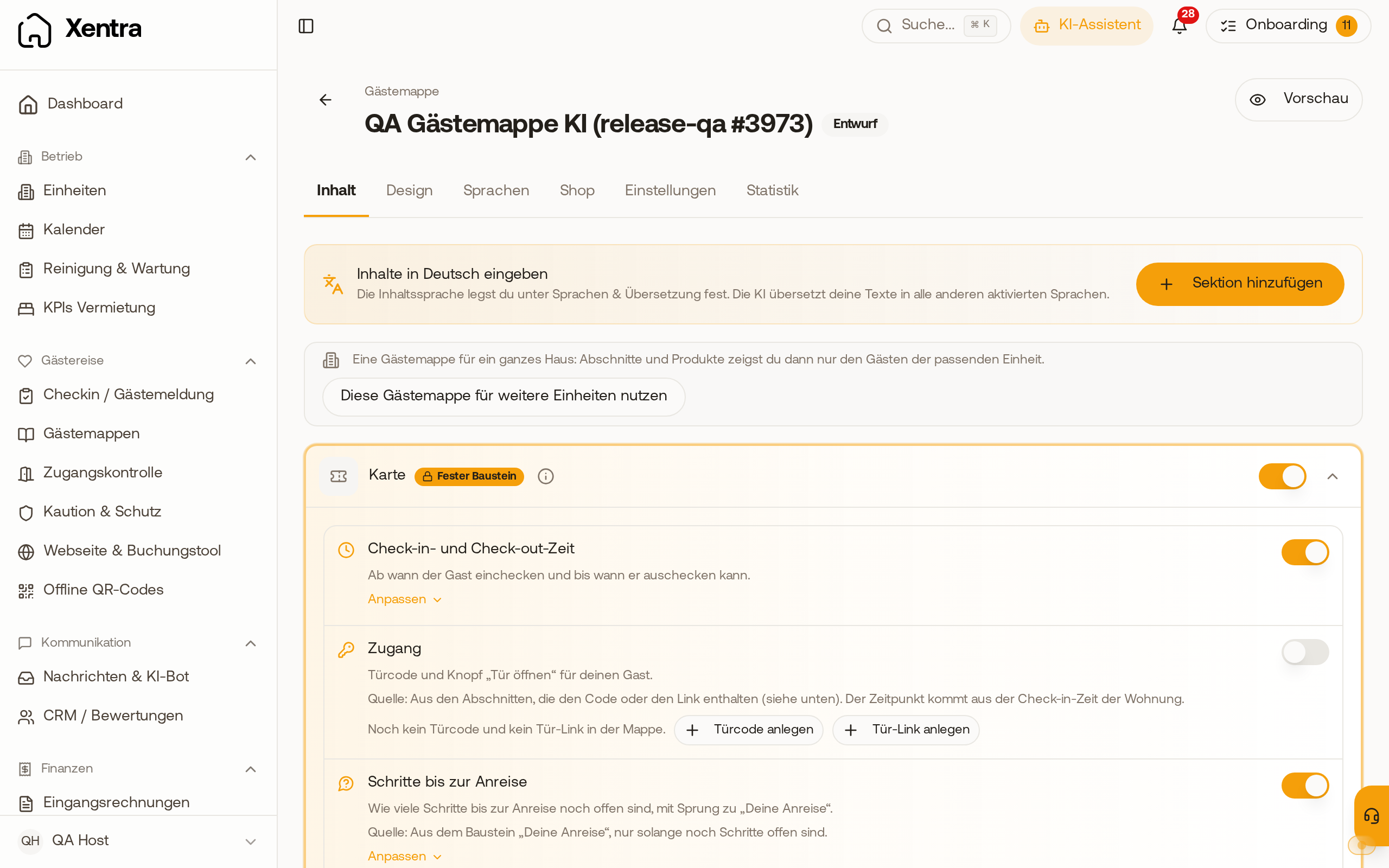
In the Your arrival block, your guest sees everything they can complete before arrival. You configure it in the editor: Guest journey → Guest guides → Open guest guide → Content tab. It is a fixed block (badge Fixed block): you can switch it on and off, but not delete or move it. It is only available in guest guides in the new design. The card above it is explained in Guest guide: the top card (Stay card).
Your arrival
Here, your guest sees step by step what is still pending until arrival, with a progress circle ("3 short steps left, about 3 minutes"):
- This is your booking: Name, accommodation, travel dates, number of guests.
- Mobile number: You set whether your guest should confirm it (Have it confirmed) or just enter it (Just enter it). With connected WhatsApp, they confirm the number with a pre-made message to you without typing it; without WhatsApp, it is only saved. Your guest may skip the number.
- Email: the same choice. With Have it confirmed, your guest receives a code by email; with Just enter it, the address is saved without a code. They cannot skip the email.
- Questions from your host: for example, the approximate arrival time and your own questions (see Questions to the guest in the guest guide).
- Online check-in, Balance payment and Extras, if they fit the booking. Their button is right in the row: Check-in, Pay and View.
- Guide on the phone: the guest puts the page on their home screen; then it works even without internet until the day after departure (see Guest guide offline, on the home screen and printed).
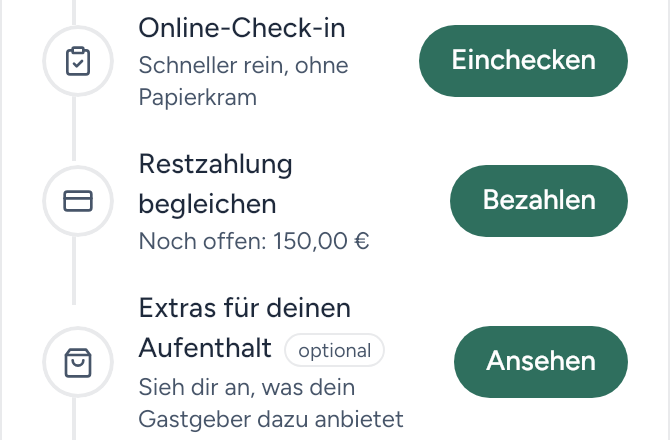 Online check-in, balance payment and extras have their button right in the line: Check-in, Pay and View.
Check-in opens the online check-in in a new tab, including in the preview. If you use your own check-in system, we check the box as soon as your guest returns to the guest guide, because we cannot see whether they finished there. Once check-in is complete, the link Go to online check-in remains on the right. For extras, View jumps to your products and thus counts as viewed.
Each step only appears if it matches your settings and the booking.
Offer check-in only later: Open the block and select in the Online check-in row under Check-in possible when the button is active: at once or 24 hours to 7 days before check-in time. Until then, your guest sees the button grayed out with "Possible from...", in "Your arrival" and on the card.
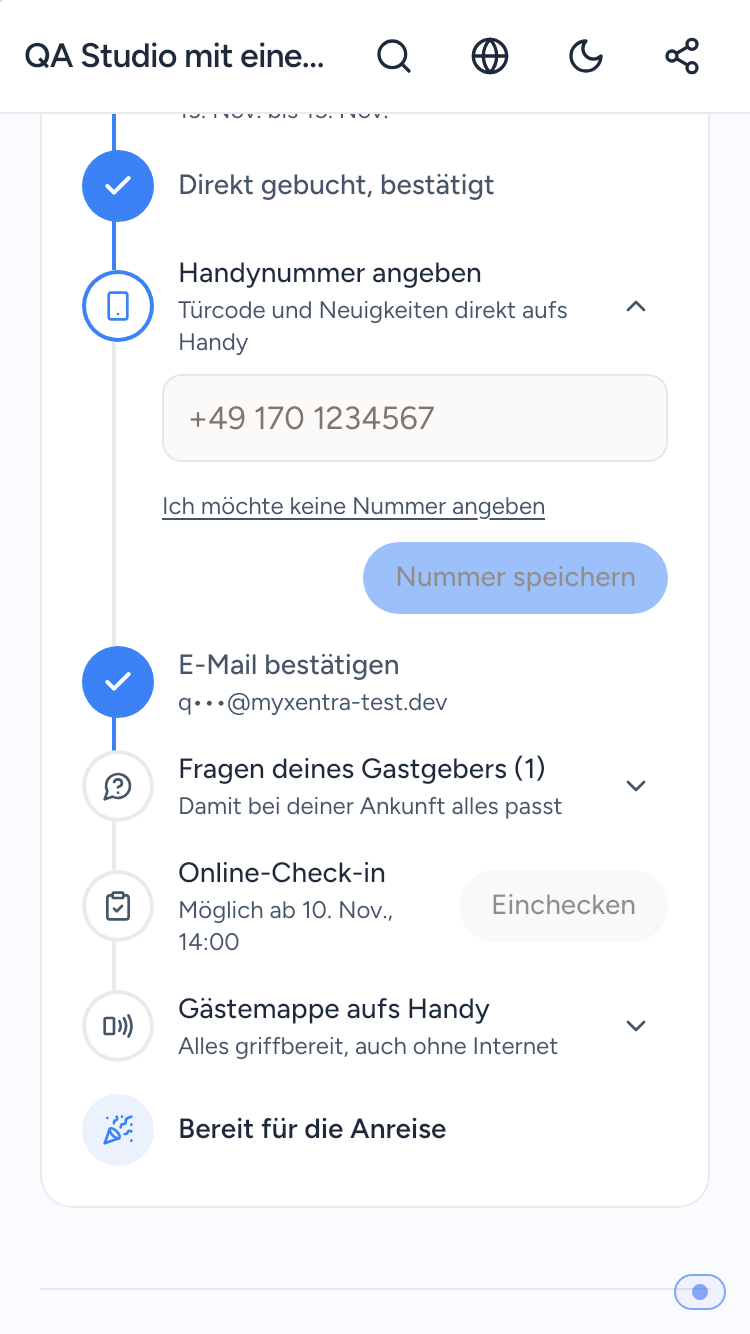 Until release, "Check-in" is grayed out and gives the date from which the guest can check in.
How long the block stays: at the bottom under Show “Your arrival”: until the arrival day, until one day after arrival (default) or until departure. After that, the space belongs to your add-on offers.
Compact when everything is completed: If your guest has completed everything, or if it is arrival day and their online check-in is finished (or you do not use online check-in), the block only shows one line when opening the guest guide, for example "Everything done. Have a good trip!" or "2 short steps left", with Show. With this, your guest expands the whole path and collapses it again with Collapse. On the arrival day without completed online check-in, the block stays large, because it is important right now.
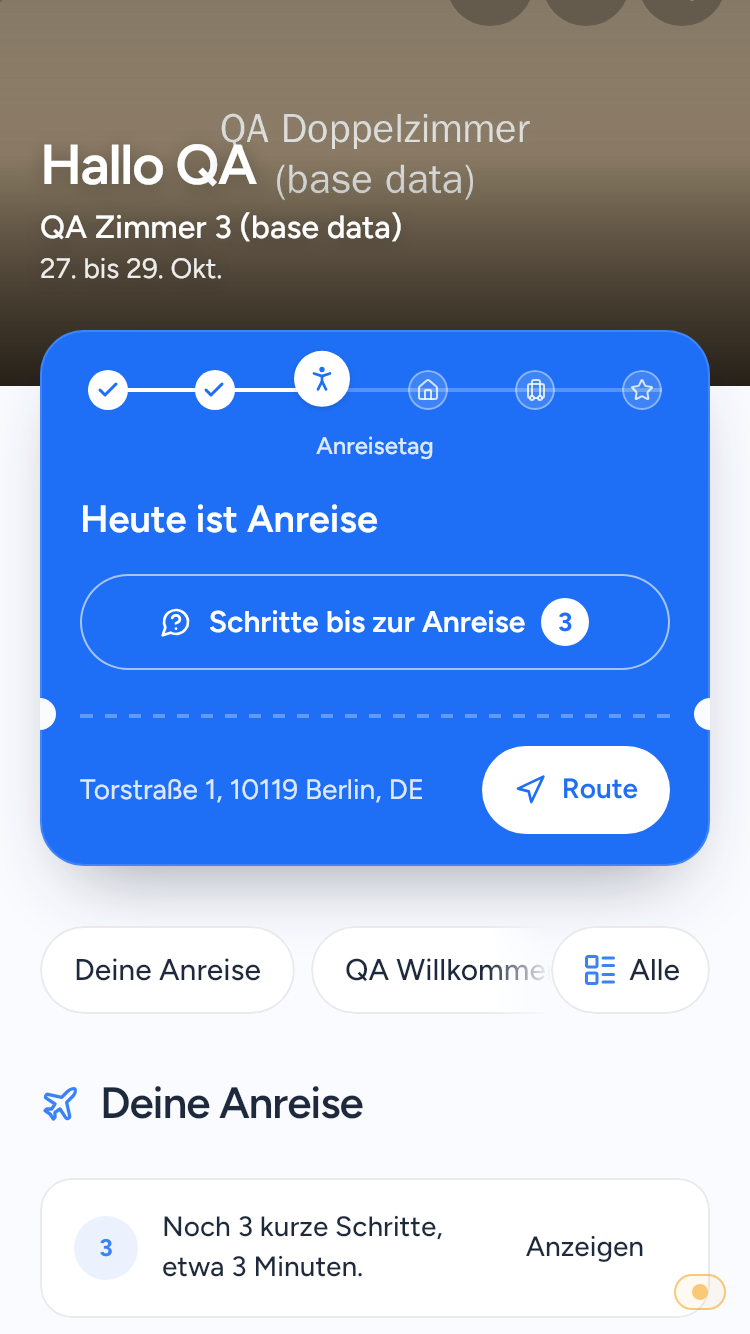 On the arrival day with completed online check-in, "Your arrival" shows only one line with "Show".
Turn on: in the Content tab next to the Your arrival block, toggle the switch on the right. New guest guides already have it on, for existing guest guides it is off. Open the block, then the selection field Confirmation appears for mobile number and email with Have it confirmed or Just enter it.
Separate "Contact details" section: If "Your arrival" is turned on, it already asks for mobile number, email and arrival time itself. A separate "Contact details" section that only asks for this is therefore turned off when clicking Save so that your guest is not asked twice. In the editor, it says directly on the section: "“Your arrival” already asks for this, so this section stays off."
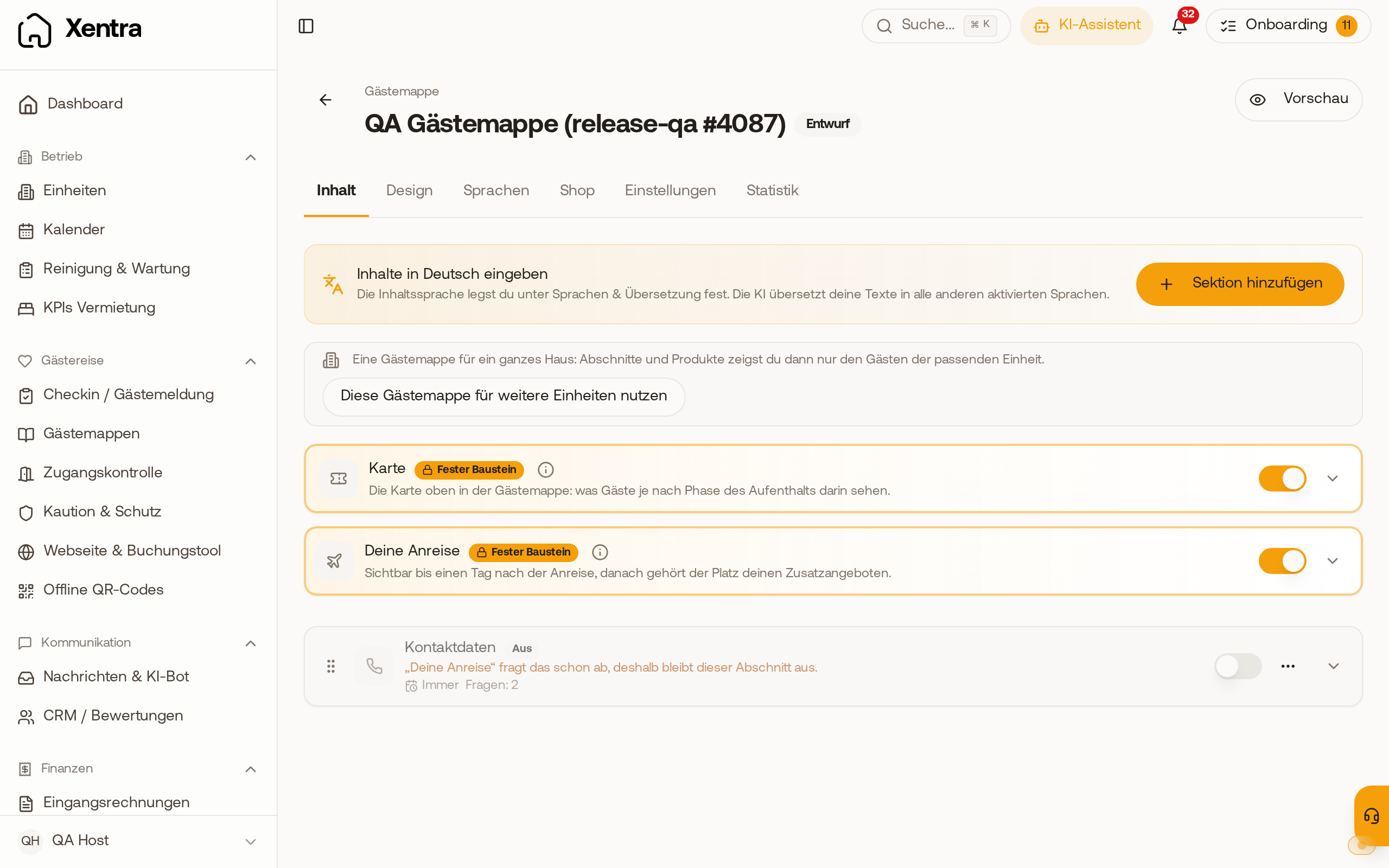 If "Your arrival" is on, a separate "Contact details" section stays off, and the editor tells you why directly on the section.
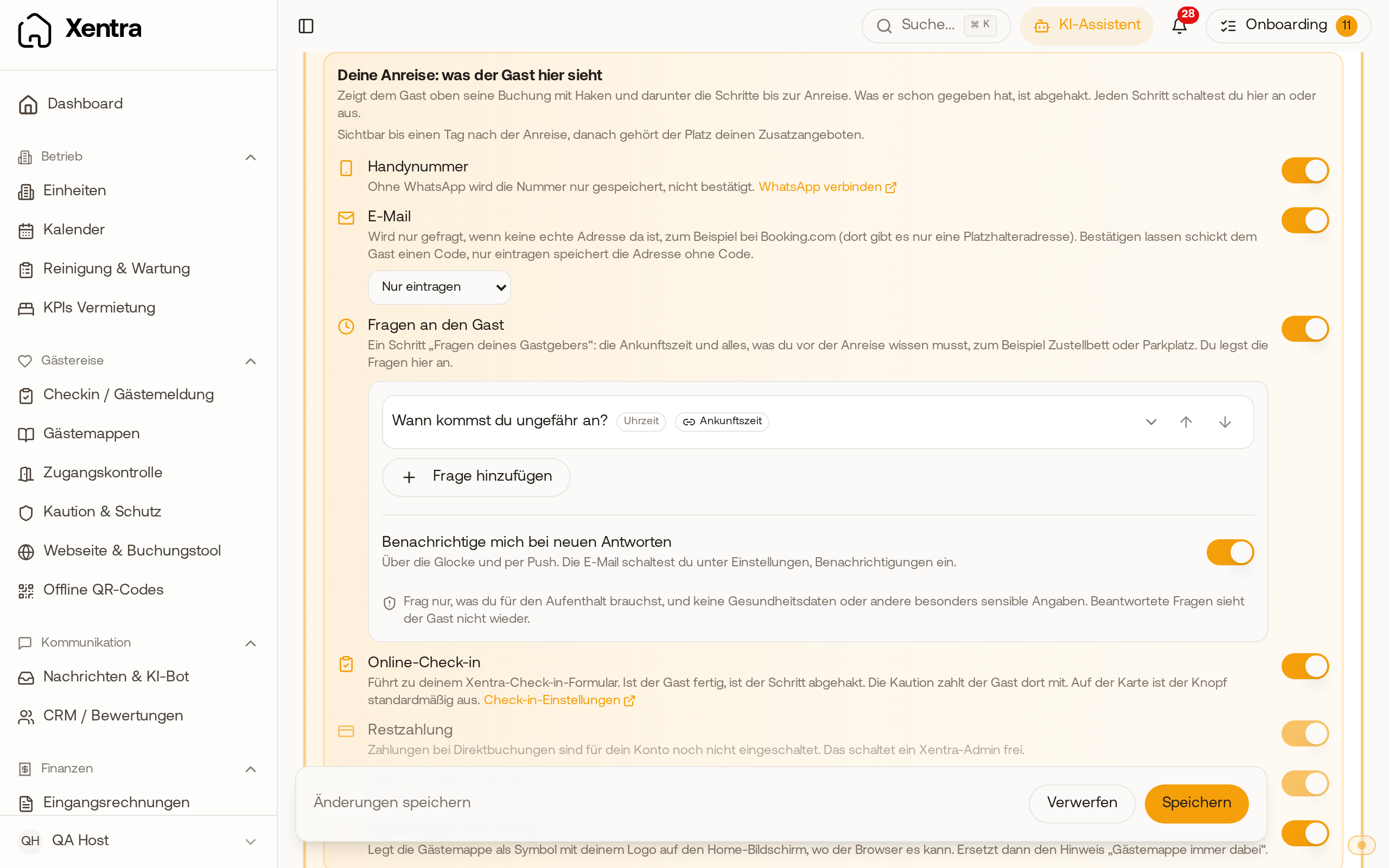 In the "Your arrival" block, the selection field for email shows "Have it confirmed" and "Just enter it".
What you see: The number entered by the guest appears in the booking as Second number (from the guest guide). A number or email confirmed by the guest gets a green badge in the booking, inbox and CRM; hovering over it shows, for example, "Confirmed by guest, via email code on...". If your guest only entered it, not confirmed appears next to it.
What your guest entered in the online check-in is also available in "Your arrival", and vice versa, check-in pre-fills email and mobile number from the guest guide. Emails to your guest go first to a confirmed address, otherwise to the last entered one, and only then to the address from the portal.
The card
Timeline, countdown, access, Wi-Fi, address and directions at the top of the guest guide: see Guest guide: the top card (Stay card).
What guests see of sections that are only unlocked later: see Guest page: show sections only upon arrival (Visibility).