
Create guest guide with AI
Let the AI write your guest guide from a few keywords, with tips from the surrounding area of your units.
Updated on November 12, 2026
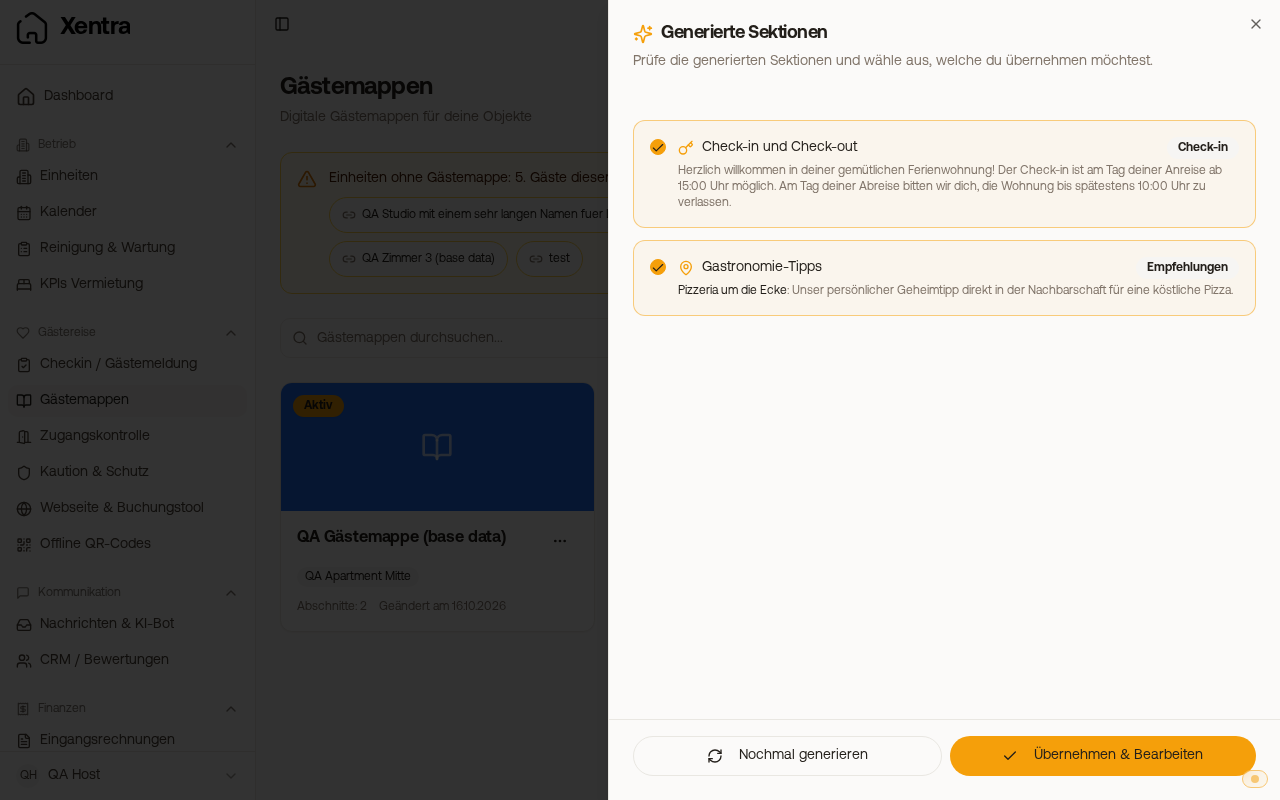
Under Guest Journey → Guest guides → New guest guide → With the AI assistant, the AI writes your guest guide from a few keywords (Open guest guides).
Which units is the guest guide for?
At the very top, you select the units the guest guide is intended for. Only units that do not have a guest guide yet are offered. The AI only uses their address for surrounding area tips and assigns the finished guest guide to these units. If you do not select a unit, it writes generally, without surrounding area tips, and the guest guide is not assigned to any unit yet. You can catch up on this later in the Settings tab.
Your own tips
What you write yourself under Keywords & Info always ends up in the guest guide. A tip like "The pizzeria around the corner is our insider tip" becomes its own location in the recommendations, even without an exact name and in your own words. Surrounding area locations that the AI finds itself are only added.
Offer extras
Under Offer extras, you check which of your products guests can book as extras on the guest guide. This works with any method of creating a guest guide: with the AI assistant, from a template, as a copy, with uploaded documents, or empty. If you do not have any products yet, you create them under Settings → Products. Later, you change the selection in the Shop tab of the guest guide.
Check generated sections
After generating, you see each section with its type, for example Check-in or Recommendations. With Show more, you read the whole text. Check off what should go in and tap Accept & Edit. With Regenerate, you start over. The guest guide starts as a draft.
Create a single section with AI
In the editor, under Add Section, at the very top is Create with AI. Describe in one sentence what the guest should know and tap Create section. The AI selects the appropriate type and shows you a suggestion before anything is inserted: Apply inserts it, Try again rewrites it, Discard closes it.
Start from a template
Under New guest guide → From a template, you select the starter package or a template for your type of accommodation: City apartment, Coast & beach, Mountains & chalet, Country house & family, or Workers & business. With Use the template, you get example texts, with gaps in [brackets]. With Fill in with AI, the AI adapts the texts to your accommodation. Each template also sets up the card at the top accordingly (for Workers & business, for example door code and Wi-Fi for the entire stay), font and color remain yours.
Revise texts with AI
Every text section has an AI menu: Write new text … (from your keywords), Improve text, Make shorter, Make longer, and Make friendlier. Revising works as soon as there is text in the section. If there is already text in it, Xentra asks beforehand "Replace the existing text?"; the title remains.
In the modules Check-in, Check-out, Recommendations, FAQ, and Emergency, Fill in with AI fills in the content. If there is already something in it, you select Replace or Add at the end. For each recommendation, Write with AI writes a short tip.
More about the guest guide overall: see Guest pages / Set up digital guest guide.