
Add-ons at a glance: all booked extras in one list
All booked add-ons of your bookings in one list: filters by period, service and status, totals per service and Excel export.
Updated on October 19, 2026
Add-ons at a glance
Under Calendar, tab “Add-ons” (Open add-ons) you see all add-ons that your guests have booked, across all bookings, for example all parking spaces or all late check-outs of a year. This includes bookings from online check-in and from the guest page. The tab appears as soon as you offer products or extra services.
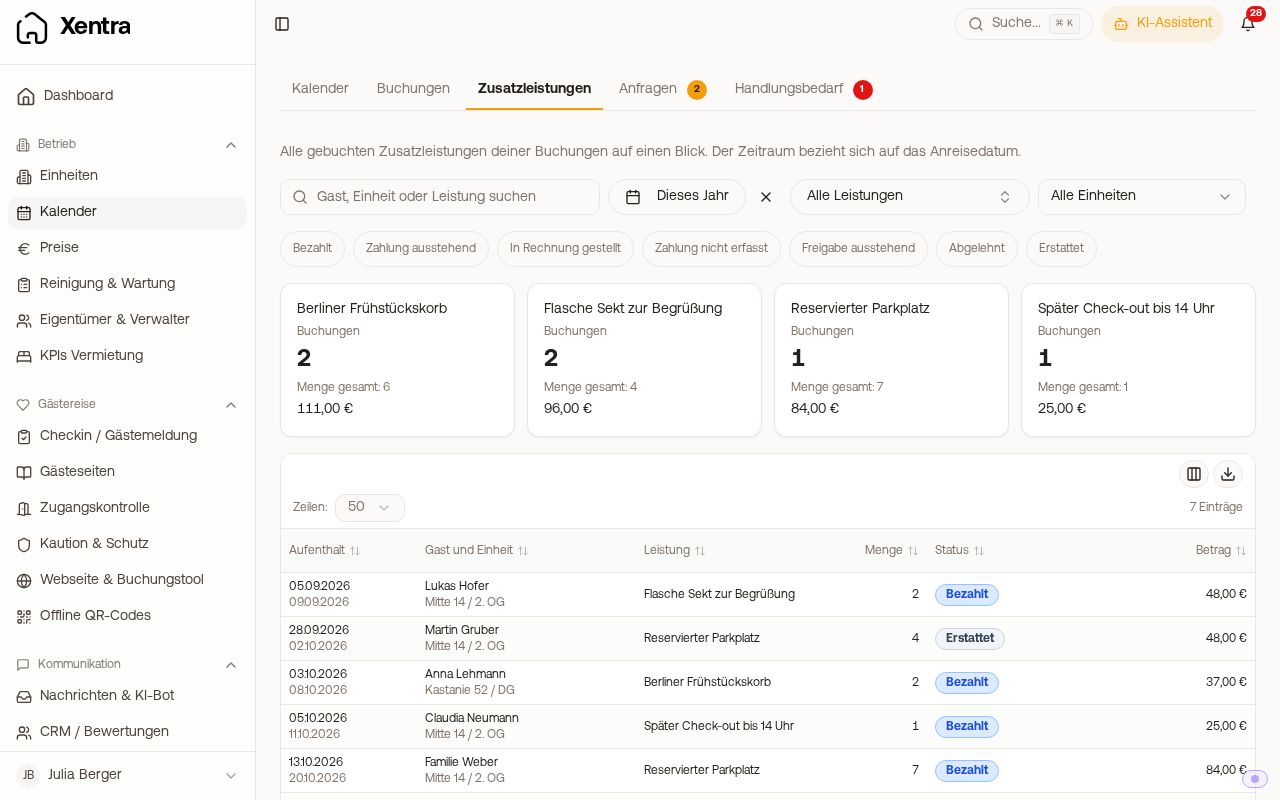 Calendar, Add-ons tab: tiles per service and list of booked extras
You can also reach a single product from Settings → Products: the list icon View bookings with this service opens this tab with the product already filtered.
Filtering
- Search: by guest, unit or service.
- Period: refers to the arrival date of the booking. The default is “This year”.
- Service: via “All services” you select one or several services.
- Status: Paid, Payment pending (approved but not yet paid), Invoiced, Payment not recorded (approved but nothing collected online, for example free services or payment on site), Approval pending (waiting for your approval), Declined or Refunded. Abandoned payment attempts do not appear.
On a phone, the filters are behind the “Filter” button. Cancelled bookings and blocks are not counted.
Tiles and list
For each service, a tile shows the number of bookings, the total quantity and the total amount. Without a status filter, declined and refunded services are not counted in the tiles, but they appear in the list. Below that is the list with stay, guest and unit, service, quantity, status and amount. A click on a row opens the booking.
Download as Excel
With the download icon above the list you download it as Excel (.xlsx), with arrival, departure, guest, unit, service, quantity, status and amount.
Team members
Team members see the tab with the right “Bookings: View” and the booking field “Add-ons” or “Purchases”, and only for their own units. They only see amounts with the field “Price”.