
Handling problems from cleaning
How your team reports problems from a task and how you sort them, hand them to your caretaker as a maintenance task and confirm the fix.
Updated on November 6, 2026
If your cleaner notices something that does not belong on the checklist (damage, something missing, heavy soiling, a repair), they report it directly from the task. You handle the reports under Cleaning & Maintenance, Issues. The number next to “Issues” shows how many are open.
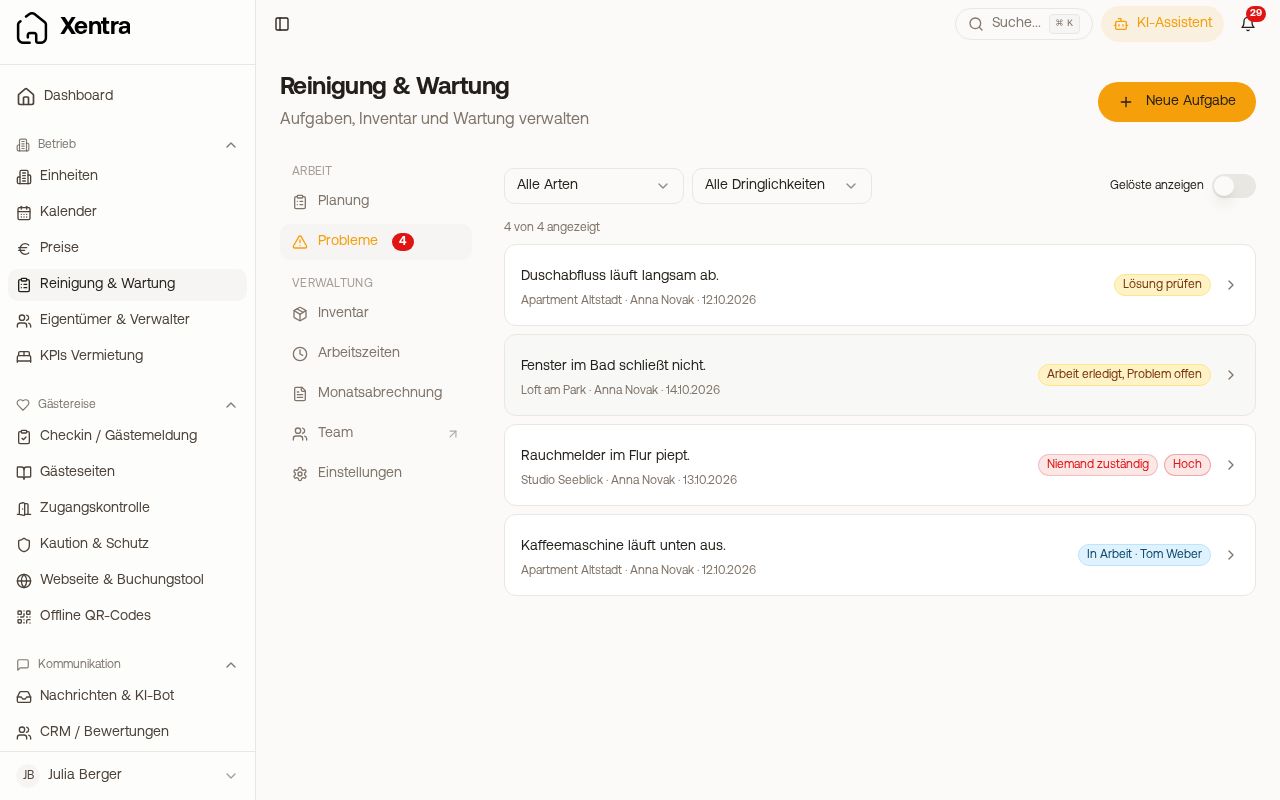 Issues: open reports with their status
How your team reports a problem
In the task, Report a problem: Issue type (Damage, Missing item, Heavy soiling, Maintenance / repair, Other), Urgency (Low, Normal, High), a short text and photos. You receive a notification “Issue reported” and an email.
The status of each report
In the list, each report shows where it currently stands: No one responsible, Open (with or without an assigned person), In progress, Review the solution, Work done, problem still open or Resolved. At the top you filter by type and urgency; Show solved shows completed reports. Reports that need you also appear in the overview under “Needs you”.
Who takes care of it?
One click opens the report with its text, photos, unit and the task where it was reported. Under Who takes care of it? you create a task for your caretaker with Create maintenance task; it carries the link to the report.
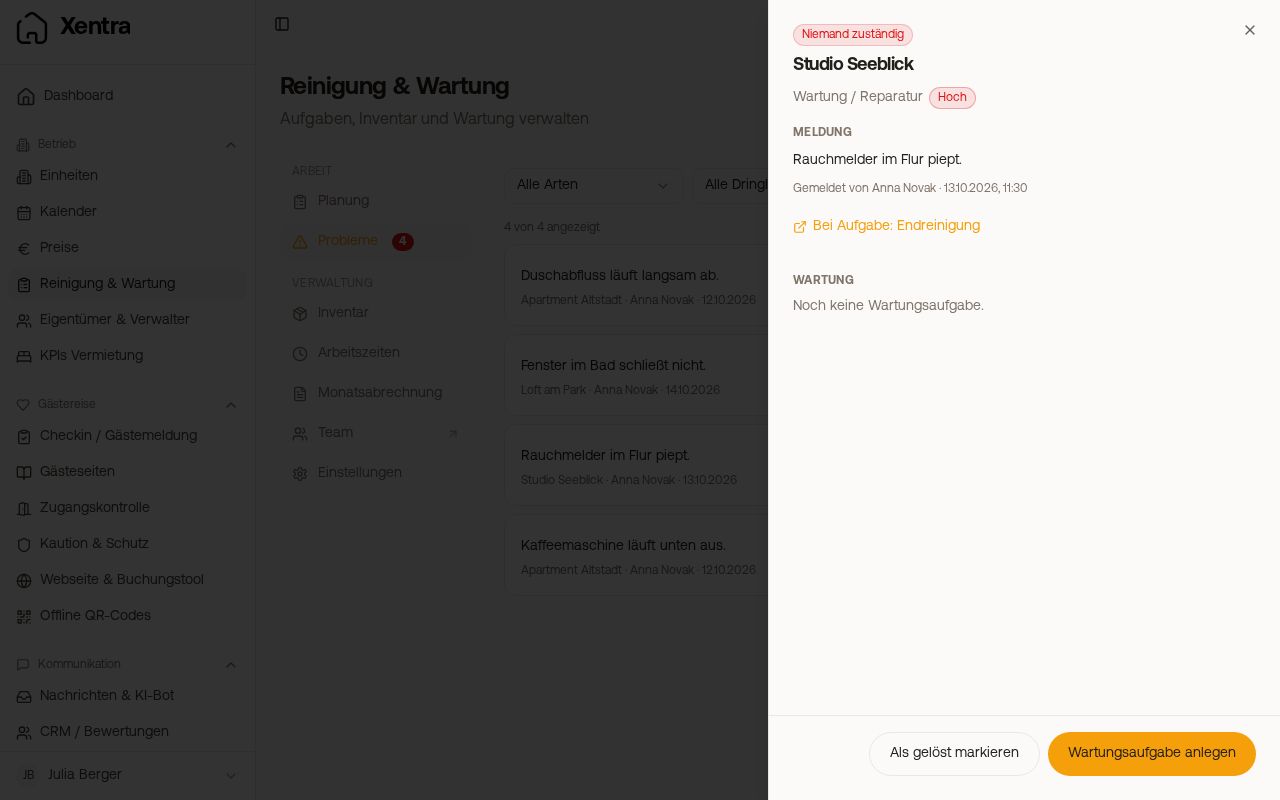 A report with “Who takes care of it?” and solution
Automatically to the caretaker: under Settings, Team & additional users, open the account and tick “Receive problem reports as tasks”. Then, for each report in a unit this person has access to, a maintenance task is created for them immediately. With several such accounts, each gets a task, and all of them are notified. Without the tick, the report stays with you until you assign someone.
Closing
When your caretaker completes the maintenance task, Xentra asks them “Problem fixed?” with yes or no, and what they did or what is still missing. You receive “Maintenance done”, even if you have otherwise switched off notifications for completed work.
Then you check: if they answered yes, you take over their answer with Confirm solution. Otherwise, click Mark as solved and briefly write under Solution what was done. The person who reported the problem sees this text. If the maintenance task is still open at that point, it is dropped.
If they answered no, the report is set to “Work done, problem still open”. Open the maintenance task and set it back to Open, or assign someone else.
A report is attached to the task where it was reported. If you delete that task, the report disappears with it.