
Notes for cleaning: access, trash, special features
Permanent notes per unit, property, or for all units, with photos and automatic translation, which your cleaner sees with every task.
Updated on November 12, 2026
What your cleaner needs to know for every cleaning (where the key is, where the trash cans are, what special feature the apartment has), you write once as a Note. It then appears for every task in this unit, with photos and automatically translated into the language of the cleaner.
Where: Cleaning & maintenance, Management, Settings, Notes for cleaning.
A detailed briefing per apartment, with sections, photos, and video link, you write as an apartment guide (see Apartment guides: Briefing per apartment for cleaners).
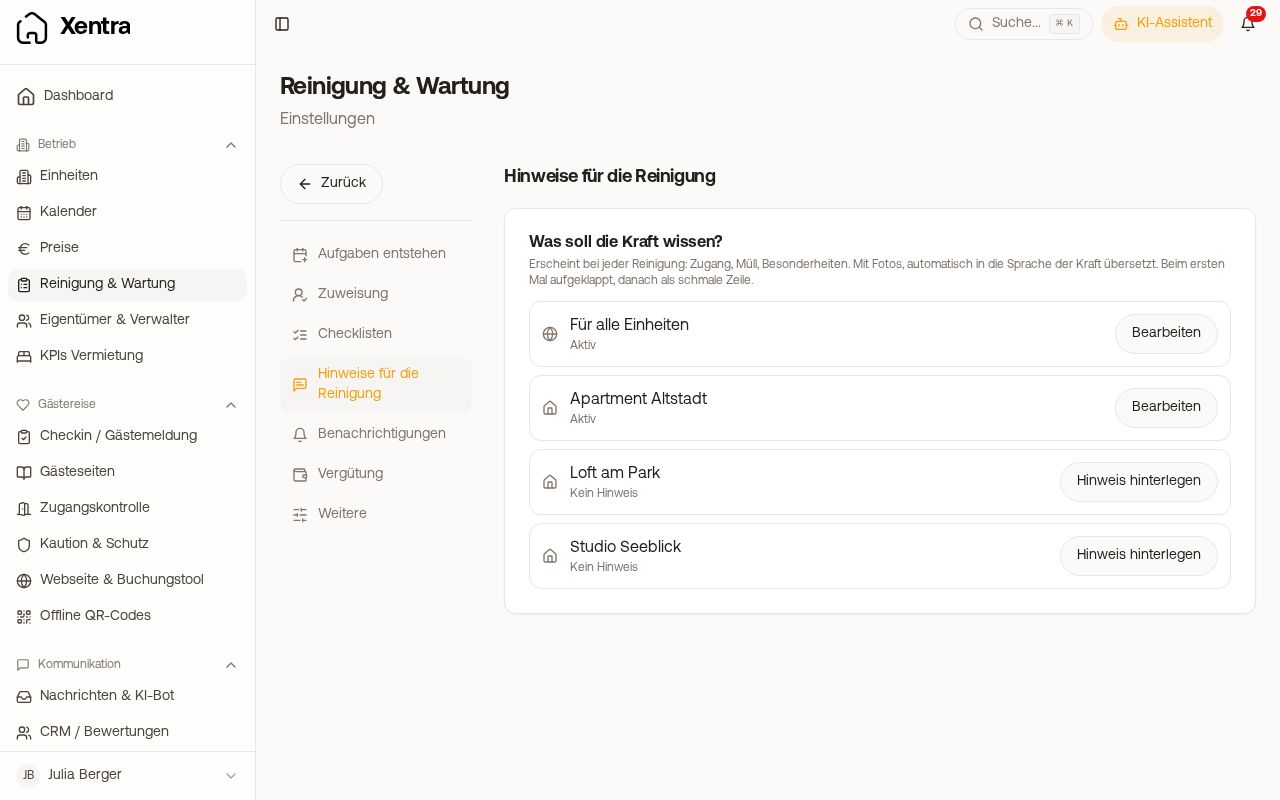 Settings, Notes for cleaning with an active note
Creating a note
- Click Add instructions under For all units or for an individual unit (existing ones with Edit).
- Write text, for example "Key box to the left of the front door, trash container in the courtyard at the back right".
- Under Photos, add pictures of the key box, meter cabinet, or trash area, optionally with a caption.
- Save. Xentra translates the text into the languages of team members who get cleaning briefings. If no one in your team reads another language, the text remains untranslated, and Xentra tells you this when saving. Translate into all 6 languages does all languages at once.
If a cleaning note already exists on the entrance page for the unit, you can copy it with Copy the text from the entrance-page note.
Inserting Wi-Fi name and WiFi Password
Below the text field, under Insert placeholder, you insert the placeholders {{wifi_name}} and {{wifi_password}} using Wi-Fi name and WiFi Password. In the task, your cleaner sees the Wi-Fi stored for the task's unit in their place. This way, one note under For all units is enough for all units, and a changed password is instantly in every task. If a unit has no Wi-Fi stored, the spot remains empty.
General, Property, Unit
Notes exist on three levels: For all units, per Property (for houses with multiple units), and per Unit. For a task, all matching notes appear, the most specific one first. If you turn off Also show the higher-level instructions for a unit, only its own text appears. With Show instructions, you hide a note without deleting it.
What your cleaner sees
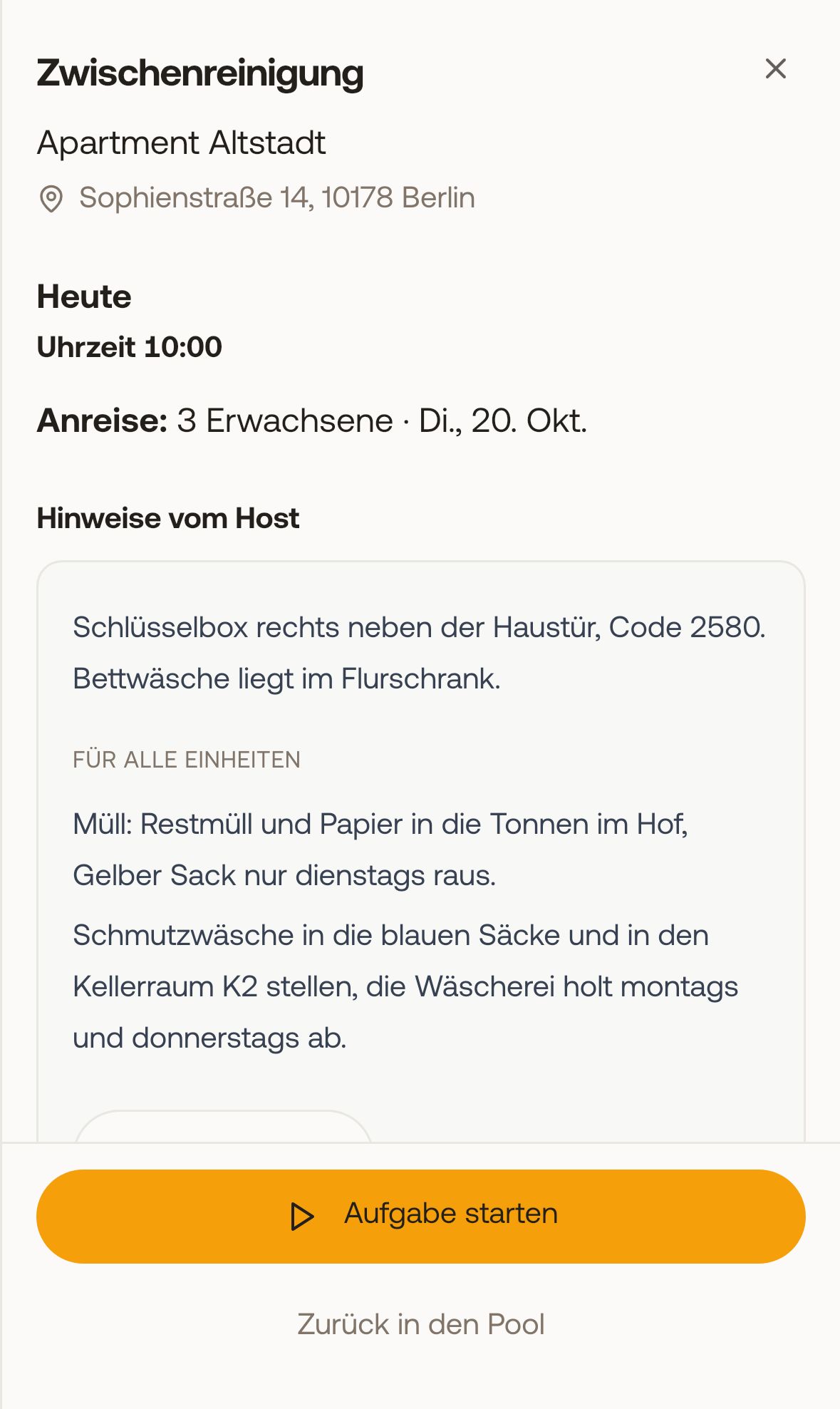 Notes from the host in the cleaner's task
When your cleaner opens a task, your note is expanded under Notes from the host before Start task, the general one under "For all units" below it. With Got it, they confirm it, after which it becomes a narrow line. If you change the text, it opens again next time and is marked as new. During work, they can reach it via the Notes tool.
Only team members with Gets cleaning briefings turned on in the team see notes, and only for their units or tasks. Owners and booking managers do not see them. The photos can only be accessed when logged in.