
Checklists: groups and photo as proof
Group your checklist items by room and use "Photo required" to ask for a photo, without which the task cannot be completed.
Updated on November 6, 2026
In a checklist template you can sort the items by room and ask for a photo on individual items. You set both in the template editor: Cleaning & Maintenance, Admin, Settings, Checklists, then open the template (pencil icon) or New Template. How to create templates and which template a task gets: see “Checklist templates for cleaning”.
Sort items into groups
- Click Add group and enter a name, for example “Bedroom” or “Bathroom”.
- The items below it belong to this group until the next heading. If you drag a heading, its items move with it. If you remove it, its items belong to the group above.
- Save.
Your cleaner first sees the items without a group, then each group as its own block with “2 of 3”. When all items of a group are done and no photo is missing, the block collapses and gets a green tick. In your task you see the checklist structured the same way.
Ask for a photo as proof
Switch on Photo required under an item, for example for the made bed. Next to it, under How it should look, you can add a reference photo if you like.
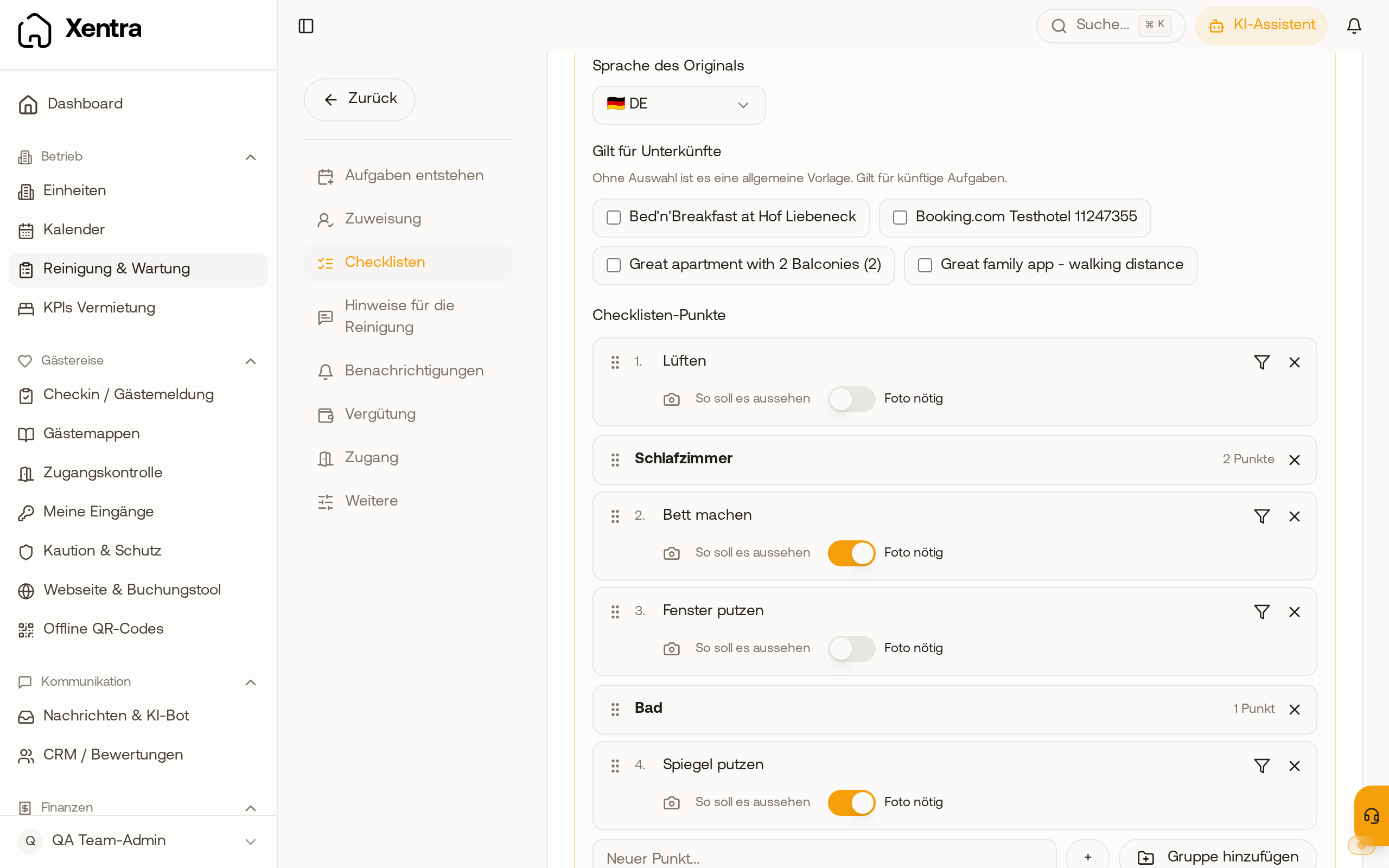 Template with the groups Schlafzimmer and Bad, two items set to Photo required
This is how it works for your cleaner:
- The item shows “Photo required” from the start. They take the photo right there, several if needed.
- Under Review and finish all these items are listed, with “1 of 2 photos”. Complete task stays locked until each of these items has a photo, and Xentra names the items that are still missing one.
- Mark done and the other ways to report a task as done also only work once the photos are there.
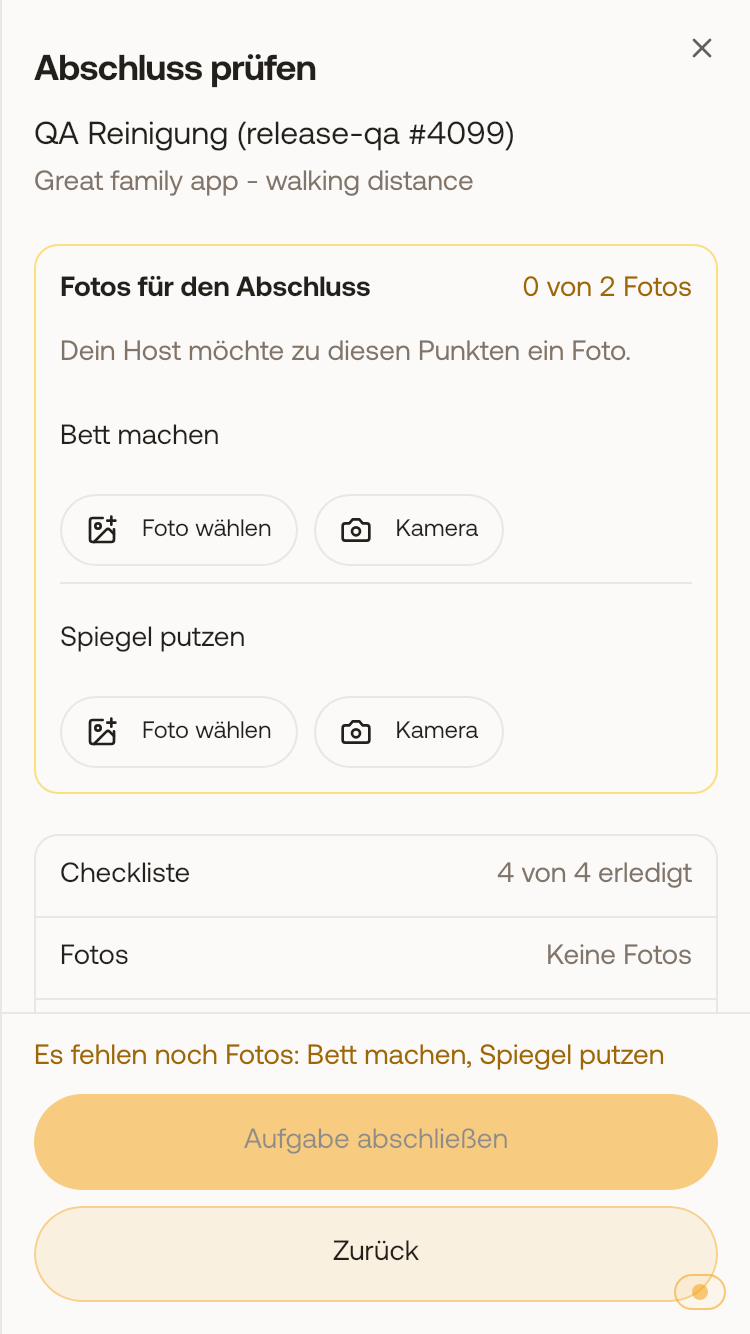 Review and finish on the phone: 0 of 2 photos, Complete task is still locked
You, the team admin and team members with edit rights for tasks can always complete. You see the photos in the task directly under their item. Once an item has a photo, the task's checklist can no longer be swapped.
The switch takes effect immediately, also for tasks that are already planned.