
Test online check-in without changing real data
View the check-in safely with the preview, run a real test with your own test booking, and remove a test again with Reset or Delete.
Updated on October 19, 2026
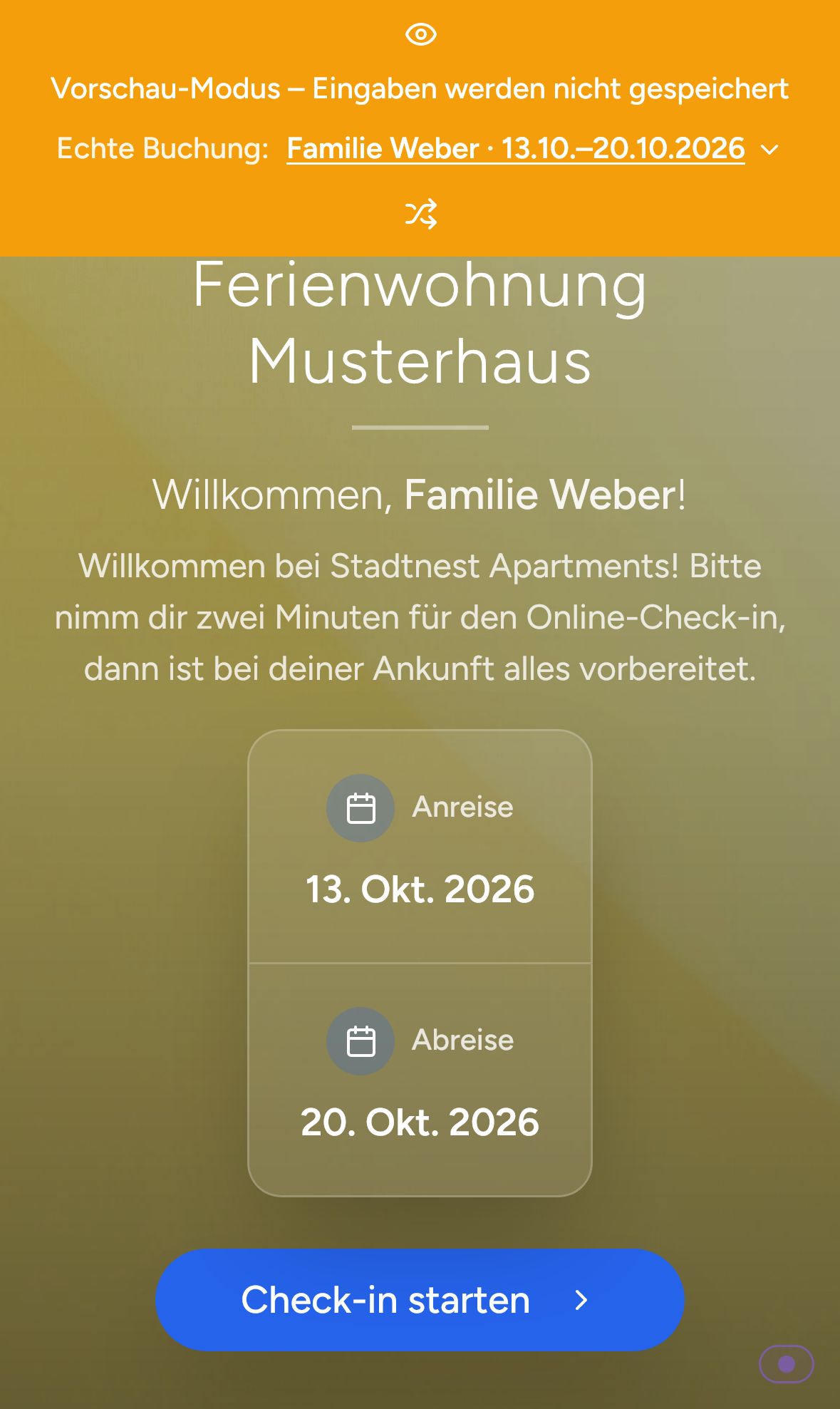
If you want to see how your check-in looks to guests, use the Preview. It saves nothing, charges nothing and reports nothing to authorities.
Safest option: the preview
- Check-in / Guest registration, tab Forms, open the template.
- Top right, click Preview. The preview opens in a new tab. Copy its link with Copy preview link in the card Guest flow.
- An orange bar shows the preview mode: entries are not saved. Via Real booking you select a booking (the dice icon picks another one) and run through the check-in with the data of a real booking (name, unit, tourist tax, deposit), without anything in the booking changing. Payments are switched off in the preview.
 Preview of the check-in with a note about the preview mode
Test the real flow
If you want to test the whole process with payment and messages, create your own test booking, for example with your name and your email address. In the booking, copy the check-in link on the tab Online Check-in and open it in a private browser window, so that your host login does not get in the way.
Do not use a real guest booking for this. A submitted check-in triggers everything attached to it: waiting messages such as the access code go out, tourist tax and add-ons become due, and for units with guest registration (AVS, Feratel, Tramino, WinTOP, Chekin) your test data goes to the authority.
Remove a test
In the booking, on the tab Online Check-in, card Check-in status:
- Reset: removes the submitted check-in data, and the guest can check in again via their link.
- Delete: removes all check-in data of the booking and the check-in link. Create a new link afterwards with Create link.
 Check-in status in the booking with Reset and Delete
What does not get undone: a message that was already sent, a payment (you refund that in the booking), and a report to the authority (you cancel that in the card of your connection or in the portal). If Xentra filled empty fields of the booking (email, phone) from the test, correct them at the top of the booking via Edit.
Guest sees “This link is incomplete”
Then the long code of the booking is missing at the end of the check-in link. Usually an email program broke the link and cut it off, or it was only partly copied. Send the guest the complete check-in link from the booking again, ideally via the placeholder {{online_checkin_link}} in a message. Then the link is clickable and complete.