
Check-in in the booking: status, guest data and marking
What a booking's Online check-in tab shows and how to complete check-ins, mark them as external, correct guest data or reset them.
Updated on November 6, 2026
Everything about the online check-in of a booking is in the booking, in the Online check-in tab (on mobile it is called Check-in). Here you see the status, correct guest data and complete a check-in yourself.
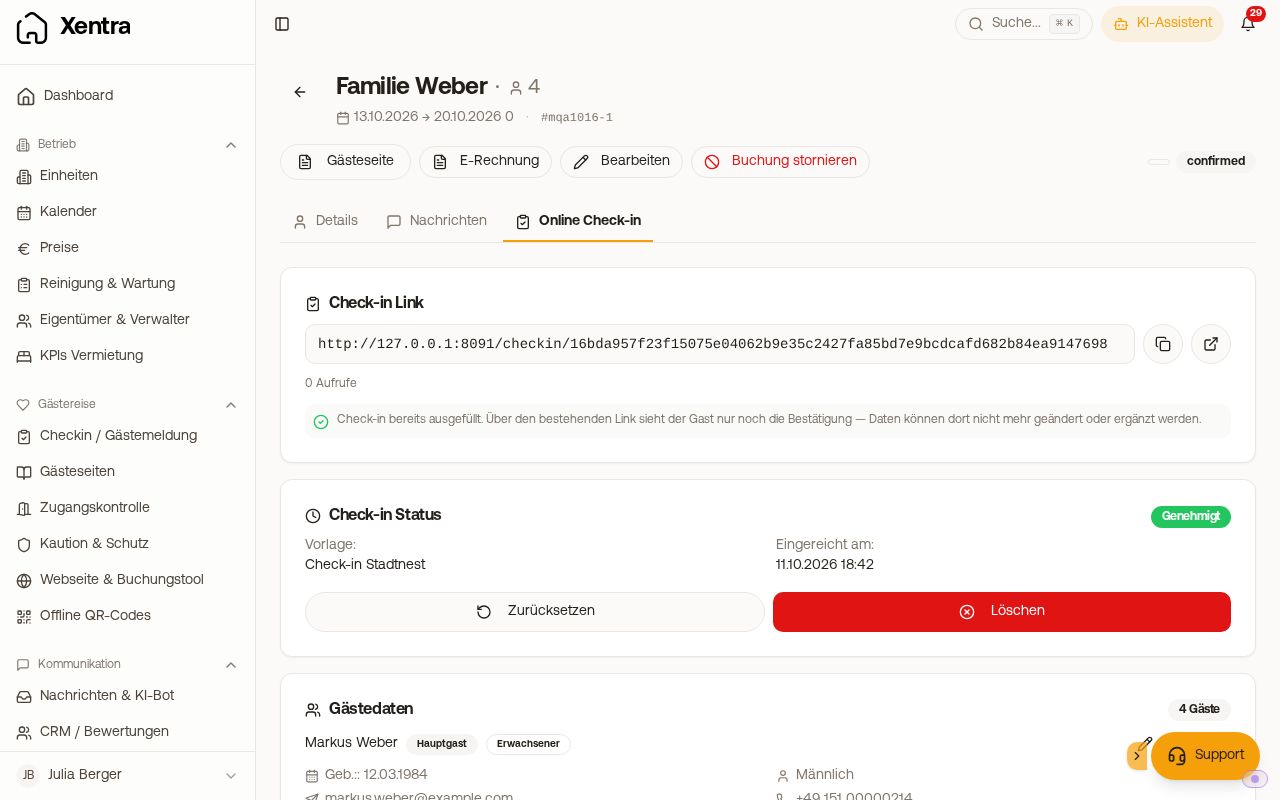 Online check-in tab of a booking with status, link and guest data
What you see there
- Check-in link: copy or open the link, number of views, and Create link if none exists yet.
- Check-in status: template, time of submission, and the state: Pending, In progress or Approved.
- Guest data: all travelers with date of birth, nationality and, if asked for, ID number and residence.
- Submitted check-in data: the answers to your own questions, uploads and the Digital signature.
- Depending on the setting: Booked services, Billing address, tourist tax, deposit and the card of your guest registration.
If the unit is not assigned to any template, the note “This unit is not assigned to any check-in template.” appears at the top, with the name of the template your guests then receive.
Started, but not submitted
If the guest has started but not submitted, the check-in shows In progress, with the note that the arrival information is only sent once the check-in is fully completed. If the guest opens the link again, they continue where they stopped. You set up reminders to the guest with an automation. You can also complete the check-in yourself: Mark as checked in, and confirm in the dialog. The entered data is kept, waiting messages such as the access code go out, and your automations timed “Immediately after check-in (fully completed)”, for example the guest guide, are sent. Open tourist tax or registrations do not count as done with this. They stay visible to you. With Undo mark you reverse this. If you mark it again afterwards, none of these messages goes out twice: only once per booking.
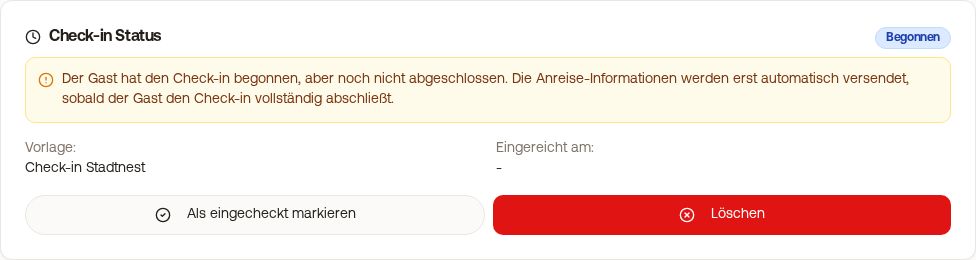 A started check-in with “Mark as checked in”
Guest checked in elsewhere
If the check-in runs via another system, mark the booking without submitted data via Mark as checked in. Reminders to the guest stop, your automations “Immediately after check-in (fully completed)” go out to the guest once per booking, and if they open their link, they see the check-in as completed. The card then shows “Manually marked as checked in (external check-in)”. That there is no guest data in Xentra is normal. If you have put the check-in status into a PMS field under Integrations → PMS field rules, Xentra also writes the marking there. Undo mark takes it back.
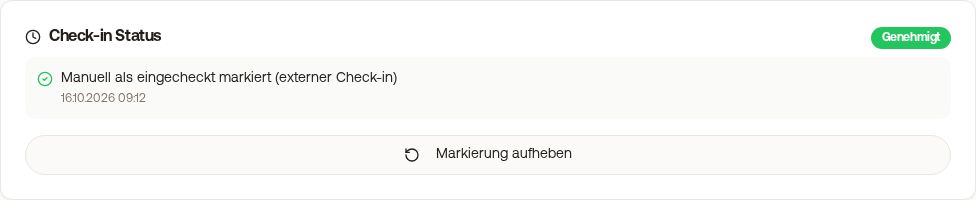 A booking completed externally with “Undo mark”
Correct guest data
If a guest made a typo: in the Guest data card, click Edit for the person. You can change first name, last name and date of birth.
- You cannot change the email address of a single person there. You change the booking's email at the top of the booking via Edit.
- Registrations that were already sent are not corrected automatically. With AVS, click Resend afterwards in the AVS Direkt Registration Form card. The existing guest registration form is updated.
- Feratel and Tramino receive the correction automatically. After submission to Feratel, the last name and date of birth of the main guest can no longer be changed.
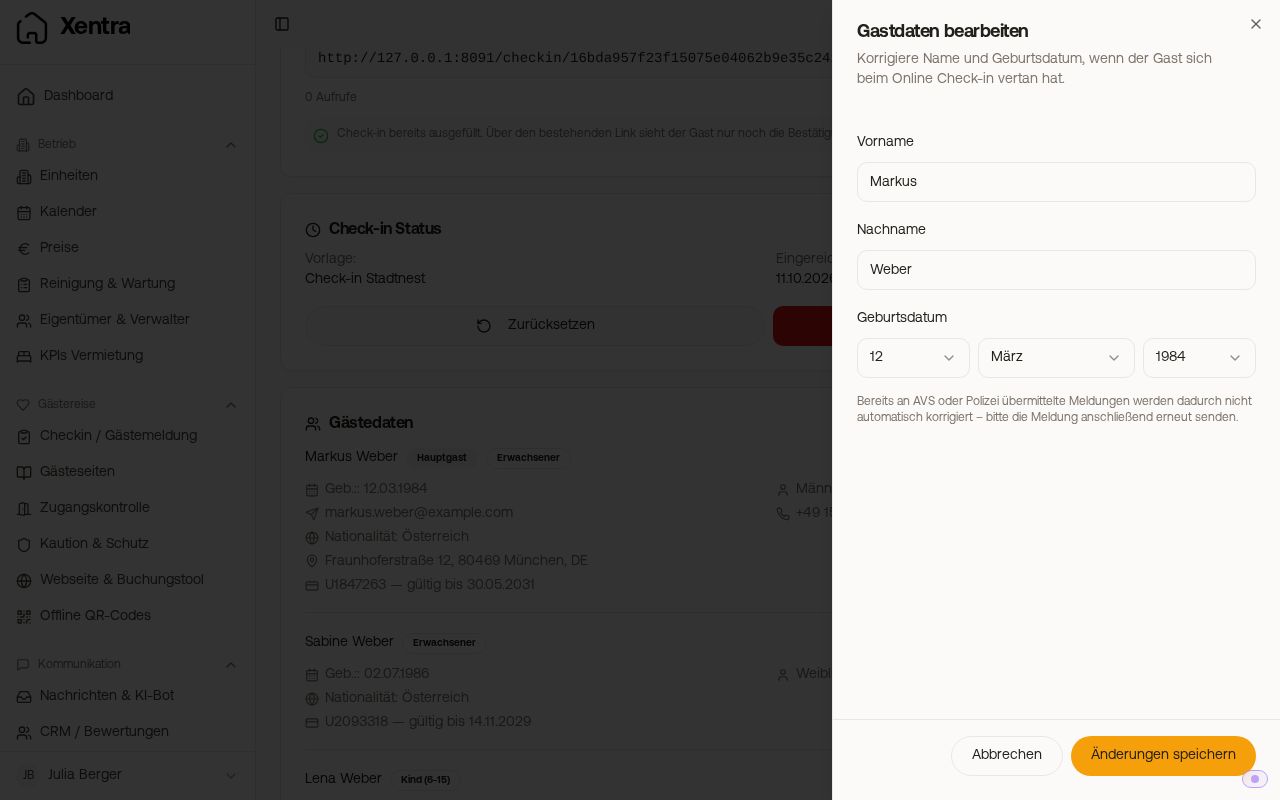 Edit guest data
Fewer guests than booked
Depending on the template setting, the guest confirms a smaller number of people. The booking then says, for example, “2 booked, 1 entered. Confirmed by the guest on …”.
Changing something after submitting
A submitted check-in is final. If the guest opens the link again, they only see the confirmation and cannot change details or add-on services.
- Recalculate something (for example one more pet): open the booking, Create draft, set the line item to the new quantity, Generate live invoice, then use the three dots on the invoice to Copy link and send it to the guest. Anything already paid in the check-in is already deducted. Add-on services paid in the check-in only show up under guest invoices once you generate an invoice.
- Let the guest check in again: in the Check-in status card, click Reset. The submitted data is removed, and the guest checks in again via their link. Delete also removes the link.