
Guest uploads from online check-in: find and view files
Where uploaded IDs, PDFs and the guest's signature are stored and how to download them.
Updated on October 19, 2026
Everything a guest uploads in the online check-in (photo of ID, passport, PDF) or signs is stored directly on the respective booking. There is no central file area and no collective export across all bookings, and the files have nothing to do with the invoices.
How to get to the files
- Open the booking, for example via Calendar or the booking list.
- Tab Online Check-in (on the phone it is called Check-in).
- Card Submitted Check-in Data: every uploaded file appears as a link View image or View file and opens in a new tab. If each adult uploads their own document, it is stored under that person.
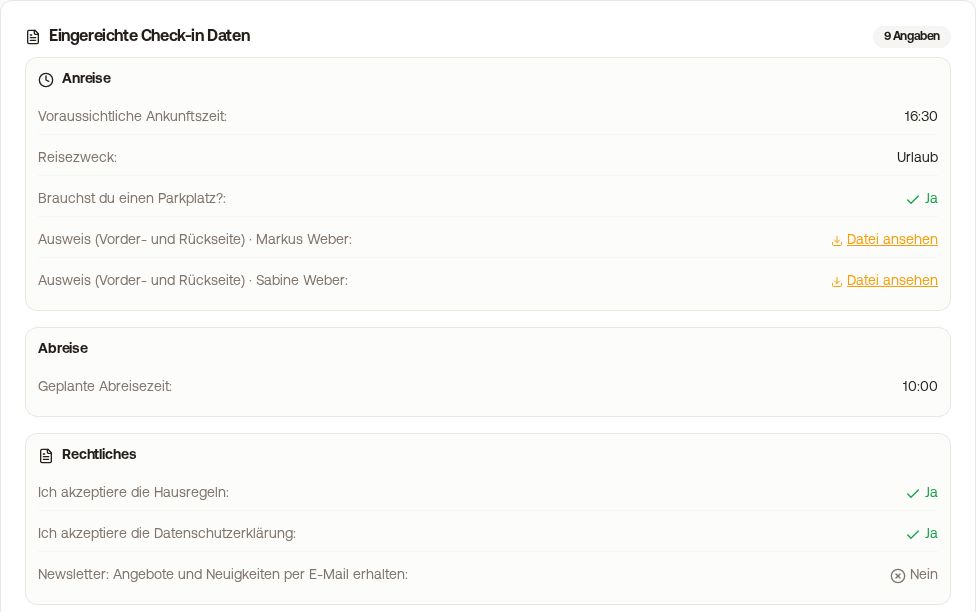 Submitted check-in data with the uploaded IDs
Download signature
Under the check-in data is the section Digital Signature with the link Download signature. If the image only opens in a new tab, save it with a right click, “Save image as”.
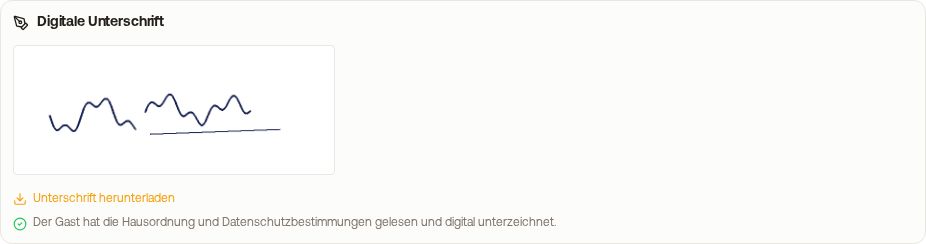 Digital signature of the guest with download link
Create upload fields
You create file upload fields in your check-in template: Check-in / Guest registration, tab Forms, open the template, Add custom field, field type File upload. Images and PDFs are allowed. You choose the label yourself. There is no separate field type “Travel document”; it is always a file upload with a suitable label. If each adult is to upload, put the field in the category Arrival and under Who has to upload the file? choose “All adult travelers”.
Retention
Xentra does not delete check-in data, uploads and signatures automatically. You can retrieve them at any time via the individual booking, for example for a check.
Units with Chekin
If the guest registration runs via Chekin, Chekin additionally archives its own ID data and transmission records in your Chekin account. Your own fields from the category “Guest information” (for example a mandatory upload) are still asked for by the check-in after the Chekin steps, and saved on the booking.