
ID data in online check-in: what Xentra stores
Which ID details the check-in asks for, why only from foreign guests, what is stored with Stripe Identity and how you collect an ID photo.
Updated on October 27, 2026
From the ID, the online check-in asks for two details if you turn them on:
- ID/Passport Number
- ID valid until (expiration date)
You activate both in your template: Checkin / Guest Registration, tab Forms, open template, area Guest data, under Required information. The expiration date only goes to the registration authority together with the ID number, so turn both on together.
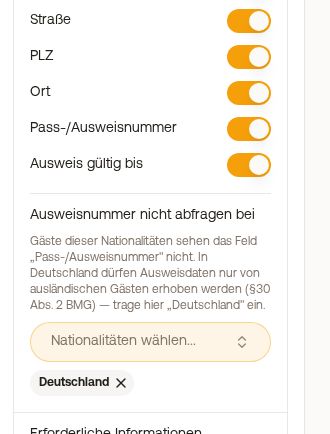 ID/Passport Number and expiration date in the guest data of the template
The check-in does not accept an ID number that cannot be real, for example "?", "-" or "1234". The number needs at least 5 letters or digits; the guest may also enter spaces, hyphens, dots, and slashes. Otherwise, under the field in their check-in language, they see "Please enter the full ID number" and can only proceed with the full number. This does not apply to guests whose nationality you have excluded, they do not see the field at all.
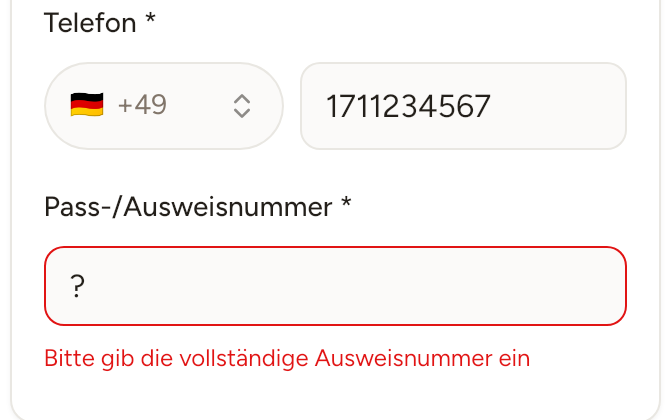 The check-in rejects "?" as an ID number and asks the guest for the complete number
Only from foreign guests
In Germany, ID data may only be collected from foreign guests. Therefore, enter "Germany" under Do not ask for ID number from. The rule applies to each person individually. If you turn off the query later, previously collected numbers are retained.
What is not asked for
The check-in does not ask for document type, country of issue, issuing authority, and place of birth. If your registration authority requires one of these details, create a custom field for it (see below) or ask the guest directly.
Where you see the details
In the booking in the Online Check-in tab, Guest data card: nationality and ID number for each person.
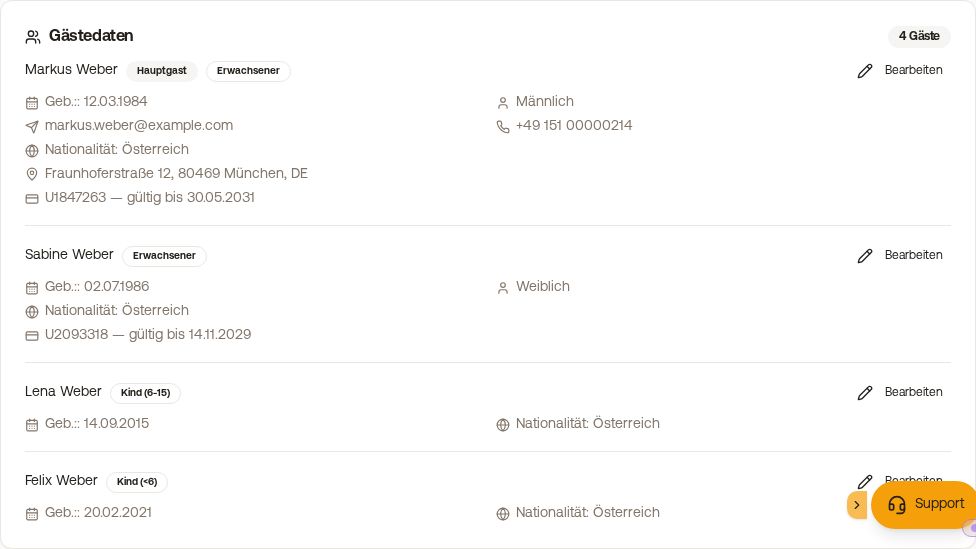 Guest data in the booking with ID number
ID verification with Stripe Identity
With ID Verification (Stripe Identity) under Legal & verification, the guest compares their ID via photo and selfie. Each check carried out incurs a fee and is billed with your subscription; you can find the current price on the pricing page. With Excluded nationalities, you save the check for certain countries.
The check runs via Xentra's Stripe account, not via your own. Xentra stores the result and, if Stripe transmits it, the verified name. The ID images and document data remain with Stripe and cannot be viewed by you, not even in your Stripe dashboard.
When Stripe deletes the ID data
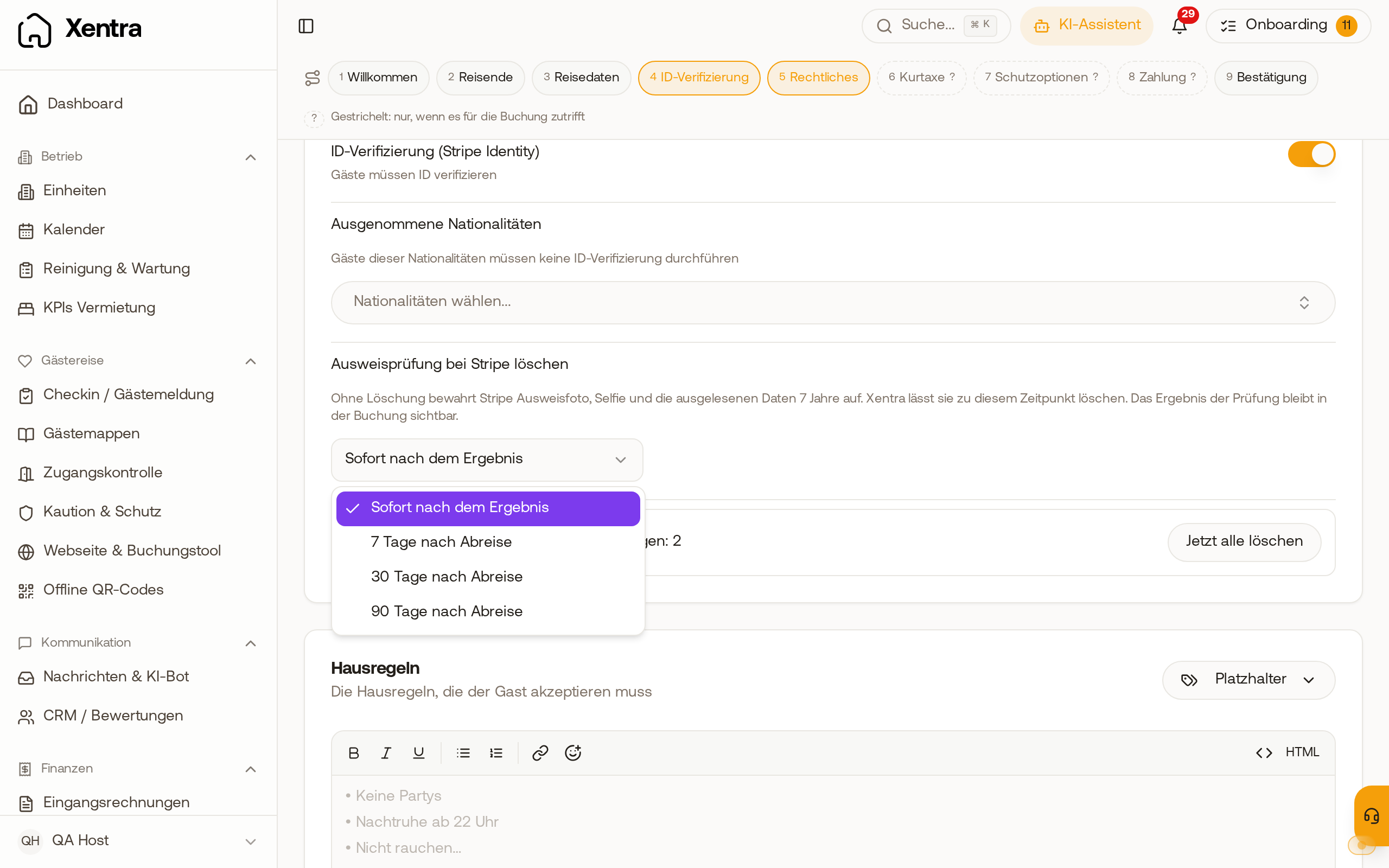
ID photo, selfie, and the extracted data remain with Stripe until Xentra has them deleted. When that happens, you set yourself: Checkin / Guest Registration, tab Forms, open template, tab ID & rules, card Legal & verification. Under Delete the ID check at Stripe, you choose Right after the result (default) or 7, 30, or 90 days after departure, then Xentra deletes on the Sunday after the period expires.**. The result of the check remains visible in the booking.
You delete checks from before this setting in the same place with Delete all now; you can also find this there if ID verification is turned off in the meantime. Checks that a guest is currently completing remain until after their departure. You delete an individual check in the booking, Online Check-in card, with Delete at Stripe. Stripe takes up to 4 days for deletion; until then it says "Deletion requested at Stripe on...". Both deletions are listed under Settings, Activity.
How to get an ID photo
Via a custom field of type File upload:
- Open template, under Fields click on Add custom field, field type File upload.
- Choose any label, for example "ID (front and back)".
- Select Arrival as Category. Only then are the following two settings available; in "Guest information", the guest's nationality is not yet known.
- Under Who has to upload the file?, select "All adult travelers" if every adult should upload their document. With Excluded nationalities, you exclude German guests, for example.
The guest uploads a photo or PDF, you find it in the booking in the Online Check-in tab. Where exactly: see Guest uploads from online check-in: Find and view files.
Retention
Xentra does not delete check-in data automatically. How long you must or may keep registration data depends on the registration law of your country; you should only keep ID copies as long as you really need them. You remove individual data in the booking (see Check-in in the booking: status, guest data and marking).