
Create and submit WhatsApp templates for Meta
Create Meta templates in the template editor, copy from Xentra templates, variables, example values, submitting, rejection, and English version.
Updated on November 12, 2026
Outside the 24-hour window, WhatsApp only allows messages from templates approved by Meta. This applies to everything Xentra sends automatically, such as pre-arrival automations, check-in reminders, and the guest guide. If a guest replies, you can write freely for 24 hours.
You can find the editor under Messages → Templates → "WhatsApp Catalog" tab (Open WhatsApp templates). A connected WhatsApp account via Meta is required, see "Set up WhatsApp Business". Without a connection, the tab is locked and shows "WhatsApp is not set up yet" with the "Set up WhatsApp" button.
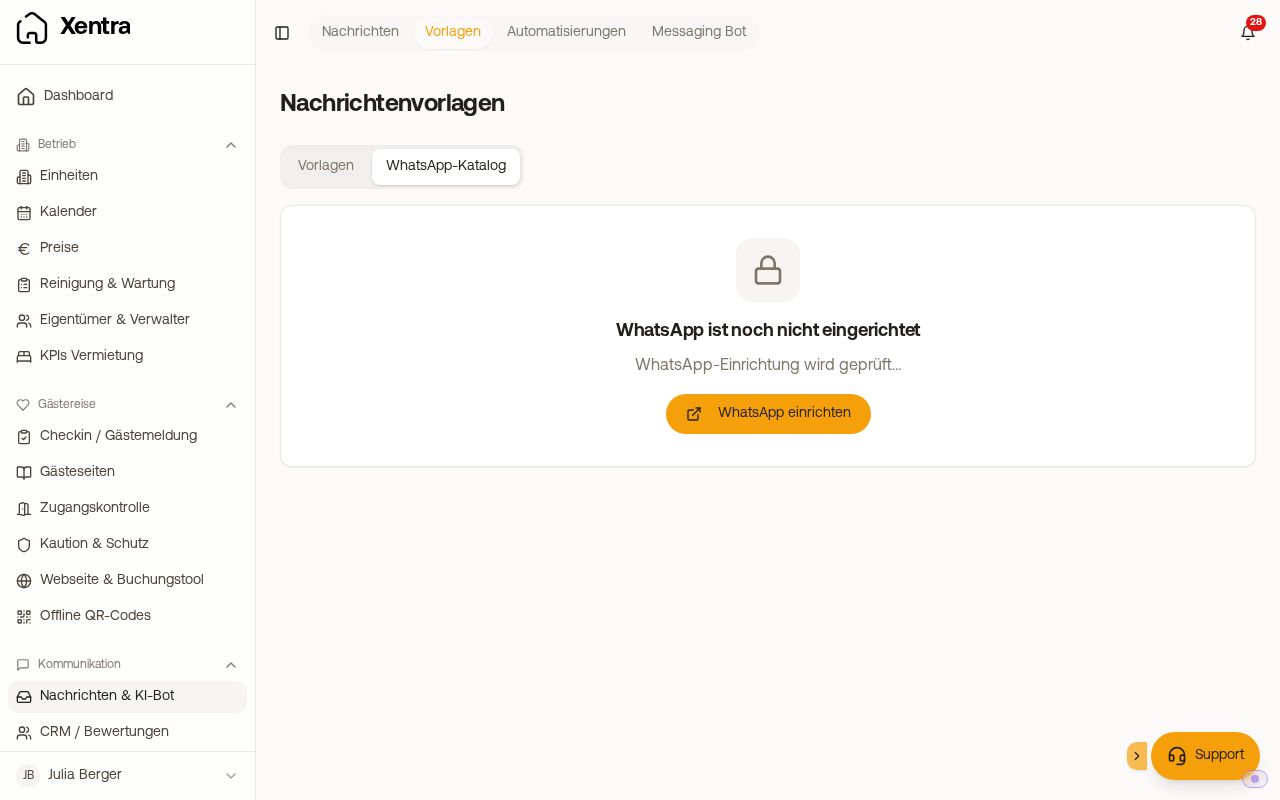 The WhatsApp Catalog tab while WhatsApp is not yet connected
What you can do there
- Create Meta templates from your existing Xentra templates or create new ones, with header, footer, buttons, and multiple languages
- Have the template checked before submission to see if it violates Meta's rules
- Link each Meta template to the Xentra template whose content it delivers
- See the rejection reason if Meta rejects a template
- Delete Meta templates: a language version or the entire name. If you delete the name, Meta deletes all languages with it, and an approved name is then blocked for 30 days. As long as an active automation uses the template, deletion is not possible.
Xentra submits the template for free messages (xentra_direct_message, German and English) itself when connecting. You select it in the inbox when the window is closed and enter your text.
How the editor helps you
- "Copy from template" copies one of your normal message templates and adapts it for Meta: formatting removed, subject as header, links additionally as a button. Your normal template remains unchanged; with "Undo", you revert the adoption.
- The unit's own fields like
{{unit.anfahrt}}are named{{feld_anfahrt}}in a WhatsApp template because Meta does not allow dots in variable names. In the Insert variable menu, they are listed under "Custom fields"; if a{{unit.…}}is already in the text, the check offers to rewrite it. If you copy a message template with "Copy from template", the unit's own fields remain and are named{{feld_<name>}}; other placeholders with a dot (such as{{pms.…}}) are removed by the import. Iffeld_<name>is longer than Meta allows, the check reports it. Meta receives the value in a single line, line breaks become commas, and the field name may be 15 characters long at most. Fields with an access word in the name (such as code, pin, or tuer) are not accepted by the editor. Important: Every unit sending the template needs a value in this field. If it is missing for a unit, the WhatsApp message to its guests will not be sent. You can check this under Units, Placeholders. - Insert variable: The menu below the text explains each variable, has a search, and shows only what is available in your account. Variables also work in the header.
- Names for Meta: Meta rejects variable names that are too long and considers names that sound like an access code (Code, PIN, password, door, key, lock, Nuki) to be a login code. The editor flags this, and "Adapt for Meta, same content" inserts a neutral name. The guest receives the exact same value.
- Example values: Meta requires an example for every variable. For codes, the editor uses words instead of numbers because Meta reads a number as a login code. The guest still receives the real code.
- Preview with real booking: With "Real booking", you see the message with data from one of your bookings. If a variable is empty there, the editor warns you, because the message sent to this guest would then be canceled.
After submission
The editor shows the steps with checkmarks: our check, sent to Meta, Meta's instant check, and the category under which Meta files the template.
- Approved: ready to use immediately. If Meta is still checking manually, it usually takes a few minutes; the result appears automatically in the list.
- Rejected: The window shows Meta's reason and what you can change. You can edit and resubmit a rejected template as often as you want using the pencil icon in the row.
- Different category: If Meta files the template under a category other than selected, you can resubmit it via "Submit as new version".
- English version: If a template does not exist in English yet, guests with other languages receive your version. "Create English version" translates it immediately. In the list, you can recognize such templates by the label "without English".
Links as a button and missing templates after reconnecting: see "WhatsApp templates: Links as a button" and "WhatsApp reconnected: approved templates missing".