
Set up WhatsApp Business
WhatsApp via Xentra with "Connect with Facebook", share account from your own Meta app, status on the WhatsApp card, and the developer route directly via Meta.
Updated on November 12, 2026
You connect your own WhatsApp Business account at Meta with Xentra and write to guests through it. All methods can be found under Integrations, Marketplace, Communication. Xentra charges nothing extra for WhatsApp; Meta bills the messages directly to you, see "What WhatsApp costs".
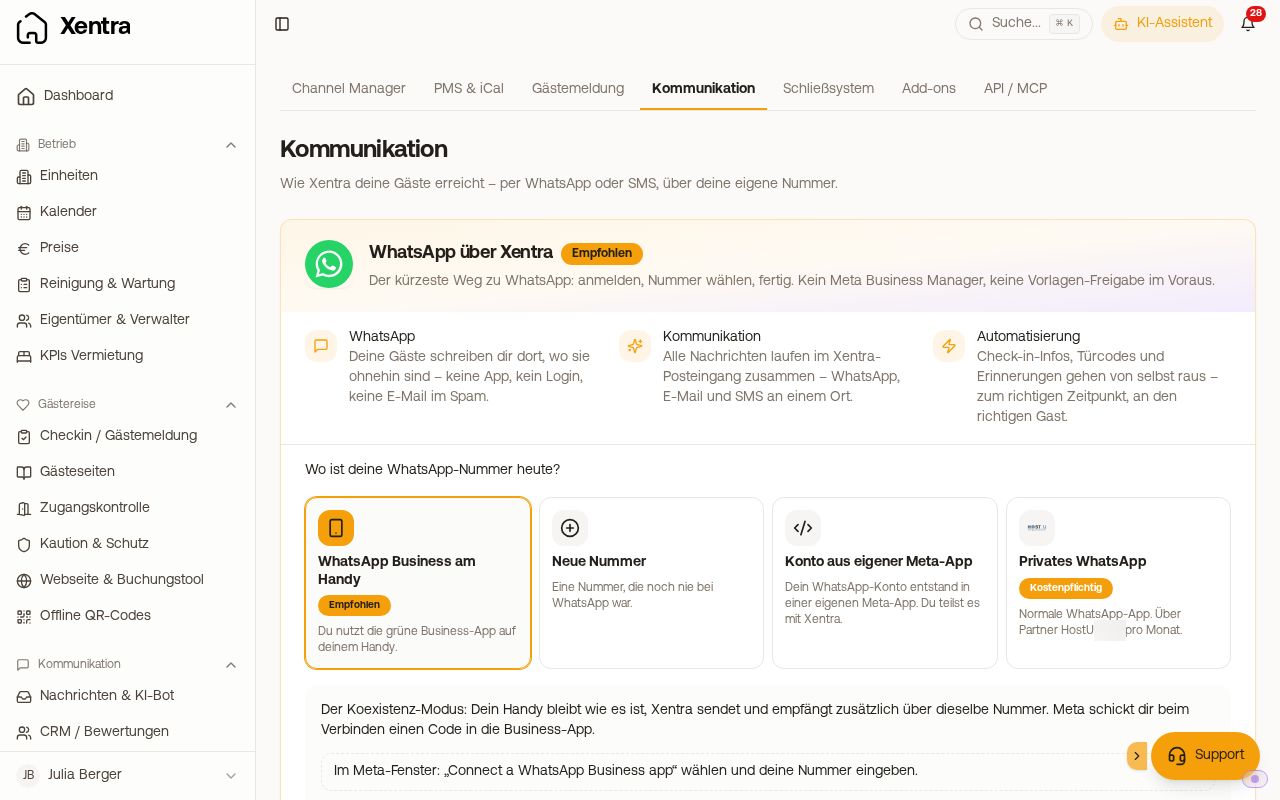 The "WhatsApp via Xentra" card with the question "Where is your WhatsApp number today?"
The recommended way: "WhatsApp via Xentra"
On the "WhatsApp via Xentra" card, you answer the question "Where is your WhatsApp number today?" and then click "Connect with Facebook". Meta's window leads you through account, number, and confirmation, and sets the permissions itself. You do not need your own Meta app or an access token, but you do need a Facebook account.
- WhatsApp Business on your phone (the most common case): You use the green Business app. In Meta's window, you select "Connect a WhatsApp Business app" and enter the number; Meta sends you a code in the app. Your phone stays as it is, Xentra additionally sends and receives via the same number (coexistence).
- New number: A number that has never been on WhatsApp. Meta confirms it via SMS or phone call. If your number is still attached to another WhatsApp account (for example at Twilio), you disconnect it there and delete it in WhatsApp Manager from the old account, then add it here as a new number. If you can no longer access the old account, only Meta support or another number will help.
- Account from own Meta app: Your WhatsApp account was created in its own Meta app. Meta's window does not display such accounts. Instead, you share the account with Xentra: on Meta's "WhatsApp Accounts" page click "Assign Partner", enter Xentra's Business Partner ID (available to copy on the card), allow "Everything", then paste the ID of your WhatsApp account into Xentra and click "Complete connection". Order when sharing: Select "Account from own Meta app" in Xentra first so the steps open, and only then assign Xentra as a partner at Meta. Then click "Complete connection" within two hours. Xentra only accepts a release reported by Meta after opening these steps. If you already shared the account beforehand, it stays at "No completion received from Meta yet", even after reloading. In that case, write to hello@support.myxentra.com.
- Private WhatsApp: Meta cannot connect a private number. Switch to the WhatsApp Business app for free (your chats will be preserved).
Click through the Meta window until "Done". If you cancel earlier, the number will be missing; then press the same button again. If the number is already protected with a 6-digit PIN, enter it on the WhatsApp card afterwards.
When connecting, Xentra submits a template for free messages to Meta (xentra_direct_message). With it, you can reach a guest even if the 24-hour window is closed. Further templates: "Create and submit WhatsApp templates for Meta".
Status on the WhatsApp card: is Meta really delivering?
Once WhatsApp is connected, the card becomes a status card:
- "Number active" (green): Everything in order.
- "Number active, templates restricted" with "Payment method missing at Meta": Replies to guests continue to work. Meta will only deliver templates and automations outside the 24-hour window once you add a payment method at Meta via "Add payment method".
- "Number active, delivery disrupted": In recent days, at least one message did not arrive, for example "Last message not delivered, 3 hrs ago".
- "Number active, Meta delivers nothing": Meta blocks sending for your account, or settings such as currency are missing at Meta.
- "Number not active": Meta no longer delivers to Xentra, usually because the connection was disconnected in the Business app. Clicking "Reconnect" once restores it.
- A gray line about the messaging limit is not an alarm; the limit increases as soon as Meta verifies your business.
With "Fix at Meta", you get to the relevant page at Meta, then check using "Check status". Errors caused by an individual guest (a number without WhatsApp) do not trigger a warning here.
For developers: WhatsApp Business (Meta direct)
At the very bottom of the page is the method where Xentra works as your own Meta app, with your access token and app secret (Open WhatsApp). You need a Meta Business Portfolio, a number that is currently not active on WhatsApp, a Meta app with the product "WhatsApp", and about 30 to 60 minutes. The wizard guides you through token, account and phone number ID, app secret, webhook, PIN, and a test message.
- Empty permission list for token: In Meta Business Manager under System Users → your user → "Add Assets" → "Apps" → your app → turn on "Manage App". Then select the permissions
whatsapp_business_management,whatsapp_business_messaging, andwhatsapp_business_manage_events, expiration "Never", copy the token immediately. - Number with +1 555: This is Meta's test number. You cannot get past the PIN with it. Under WhatsApp → API Setup, add your own number via "Add phone number" and select it at the top under "From".
Multiple WhatsApp methods
If more than one method is connected, the page asks at the top who sends your WhatsApp messages. Set this up before switching automations to WhatsApp. SMS always runs via Twilio.