
Messaging & AI Bot: overview and inbox
Where the inbox is, the channel menu, messages without a booking, forwarding and AI help when writing, with links to the bot, templates and automations.
Updated on October 26, 2026
Messaging & AI Bot: the overview
You find the area in the sidebar under Communication → “Messaging & AI Bot” (Open inbox). At the top there are four tabs: Messages, Templates, Automations and Messaging Bot.
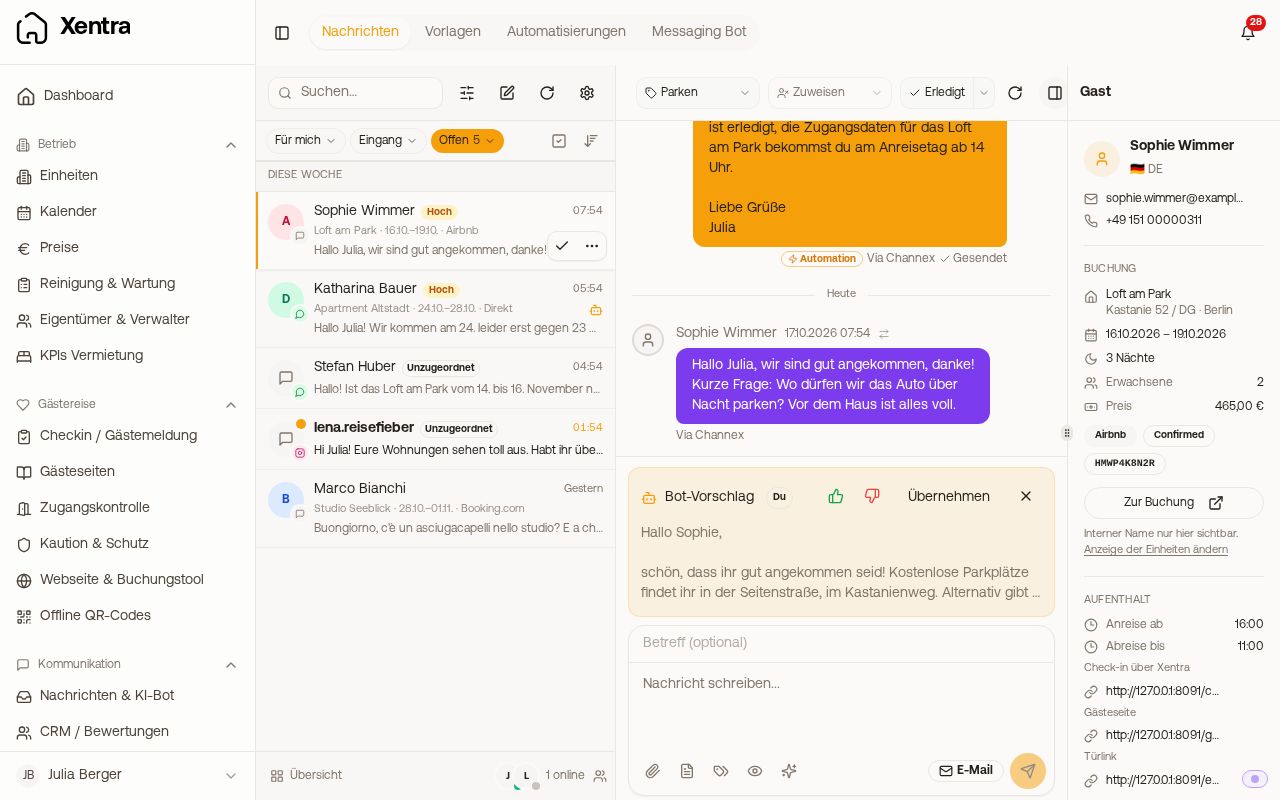 The inbox with the conversation list, status field and an open conversation
Browser only: The iOS and Android app only has the inbox. You open templates, automations, the Messaging Bot and the messaging settings in the web version at app.myxentra.com, also on your phone in the browser. You reach the Messaging settings (team & visibility, prioritization, translation) via the gear icon at the top of the conversation list. You, your team admin and team members with the right “Messaging settings” see the gear icon.
The inbox
All guest messages from all channels in one place: portals and PMS (Airbnb, Booking.com, Smoobu, Guesty, Hostaway and more), email, WhatsApp, SMS and Instagram.
- Search: guest name, unit, booking number or message text. From 3 characters it searches all conversations in your account, including older ones. With 1 or 2 characters it only filters the loaded list.
- Status field, inbound/outbound, filters and follow-up: see “Inbox: status, filters, follow-up and overview”.
- New message: Search only finds conversations in which a message already exists. To write to a guest who has never messaged you, click the pencil icon (“New message”) at the top of the list and choose the booking or the contact.
- Each conversation has its own address (
/messaging/inbox/<id>). You can link it or send it to a colleague. Anyone who may not see the conversation cannot open it via the link. - The most recent period loads first. Older messages load via “Load more”.
Insert a template into a reply: In the browser, click the document icon at the bottom left of the message box, right next to the paperclip. Choose the template and adjust the text if needed before sending.
The channel when replying
At the message box you choose the channel: portal or PMS, email, SMS or WhatsApp. Under each channel it says where it goes (mailbox, email address or phone number with its origin). Channels that cannot be used are greyed out and say why, see “Which channel goes to which guest”.
- WhatsApp goes to the number that wrote. If a guest writes from a different number than the one in the booking, your reply goes to the number they last wrote from. If there are several numbers, pick another one in the channel menu or enter one via “Enter other”, in international format, e.g. +49 170 1234567. The choice only applies to this reply.
- If an address is missing entirely (“no address · enter here”), enter it directly in the menu. It is saved in the booking and in the guest contact.
- “Pin for this booking” makes all automatic messages of this booking go through the chosen channel too.
Where a message comes from
Under each sent message, small text shows who sent it: “Automation”, “AI assistant” (sent by the bot itself), “Manual” or, for an adopted bot draft, “Bot suggestion, accepted” or “Bot suggestion, edited”. Clicking “Automation” opens the rule. In the sidebar, Already sent lists the automations that have already gone out for this booking.
Messages without a booking
If someone writes to you via Airbnb or Booking.com and Xentra cannot match the message to a booking (a question before booking or the Airbnb support), it lands in the inbox as an unassigned conversation. The same applies to WhatsApp from unknown numbers and to Instagram. In the filter (slider icon), “Unassigned: Only this” shows all such conversations. You can reply directly or assign them to a booking via “Assign to booking”. Further messages then land there. Xentra usually assigns the first message of a new Airbnb booking itself within a minute. If a message stays without a booking for longer than about two minutes, you get a notice in the bell. You turn on email and push for this under Settings, Notifications with “Unassigned guest message”. Names instead of numbers for WhatsApp and SMS, and assigning a number: see “Unassigned WhatsApp and SMS: names instead of numbers and assigning”.
Forward a conversation
Open the conversation, top right the three-dot menu, “Forward”. Enter an email address, add a note if you like, then click “Forward”. Xentra sends the latest 50 messages at most as an email from your sender address. Internal notes are not included. The guest does not notice anything. This only works for conversations with a booking.
AI help when writing
In the message box the AI helps you: “Generate AI reply”, “Improve”, “Shorten” and translate into another language. This requires consent to AI data processing on the bot page under Operations. What this costs in AI credits is in “AI features”.
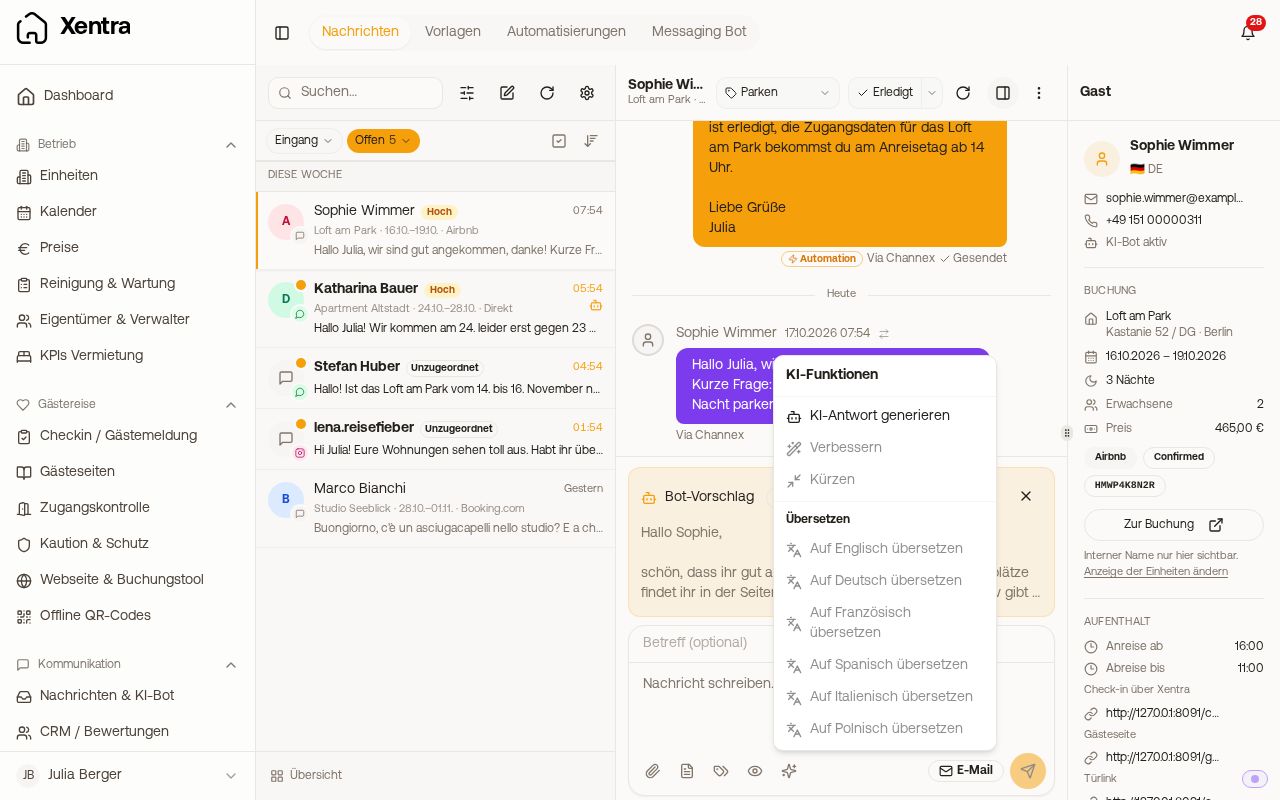 The AI features menu in the inbox message box
Further reading
- Templates and automations: “Automations: triggers, conditions and time modes”, “Create and edit message templates” and “Placeholder system (merge tags)”
- The bot: “Set up the Messaging Bot” and “Messaging Bot: messages without a booking and prices”
- Problems: “Messages: troubleshooting and common questions”