
Inbox for the team: assignment, visibility and who is reading right now
Assign conversations to a team member, control who can see which conversations at all, and see live who is working on what.
Updated on November 5, 2026
The inbox in the team
If more than one person works in your inbox, Xentra shows additional controls. If you are alone, nothing changes. The team functions appear as soon as at least two people in your account have access to messages. You create team members under Settings, Team & additional users.
Assigning conversations
Each conversation can belong to exactly one person.
- In the header of the conversation, via the person selector.
- In the list, via the three-dot menu of the row → “Assign to”, “Assign to me” or “Remove assignment”.
- The assigned person has an initials badge in the list and receives a notification. If you assign it to yourself or remove an assignment, nobody is notified.
You can only assign to people who are also allowed to open the conversation.
The view: For me, Unassigned, Person, All
In the bar above the list, on the left, you choose:
| View | What you see |
|---|---|
| For me | your conversations plus all unassigned ones |
| Unassigned | only what does not yet belong to anyone |
| <Person> | only the conversations of this person |
| All | everything you are allowed to see |
The choice is saved per device, and the numbers in the status field are calculated with it.
Visibility: who sees which conversations
Whether a team member sees messages at all and whether they may reply, you set in their rights (section “Guest messages”). Which conversations they see, you set as Conversation visibility, either in the member's rights or in the browser via the gear icon at the top of the conversation list → Team & visibility:
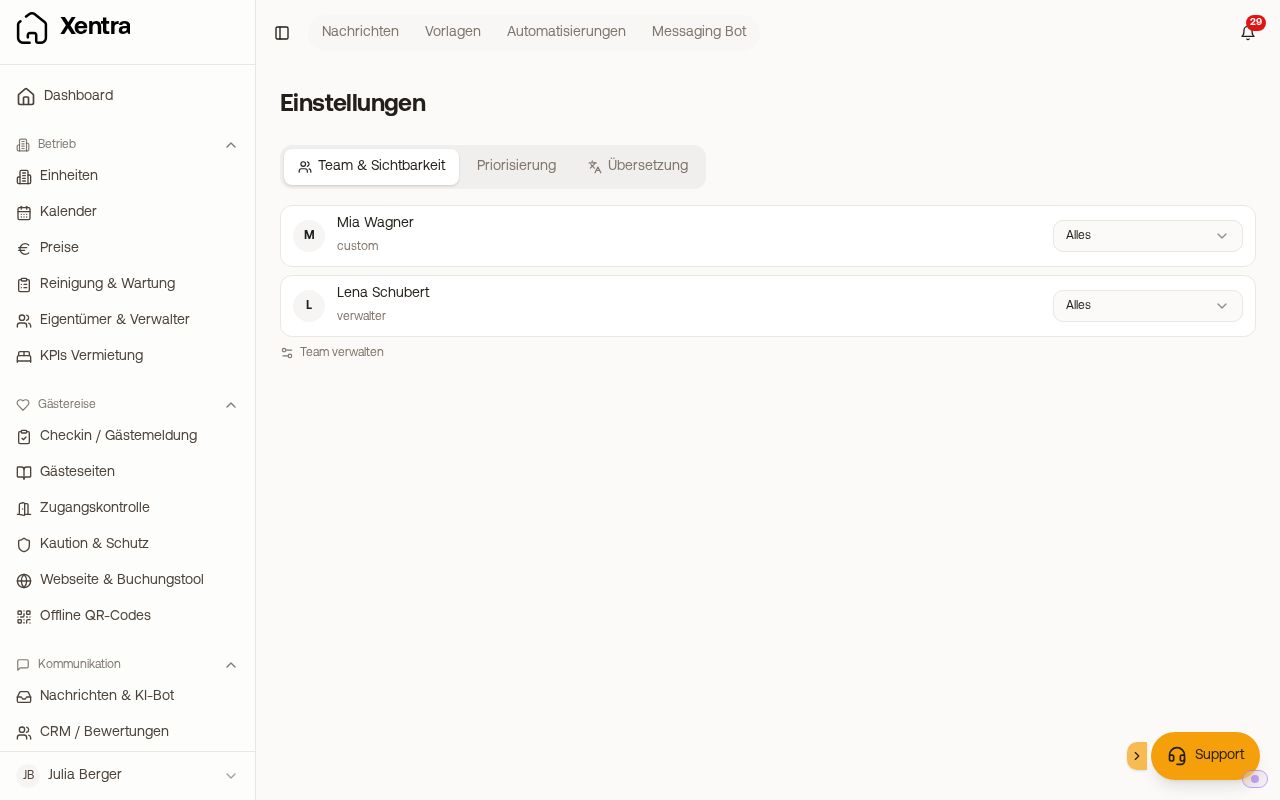 The messaging settings with Team & visibility
| Level | Meaning |
|---|---|
| Everything | sees every conversation it is allowed to see for its units |
| New + assigned | sees only what does not belong to anyone yet, plus its own |
| Assigned only | sees only what has been assigned to it |
The level is a real block, not a filter. It also applies to search and when opening a directly shared link to a conversation.
Messages without a booking
A WhatsApp or SMS from an unknown number, a request or an Instagram message does not belong to a booking yet, and so not to a unit. A team member only sees such conversations when the switch “Messages without a booking” is on for them. You find it under Settings, Team & additional users: open the member, in the Settings section right below Conversation visibility.
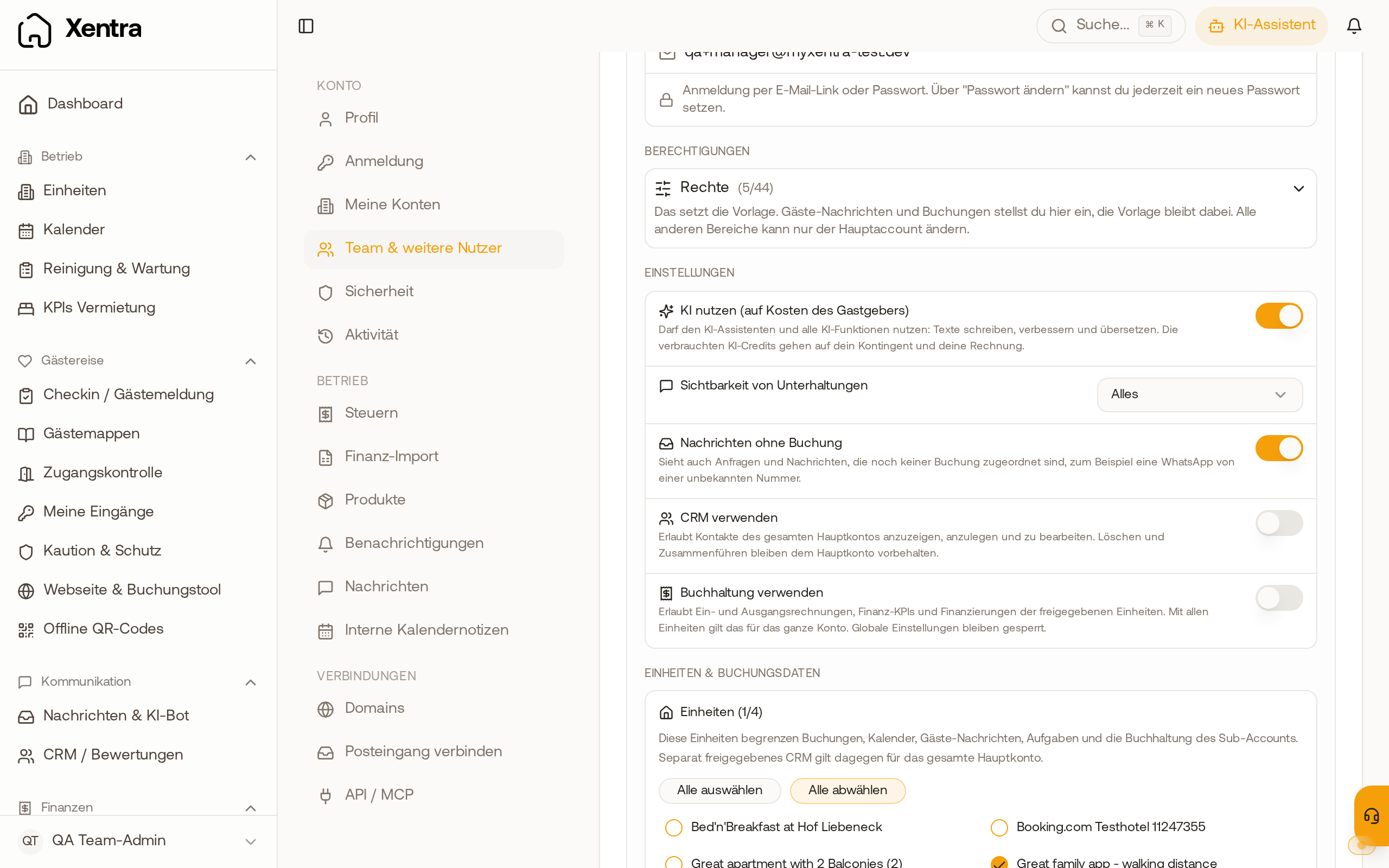 A member's team card with the switch “Messages without a booking” turned on, below “Conversation visibility”
- For members with all units it is on automatically. You can switch it off there too.
- For members with individual units it stays off until you switch it on.
- When it is on, the member sees these conversations in the list, can open them and reply to them if they may reply to messages.
- The visibility (Everything, New + assigned, Assigned only) applies here too.
Who is there right now
Below the conversation list, next to “Overview”, are the avatars of your team with the number of people currently online. Green means: the person is currently in the messaging area. A click on an avatar shows only their conversations. In the Overview (the start view of the inbox), the Team card shows per person how many assigned conversations are open. Performance figures such as response times are deliberately not shown by Xentra.
Who wrote this message
In the history, every message that a person sent by hand shows the name of exactly that person, so for a team member their name and not the company name. In the list, before the last outgoing message, it shows “You” if you wrote it, the colleague's name if it was someone else, and “We” if no person is behind it, for example with an automation or the bot.
Translation in the team
Every guest message is translated once, into the language of the member who opens it first. More in “Translation in the inbox”.
Forwarding a conversation
If you want to send a history to someone else, for example a travel agency, your cleaning team or an owner, open the conversation, click the three-dot menu at the top right and select “Forward”. Enter the email address, optionally a note, and click “Forward”.
- Sent is a text version of the last 50 messages that the guest also sees, at the top the guest name, property, travel dates and portal, and your note.
- Internal notes are not included.
- The email is sent from your sender address and does not appear in the history with the guest.
- Forwarding only works for conversations with a booking.