
Skip or change a scheduled message for one booking
Cancel or change the text of a single scheduled message for one booking, without touching the automation.
Updated on October 19, 2026
Sometimes an automatic message should not go out for one specific booking: the guest is unhappy, you have agreed on something by phone, or the text does not fit this case. For that you do not need to switch off the automation or pull the message back in the portal later.
How to do it
- Open the booking: in the Inbox select the conversation and click “Go to booking” in the sidebar on the right, or click the booking in the calendar or booking list.
- Open the Messages tab and scroll below the chat to the Scheduled Messages card. It lists all messages of this booking with their status: Scheduled, Sent, Failed, Cancelled or Skipped.
- For the message with status Scheduled, click the trash icon and confirm with “Cancel”.
The row then shows Cancelled. Only this one message is cancelled and will not be scheduled again later. The automation keeps running normally for all other bookings.
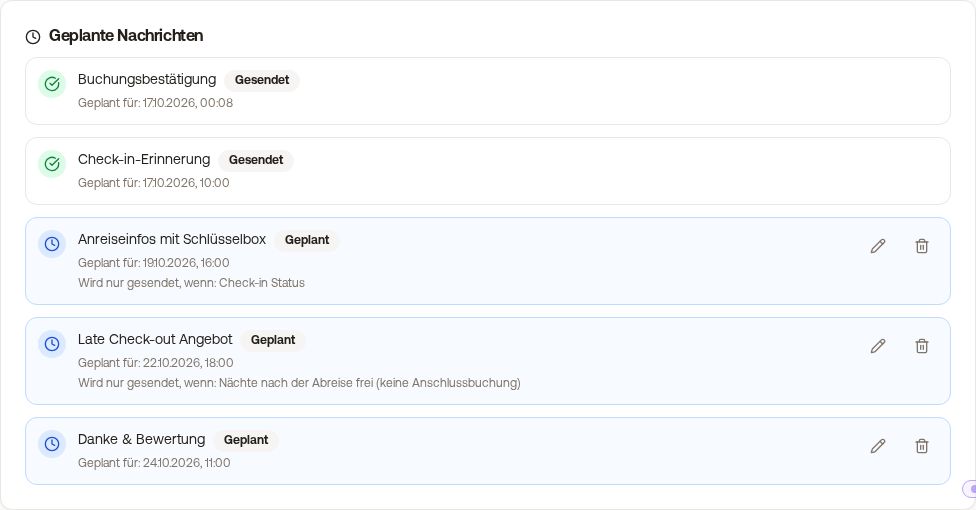 Scheduled messages of a booking with pencil and trash icons
Better to change than to cancel
With the pencil icon (“Edit message”) you change the text of a scheduled message for this booking only. The time and template stay the same, your text is sent, and the row then shows “Customized”. This is usually the better choice if the guest should still get something. For WhatsApp messages sent through a Meta template there is no pencil, because Meta only sends the approved text. There you can only cancel.
Can't find the trash icon?
You are probably looking at the “Scheduled” list in the right sidebar of the inbox. It shows the same messages, but is read-only. The pencil and trash icons only exist on the booking. Clicking the conversation in the inbox only selects it, it does not open the booking.
Two things that might otherwise catch you off guard
- Only scheduled messages can be cancelled or changed. Anything already sent is with the guest.
- If you change the automation itself and then confirm “Recreate”, its scheduled messages are generated again. A message whose text you had customised for this guest loses your change in the process. Cancelled messages stay cancelled. If you only want to exclude one guest, do not touch the automation.