
Automations: triggers, conditions and time modes
How an automation is structured: all triggers, all conditions and the three time modes.
Updated on November 12, 2026
Under open Automations you set when which template goes to whom. You can find the page in the sidebar under Messaging & AI Bot, tab Automations. You create a new rule via "New Automation". With "Create with AI", you describe in your own words what should happen and get a suggestion that you adjust afterwards.
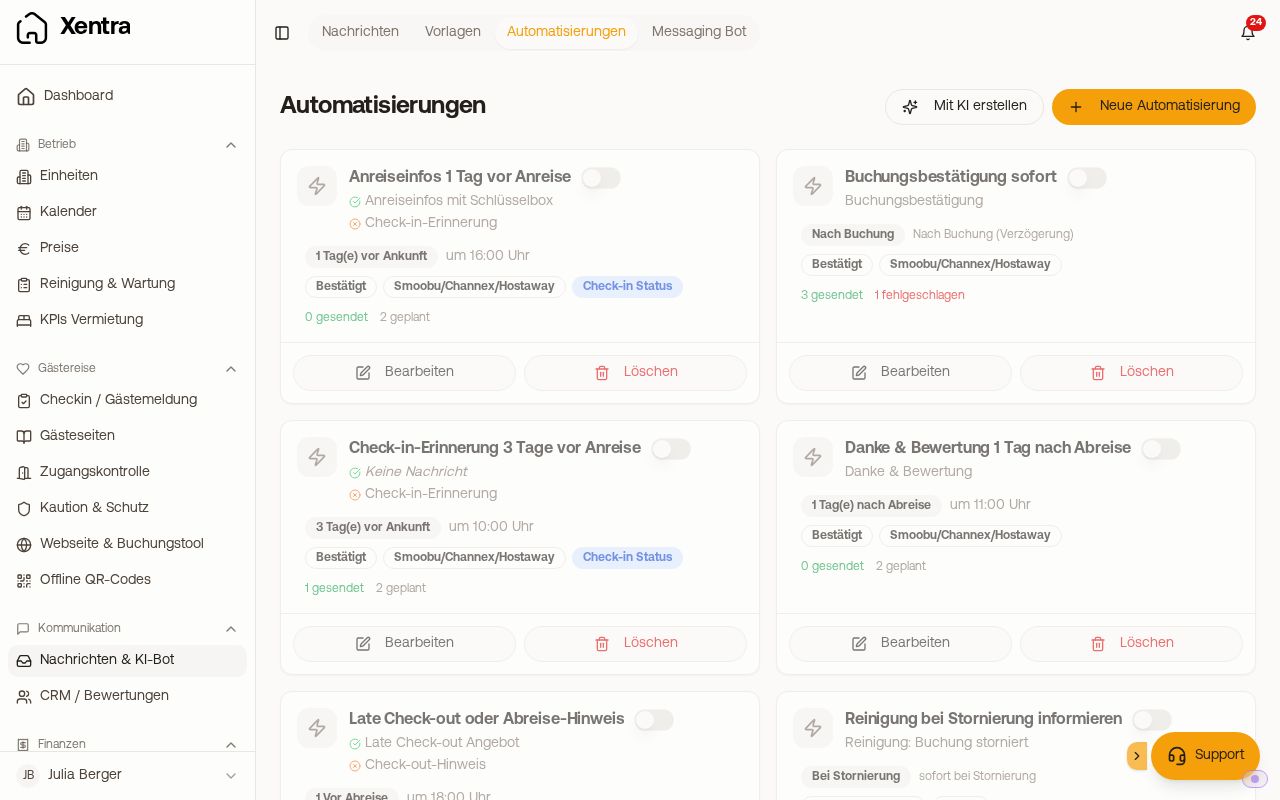 Automations with trigger, template and the figures for the last 30 days
How the editor is structured
At the top are the name and the Active switch, underneath a sentence summarizes the whole rule. Four steps follow:
- To whom & how? Recipient, channel and fallback.
- When is it sent? Trigger and time.
- What is sent? The template and optionally a condition.
- For which bookings? Collapsed under "Advanced settings: filters & catch-up": properties, channels, booking status and catching up missed times.
The time applies in the property's time zone. Steps 1 and 4 are explained in Setting up automations: channel, fallback, filter and catch-up.
Triggers
These are all triggers as they are named in the Trigger field:
| Trigger | When it is sent |
|---|---|
| After booking | immediately as soon as the booking arrives |
| day(s) before arrival | X days before arrival, at the set time |
| On arrival day | on arrival day, at the set time |
| day(s) after arrival | X days after arrival, at the set time |
| Before departure | X days before departure, at the set time |
| On departure day | on departure day, at the set time |
| day(s) after departure | X days after departure, at the set time |
| Immediately after check-in (fully completed) | as soon as the online check-in is complete, including tourist tax and registration duty |
| When an extra service is booked | as soon as an extra service is booked, optionally only specific ones |
| On cancellation | as soon as a booking is canceled, only to addresses that you enter yourself |
| On room change | as soon as the guest has been moved to another unit and the door code of the new unit is confirmed on the lock (without lock immediately) |
"After booking" and the last four react to an event. They do not have a time, the field is hidden there. For "On room change", there are the placeholders {{previous_unit_name}} (old room) and {{new_unit_name}} (new room). If a guest is moved twice, they receive two messages.
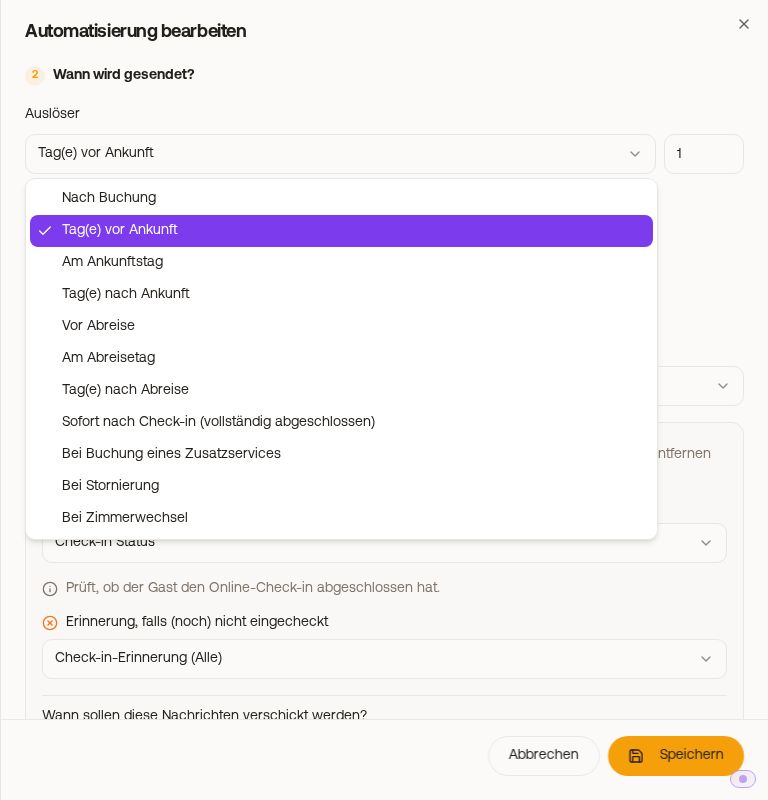 All triggers in the "Trigger" field
Conditions and time modes
Which conditions exist (for example Check-in status, All invoices paid, Deposit received) and when they are checked: see Automations: conditions and time modes.
Read more
- Conditions and the three time modes: Automations: conditions and time modes
- Ready-made workflows (check-in reminder, last-minute, thank you & review, copy to you, cancellation to cleaning): Automations: typical workflows step by step
- Message waiting, missing or canceled: Automations: troubleshooting scheduled messages
- What was sent and resending: Automations: log, failures and resending