
Setting up automations: channel, fallback, filters and catch-up
Recipient, channel and fallback, template and properties, the filters under "For which bookings?" and catching up on missed send times.
Updated on October 27, 2026
The places in the editor where it is decided whether and how a message arrives: recipient, channel and fallback, the properties of the template, the filters under "For which bookings?" and catching up on missed send times. How triggers, conditions and timing modes work is described under Automations: triggers, conditions and timing modes.
Recipient
In the section "To whom & how?" you choose exactly one recipient:
- Guest
- Host (own email): your stored email address
- Owner and Manager: only if the Owners & Managers module is active
- Custom email: one or more addresses, type each one and press Enter
- Custom SMS and Custom WhatsApp: only with a connected Twilio account (SMS), several numbers possible, each one gets the message individually
For the trigger "On cancellation", only the three custom recipients are available.
Channel and fallback
Below that are two fields: Channel and "Fallback if delivery fails". For the guest, these channels are available:
- Portal or PMS (the field shows the name of your connection): the message goes through the channel connection into the booking's message thread. Booking.com and Airbnb guests find it in their inbox there, not in their email inbox.
- Automatic and Cascade: both work through a fixed order, PMS, then email, then SMS, until one route delivers. Only one message is ever sent. With "Automatic", the editor also shows WhatsApp, but this channel does not send a WhatsApp. If you want to send via WhatsApp, explicitly select WhatsApp.
- Email, SMS (with Twilio) and WhatsApp (with WhatsApp set up).
With the portal channel, you can choose Email, SMS or WhatsApp as fallback, and with WhatsApp, SMS as fallback. The fallback only kicks in if the first route cannot deliver. Typical case: manual bookings and direct bookings have no portal thread. With the fallback Email, these guests get the message by email, as long as an address is stored on the booking.
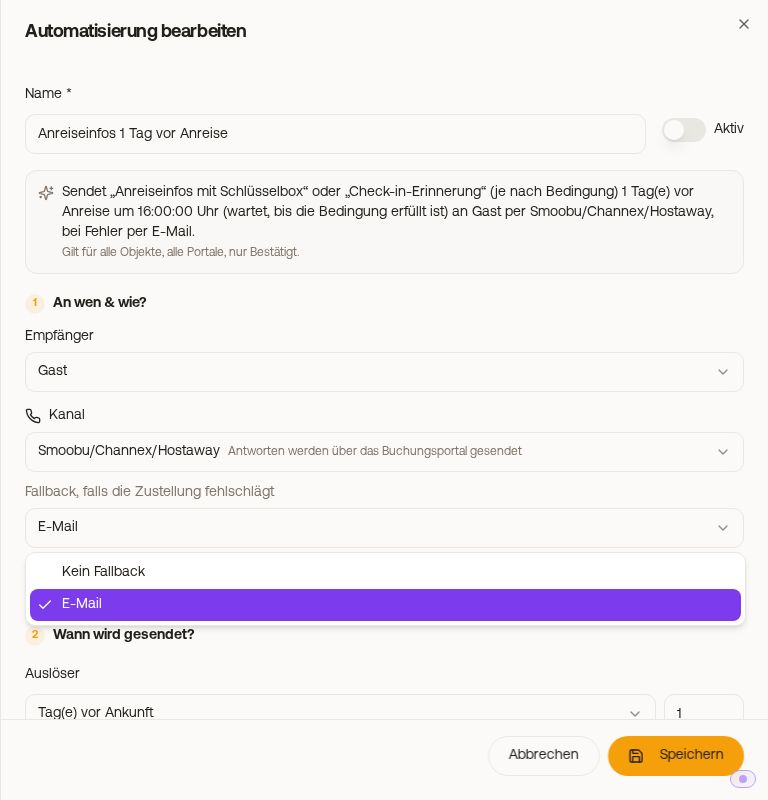 Channel and fallback in the section "To whom & how?"
For you, owners and managers, the message goes by email, and also by SMS or WhatsApp if you have set those up.
WhatsApp and templates: Automatic WhatsApp messages almost always fall outside the 24-hour window and therefore need a template approved by Meta. If it is missing or still under review, the editor warns you right below the template. For the WhatsApp channel, approved templates are listed at the top of the list.
Channel for a single booking: If you have pinned a channel to a booking, all automatic messages to that guest go through this channel, regardless of what the automation says. See Which channel goes to which guest, and why WhatsApp is greyed out.
You can see what actually went out on the booking in the Messages tab: every message with time and route.
Template and properties must match
A template can be limited to certain properties or groups. If it does not apply to all properties of the automation, the editor shows a yellow warning: "Note: The template … only applies to X of Y properties of this automation". Nothing is sent for the remaining properties. If no property matches at all, the red warning appears: "Attention: The selected template is limited to properties that do not match this automation's property filter". This is the most common reason a scheduled message never goes out: narrow the automation to match, or widen the template.
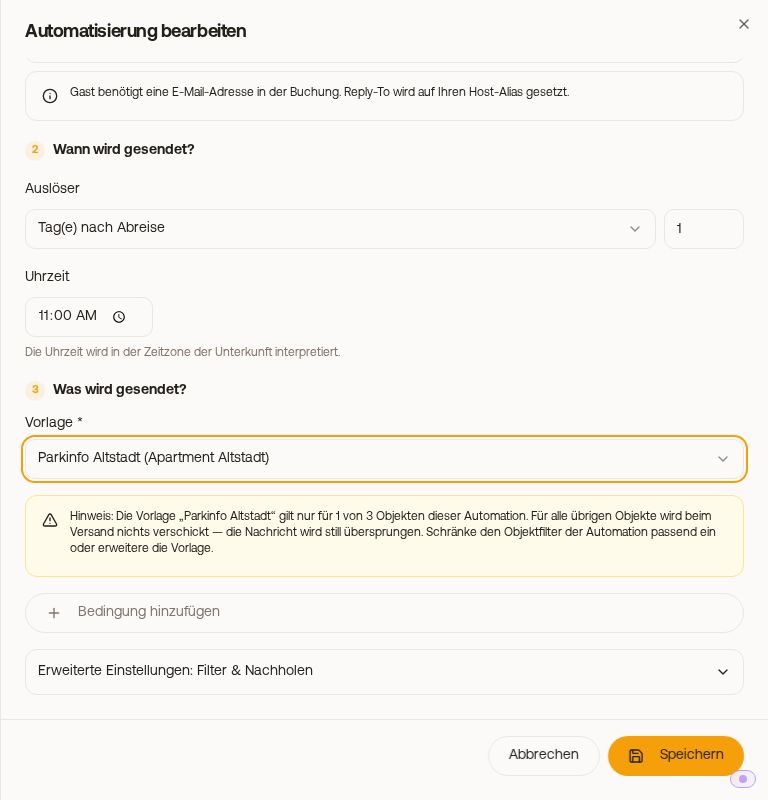 Note when the template only applies to some of the properties
Different template for specific units
If an automation applies to two or more properties, you find "Different template for specific units" in the "Message" block, below the template. With "Add unit" you choose a unit and its template, for example for a directions text of its own. All other properties get the template at the top, which then says "(for all other units)". If the automation also runs via WhatsApp, you also choose that unit's WhatsApp template in the same row. So you do not need a separate automation per unit. The card names the properties even when collapsed, and when expanded each unit with its template.
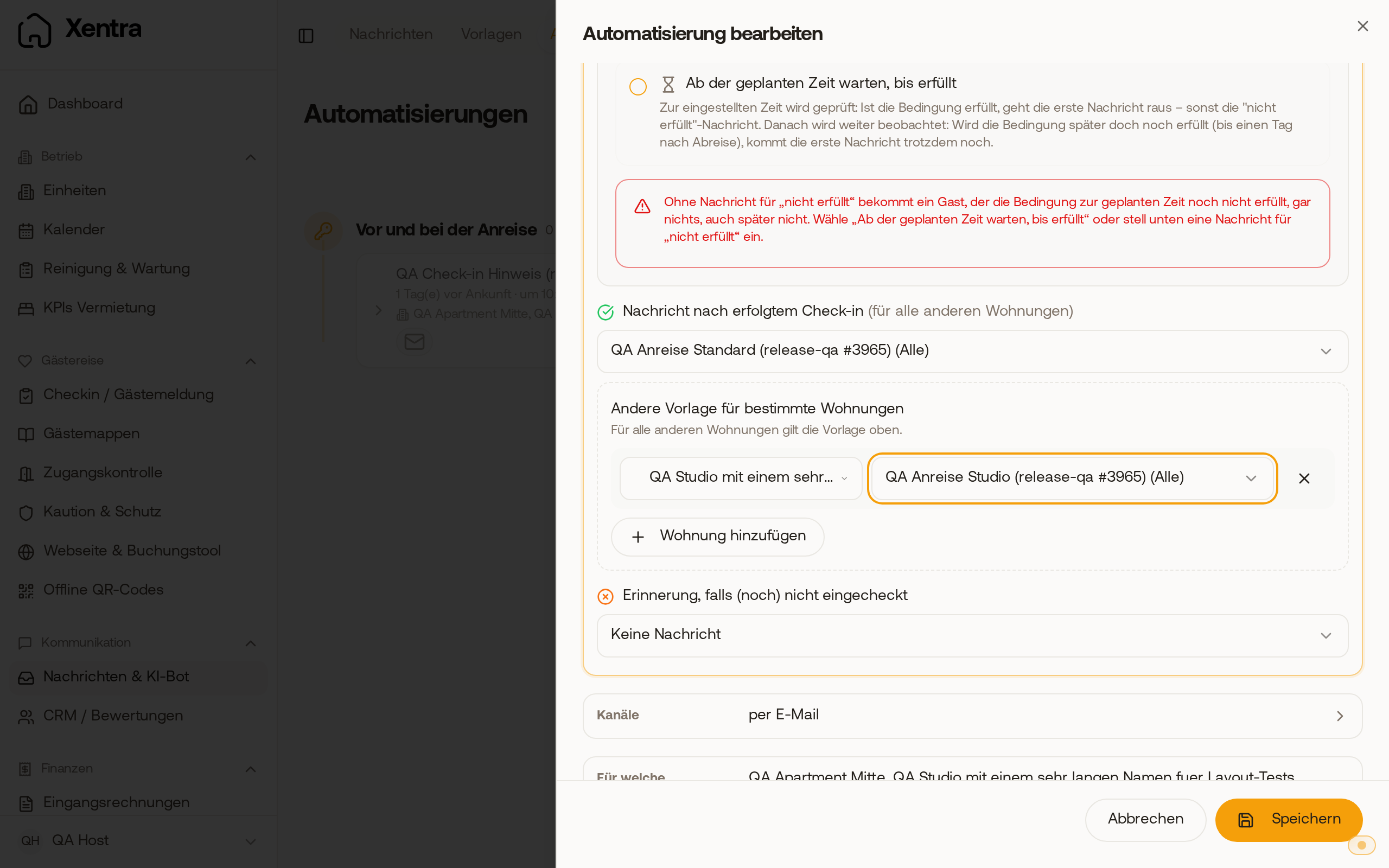 Below the template, one unit gets its own template, all others get the template at the top.
For which bookings?
In the block "For which bookings?":
- Properties: all or selected units or groups. For reservations across several rooms, the automation applies as soon as one of them matches, and it is sent once, via the main room.
- Portals: all or selected ones, including your own portal names.
- Booking status: new automations only apply to Confirmed. Requests get no automatic messages, unless you add Request. Blocked only works with the trigger "After booking".
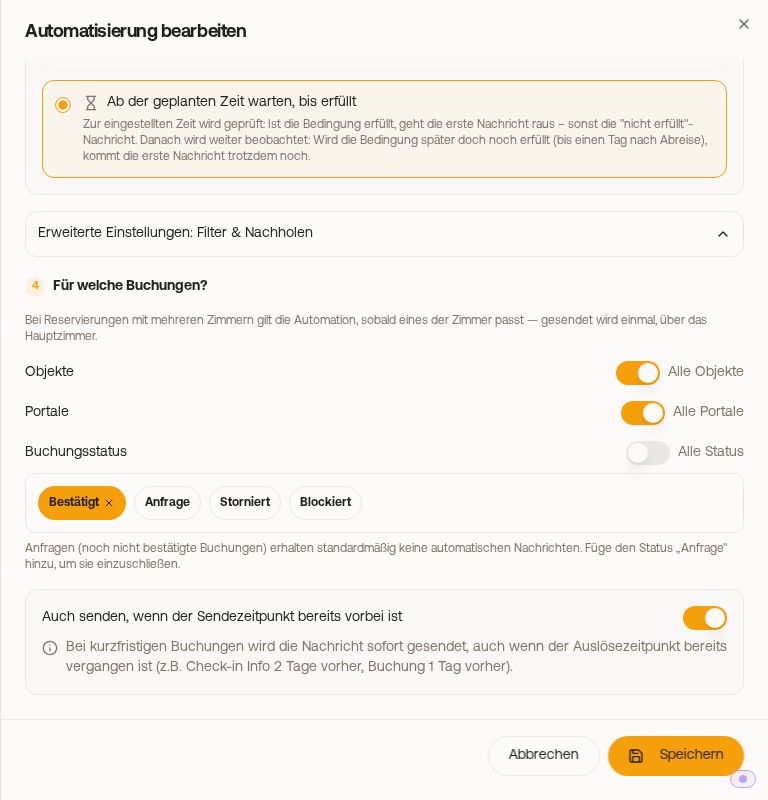 Filters for properties, portals and status (view before 20.10.2026, back then under "Advanced settings")
"Also send if the send time has already passed"
How catching up on missed send times works, also together with conditions and for short-notice bookings: see Automations: catching up on missed send times.
Condition "Booking portal"
Here you choose exactly one portal. Without a selection, the automation cannot be saved.
For the trigger "When an extra service is booked" and for messages to fixed addresses, see Automations: extra service booked and fixed recipients.