
Automations: catch up on missed times
The "Also send if the send time has already passed" toggle: what gets caught up on and why last-minute bookings receive multiple emails.
Updated on November 7, 2026
The "Also send if the send time has already passed" toggle is in the "When is it sent?" block, right next to the time. It only exists for triggers with a date and time. Without it, if the time ("5 days before arrival, 10:00") has already passed when the booking arrives, no message and no error are created for this booking, even if it passed just a few minutes ago. With the toggle on, it goes out a few minutes after receipt for a new booking.
The toggle also affects bookings already in the system: missed messages are caught up on within a few minutes. Check the scheduled messages for upcoming arrivals after turning it on. Messages before or upon arrival are never sent to guests whose arrival date has already passed.
Last-minute bookings: multiple emails at once
If the toggle is on for a reminder, such as "Check-in reminder 2 days before arrival", a guest booking for today receives it a few minutes after receipt, together with the booking confirmation and check-in invitation. Turn the toggle off for such reminders: open the automation, turn the toggle off at the time, Save.
Catching up and conditions
If a message with a condition is caught up on, Xentra checks the condition immediately, just a few minutes after the booking is received. If the condition is set to "Check once at the set time", for example, the online check-in is almost never already completed for a booking for today: the message for "condition met", such as the check-in instructions, is then skipped for this booking; if a message for "not met" is configured, that one goes out instead. To ensure the message arrives even for last-minute bookings, select "From the scheduled time, wait until met". It then goes out as soon as the condition is met, for example as soon as the guest has checked in.
Catch up on missed messages after changing settings
"Check once at the set time" can now only be selected together with a message for "not met". If an automation is already saved like this without that message, the setting remains, but the editor shows a red warning underneath it. If you switch it to "From the scheduled time, wait until met" or to send immediately and save, Xentra asks, for example: "2 guests missed this message". Guests whose message was skipped due to the unmet condition and whose arrival is still to come are counted; canceled bookings do not count. With "Yes, catch up", these messages are scheduled again and go out as soon as the condition is met. With "No", everything stays as it is.
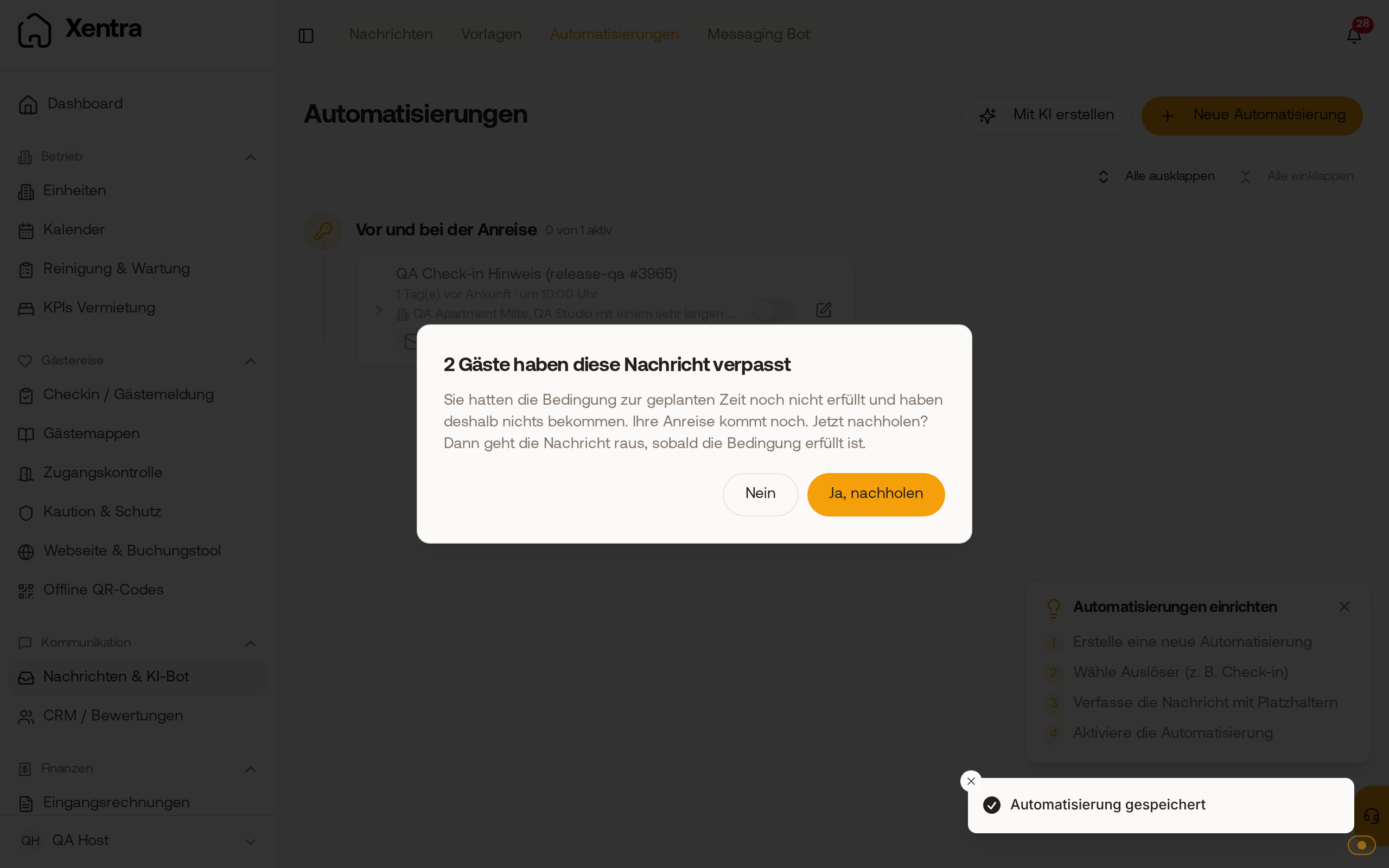 After switching to wait, Xentra asks whether to catch up on missed messages.
Switch to "After booking": catch up on existing bookings
"After booking" only applies to new bookings. If you change an automation from a point in time (for example "3 days before arrival") to "After booking" and save, Xentra asks, for example: "2 bookings have not received this message yet". Existing bookings with upcoming arrival for which this message has neither been sent nor scheduled are counted; canceled bookings do not count. With "Yes, send now", it goes to exactly these bookings, each receiving it once. With "No, don't send", everything stays as it is. If messages were already scheduled, Xentra asks beforehand whether you want to adjust them; the question about catching up comes afterwards. If you create a new automation with "After booking", Xentra does not ask: it only applies to new bookings.
If there are many messages, they go out bit by bit. The dialog tells you how long that will take.
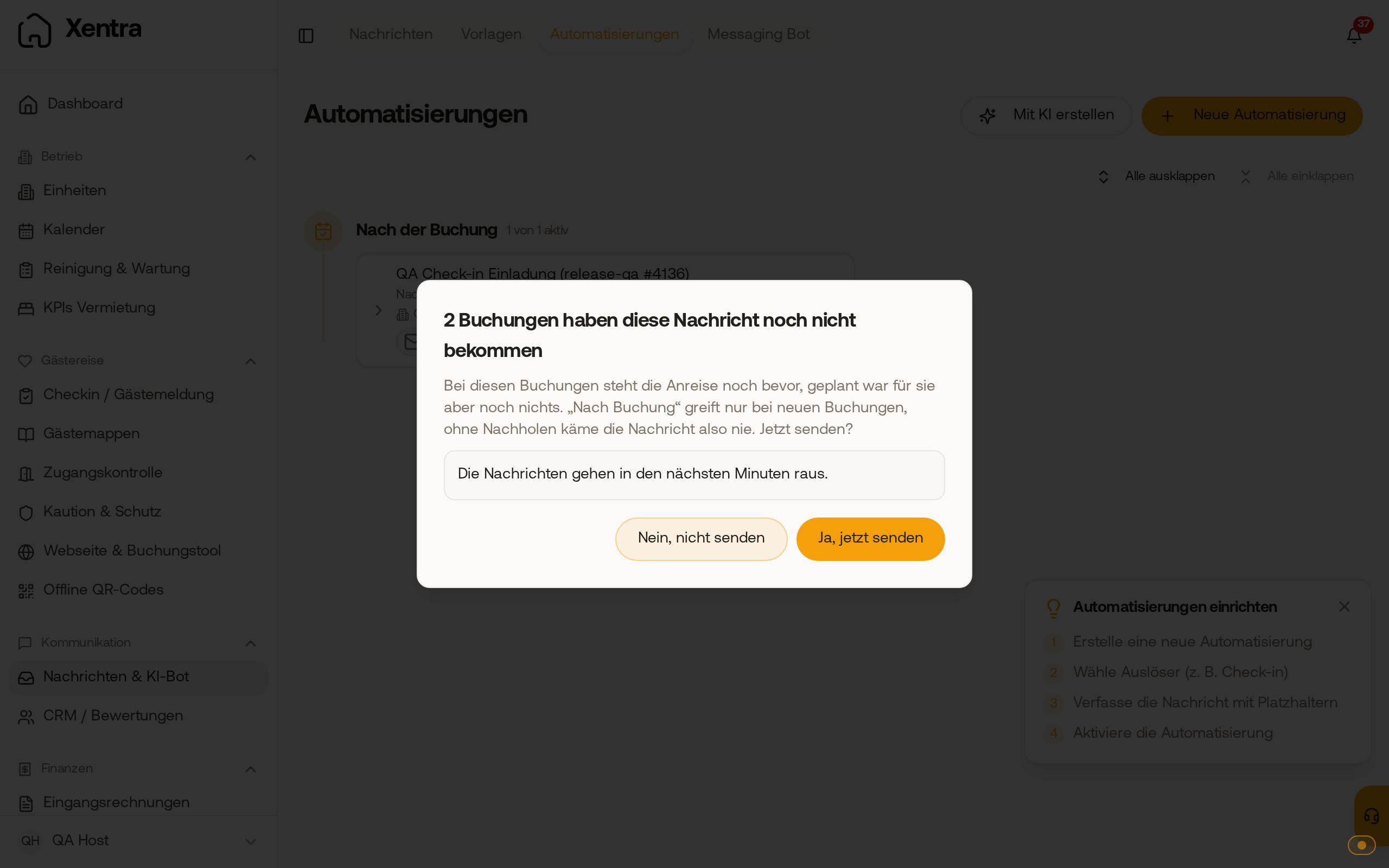 After switching to "After booking", Xentra asks whether the message should go to existing bookings that have not received it yet.
Channel, fallback, and filter of an automation are described under Setting up automations: channel, fallback, filter, and catch up.