
Automations: Channels, fallback, and additionally via WhatsApp
Determine which channel an automation goes out through, what steps in if it does not deliver, and when WhatsApp is sent additionally.
Updated on November 14, 2026
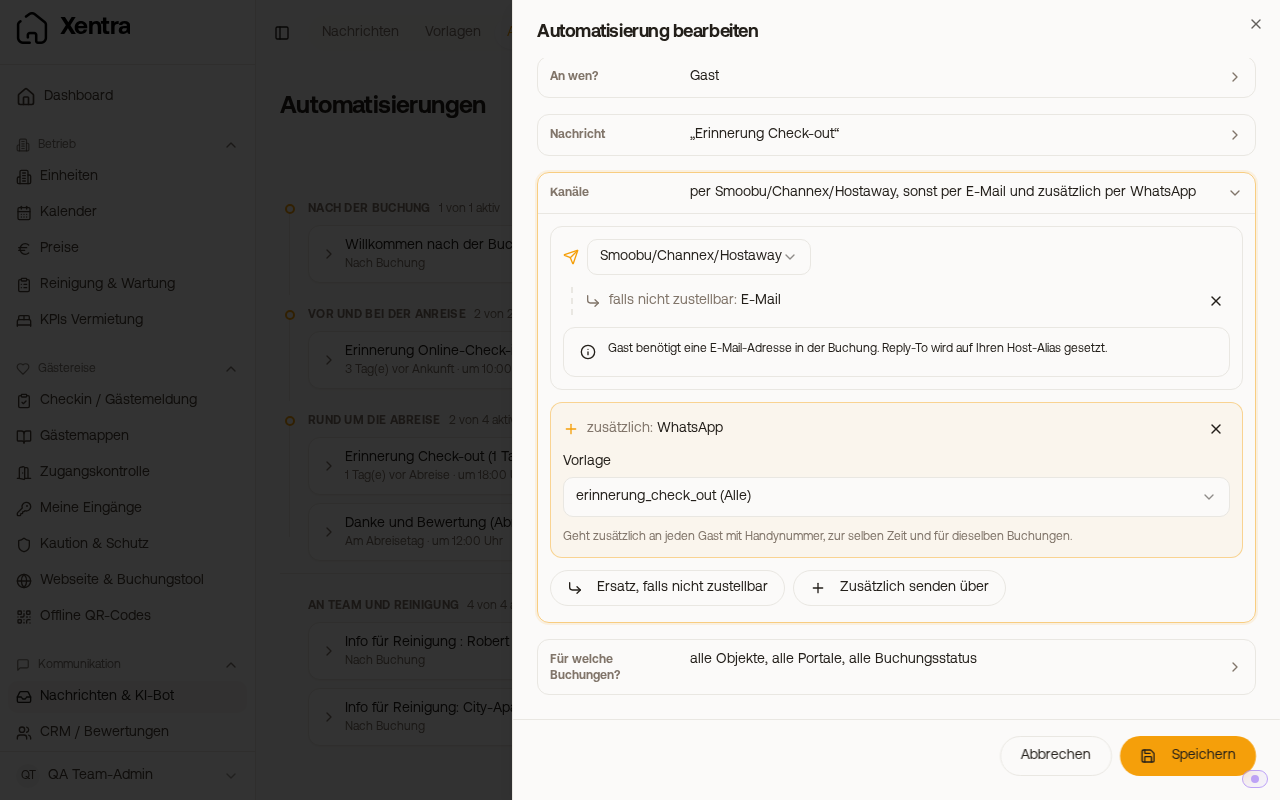
You configure which channel an automation goes out through under Open automations in the automation in the "Channels" building block.
The path and what steps in
At the top is the path through which the message goes out, for example your PMS (Smoobu, Channex, Hostaway). Below it, indented, is what steps in if this path does not deliver: "if not deliverable: Email". New automations to the guest start with exactly this combination.
- With "Fallback if not deliverable", you append another fallback, for example SMS.
- With the X, you remove a fallback again. Without a fallback, the message only goes out via the first path.
- Only what is possible is offered. If a channel is not connected, it is shown in gray, with "not connected" and "Set up".
Additionally via another channel
With "Also send via", "WhatsApp", the same message goes to the guest via WhatsApp additionally at the same time and for the same bookings. You do not need a second automation for this. Time, filter, condition, and On/Off are inherited by the additional channel from the automation.
- For WhatsApp, you select a WhatsApp template approved by Meta. If the automation has a condition, you select one for "fulfilled" and one for "not fulfilled".
- SMS as an additional channel sends the message from the "Message" building block.
- Guests without a mobile phone number only get the first path; the WhatsApp is then counted as skipped, not as an error.
- If you have locked a booking to a channel, only this single path goes out there.
- In the list, the automation shows "+ WhatsApp". If you delete the automation, the additional channel is also gone.
Lock a booking to a channel
In the booking under the Messages tab or in the inbox, you select the channel you use to write to this guest. Xentra remembers it for this booking: All automatic messages for the booking then go via this channel, in the case of Email to the address that the guest provided in the online check-in. For all other bookings, what is in the automation continues to apply.
At a glance in the list
On the right in each automation line, you see what it goes out through: the logo of your PMS or channel, next to it small with an arrow the fallback, and with a plus the additional channel. If you hover your mouse over it, it appears in plain text, for example "if not deliverable: Email" and "additionally: WhatsApp".