
WhatsApp templates: links as buttons
How to add links like check-in, door opening or guest guide as a button in a Meta template and see in the history what reached the guest.
Updated on November 6, 2026
Links in a Meta template: button or text
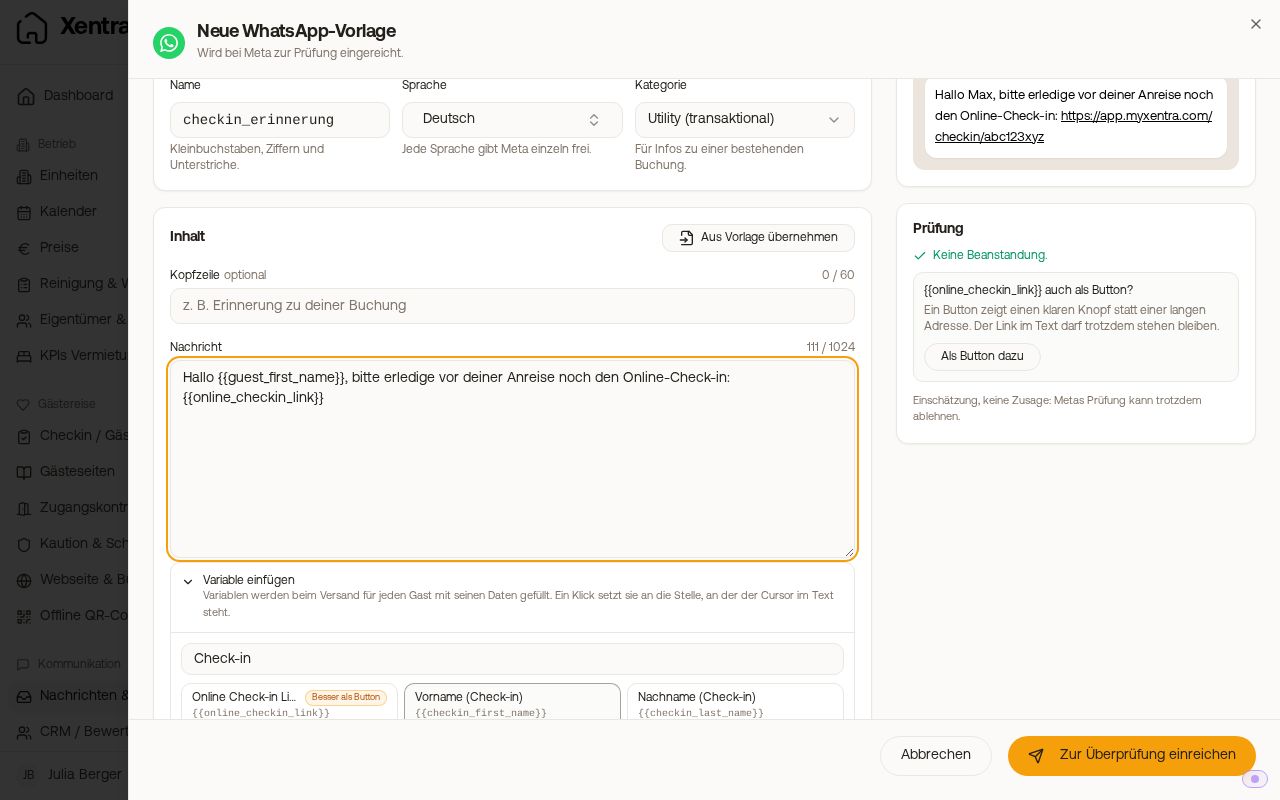 New WhatsApp template: the check on the right suggests offering the link additionally as a button (“Add as button”).
Meta only allows a variable in an address in a link button, not in running text. If you write a template in the WhatsApp catalogue, the editor therefore offers to use certain links as a button: online check-in, door opening, guest guide, guest cards (Feratel, Tramino, AVS) and your own check-in system. The button gets a matching label, such as “Go to online check-in” or “Open door”.
- If you insert such a link via “Insert variable”, the editor asks: “Use as button” or “Put it in the text anyway”.
- If the link is already in the text, the editor asks “… also as a button?” and offers “Add as button”. The link then also appears as a button under the message. So the guest does not see it twice, you can then remove it from the text with “Remove from text” and adjust the sentence.
- If you leave the link in the text, it is filled with the address of the respective booking when sent.
The guest taps the button and lands on their personal link. The invoice link is never offered as a button, it only works in the text.
In the message history you see what the guest received: for templates sent since mid-September 2026, next to the text also the header, footer and buttons, including the link that reached the guest. If the link is missing from the text, it was still sent, so look at the button below the message.
Create templates and submit them to Meta: Open WhatsApp catalogue. For more on setup, see Set up WhatsApp Business.