
Placeholders: Choose times, access codes, and links correctly
Which placeholder is the right one for check-in time, access time, door code, guest cards, invoice link, and imported links from other systems.
Updated on November 12, 2026
For some placeholders, there are two similar variants that provide different things. Here is which one you use for what. The complete list of all placeholders is under Placeholder System (Merge Tags).
Check-in and check-out time
| Placeholder | What is in it |
|---|---|
{{arrival_time}} |
Your check-in time: an arrival time stored in the booking (for example from your booking tool), otherwise the default time of the unit or your account, lastly 14:00. Always has a value. |
{{departure_time}} |
Your check-out time according to the same order. |
{{access_from_time}} / {{access_until_time}} |
From when and until when the door opens for this exact booking, including booked early check-in, late check-out, or your custom adjustment to the booking. Without special features, the same time as above. |
{{checkin_arrival_time}} / {{checkin_departure_time}} |
Only what the guest entered in the online check-in form. Empty if you do not ask for the field or the guest has not filled it in. |
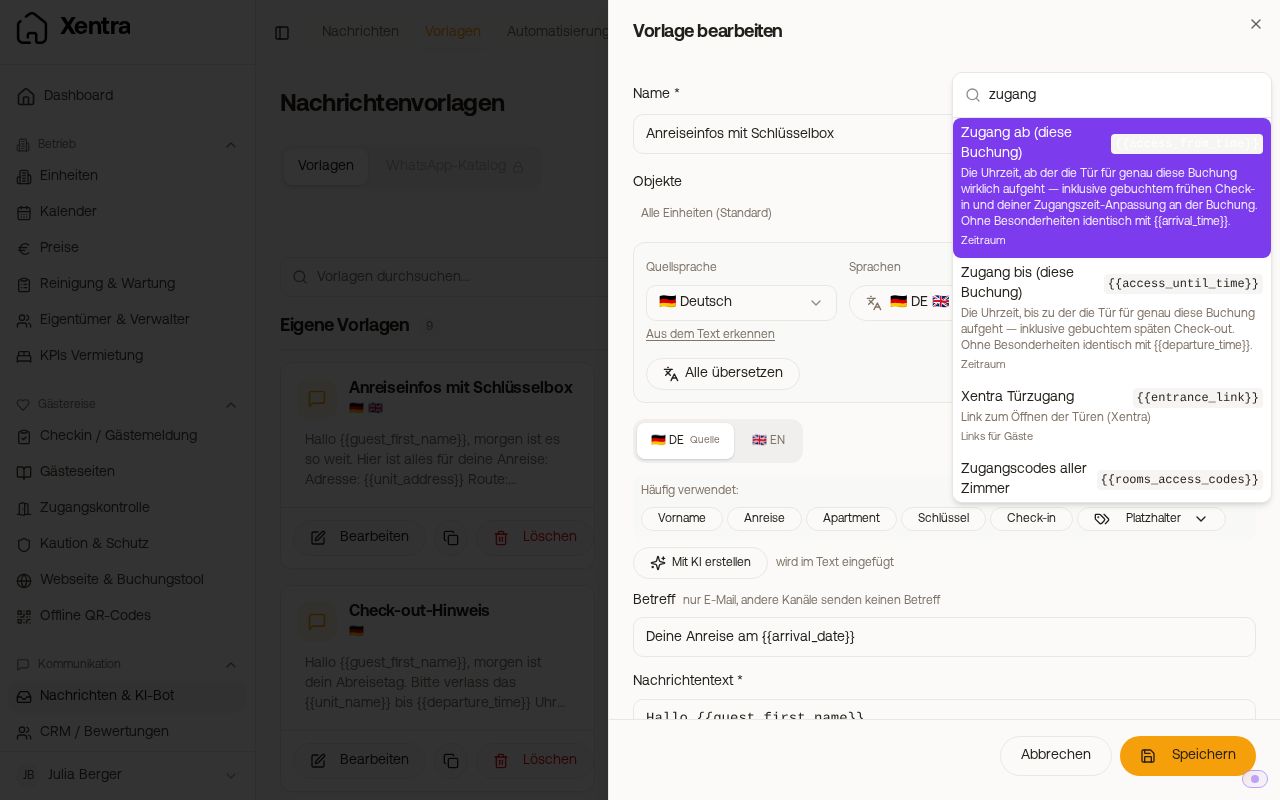 Search in the placeholder menu: times and access
For "Check-in from..." in every message, you use {{arrival_time}}, for the time at which your guest actually wants to arrive, {{checkin_arrival_time}}. If the guest has booked an early check-in, {{access_from_time}} names the earlier time.
If {{arrival_time}} shows an incorrect time (for example 14:00), the default access times are usually not maintained: Access Control, Settings, Default access times. You can create deviating times for individual units underneath there. See Setting check-in and check-out times.
Address
{{unit_address}} is composed of the "Address" field of the unit, the postal code, and the city. If postal code and city are already in the "Address" field, they appear twice in the message ("Sophienstraße 14, 10178 Berlin, 10178 Berlin"). So only enter street and house number there. Individually, there are {{unit_postal_code}}, {{unit_city}}, and {{unit_country}}.
Door codes
{{key_code}}is for units without a smart lock. Xentra takes the code on the booking, otherwise the unit's ownkey_codefield, otherwise thedoor_codefield. So for a key box, you create your own field namedkey_codeand enter the code for each unit. For a code that changes regularly (for example on a key box), you only change the value on the unit, and all automations will send the new one from then on.{{nukicodesxentragenerated}},{{xentrattlockcode}},{{xentratedeecode}},{{igloohome_code}},{{xentralivioncode}}(LivionKey), and{{xentramasuntcode}}(Masunt) are the PINs that Xentra creates on the lock for the booking. If a unit has several igloohome locks,{{igloohome_code}}names one PIN per door, each with the name of the door on a separate line ("Door: Code"). All keypad doors of a booking with Nuki, TTLock, or Tedee, on the other hand, get the same number.- If a message contains a door code placeholder for which there is no code yet, Xentra holds it back (note "Waiting") and sends it as soon as the code is there. That way, the guest never gets a blank space instead of the code.
- An automatic message to the guest with a door code or door link will no longer go out after the end of their access (check-out time plus buffer). Xentra skips it and writes the reason to the booking. Messages to cleaning or owners are not affected by this.
- For bookings across multiple rooms, use
{{rooms_access_codes}}, see Multi-room booking: one check-in and one message thread. - There are no door codes, no door link, and no booking notes in the texts of the check-in template: the guest reads them before they have checked in. The placeholder menu does not offer them there, an older text shows nothing in their place. You send the code via automation "Immediately after check-in (fully completed)" or on the guest page with "Only once the online check-in is completed".
Guest cards
{{avs_guest_cards_link}}, {{feratel_guest_cards_link}}, {{tramino_guest_cards_link}}, and {{wintop_guest_cards_link}} lead to a page where the guest downloads their guest cards. For WinTOP, the page additionally shows Open digital guest card; the WinTOP link is available as soon as the guest is reported to WinTOP. Until the cards are there, the page shows a notice to wait. The Feratel and Tramino links are available from the completed online check-in, the AVS link as soon as the guest registration form is booked. The prerequisite is always that guest registration is set up (see Guest registration: which connection fits you?).
Invoice link and password
{{invoice_link}} leads to the e-invoice of the booking. The invoice page only shows a button to pay if you selected "Outstanding amount" when creating it and checked "Insert payment link on invoice"; Stripe must be connected for this. There is no separate placeholder for the payment link.
If password protection for invoice links is active (Settings, Security tab), the guest needs {{invoice_password}}. The built-in invoice template attaches the password itself. If you write your own template for sending invoices, include {{invoice_password}}, otherwise the guest cannot open the invoice. Read more under Guest invoices: appearance, bank details, password protection, and export.
Links imported from another system
If you copy templates from Smoobu or another system, Xentra converts known placeholders to the {{…}} notation when pasting. In doing so, the external check-in link can become {{smoobu_checkin_link}}. This only works with a Smoobu connection and points to the check-in of Smoobu.
| You want to ... | Placeholder |
|---|---|
| send the online check-in from Xentra | {{online_checkin_link}} |
| send the guest page from Xentra | {{digital_guestbook_link}} |
| continue using the check-in from Smoobu | {{smoobu_checkin_link}} |
If you switch completely to Xentra, replace the external links in your templates with the Xentra placeholders. If a guest does not open the guest page link, or if you sent the preview link for testing: see The guest page link does not work for the guest.