
Booking.com messages: allow links and sender address
Booking.com blocks links or guest emails? How to allow your domain and your Xentra sender address in the extranet under security settings.
Updated on November 6, 2026
Booking.com checks guest messages in its security settings against two lists: the allowed links and the allowed sender addresses. Anything missing there does not reach the guest, or reaches them only without the link. Only you can allow these in the Booking.com extranet; Xentra cannot edit these lists. With Airbnb you don't need to allow anything.
You find the security settings in the extranet under Property → Message settings (in some extranet versions "Communication preferences") → on the right Security settings.
Allow links
If a link is not allowed, the guest sees, for example, "link removed" in its place. This mostly affects links to online check-in, the guest guide, invoices or payment pages. It is normal that links appear only as text in the extranet itself.
- In the Allowed links section, click Add link, then Next.
- Enter the domain, not a single guest link, and save.
Which domain:
- Without your own domain, online check-in, guest guide and invoice links run via app.myxentra.com. Enter
https://app.myxentra.comthere. If you only allow your website or terms domain, the Xentra links won't arrive. - With a custom domain for check-in or guest pages, you also enter that one.
- Payment links, for example for the tourist tax, run via Stripe and start with
https://buy.stripe.com. So enterhttps://buy.stripe.comas well, otherwise your guest sees "link removed" instead of the link. This applies with your own domain too. - Short links (for example bit.ly, tinyurl, short-url.cc) are never let through by Booking.com; then the whole message does not arrive. Replace the short link in the template with the full address and allow that address's domain.
After allowing, send the affected message again. If a correctly entered link is still blocked, contact the Booking.com partner support and ask them to allow the domain.
Allow sender address
If your address is missing from the list of senders, Booking.com rejects the email and sends you the notice "Action needed: Your email did not reach the guest". Nothing arrives at the guest. This affects all guest emails from Xentra: messages, invoices, check-in reminders, deposit and insurance confirmations. This is especially important for bookings imported via CSV: they have no channel connection, so Xentra emails the guest instead.
In the section "Your email addresses" → "Add email address" enter:
- without your own email domain, your Xentra sender address
<dein-alias>@host.myxentra.com. You find your alias under Settings → Messaging, field "Email alias for guests", - additionally
update@myxentra.com, the fallback address in case your own one cannot be used at some point, - with the email add-on and your own domain, the sender address stored there.
Xentra tells you: entry under Action needed
If Booking.com sends you "Action needed: Your email did not reach the guest", the entry "Portal blocks your guest emails" appears under Action needed, for example "Booking.com has discarded 3 of your messages to guests". It names the way in the extranet and shows, under "Your Xentra sender address", exactly the address you need to enter, with the button "Copy address".
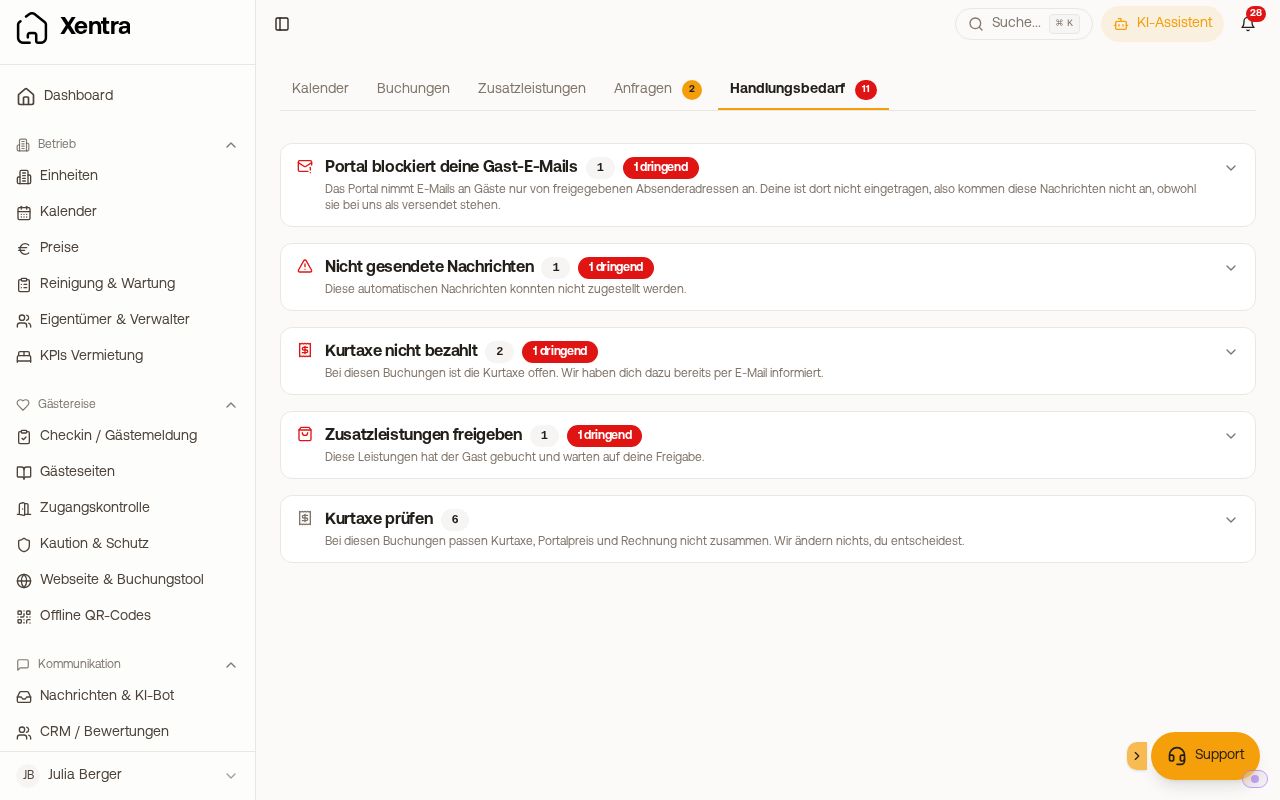 The entry "Portal blocks your guest emails" under Action needed
Which messages were affected Booking.com does not say; in Xentra they therefore still show as sent. As soon as your address is allowed, Booking.com sends no new notices. The entry still stays for 30 days after the last notice and then disappears by itself. So the fact that it is still there after you allowed the address does not mean it isn't working. You can tell whether it worked from "Last seen" in the entry: if no newer date appears after you allowed it, although you have written to Booking.com guests, everything is fine. After that, send important recent messages again.
You don't have to wait 30 days. With the X on the right of the entry, you hide it immediately. Only do this once no new notice has come in since you allowed the address: a hidden entry does not reappear even if Booking.com sends a new notice later.