
Send guest emails from your own address
Email add-on: custom domain (DNS) or "in your name" with Gmail/GMX, plus the forwarding that makes replies visible in Xentra.
Updated on November 10, 2026
Guest emails under your own address
This is a separate add-on and has nothing to do with custom domains for check-in, guest guide, or booking links. Link domains do not change which address Xentra sends emails from; both are booked separately.
Where to find it: Settings, Inbox connection. If the add-on is not active yet, you will see the card "Email / SMTP" with the price (per property and month, via your next invoice; the current amount is also listed on the pricing page) and the button "Activate". This is a separate item in the settings sidebar ("Connections" group), not a tab under "Domains".
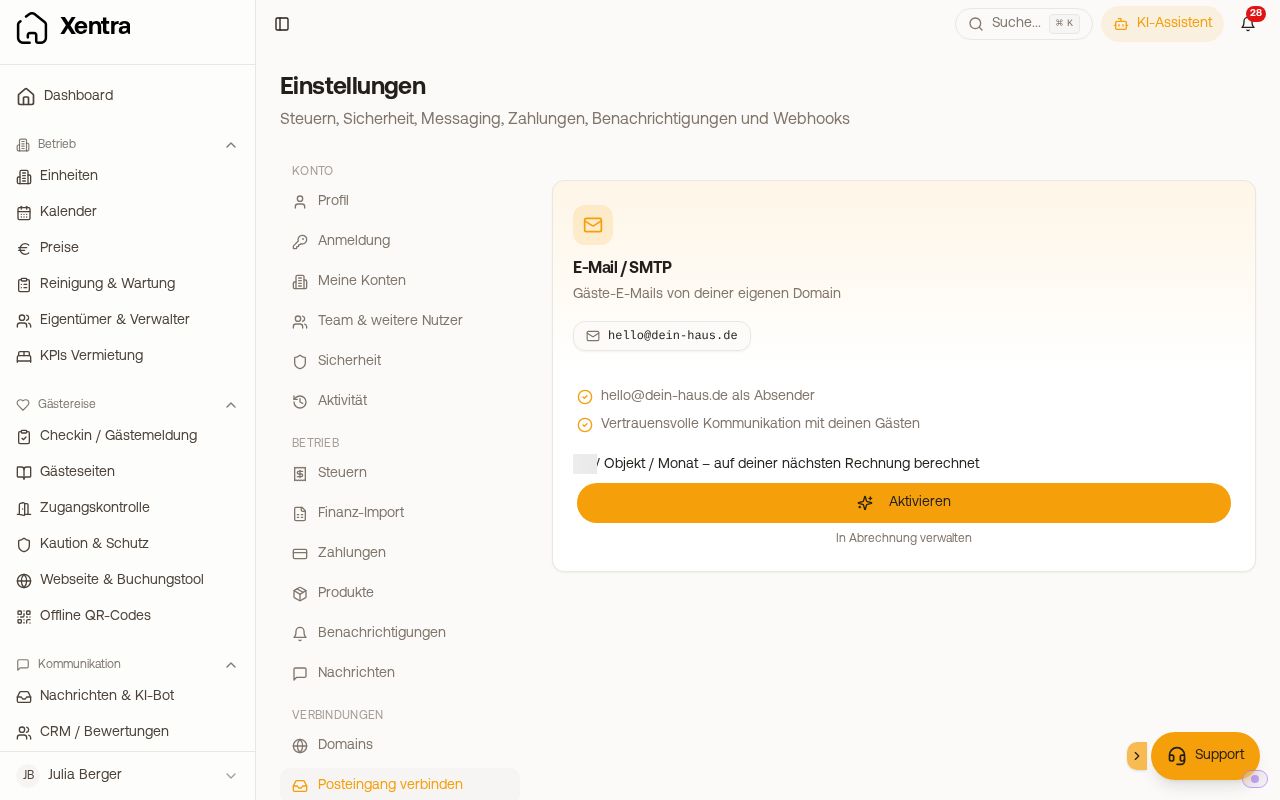 Settings, Inbox connection: Custom domain or Gmail, GMX & co.
What your guests see as the sender today
Without your own address, Xentra sends under your guest alias {dein-alias}@host.myxentra.com, with your host name as the display name. Only if no alias is set at all, the shared address update@myxentra.com ("{Your Name} via Xentra") applies. With the email add-on, emails come from your own address.
Where you see your guest alias: Settings, Messaging, card "Messaging settings", field "Email alias for guests". The field exists even without the email add-on. There you can also change the part before @host.myxentra.com if the new name is still available (only lowercase letters, numbers, and hyphens). If you use the add-on with Gmail, GMX & co., the same field is also located under Settings, Inbox connection.
Which name appears as the sender for the guest: the Public host name from Settings, Profile, card "Guest contact details". If the field is empty, Xentra takes the name you selected there under "Host name in messages" (company name or personal name). This applies to all emails to guests: automated messages, replies from the inbox, emails from contacts, confirmations of inquiries, and approvals of extra services. Only invoices as well as deposit and insurance emails carry your company name.
Two ways, and the wrong one never works
| Custom domain | Gmail, GMX, Yahoo, Web.de & co. | |
|---|---|---|
| Example | info@deine-domain.de |
deinname@gmail.com |
| Sender for the guest | directly your address | your name, sent "in your name" |
| DNS required | yes, three entries | no |
Free providers do not allow sending under their name: no one except Gmail is allowed to send from @gmail.com. If you select "Custom domain" there, verification will inevitably fail. Xentra detects this case and points it out to you. If you cannot access the DNS entries for your own domain, select "Send in your name, without DNS" below the entries; then Xentra sends in your name just like with Gmail.
The DNS entries (only for the "Custom domain" path)
As soon as the domain is entered, Xentra shows the entries with Type, Name, Value, and Status:
| Type | Name | Purpose |
|---|---|---|
| TXT | resend._domainkey |
DKIM, the signature of your emails |
| MX | send |
Delivery reports |
| TXT | send |
SPF |
The most common error is a truncated DKIM value. The key is over 200 characters long, and many DNS interfaces show it shortened with "...". If you copy from there, you copy the truncation as well; the status then remains permanently "pending". Click directly on the Value in Xentra, which copies it completely, and check the start (p=MIGf…) and end with your DNS provider. For Cloudflare, the entry must be set to DNS only (no orange cloud).
Refresh status immediately re-reads the status and triggers a new check. DNS changes take a few minutes. If an entry remains "pending" for hours, the Value is almost always incorrect.
Make replies visible: forwarding
In both cases you need Step 2: set up automatic forwarding in your inbox (Gmail, Outlook, IONOS, Strato …) to the displayed alias address (…@host.myxentra.com). Only then can Xentra see your guests' replies. Xentra displays the confirmation code sent by your provider to this address directly on the page, usually within a minute. After that, Xentra tests the forwarding and marks it as active.
Your inbox remains your inbox: No MX entry is set on your main domain; the MX only applies to send..
Microsoft 365 (Outlook with custom domain): Set up forwarding in the inbox itself, not as a rule in the Outlook application on your computer. A rule in the application may only run as long as your computer is turned on. Here is how to do it:
- Log in to outlook.office.com, click the gear icon at the top right, then Email, Forwarding.
- Enter the address from Step 2 and check "Keep a copy of forwarded messages".
- Microsoft 365 blocks forwarding to external addresses by default. You will then receive an error email with "5.7.520 Access denied", and "Test forwarding" remains without result. Only the person who manages your Microsoft account can unlock this: on security.microsoft.com under Email & collaboration, Policies & rules, Threat policies, Anti-spam, open the Anti-spam outbound policy (Default) and select "On" for Automatic forwarding rules.
- After that, click "Test forwarding" in Xentra.
Whether your inbox is hosted on Microsoft 365: If you can log in to outlook.office.com with your own address, that is the case.
Replies that you write directly from your email program will not appear in Xentra. If you want the full history, reply directly in the Xentra inbox.
MX mode (pro option): Xentra takes over sending and receiving of a (sub)domain completely. Your previous inbox will no longer receive anything there; only choose this if that is exactly what you want.
Booking.com
Whitelist your sender address in the Booking.com extranet, see "Booking.com messaging: Whitelist links and sender address".
Do not switch automations to email across the board
Booking.com and Airbnb guests often only have an anonymized forwarding address from the channel, which does not accept every email. Rule of thumb: Channel bookings via the channel, direct bookings via email. If you switch an automation, check under the booking in the scheduled messages whether your next channel arrivals still run via the channel. If you switch back, messages will be scheduled via the channel again; send any message that failed in the meantime once manually.