
CRM / Contacts
Guest contacts: automatic creation, search and filters, repeat guests and VIP, contact details with bookings and messages, merging, and company data.
Updated on November 12, 2026
Xentra automatically creates a contact for every guest as soon as a booking with a guest name comes in, whether from a portal, from the booking tool, or created by yourself. Blockings in the calendar (for example personal use or maintenance) do not get a contact. A booking without a guest name only gets a contact once you enter the name. If their email is already listed with one of your contacts, it attaches directly to this contact. You can find all contacts under Communication → CRM / Reviews → Tab "Contacts" (Open contacts).
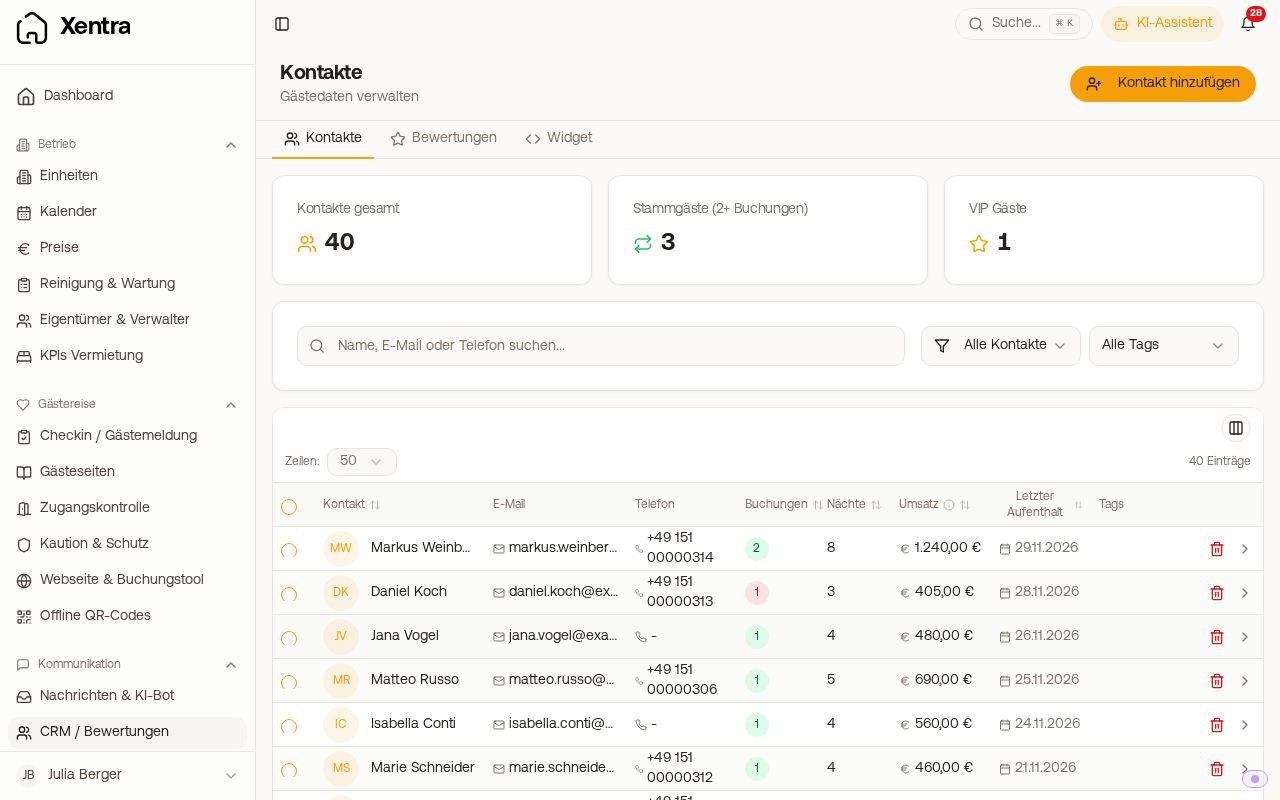 Contact list with statistics, filters, and repeat guests
The contact list
- At the top you see Total contacts, Repeat guests (2+ bookings), and VIP guests. Every contact with the tag "VIP" counts as a VIP.
- Search by name, email, or phone. Xentra finds the phone number in any formatting (with
+49, with0049, with spaces). - Filters: Repeat guests (2+), single bookings, without email, Newsletter: Yes, and by Tags. With Export, you download the filtered list as a CSV file.
- Via Add contact, you create a guest who has not booked yet.
- If you select multiple contacts, you can delete them together (the associated bookings are preserved) or Merge them into one contact (see below).
A contact in detail
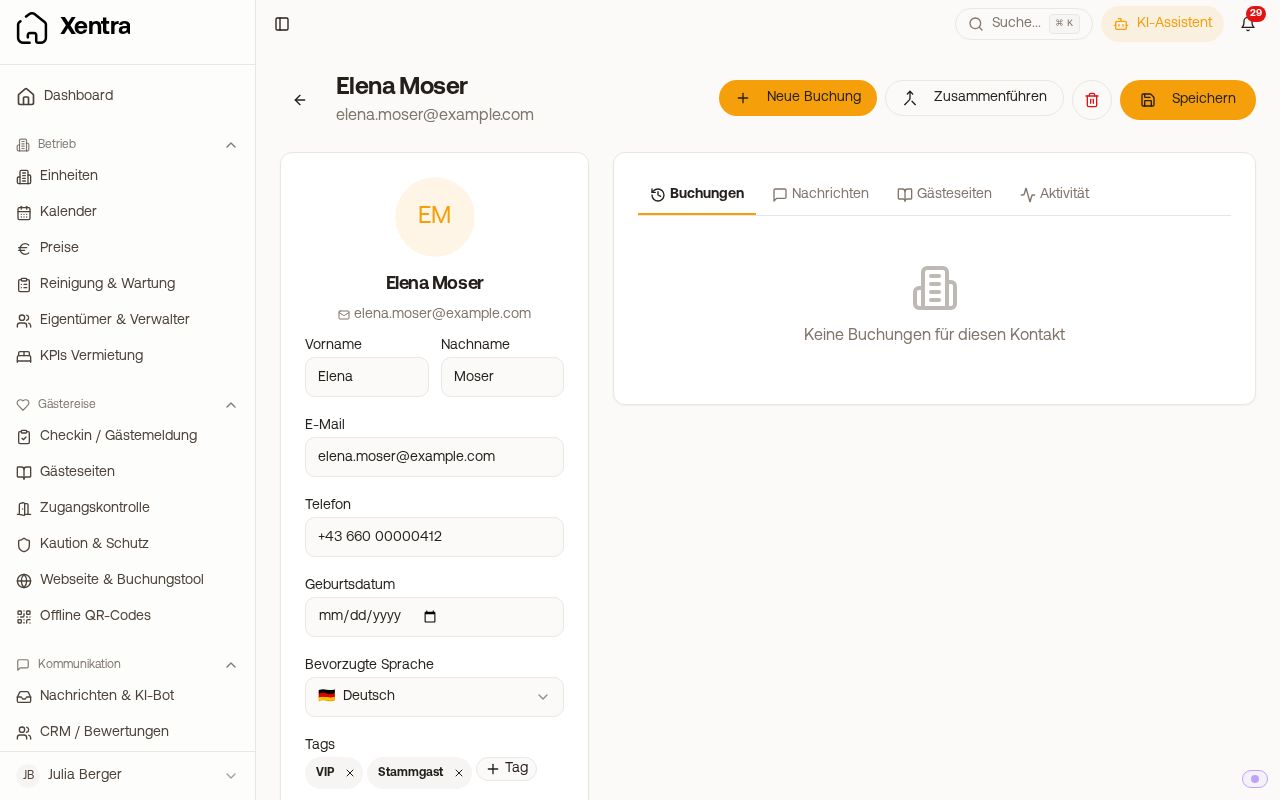 Contact page with master data, statistics, and the tabs bookings and messages
On the left are the master data: Name, email, phone, Preferred language, Address, date of birth, nationality, Tags, and Notes, plus nights, total revenue, and the average per stay. On the right you find the tabs:
- Bookings: all stays of this guest
- Messages: the message history from all bookings, with an input field to reply
- Guest pages: the guest guides that this guest received
- Activity: booking created, check-in, check-out, cancellation
- Reviews: only if this guest has reviewed you
If you change name, email, phone, or language, Xentra asks whether the new data should also be transferred to the linked bookings.
Mark guests you no longer want to accept
Open the contact, select the suggestion "Problem guest" under Tags (or your own tag), write the reason in Notes, and save. If a new booking comes in with the same email address, it attaches to this contact; you can see the tag and note when you click on the guest name in the booking. Xentra does not show a warning directly on the new inquiry or booking. For forwarded portal addresses (for example from Booking.com), a new contact is created every time without your tag.
Merge duplicate contacts
If a guest has multiple contacts (for example once with a private and once with a business email), you can merge them into one. This works in two ways:
- Multiple at once in the list: Select two or more contacts in the contact list and click Merge at the top. An overview of the selected contacts opens on the right. Select the contact you want to keep (preselected is the one with the most bookings), and confirm with Merge.
- A single duplicate contact: Open the contact you want to keep, click Merge, search for the duplicate contact, and select it.
In both cases, bookings, messages, and reviews move to the retained contact. What is already there stays; missing information such as email, phone, language, address, or company data is added from the other contacts, tags are merged, and notes are appended. If the AI bot was paused for one of the contacts, it remains paused for the retained contact. The other contacts are deleted afterwards. Their email addresses are not lost in the process: If a merged contact had a different real email address than the retained one, it will appear on the contact page under Other email addresses, directly below the email field. If a booking or email with this address arrives later, it lands with the retained contact, and the duplicate contact is not recreated. Forwarded portal addresses (for example from Booking.com or Airbnb) are not adopted because they are new for every booking. Newsletters are only sent to the main address. If you no longer need another address, you remove it with the X next to it; the next booking or email from this address will then create its own contact again. Merging happens in one step: Either it succeeds completely, or nothing changes.
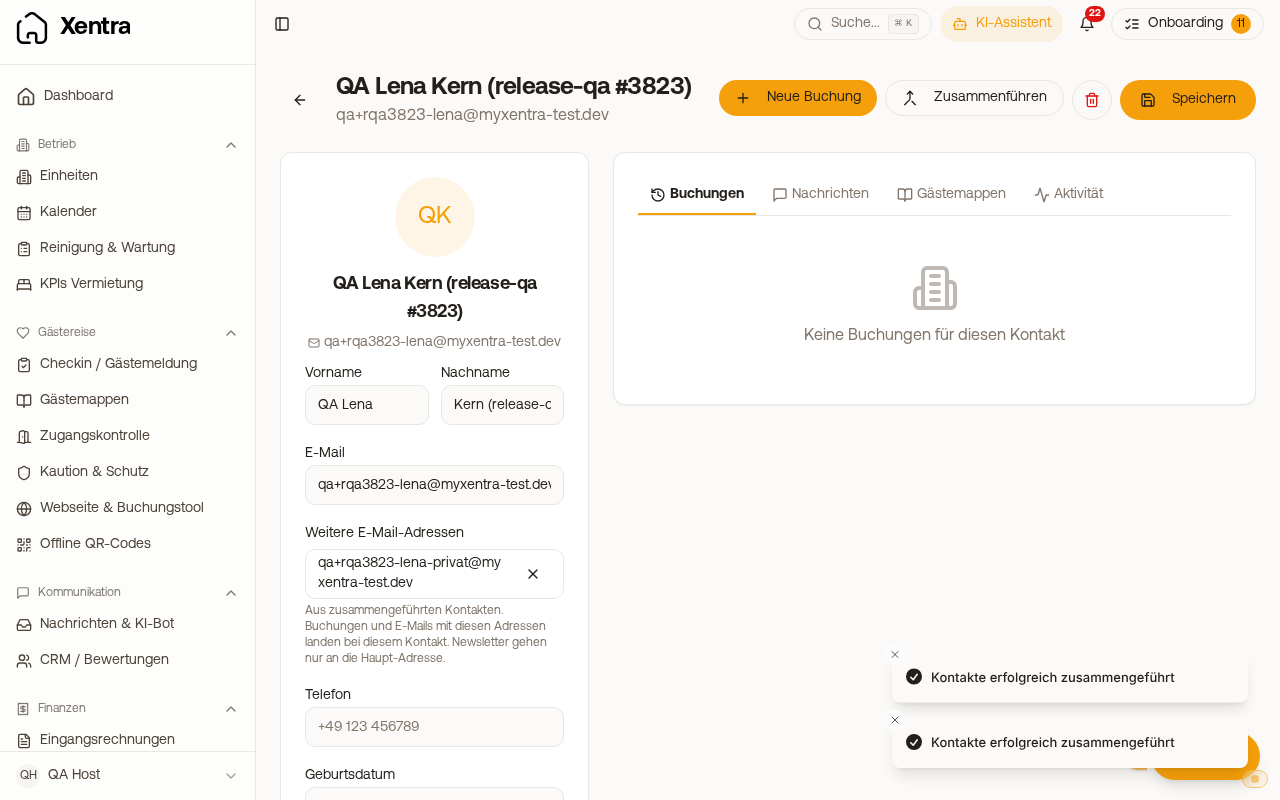 CRM / Contacts
Team members can merge if they are allowed to edit Contacts and reviews and all bookings of the merged contacts are in their units.
Newsletter consent
Whether a guest consented to your newsletter during check-in is listed on the contact page under Newsletter. Filter, export, and revocation: see "CRM: Newsletter consent and export".
Company data on the contact
For each contact, you can store Company name, VAT ID, and tax number. This data moves automatically: into the online check-in (the guest does not have to type it again) and onto the guest invoice. If a guest enters a company in the booking tool, it also lands on the contact.
Create booking directly from the contact
With New booking, you start a booking directly from the contact; name, address, and contact details are then pre-filled. Practical for repeat guests who book by phone.
What else is attached to the contact
- Travel documents from the online check-in, automatically transferred
- During the next check-in, the saved data is pre-filled, ID details however never automatically (see "Online check-in").
- Xentra adopts the Address from the booking to the contact if the portal supplies it.
Team members see the contacts with the permission Contacts and reviews.