
Templates in several languages: source language, translating and fallback text
Create a template in several languages, have it translated automatically, and set what a guest who speaks another language receives.
Updated on October 19, 2026
A template can exist in several languages. When sending, every guest receives the version in their language. You write the text once and have it translated, or you write each language yourself. The Xentra interface can be in German while you write the template itself in any language you want.
How to set up the languages
Open the template under Open templates. At the top of the editor:
- Source language: the language in which you write the text. With “Detect from the text”, Xentra sets it based on your text. If you write in Spanish, for example, set Spanish here.
- Languages: all the languages in which the template should be sent.
- “Translate all”: Xentra translates text and subject into all selected languages. Placeholders such as
{{guest_first_name}}remain unchanged in the process. - Each language gets its own tab. There you can check the translation and adjust it by hand.
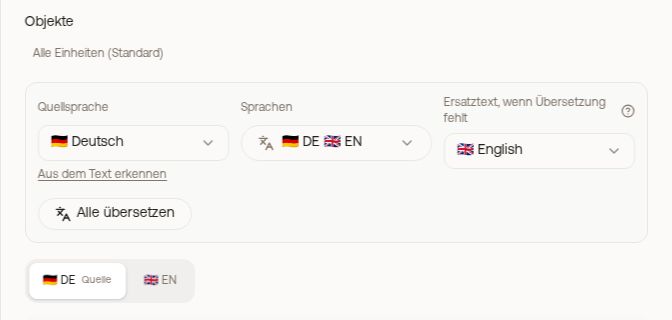 Source language, languages and “Translate all” in the template editor
Text changed, translations outdated
If you change the text in the source language without translating again, “Translations out of date” appears at the editor. When saving, Xentra asks: “Translate and save” or “Save anyway”. If you save anyway, guests in the other languages keep receiving the old version, including for messages that are already scheduled.
Guest speaks a language that the template does not have
For this there is a field per template “Text to use when a translation is missing”: you choose which of your languages is then sent, for example English. This only affects this template. Which language a guest has at all, and which fallback language applies to your whole account, you set in the messaging settings, see Languages: app language, guest languages and how guests are addressed.
Custom fields in several languages
You translate the values of your custom fields (for example a directions description) on the unit, see Custom fields as placeholders in messages. Fixed placeholders such as {{unit_address}} always return the same value.
WhatsApp templates
For templates that are held at Meta, these settings do not exist. Each language is a separate template at Meta and is approved there. You create further languages in the WhatsApp catalogue.
Guest pages and descriptions
You translate guest pages, unit descriptions and custom fields elsewhere, see Translations: keeping guest pages, descriptions and custom fields up to date.
Messages in the inbox
If you write to a guest directly in the inbox, you can have your message translated into their language there, see Translation in the inbox.