
Translation in the inbox
How guest messages are translated into your language and your replies into the guest's language, where you set this and what it costs.
Updated on October 25, 2026
You write in your language, and the guest reads in theirs. Xentra translates automatically in both directions.
The guest's messages
If a guest writes in another language, Xentra translates their message into your language. Under the guest's message, the translation then appears with the note “Translated”. The guest's text stays above it, in the original. Your language is your app language. You can change it at the bottom left, via your name.
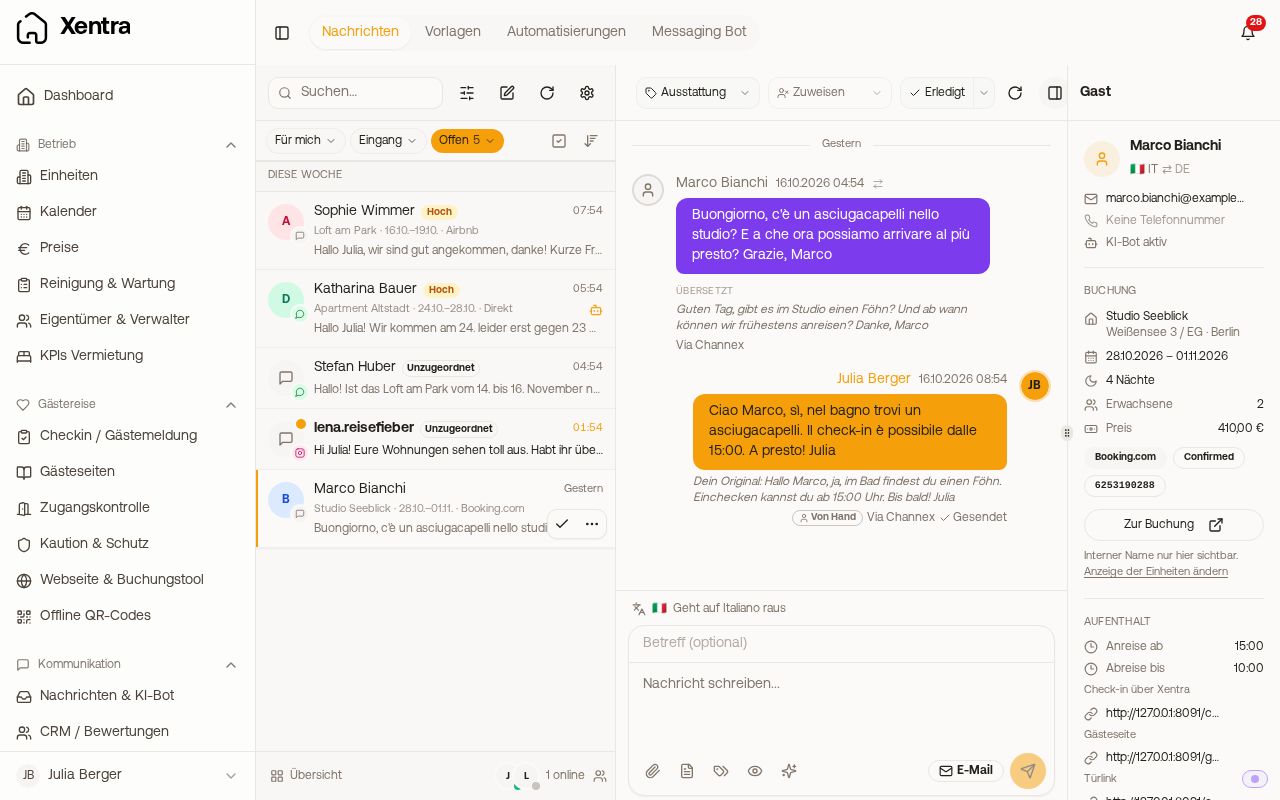 An Italian guest message with German translation in the inbox
- Messages in your own language are not translated.
- If a translation fails, it shows “Translation not available” with “Try again”.
- Translating incoming messages cannot be switched off. It also keeps running when your AI credits are used up.
- In a team, each message is translated once, into the language of the member who opens it first. Those who may only read see existing translations. New ones are created as soon as someone with write rights opens the conversation.
Your replies
If automatic translation is on (on by default), Xentra translates every outgoing message into the guest's language when it is sent: your replies from the inbox as well as templates. Above the message box, it then shows which language the message goes out in, for example “Goes out in Italiano”. In the history, under your message, you see “Your original” with what you wrote.
- If you write by email and enter your own subject, Xentra translates the subject together with the text. If you leave the subject empty, the guest gets a standard subject in their language.
- If the translation fails, the message goes out in your language, and Xentra tells you.
- If your AI credits are used up, it also goes out untranslated.
- Which language the guest has is decided by the booking. See “Languages: app language, guest languages and form of address”. You set the language of a single guest on the booking page, in the Messages tab, under Guest language.
Where you set this
Gear icon at the top of the conversation list → Translation (browser only). There you find your language and the switch for automatic translation of outgoing messages. The same switch is on the bot page under Style and applies to all outgoing messages, not only to the bot.
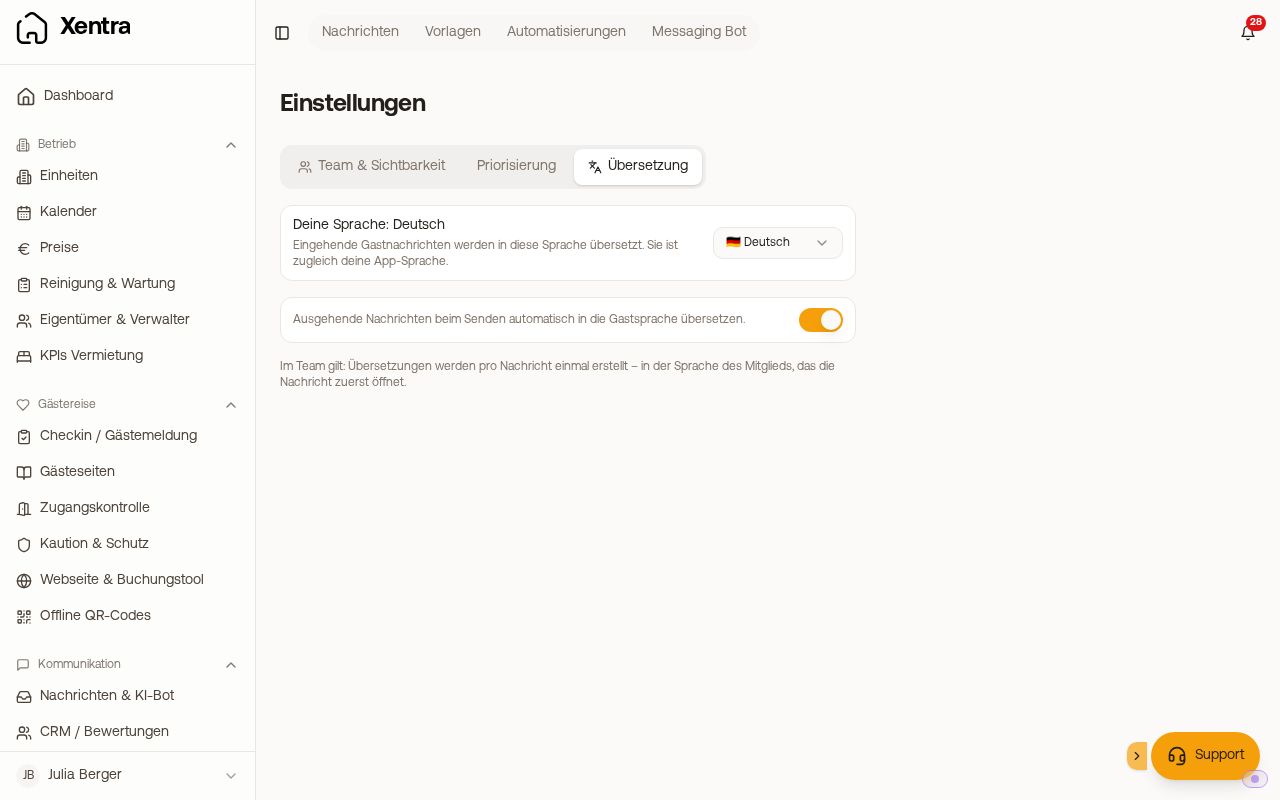 The messaging settings with the Translation section
Privacy and costs
Before translating, Xentra replaces email addresses, phone numbers, links and known names with placeholders and inserts them back afterwards. They do not go to the AI in plain text. Translations use AI credits from your allowance, see “AI features”.
By the way, the bot always writes its drafts in your language so that you can read them, and only translates when sending.