
Create and edit message templates
Create templates, limit them to properties, write subject and text with placeholders, live preview, AI, duplicating and WhatsApp templates.
Updated on October 19, 2026
Templates are the texts that your automations send and that you insert in the inbox with one click. You find them under Open templates, in the sidebar under Messaging & AI Bot, tab Templates.
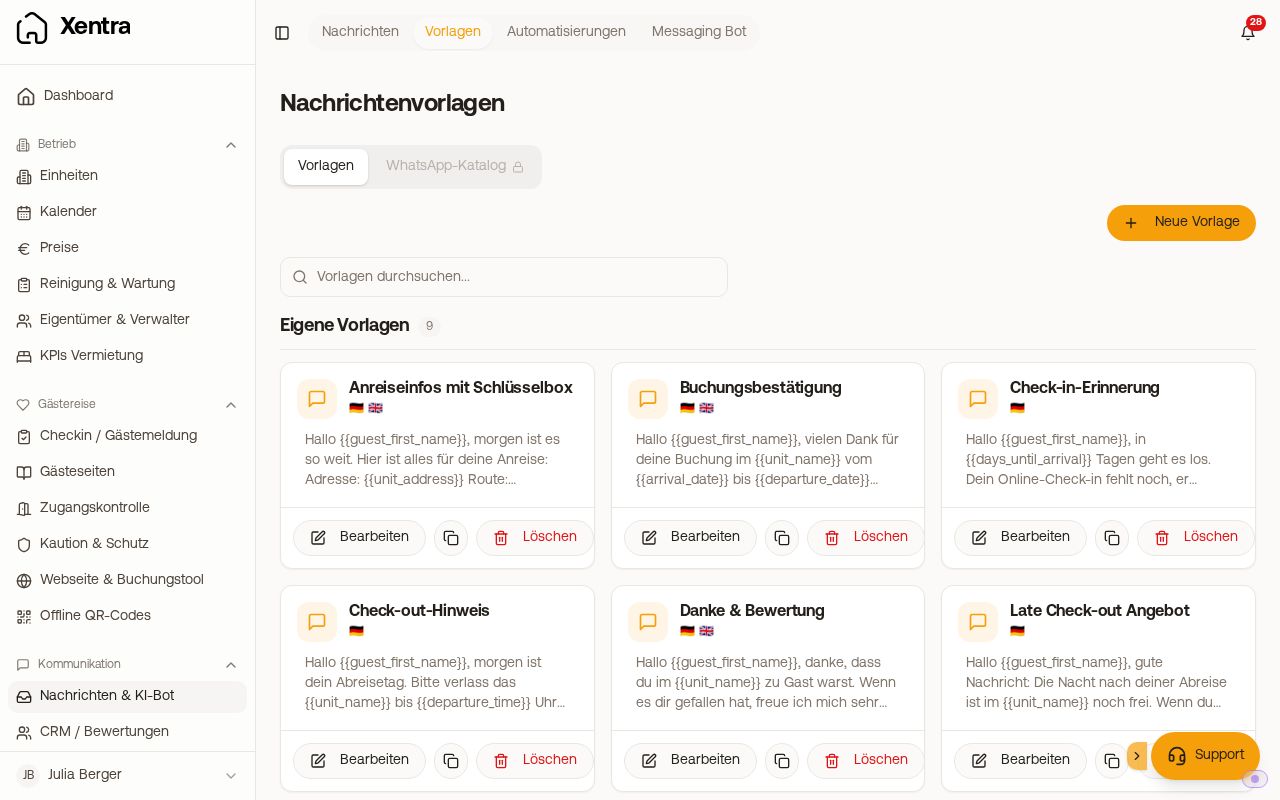 List of message templates
New template
- Click “New Template”.
- Give a name. The name is only for you and appears in automations and in the inbox.
- Under Properties define for which units, groups or hotels the template applies. Empty means “All units (default)”. Groups are resolved at sending, so a unit that you later add to a group is automatically included.
- Enter a subject. It is only sent with emails; other channels send no subject.
- Write the message text. With “Placeholders” you insert guest name, dates, links or codes, in the text or in the subject, depending on where your cursor is.
- “Save”.
With “Create with AI” you describe in your own words what the message should say, and get a finished text with placeholders.
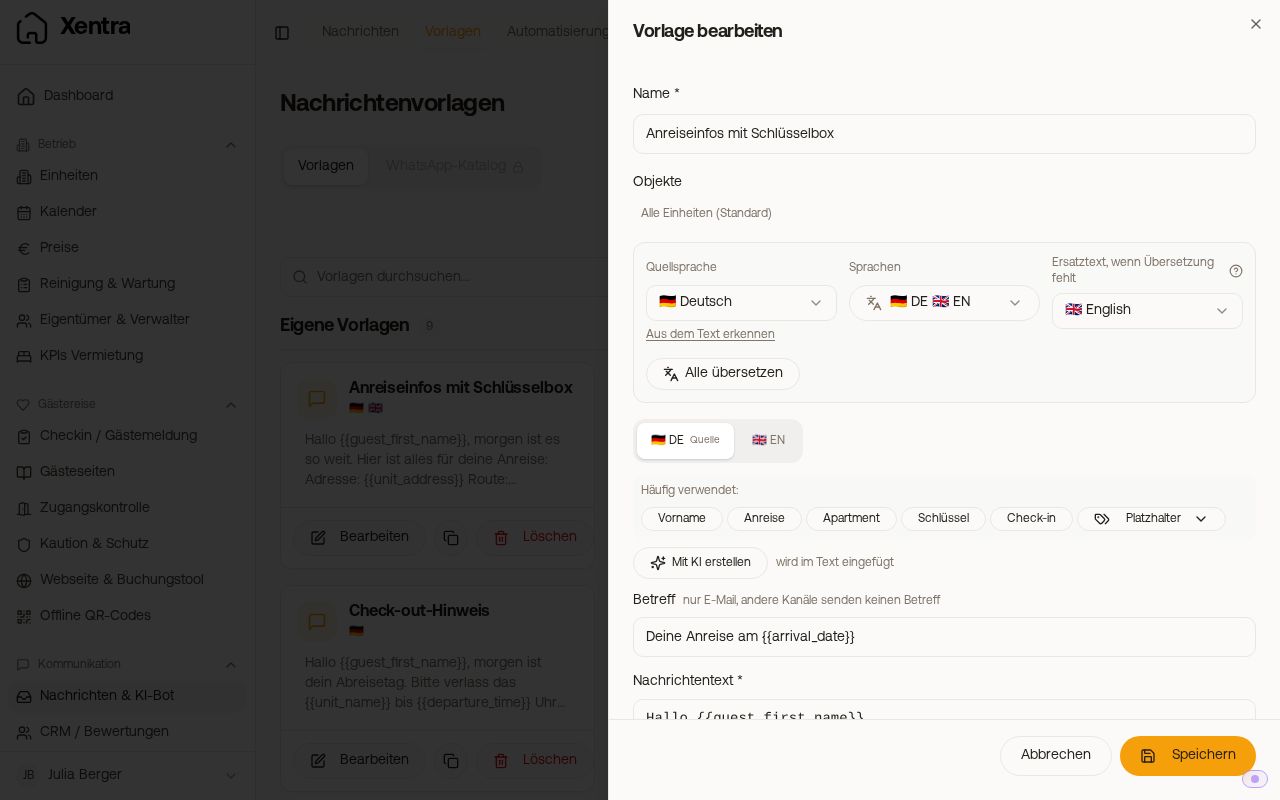 Template editor with languages, subject, text and live preview
Live preview
Under the text you see the message as a guest gets it, filled with the data of a real booking (“Real booking:” with guest and period; via the arrow next to it you choose another). More on this under Placeholders: preview, sending and check-in answers.
Languages
At the top of the editor you choose the source language and the languages in which the template should be sent. With “Translate all” Xentra translates your text into all selected languages. Details under Templates in several languages: source language, translation and fallback text.
Advanced
At the very bottom, collapsed under “Advanced”, is the switch “For several rooms, show the own fields of all rooms”. It is on by default and only affects bookings across several rooms; see Multi-room booking: one check-in and one message thread.
Duplicate and delete
In the list you copy a template with the copy icon (“Duplicate”); the copy is called “… (Copy)”. If scheduled messages still hang on a template, the delete dialog names their number: they are cancelled on deletion and not sent. Via the search “Search templates…” you find a template by name.
Think template and automation together
- A template that applies only to certain properties is not sent for other properties. The automation editor warns you if template and automation do not fit together.
- If you change a template, the new text also applies to messages that are already scheduled.
WhatsApp templates
Templates for WhatsApp via Meta are created in the tab “WhatsApp catalogue” and approved by Meta. In the list they appear under “WhatsApp templates (Meta)”, separate from your “Own templates”. For a Meta template you only set here for which properties it applies; you maintain the text and languages in the catalogue. The tab is greyed out as long as WhatsApp is not set up. How to create and submit Meta templates is described under Create and submit WhatsApp templates for Meta; see also Set up WhatsApp Business and WhatsApp templates: links as buttons.
Team members who may only view messages see the button “View” instead of “Edit”.