
Import Airbnb listings: via the channel connection
Import title, description, photos, and amenities of your Airbnb listings via the Channel Manager, what a co-host needs, and how to pull in updated photos.
Updated on November 12, 2026
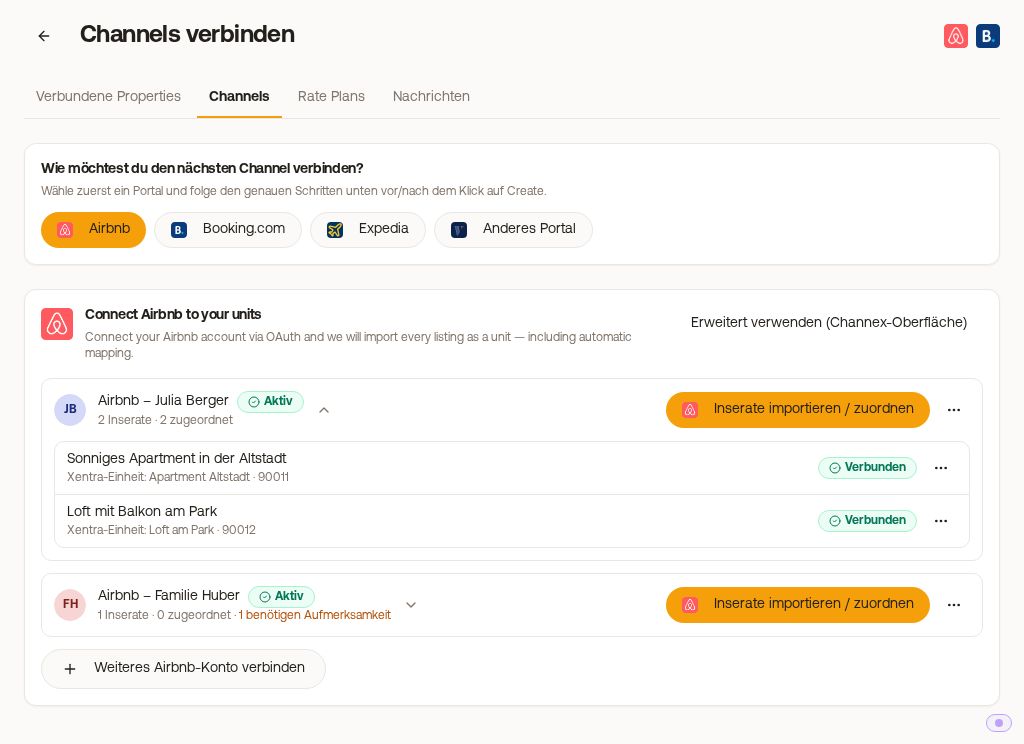
You import title, description, photos, and amenities of your Airbnb listings into Xentra together with bookings, calendar, and prices via the channel connection of the Xentra Channel Manager. Without this connection, you create the content on the unit itself: Open units, open unit, enter texts, and upload under photos.
Prerequisite: the correct Airbnb account
The connection is authorized via the Airbnb login and must come from the Airbnb account that owns the listing. A co-host access is not sufficient for this, no matter what permissions it has. If you manage listings for others, the owner must perform this single step once themselves, see "Connecting multiple Airbnb accounts, and why co-host access is not enough".
How to import the listings
- Integrations, Channel Manager, "Add Channel", Airbnb tile.
- If no account is connected yet: "Log in to Airbnb" and allow the connection in the Airbnb tab. If you already have one, select it under "Your Airbnb accounts". Later, you can also get there via the Portals view, Airbnb card, account menu (⋮), "Manage listings".
- Under "Pick the listings to connect", check the listings and specify where each listing goes: "Create as its own unit", an existing unit that is updated in the process, or a room type in a hotel. Each unit can only be connected to one Airbnb listing. With "Preview", you see beforehand what a listing brings along.
- "Fill existing units": this step only appears if you update at least one existing unit. "Only fill empty fields" keeps your values and only fills empty fields, "Overwrite" replaces them with the data from Airbnb.
- "Import". The progress is shown per listing, at the end "Import finished". What to do afterwards (prices, initial synchronization): see After the Airbnb import: import prices and synchronize.
When in doubt, choose "Only fill empty fields", so texts you maintained yourself are not lost.
Listings that have already been imported cannot be selected again; below the list it states how many are hidden. If a listing says "Connected - data missing", it is connected to a unit, but content was never imported. If you check it and import, you fetch the content into exactly this unit.
Connect a hotel listing to an existing room type
If you already have a hotel in Xentra with room types that are set up in Channex, you connect an Airbnb Hotel listing directly to one of them: in the selection field of the listing under "Existing room type in ", select the room type, for example "Double room · 12 rooms". Nothing new is created: Airbnb sells as many rooms as the room type has, and availability follows the room type. After the import, the listing shows "Connected · 12 rooms".
- One room type, one listing: if a room type is already selected, it is shown as "(already selected)" for the other listings.
- The listing must be a Hotel listing on Airbnb and must not allow more guests than the room type, otherwise Xentra rejects the connection and tells you what you need to change on Airbnb. If it has more than one bedroom, you get a hint: A hotel listing should describe exactly one room of the room type.
- If Airbnb shows more rooms for the listing than the room type has in Xentra, the import tells you both numbers. From then on, Airbnb sells as many rooms as the room type has. If rooms are missing in Xentra, you create them under units.
- Nothing is published in the process.
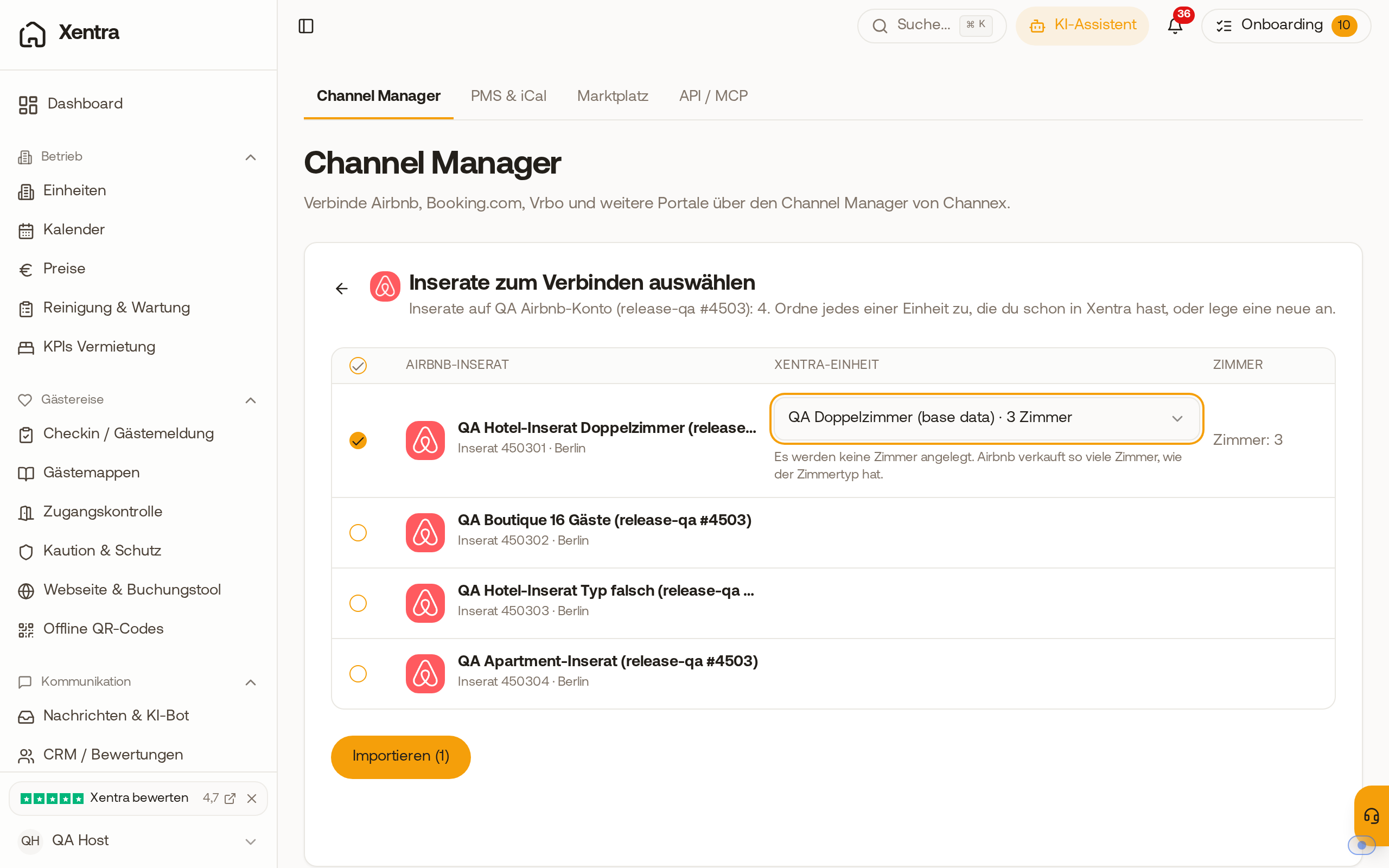 An Airbnb hotel listing is connected to the existing room type without creating new rooms.
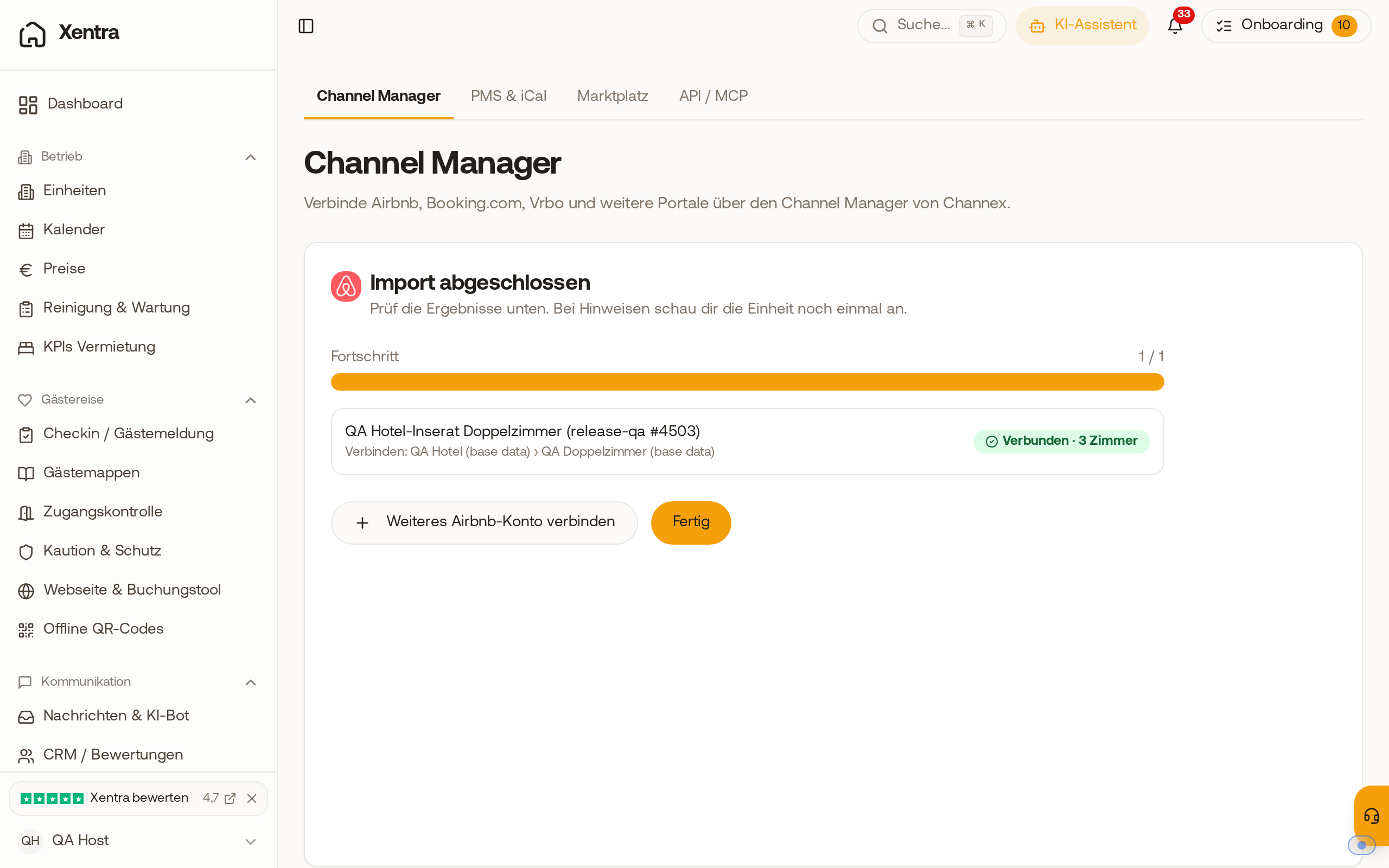 After the import, the listing shows "Connected" with the room count of the room type.
Airbnb listings that are not yet connected
If you create a new listing in your connected Airbnb account, Airbnb sells it even if Xentra does not know it. Xentra notices such listings: On the Airbnb card in the Channel Manager (Portals view), it then says "N listings not connected" with one line per listing. If Airbnb has already sold nights on one of them that Xentra does not know, it says in red, for example, "26 nights".
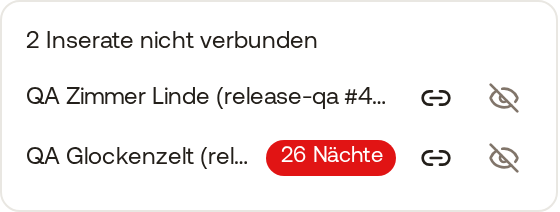 Unconnected Airbnb listings on the Airbnb card, sold nights in red.
- The chain icon ("Connect") opens the listings of this account. There you connect the listing to a unit or a room type.
- The strikethrough eye ("Not managed in Xentra") hides a listing that you consciously manage outside of Xentra. It is then no longer reported. Immediately afterwards, you can undo this with "Undo" in the message below.
- If a listing is online and not connected after 24 hours, you get a notification in the bell and an email, then once a week until you connect or hide it.
Pull in new photos from Airbnb
If you have replaced the photos on Airbnb, upload them in Xentra directly on the unit: Open units, open unit, section photos. There you add further photos and replace the main photo if needed. A listing that has already been imported cannot be imported again in the Channel Manager.
Airbnb content via Smoobu: does not work
If your account runs via Smoobu, bookings, calendar, and prices come from there, but listing content from Airbnb does not, Smoobu does not deliver it. If you want to import title, description, and photos from Airbnb, you need the dedicated Airbnb connection via the Xentra Channel Manager, or you enter the content on the unit yourself.