
Channex: Disconnect channels, map rooms, and minimum stay type
How to disconnect a channel or unit from Channex, map Booking.com rooms, and choose the right minimum stay type.
Updated on November 12, 2026
You connect the booking channels via the integrated channel manager Channex. You do not need a separate Channex account and do not pay a separate Channex fee; the connection is included in the Xentra Pro plan. Xentra creates property, room type, and rate plan automatically when connecting. Setup: Open Channel Manager.
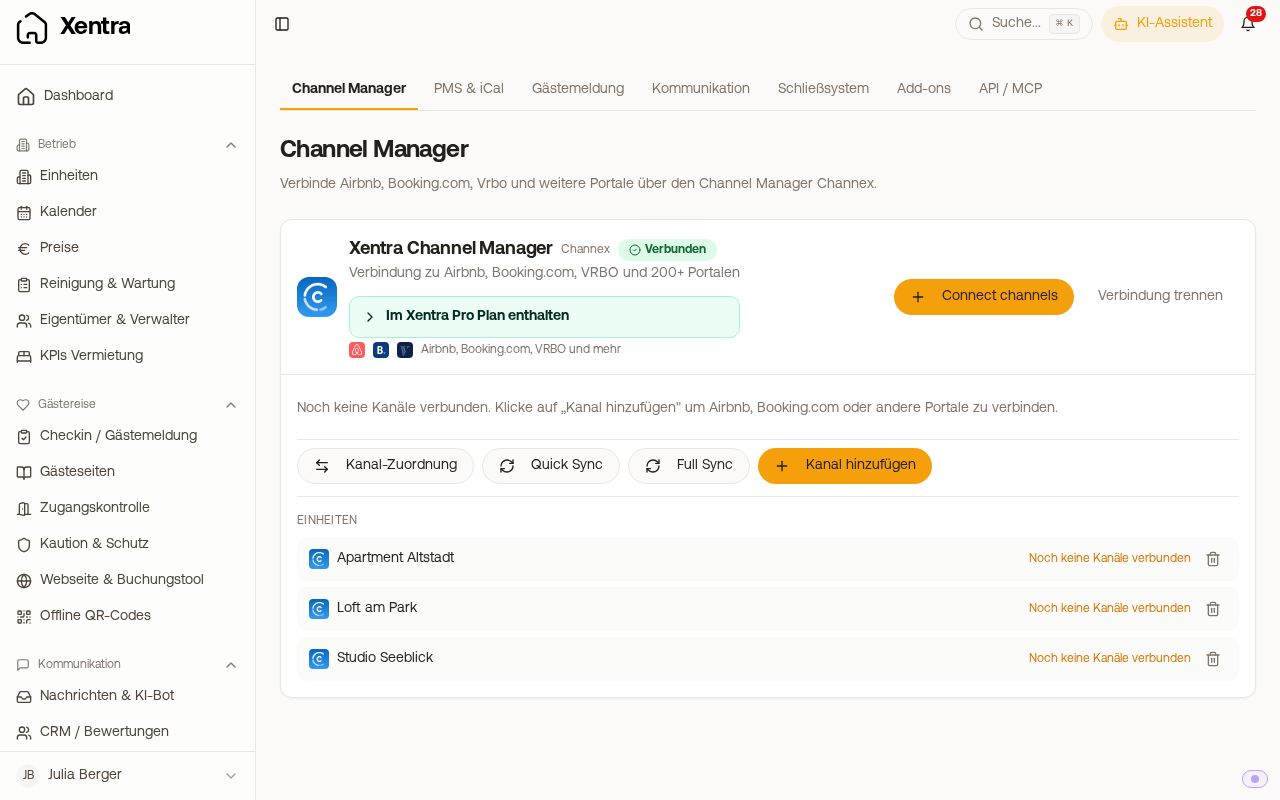 The Channel Manager tab under Integrations
Disconnecting a channel connection
Disconnecting is done at the channel, not on the unit: Open Channel Manager, Portals view, open the menu (⋮) on the channel's card for the connection, then “Disconnect this property” (Booking.com), “Disconnect this hotel” (Expedia, Feratel, Agoda), or “Disconnect” (Airbnb account). Only this connection is disconnected; others continue to run. If you only want to close temporarily, use “Pause” in the same menu (not for Airbnb).
Deleting a unit is the wrong way to do this: in doing so, the unit, its devices, prices, and settings are irrevocably lost, and its bookings remain only as history without a unit. This is how you remove a single unit from Channex: Open Channel Manager, Units view, in the unit menu “Disconnect unit”. The “Disconnect unit from Channex” dialog shows beforehand which links with Airbnb or Booking.com will be removed and how many future bookings exist. Bookings and the unit itself are preserved, other units on the same channel account continue to run. If a channel account has no units left afterwards, Xentra asks whether you want to disconnect it or leave it connected.
Room mapping
You define which unit gets which channel room, rate, or listing in the Channel Manager: Units view, on the unit “Room and rate mapping”, or Portals view, in the menu (⋮) of the connection. If you save there without making changes, Xentra sends the mapping to the channel again (“Send mapping again”). This only applies to channels via Channex, not to the properties of a PMS. You map those directly in the PMS connection, see PMS connections: what each PMS can do.
Connect Booking.com and Expedia
How to connect Booking.com and Expedia with the hotel ID, map rooms, and what “Booking.com pricing model” means for the hotel is explained under Connect Booking.com and Expedia via the Channel Manager.
Minimum stay type
Xentra only sends the minimum stay of the arrival day (“Arrival”) to the channels: It applies to bookings arriving on that day. Xentra sets the value for each individual day of a stay (“Through”) to 1 night so that a stay is not rejected just because a later night falls into a period with a higher minimum. You do not need to choose a minimum stay type when connecting. Why only the arrival day counts is explained in Minimum stay and buffer nights between bookings.