
Channel Manager: what it costs and how you set it up
The Xentra Channel Manager (Channex) is included in the Pro Plan, without a separate Channex account; this is how you connect it and what changes afterwards.
Updated on November 12, 2026
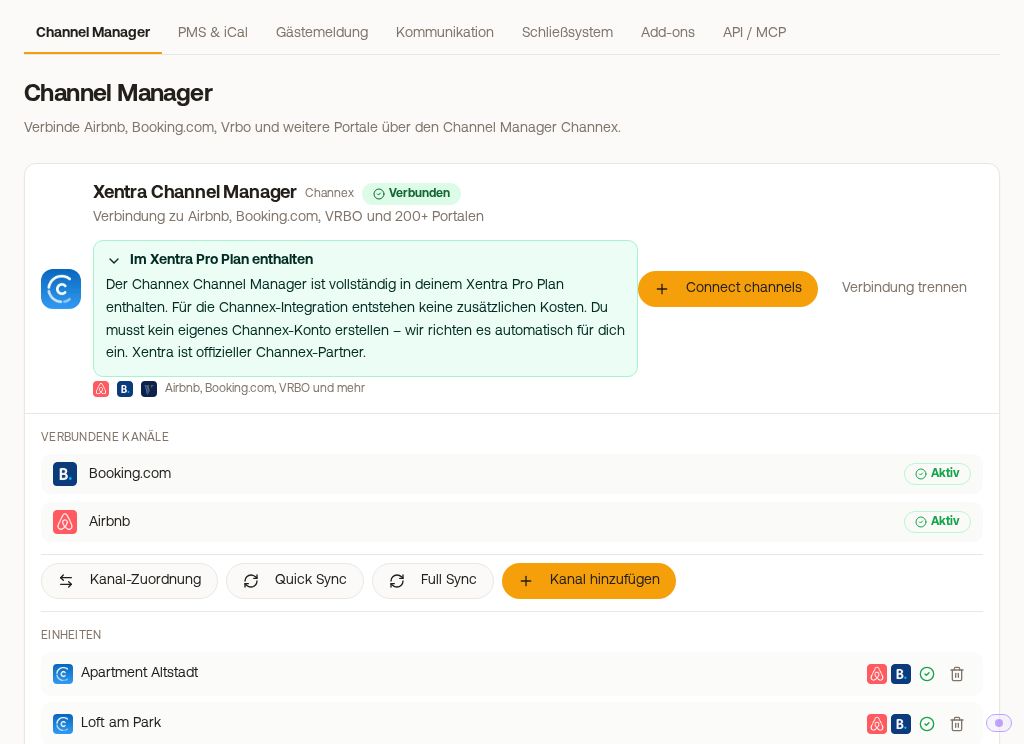
The Xentra Channel Manager connects your units with Airbnb, Booking.com, VRBO/FeWo-direkt, Expedia, and many other portals. Technically, it runs via Channex, a certified Channel Manager with whom Xentra works together as an official partner.
What it costs
- The Channel Manager is included in the Xentra Pro Plan. There are no additional costs for you for the Channex connection, not even for VRBO/FeWo-direkt or other portals.
- You do not need your own Channex account. Xentra sets it up for you automatically when connecting and creates your properties there.
- The portal commissions (Airbnb, Booking.com, and co.) are still billed directly between you and the portals.
How to set it up
- Integrations, Channel Manager, "Connect": Open Channel Manager
- Under "Before we connect your portals", accept the terms of use (Channex section). After that, choose your first portal under "Where is your property listed?".
- You can connect additional portals at any time via "Add Channel": Airbnb via Airbnb login, Booking.com, Expedia, and Agoda (Beta) with the hotel ID, Feratel with the code of your service provider, Vrbo (also FeWo-direkt) with your Vrbo login and a code that Vrbo sends via SMS to the account holder's mobile phone. After that, you map each Vrbo listing to a unit and go live. Bookings that are already on Vrbo are not imported by the connection, only new ones: they must be in Xentra before going live. For other portals (HRS, Holidu, Trip.com, and more), select "Other portal": This is a request, our team will get in touch and set up the connection with you.
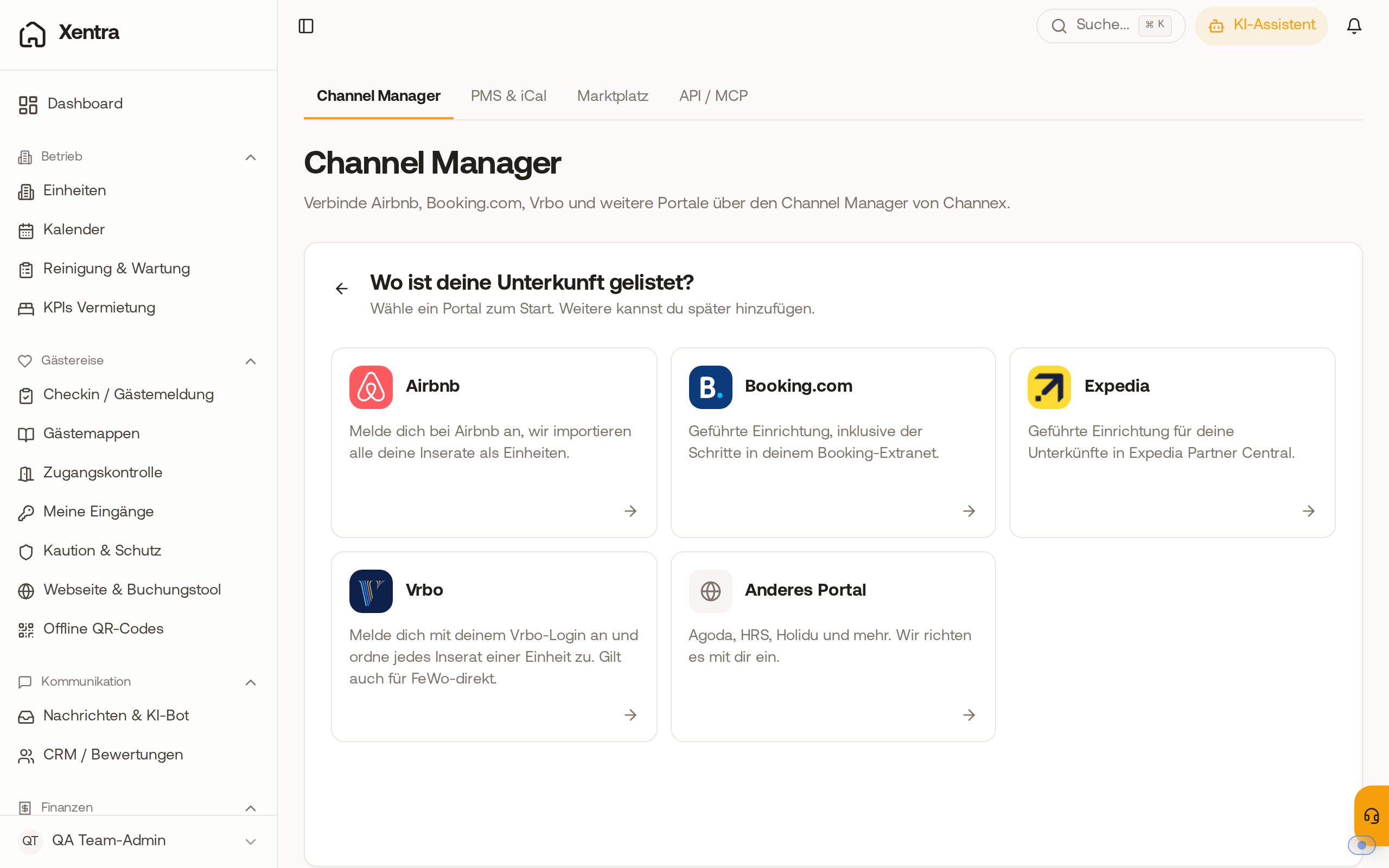 Add Channel in the Channel Manager: the Vrbo tile next to Airbnb, Booking.com, and Expedia. The steps are described in "Connect Booking.com and Expedia via the Channel Manager" and "Import Airbnb listings: via the channel connection".
The Channel Manager at a glance
At the top, you switch between two views. Units shows each unit with the portals on which it is sold; via its menu, you reach "Room and rate mapping" and "Disconnect unit". Portals shows one card per portal with all connections; via the menu (⋮) of a connection, you map rooms, start or pause them, or disconnect them. A connection that is not live yet shows "Not live yet" there with the "Go live" button.
What changes afterwards
- One calendar for all portals: You maintain prices and availabilities in Xentra under Pricing, they automatically go to every connected portal.
- Bookings come by themselves: New bookings land directly in Xentra with guest data.
- No double bookings: If a portal gets a booking, Xentra closes the period on all others.
- In the menu, Pricing appears, and on the pricing page, the Portal Surcharges tab.
- Synchronize manually: In the Channel Manager under "Synchronize", Quick Sync fetches new bookings immediately, Full Sync imports bookings and sends availability and prices to the portals again. Only one synchronization runs per account at a time: If you start a second one, for example in another tab, Xentra shows "A synchronization is already running for this account". Wait until the first one is finished, and then start again.
If your channel management was previously handled via another PMS (e.g. Smoobu), see "Replacing Smoobu: Xentra as a complete PMS".