
Connect Booking.com and Expedia via the Channel Manager
Step by step connect Booking.com and Expedia: allow Channex in the extranet, test Hotel ID, map rooms, go live, pause, and disconnect.
Updated on November 12, 2026
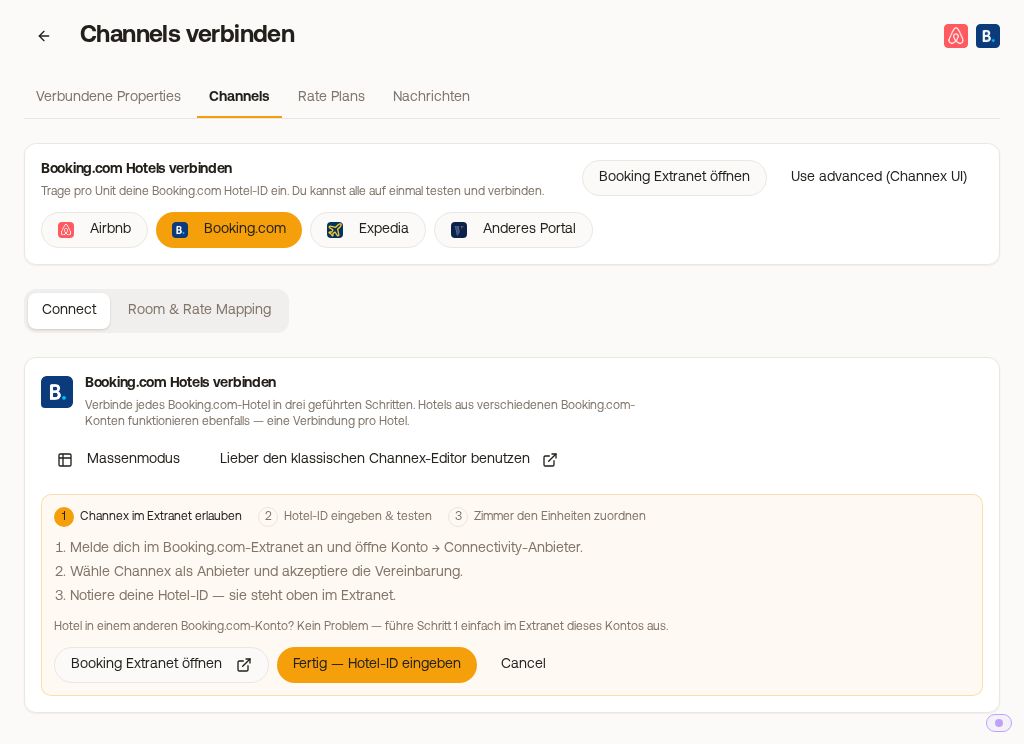
You do not connect Booking.com and Expedia via login, but with the Hotel ID of your property. First, you allow Channex in the extranet as a provider. Prerequisite: the Xentra Channel Manager is connected (see "Channel Manager: what it costs and how to set it up").
You start under Integrations, Channel Manager, "Add Channel", tile Booking.com or Expedia: Open Channel Manager
Booking.com in three steps
- Allow Channex in the extranet: Log in to the Booking.com extranet, open Account, Connectivity provider, select Channex as the provider, and accept the agreement. "Open Booking extranet" takes you there.
- Enter Hotel IDs and test: Under "Add your Hotel IDs", enter the Hotel ID of each property you want to connect. It is the number at the top of the extranet next to the property name (e.g., 1358216). With "Add another Hotel ID", you connect several at once; apartments, houses with multiple units, and hotels go into the same list. "Test all" shows Found with the number of rooms or Not found for each ID: then check the ID and whether Channex is selected as provider in step 1; activation can take a few minutes. If Booking.com reports no rooms, the ID is usually wrong (room IDs in the extranet start with the Hotel ID: room 1234567801 belongs to hotel 12345678), or rooms with at least one rate plan are missing in the extranet.
- Map rooms to your units: For each Booking.com room, select a Xentra unit under "Select unit" or "Create a new unit". Each room needs its own unit. Multiple apartments as separate rooms under one Hotel ID remain normal units (see "Multiple apartments under one Booking.com Hotel ID"). You only need a hotel with categories if Booking.com sells identical rooms as one room type with a quantity ("Set up as a hotel with categories"). The rates of a room (flexible, non-refundable, with breakfast) all get the price of this unit. Set up a discount for the non-refundable rate in the extranet as a derived rate. Booking.com deletes your minimum stays when connecting; Xentra then sends them back from your settings.
After that, Xentra asks "Ready to go live?". Check the mapping and click "Go live now", only then bookings and prices start running. If you skipped going live or paused the channel, you will find the "Go live" button in the Channel Manager on the Booking.com card and for each affected unit ("Not live yet" or "Paused"). If you enter the Hotel ID under "Add Channel" again, "Go live" takes you directly there.
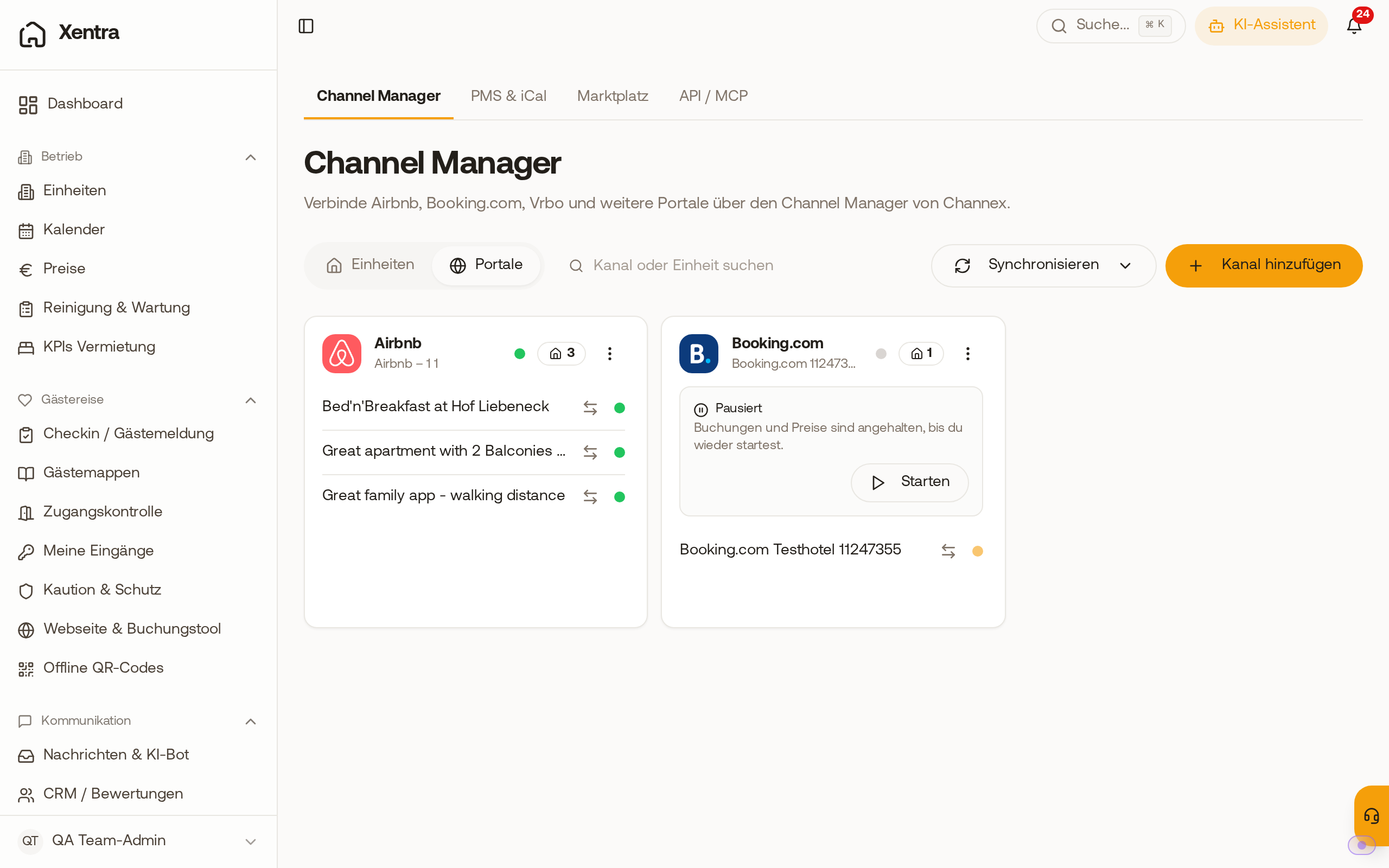 A paused Booking.com hotel shows "Paused" on its card with the button "Go live". If an apartment of this hotel does not have a Booking.com markup yet, Xentra asks for it when going live: enter it for each apartment (0% if the price should stay the same) and click "Save and go live". You can also set it up beforehand under Pricing, "Portals" tab, and transfer it to all apartments with "Copy to others". You connect additional hotels with "Connect another property".
Expedia
The process is the same:
- Request connection in Expedia: In Expedia Partner Central, open Rooms & Rates, Connectivity settings, select Channex as the connectivity provider (for content and bookings), and approve via two factor verification. Note your Expedia Property ID.
- Enter Hotel ID & test. If the test takes too long, the connection is usually still active, you can continue with "Continue anyway".
- Map rooms to your units (the unit selling each rate), save, and "Go live now". When going live, Xentra also imports future reservations.
Vrbo / FeWo-direkt, Agoda, and other portals
Agoda has its own guided setup with Hotel ID, see Connect Agoda via Channel Manager (Beta). Vrbo (also FeWo-direkt) has its own tile under "Add Channel": you log in with your Vrbo login, confirm with a code via SMS, and map each listing to a unit (see "Channel Manager: what it costs and how to set it up"). For other portals (HRS, Holidu, Trip.com, and more), select "Other portal": this is a request, nothing is connected yet. Our team will get back to you, usually within one business day, and set up the connection with you.
Booking.com pricing model
Which pricing model Booking.com uses for your hotel, what it means for your prices, and what applies to single occupancy can be found in Booking.com: pricing model of your hotel and single occupancy.
After connecting
- Prices and availability will come from Xentra from then on (see "Who sets the price when a portal is connected via Channex"). Check before going live that prices are saved for the units, otherwise the days remain closed on the portal.
- Derived rates in the extranet (monthly, weekly, mobile rates) do not adopt your minimum stay, see "Booking.com: derived extranet rates ignore your minimum stay".
- Pause or disconnect: in the menu (⋮) next to the hotel. "Pause" pauses synchronization, "Disconnect this property" (Booking.com) or "Disconnect this hotel" (Expedia) removes only this hotel. Afterwards, also remove Channex in the extranet of the hotel.
- Retrieve missed bookings: on Booking.com in the same menu "Pull future reservations".
If Booking.com or Expedia blocks access, this is shown at the hotel. What to do then: "Property is closed / not bookable on the portal".