
Connect TTLock and door codes
Connect TTLock with the login details of the TTLock app, door code per booking on every door of the unit, what to do in case of a code conflict.
Updated on November 12, 2026
TTLock locks (including locks sold under other brands that you manage in the TTLock app) are opened by your guests via their Access link, and every booking automatically gets its own door code on the keypad.
Prerequisites
- Your lock is set up in the TTLock app.
- For remote opening and for door codes created by Xentra, the lock needs a Gateway (the Wi-Fi bridge from TTLock) that is online.
Connect
- Access Control → Settings tab → Add Provider → TTLock.
- Enter TTLock Username (email or phone number) and TTLock Password, which means the login details of your TTLock app, the account where your locks are located. The TTLock Open Platform account (the one with a client_id) does not work, and you do not need a client_id. Optionally a connection name.
- Connect. Xentra shows you how many locks it found.
- In the Devices tab, assign each lock to its unit. A main entrance door that belongs to multiple apartments is assigned to all of these units.
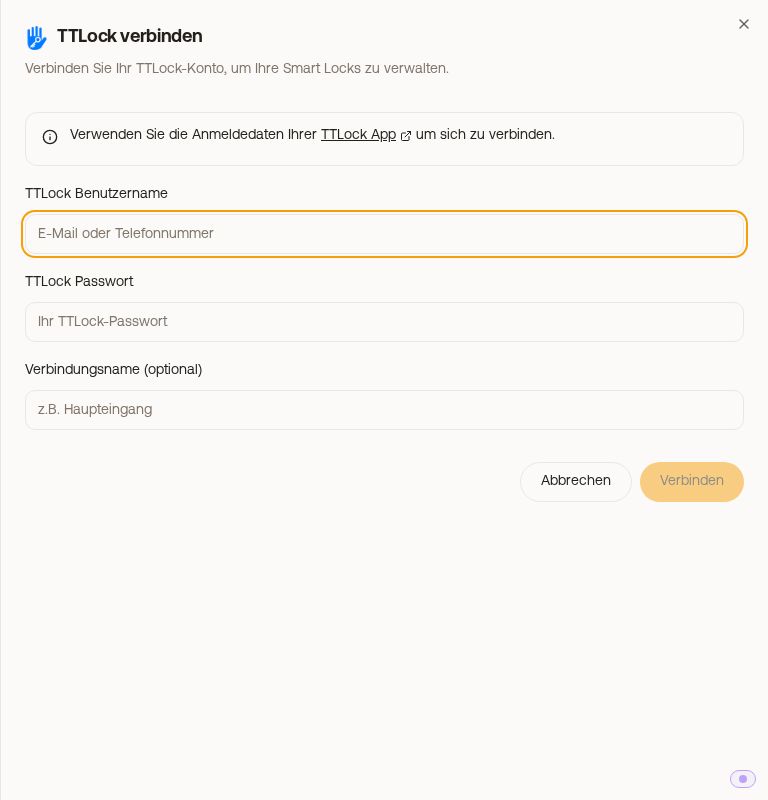 Window connect TTLock with username and password
Door code per booking
- Xentra creates the code immediately when a booking comes in if the booking arrives via a connected channel, the booking widget, the calendar or the API. Otherwise at the latest 3 days before check-in.
- The code goes onto every TTLock door of the unit, including a main entrance door that you have assigned to multiple apartments. All doors receive the same number.
- If you assign a door later, guests who are already there or arriving in the next 3 days automatically receive the code on this door as well, later bookings as soon as their arrival gets closer.
- The code is valid during the access period of the booking (standard access times) and is deleted after check-out. If you change the period of a booking, this is passed on to the lock. If you extend the access period of a booking beyond departure, the code remains valid until the new end.
- A Request that you have not yet accepted does not get a code on the lock yet. As soon as you accept it, it follows automatically.
- In messages, you insert the code with
{{xentrattlockcode}}.
In the Devices tab
Expanded, a TTLock lock shows whether a keypad was detected, and you can lock and unlock it from Xentra. In the guest's Access link, open, unlock and lock appear; which of these are visible is defined under Settings → Access link.
If something gets stuck
- If there is already another code with the same digits on a door (for example created in the TTLock app), the door is listed under Action required. Delete the other code in the TTLock app, Xentra will then try again automatically.
- Code does not reach the lock: Xentra first tries several times in short succession, then every 6 hours; from 24 hours before the access period until 24 hours after, every 30 minutes.
- Action required tells you what the issue is and what to do: "The TTLock gateway cannot reach this lock" (check power and Wi-Fi of the gateway and whether it is close enough to the lock; if urgent, create the code on site in the TTLock app via Bluetooth), "The lock is not connected to any TTLock gateway" (connect to a gateway in the TTLock app), "The TTLock gateway was busy" (do nothing, Xentra will try again shortly) or TTLock reports the code as already existing, but does not list it anywhere (test code at the door; if it opens, you can hide the entry).
- TTLock says username or password is incorrect: check in the TTLock app which email or phone number you are logged in with, and use exactly those login details.
- Read more in Door code missing or not on the lock.